How Do I Get An Electronic Signature In Word
How Do I Get An Electronic Signature In Word: Your Ultimate Guide
If you've ever found yourself needing to sign an important document but don't want to go through the hassle of printing, signing by hand, scanning, and emailing it back—you are definitely not alone! Digital documents require digital solutions, and knowing How Do I Get An Electronic Signature In Word is a crucial skill for modern professionalism.
The good news is that Microsoft Word offers several simple, quick, and efficient ways to add your signature, whether you need a formal, legally recognized digital ID or just a quick graphical representation of your John Hancock. This comprehensive guide will walk you through the three best methods, ensuring you can sign any document right from your computer.
Why Electronic Signatures Are Essential Today
In the age of remote work and paperless offices, electronic signatures (e-signatures) have become more than just a convenience—they are a necessity. They speed up workflow, reduce costs, and, when implemented correctly, maintain legal validity.
Here's why you should ditch the printer and embrace e-signing:
- Efficiency: Documents are signed and returned within minutes, not days.
- Cost Savings: Eliminate expenses related to paper, ink, postage, and storage.
- Security: Modern digital signatures often offer authentication and tamper-proofing features traditional wet signatures lack.
- Accessibility: Sign documents from anywhere in the world using your device.
Method 1: The Built-in Signature Line Tool (The Formal Way)
If you are asking How Do I Get An Electronic Signature In Word that looks professional and integrates cleanly with the document structure, the Microsoft Signature Line tool is your best bet. This method is often preferred for contracts or formal internal documents.
Step-by-Step: Adding a Signature Line
Adding the designated signature area is simple. This creates a placeholder that looks official and prompts the signer (which may be you, or someone else) to provide their information.
- Open Your Document: Place your cursor where you want the signature line to appear.
- Navigate to Insert: Go to the "Insert" tab on the Word ribbon.
- Find the Signature Line: In the "Text" group, click the "Signature Line" button (it usually looks like a pen over a line).
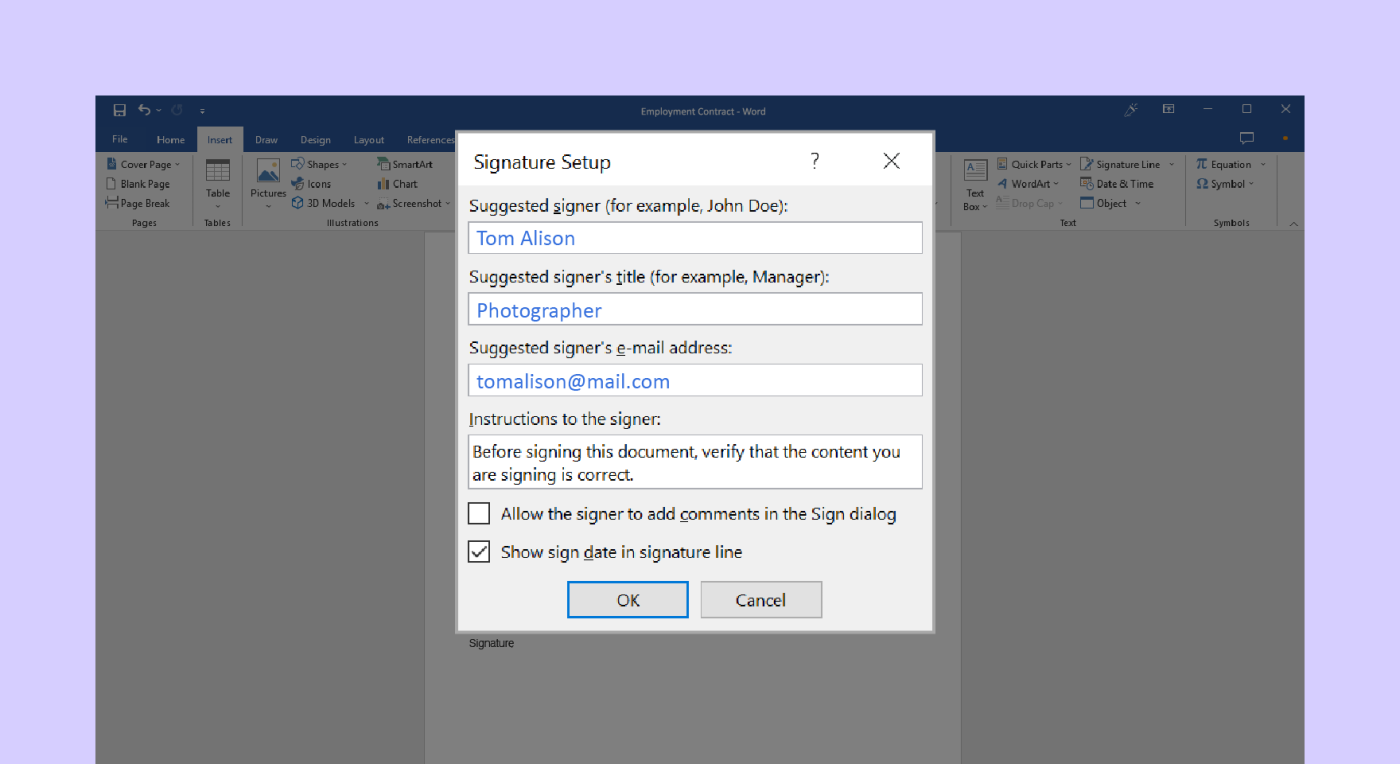
- Configure the Setup: A dialog box titled "Signature Setup" will appear. Here, you can enter the requested information:
- Suggested signer (e.g., "John Doe")
- Suggested signer's title (e.g., "CEO")
- Suggested signer's email address
- Optional Settings: You can check boxes to allow the signer to add comments and to show the date in the signature line. Click "OK."
A professional-looking signature line now appears in your document, ready for signing.
Signing the Document Digitally
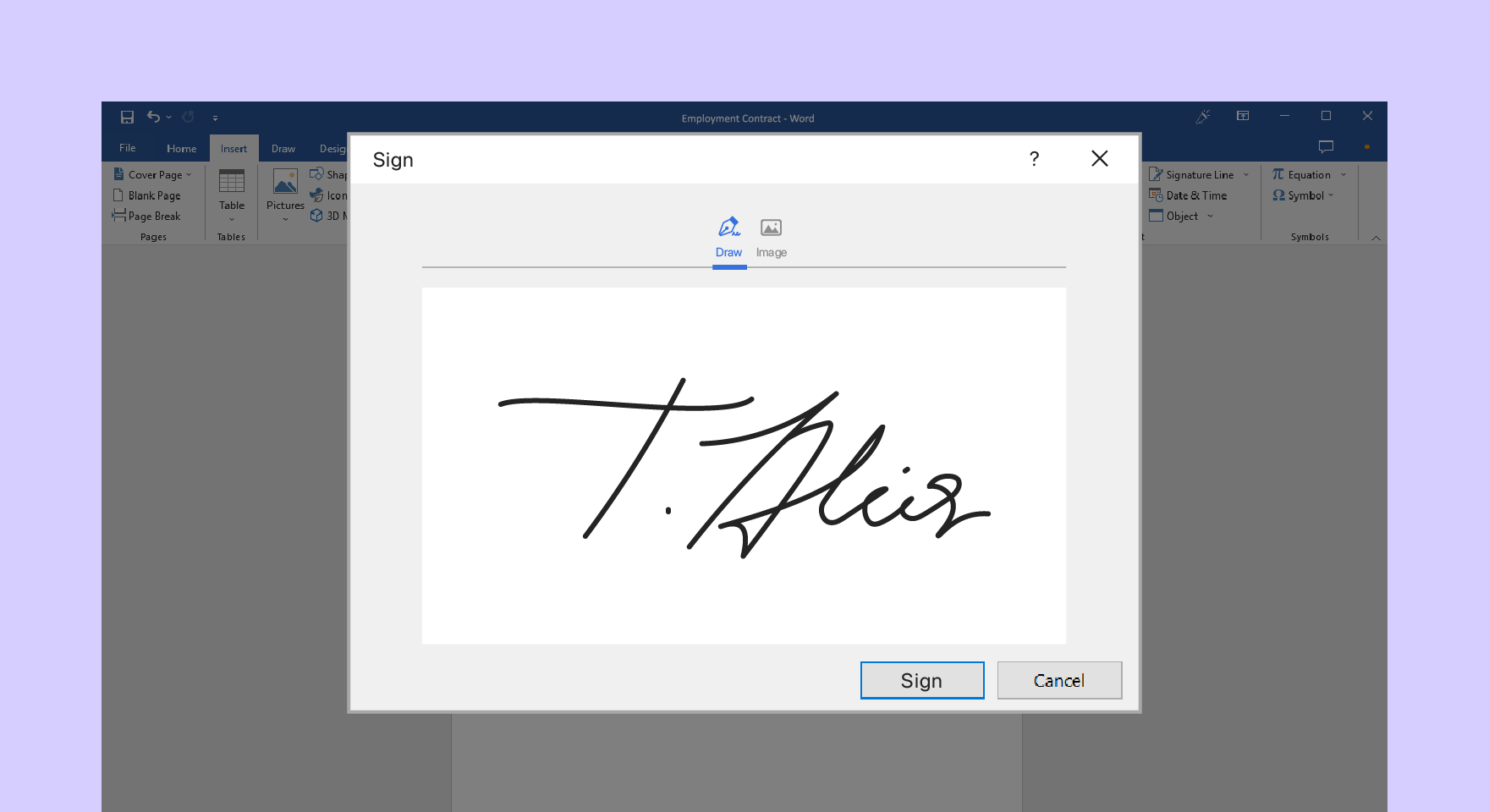
Once the line is in place, the signing party can double-click the signature line to open the "Sign" dialog box. This is where you actually get your electronic signature into Word.
The signer has three primary ways to sign using this tool:
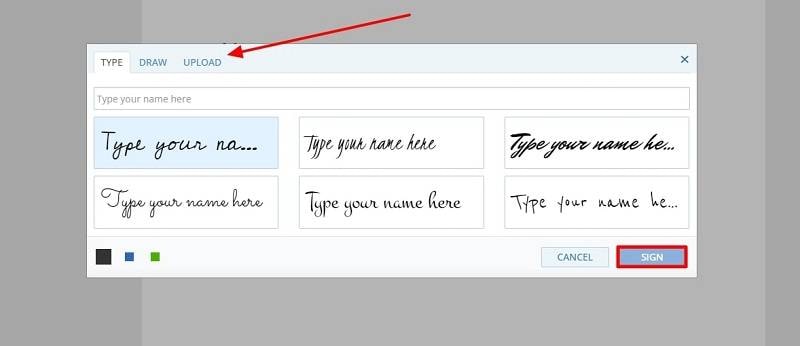
Typing Your Name
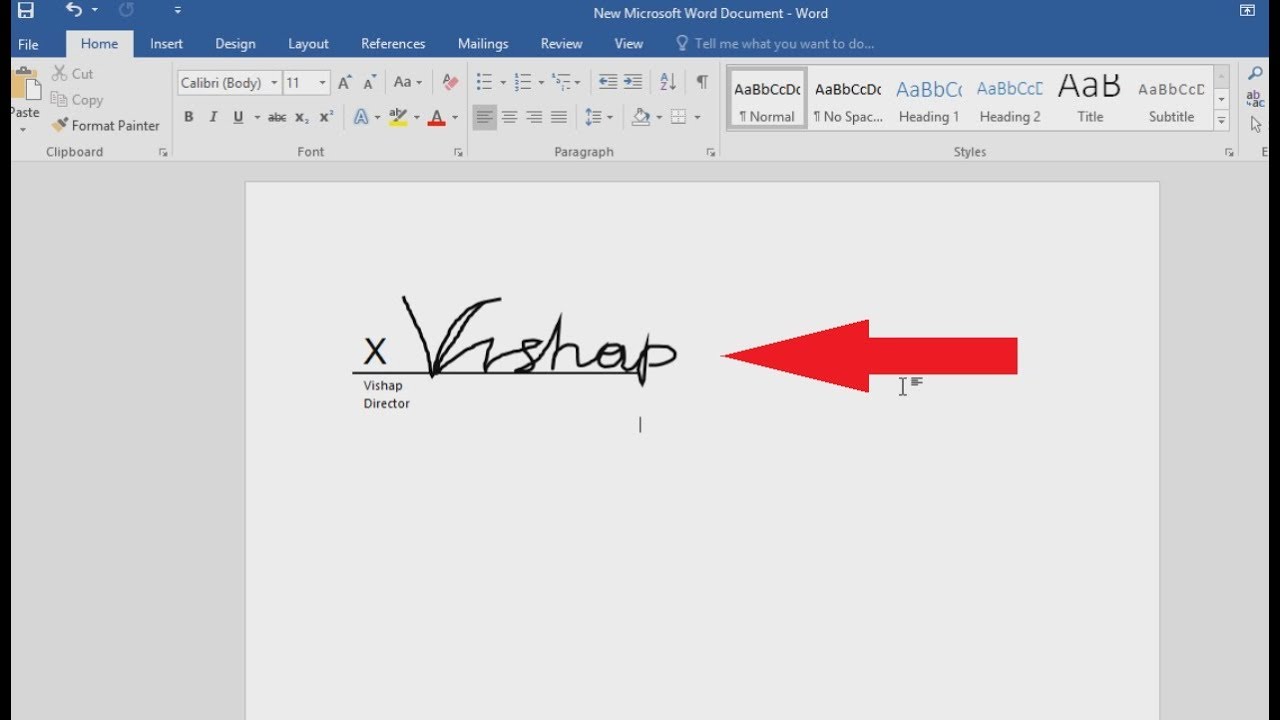
Simply type your name in the box next to the 'X'. Word will display your name in a handwritten font, fulfilling the basic requirement for a typed e-signature.
Inserting an Image
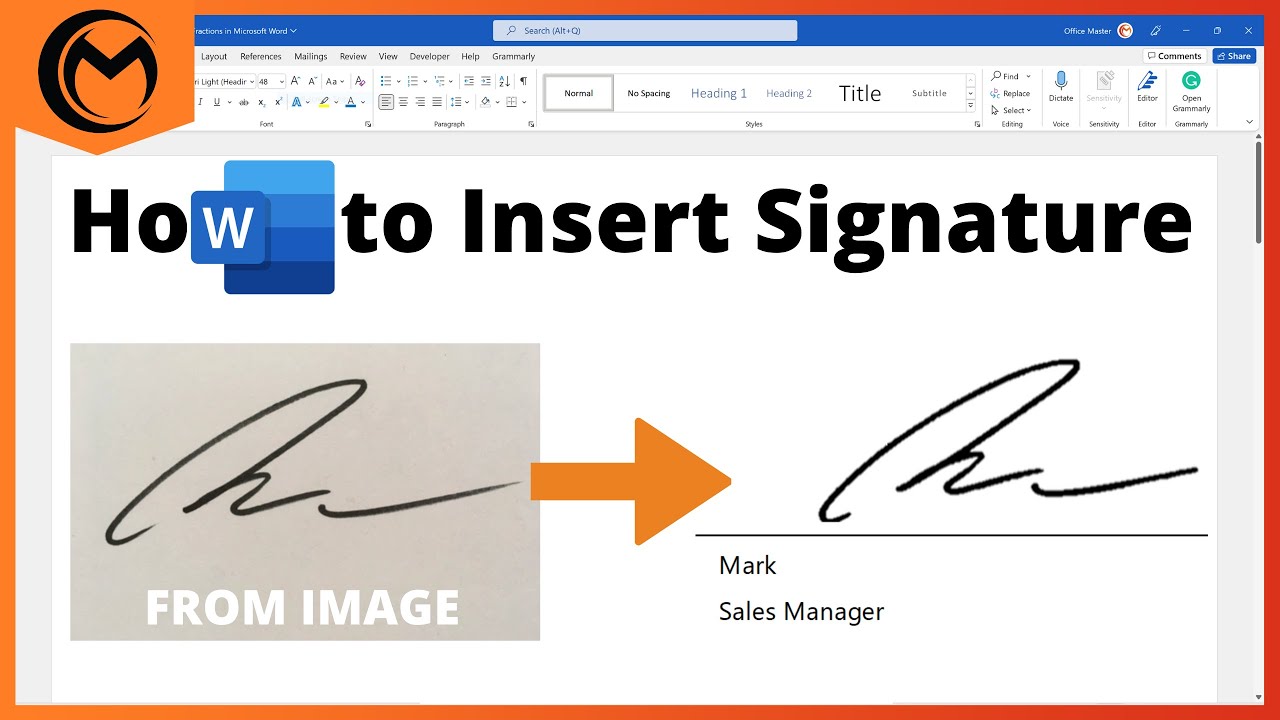
If you already have a scanned image of your signature, click "Select Image" in the Sign dialog box and upload the file. This makes the signature look exactly like your wet ink version.
Using a Digital ID (For Security)
For high-security documents, you can obtain a verifiable Digital ID from a trusted third-party certificate authority. Word can use this ID to cryptographically sign the document, proving your identity and ensuring the document hasn't been altered since signing.
Method 2: Inserting a Hand-Drawn or Image Signature (The Quick Way)
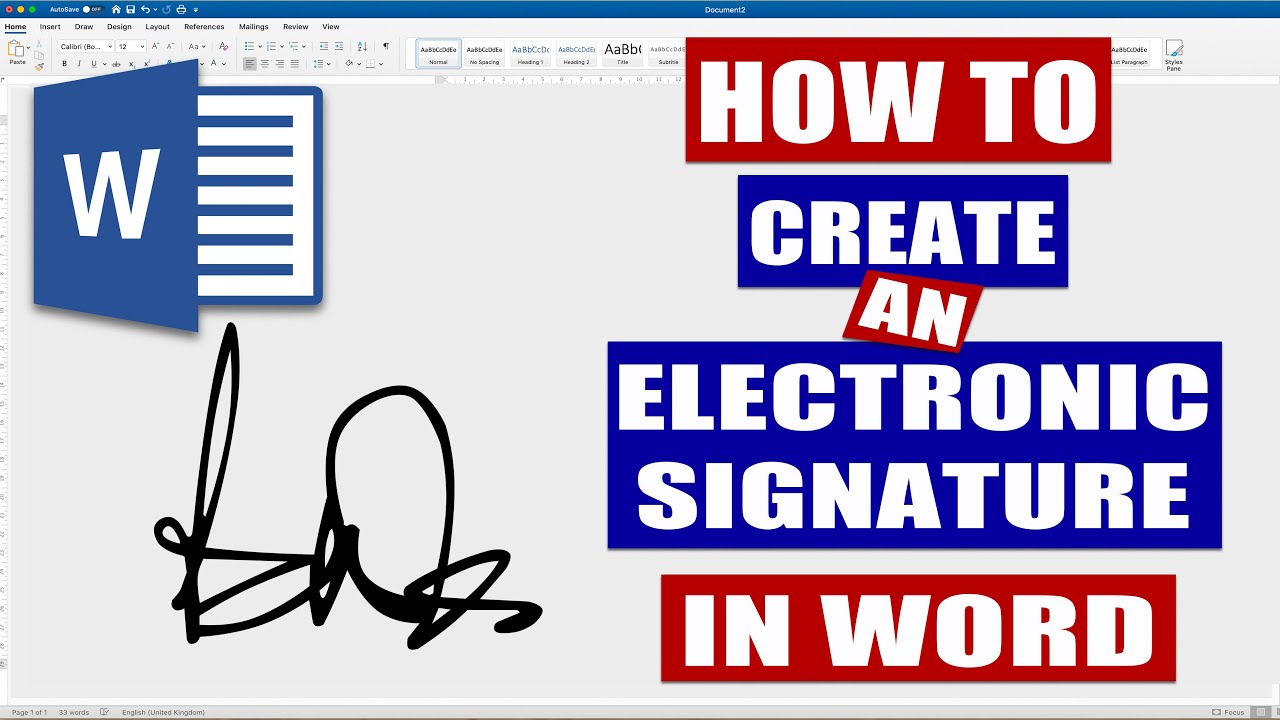
Often, you don't need the formal structure of a Digital ID—you just need a visual representation of your signature that you can easily move and resize. This is the most common answer to How Do I Get An Electronic Signature In Word quickly for everyday documents.
Preparing Your Signature Image
Before you can insert the image, you need to create it. There are a couple of popular methods:
- Sign on Paper: Sign a plain, white piece of paper clearly using a black or dark blue pen.
- Capture the Image: Use your phone camera or a scanner to take a high-quality picture of the signature.
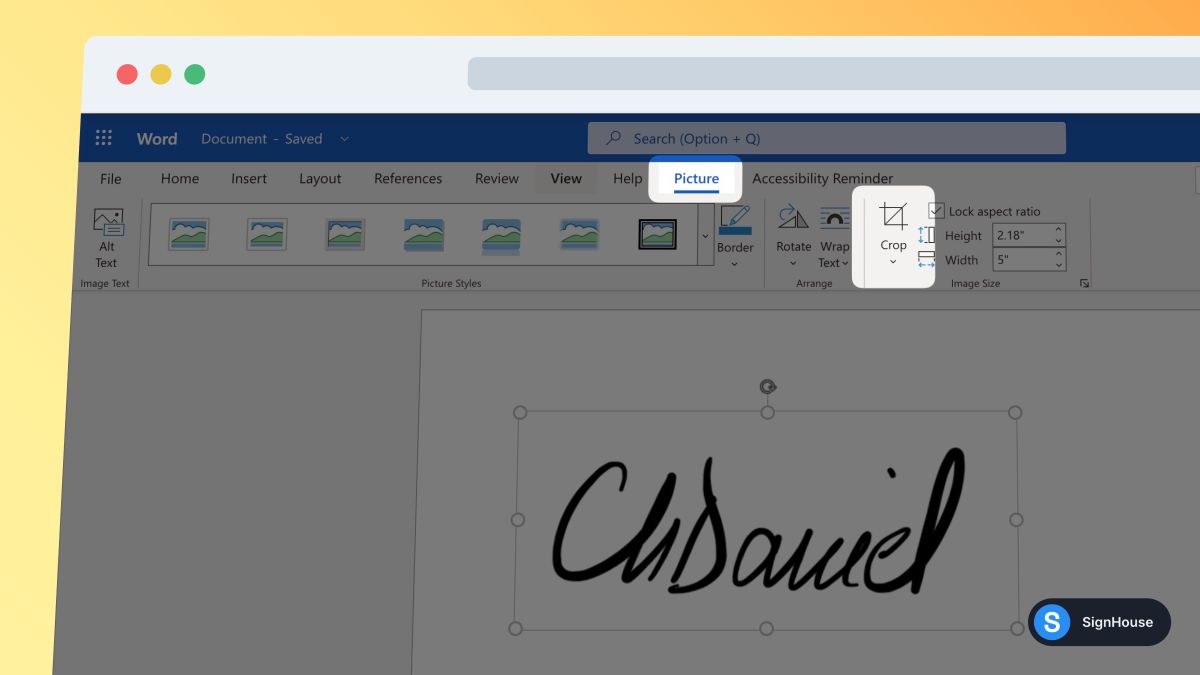
- Crop and Clean Up: Edit the image to crop out everything except the signature. For the best result, use a tool to make the background transparent or pure white (a PNG file works best here).
- Save It: Save the cleaned-up signature as a standard image file (PNG, JPG).
Inserting and Formatting the Signature Image
Once you have your signature image file ready, integrating it into Word is fast.
Follow these steps:
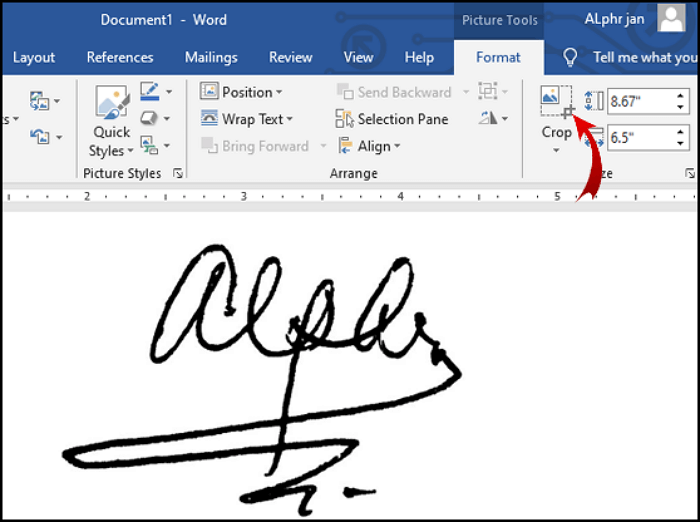
- Insert Picture: Go to the "Insert" tab and click "Pictures." Locate and select your signature image file.
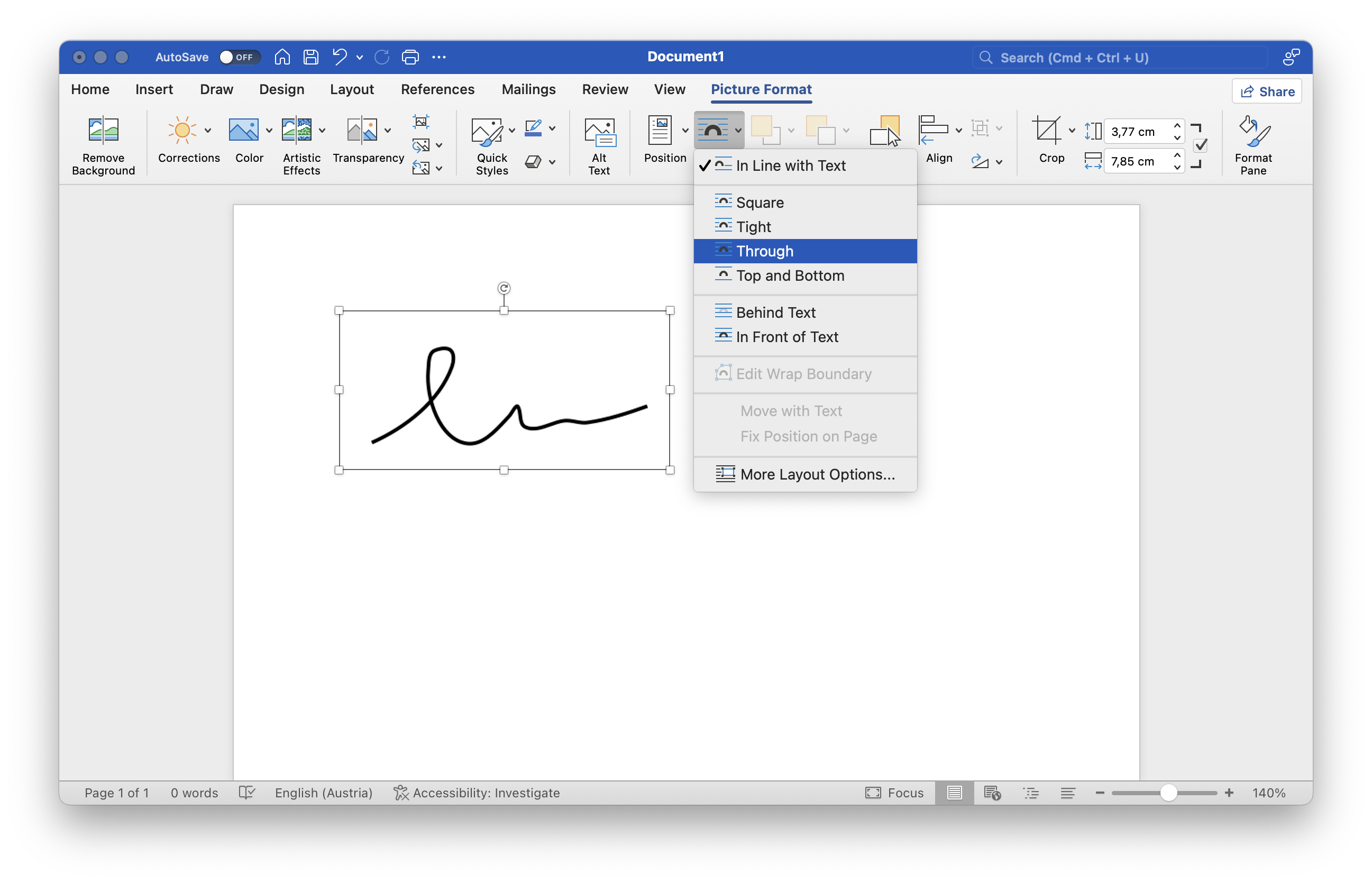
- Adjust Wrapping: This is the most crucial step! When the image is inserted, it will likely mess up your text layout. Click the image, go to the "Picture Format" tab, and select "Wrap Text."
- Choose Text Wrapping Option: We recommend choosing "In Front of Text" or "Tight." This allows you to freely drag the signature to the desired location without disrupting the surrounding paragraphs.
- Position and Resize: Drag the signature to the appropriate line. Resize it using the corner handles until it looks realistic.
Pro Tip: To save time in the future, save your formatted signature as a Quick Part or Autotext entry in Word so you can insert it with just a few clicks next time.
Method 3: Utilizing Third-Party E-Signature Services (The Professional Way)
While Word's native tools are great for internal or quick documents, they might fall short if you require advanced security, audit trails, or multi-party signing workflows. This is where dedicated e-signature platforms come in.
When to Use Dedicated Services
Services like DocuSign, Adobe Sign, and HelloSign are integrated into many business ecosystems and offer legally iron-clad solutions globally. If your question about How Do I Get An Electronic Signature In Word is focused on legal compliance and serious contracts, these are often the way to go.
How it works: You upload your Word document to their platform. The service then adds secure signature fields, sends the document to the required signers, tracks who signs when, and provides a final, tamper-proof certificate of completion.
Important Legal Considerations for E-Signatures
Before relying on any e-signature, it is vital to understand the legal context. In most developed nations, basic e-signatures are legally binding, provided they meet certain criteria.
In the United States, the ESIGN Act and the Uniform Electronic Transactions Act (UETA) establish that an electronic signature carries the same legal weight as a wet-ink signature, as long as all parties consent to signing electronically.
However, the required level of security depends on the document. For simple agreements, a scanned image might suffice. For highly sensitive agreements or public records, you usually need a specialized Digital ID (Method 1) or a third-party service (Method 3) that provides a robust audit trail and authentication.
Conclusion
You now have three powerful answers to the question, How Do I Get An Electronic Signature In Word. Whether you need the formal security of a built-in Digital ID, the ease of inserting a pre-scanned signature image, or the enterprise compliance of a third-party application, Word offers flexibility for every need.
Choose Method 1 (Signature Line) for structured, internal documents requiring identification. Choose Method 2 (Image Insert) for quick, informal documents. For contracts requiring absolute legal assurance and tracking, opt for a dedicated service (Method 3). Mastering these techniques will save you valuable time and keep your workflow truly digital!
Frequently Asked Questions About E-Signatures in Word
- Does the image method (Method 2) create a legally binding signature?
- A simple image insertion can be legally binding, provided all parties intended for it to be the signature and there is evidence of that intent. However, it offers less security and authentication than Method 1 (Digital ID) or Method 3 (Third-Party Service). For high-stakes contracts, opt for a method that provides an audit trail.
- Can I insert my signature into Word using a trackpad or stylus?
- Yes! If you have a device with a touchscreen (like a tablet or convertible laptop), you can draw your signature directly into a drawing application (like Paint or OneNote) and then save it as an image file (PNG) to insert into Word, following the steps in Method 2.
- Is a "Digital Signature" the same as an "Electronic Signature"?
- No, they are different, though the terms are often used interchangeably. An Electronic Signature (e-signature) is simply any electronic mark indicating intent to sign (typing a name, inserting an image). A Digital Signature is a specific type of e-signature that uses cryptography (like the Digital ID in Method 1) to verify the signer's identity and detect tampering after signing.
- How can I make my inserted signature image look less blocky?
- To ensure your inserted signature blends seamlessly, try to use a PNG file with a transparent background. Once inserted, select the image, go to the "Picture Format" tab, select "Color," and choose the "Set Transparent Color" option, then click the white background of your signature image.
How Do I Get An Electronic Signature In Word
How Do I Get An Electronic Signature In Word Wallpapers
Collection of how do i get an electronic signature in word wallpapers for your desktop and mobile devices.
Amazing How Do I Get An Electronic Signature In Word Scene Nature
Experience the crisp clarity of this stunning how do i get an electronic signature in word image, available in high resolution for all your screens.
Spectacular How Do I Get An Electronic Signature In Word Background Digital Art
Find inspiration with this unique how do i get an electronic signature in word illustration, crafted to provide a fresh look for your background.

Serene How Do I Get An Electronic Signature In Word Moment Digital Art
Explore this high-quality how do i get an electronic signature in word image, perfect for enhancing your desktop or mobile wallpaper.

Detailed How Do I Get An Electronic Signature In Word Background Photography
Discover an amazing how do i get an electronic signature in word background image, ideal for personalizing your devices with vibrant colors and intricate designs.
Serene How Do I Get An Electronic Signature In Word Artwork in 4K
Explore this high-quality how do i get an electronic signature in word image, perfect for enhancing your desktop or mobile wallpaper.

Vivid How Do I Get An Electronic Signature In Word Picture for Desktop
Discover an amazing how do i get an electronic signature in word background image, ideal for personalizing your devices with vibrant colors and intricate designs.
Exquisite How Do I Get An Electronic Signature In Word Image in 4K
This gorgeous how do i get an electronic signature in word photo offers a breathtaking view, making it a perfect choice for your next wallpaper.
Serene How Do I Get An Electronic Signature In Word Background Photography
Discover an amazing how do i get an electronic signature in word background image, ideal for personalizing your devices with vibrant colors and intricate designs.
Vibrant How Do I Get An Electronic Signature In Word Landscape Illustration
Discover an amazing how do i get an electronic signature in word background image, ideal for personalizing your devices with vibrant colors and intricate designs.

Captivating How Do I Get An Electronic Signature In Word Moment Collection
Find inspiration with this unique how do i get an electronic signature in word illustration, crafted to provide a fresh look for your background.
Mesmerizing How Do I Get An Electronic Signature In Word Picture Concept
Experience the crisp clarity of this stunning how do i get an electronic signature in word image, available in high resolution for all your screens.
Breathtaking How Do I Get An Electronic Signature In Word Picture for Your Screen
Experience the crisp clarity of this stunning how do i get an electronic signature in word image, available in high resolution for all your screens.
Spectacular How Do I Get An Electronic Signature In Word Photo Collection
Immerse yourself in the stunning details of this beautiful how do i get an electronic signature in word wallpaper, designed for a captivating visual experience.

Captivating How Do I Get An Electronic Signature In Word Artwork for Mobile
A captivating how do i get an electronic signature in word scene that brings tranquility and beauty to any device.
High-Quality How Do I Get An Electronic Signature In Word Wallpaper Photography
Explore this high-quality how do i get an electronic signature in word image, perfect for enhancing your desktop or mobile wallpaper.
:max_bytes(150000):strip_icc()/Sigs_Word_010-8e9a5c66a81f45a29e5e7fb7d08e244a.jpg "Captivating How Do I Get An Electronic Signature In Word Moment Nature")
Captivating How Do I Get An Electronic Signature In Word Moment Nature
Immerse yourself in the stunning details of this beautiful how do i get an electronic signature in word wallpaper, designed for a captivating visual experience.
Vibrant How Do I Get An Electronic Signature In Word Capture for Your Screen
Explore this high-quality how do i get an electronic signature in word image, perfect for enhancing your desktop or mobile wallpaper.
Stunning How Do I Get An Electronic Signature In Word Image Digital Art
A captivating how do i get an electronic signature in word scene that brings tranquility and beauty to any device.
Dynamic How Do I Get An Electronic Signature In Word Photo for Mobile
This gorgeous how do i get an electronic signature in word photo offers a breathtaking view, making it a perfect choice for your next wallpaper.
High-Quality How Do I Get An Electronic Signature In Word Photo for Desktop
Explore this high-quality how do i get an electronic signature in word image, perfect for enhancing your desktop or mobile wallpaper.
Download these how do i get an electronic signature in word wallpapers for free and use them on your desktop or mobile devices.
