How To Get Data Analysis In Excel
How To Get Data Analysis In Excel: Your Ultimate Beginner's Guide
Hey there! If you've ever stared at a massive Excel spreadsheet and felt overwhelmed by all those numbers, you're definitely not alone. Many people use Excel every day, but few truly unlock its power for robust data analysis. So, you're asking, "How to get data analysis in Excel?" You've come to the right place! This guide is designed to take you from data newbie to a confident analyst, using friendly language and easy-to-follow steps.
Excel isn't just a grid for entering information; it's a powerhouse analysis tool. Whether you are tracking sales, managing budgets, or just organizing your personal finances, knowing the right tools can transform raw data into actionable insights. Let's dive right in and explore the best ways to start analyzing your data immediately.
Setting Up for Success: Ensuring You Have the Right Tools
Before we jump into the fun stuff, we need to make sure your Excel environment is ready. For powerful statistical analysis, Excel includes a fantastic add-in called the Analysis ToolPak. Trust me, if you want to know how to get data analysis in Excel beyond simple averages, you need this!
Activating the Analysis ToolPak
The Analysis ToolPak provides specialized functions for engineering and statistical analysis, like regression, histograms, and moving averages. It's built into Excel but often needs to be manually activated. Here is how you do it:
- Go to the File tab (or the Excel menu if you're on a Mac).
- Select Options (you might need to click "More..." first).
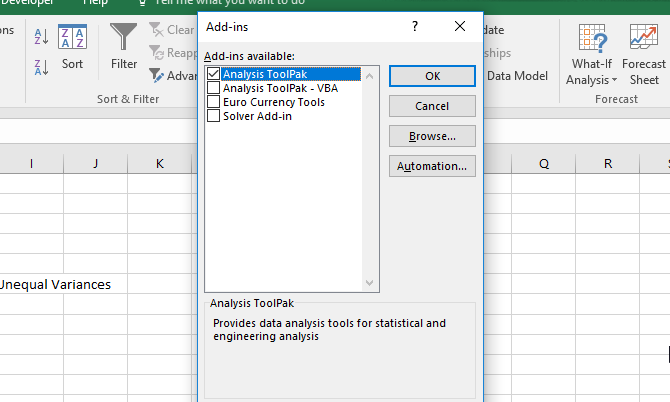
- In the Excel Options dialog box, click on Add-ins.
- At the bottom of the dialog box, ensure Excel Add-ins is selected in the Manage box, and then click Go.
- A new window will pop up. Check the box next to Analysis ToolPak.
- Click OK.
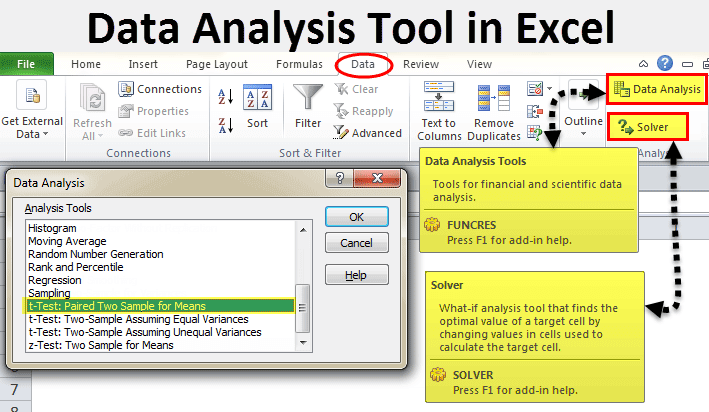
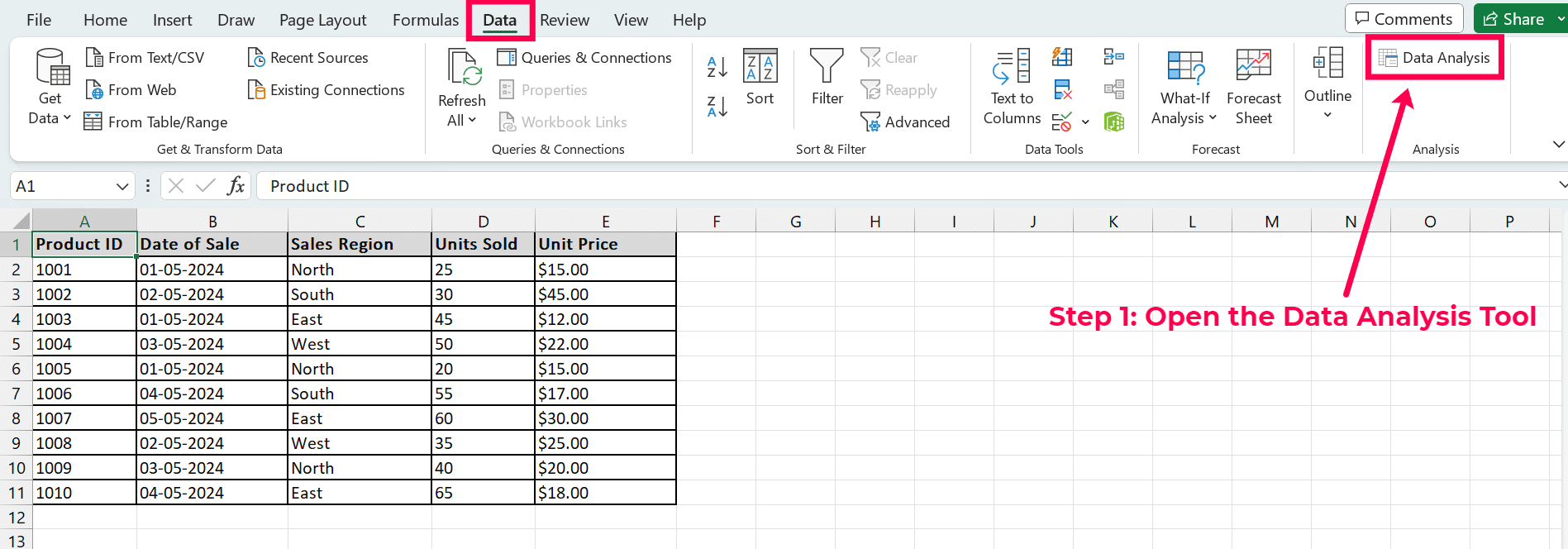
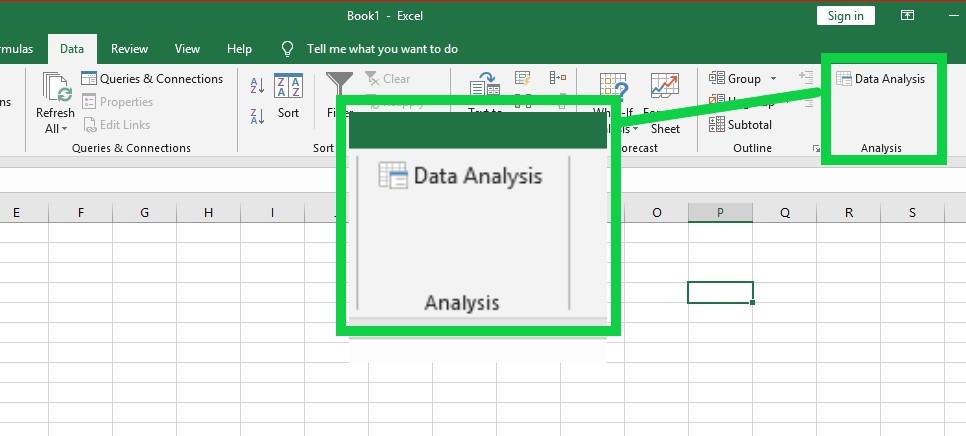
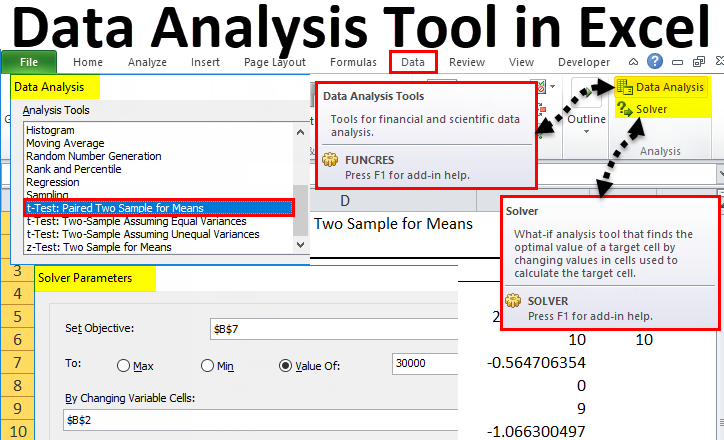
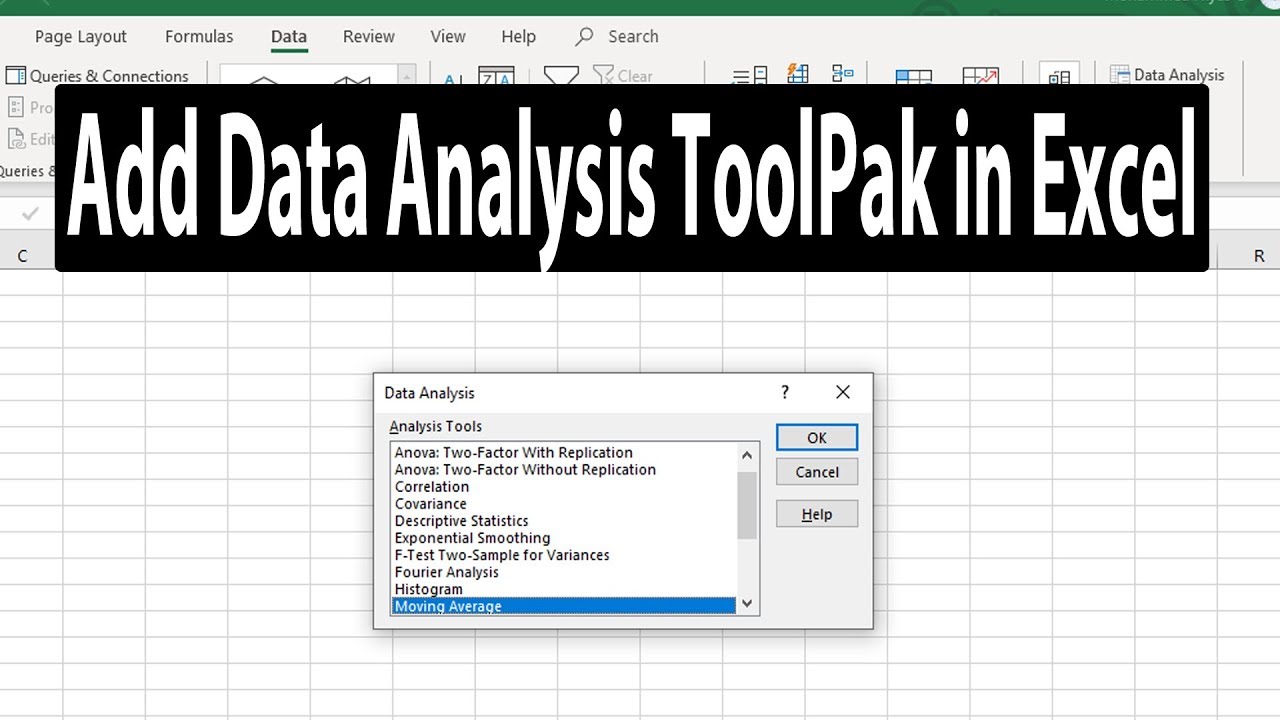
Once activated, you will see a new group called "Analysis" appear on your Data tab, and within it, the "Data Analysis" button. That little button is your gateway to serious statistical insights!
Essential Techniques for Data Analysis in Excel
Now that your tools are ready, let's look at the foundational techniques every aspiring data analyst should master. These methods will help you slice, dice, and visualize your data effectively.
1. Mastering Conditional Formatting for Quick Insights
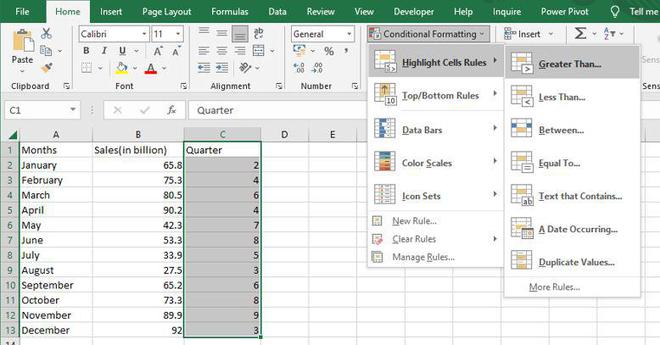
Conditional Formatting is the simplest and fastest way to highlight trends or anomalies in your data without writing a single formula. It changes the appearance of cells based on specific conditions you set.
Imagine you have a list of sales figures and want to quickly spot which sales were above $10,000. Conditional formatting is perfect for this! You can use Data Bars, Color Scales, or Icon Sets to visually represent your data's distribution. This instantly answers a part of how to get data analysis in Excel by making numbers jump out at you.
Practical Uses of Conditional Formatting:
- Highlighting the top 10% of values in a dataset.
- Using color scales to show performance gradients (e.g., red for low, green for high).
- Identifying duplicate entries quickly to clean up your data.
2. The Power of Pivot Tables
If you only learn one advanced skill for data analysis in Excel, make it Pivot Tables. They allow you to summarize, sort, reorganize, group, count, total, or average data stored in a spreadsheet without needing to alter the source data.
Pivot Tables are incredibly flexible. You can drag fields around to instantly change your perspective on the data. For example, if you have transactions data, you can pivot it to see total sales broken down by region, then by month, and finally by salesperson—all in a few clicks.
To create a Pivot Table:
- Click anywhere within your data range.
- Go to the Insert tab.
- Click PivotTable.
- Ensure the range is correct and choose where you want to place the report (usually a New Worksheet).
Spend time experimenting with placing fields in the Rows, Columns, Values, and Filters areas. This is where the magic truly happens when you want to figure out how to get data analysis in Excel from large, complex tables.
Deeper Analysis Using Formulas and Functions
While Pivot Tables handle aggregation, formulas are crucial for calculating metrics, cleaning data, and performing logical checks.
Key Formulas for Data Extraction and Analysis
These functions are the bread and butter of quantitative analysis:
- SUMIFS/AVERAGEIFS/COUNTIFS: These are lifesavers! They let you sum, average, or count values only when specific criteria are met. For instance, counting how many sales occurred in "California" AND were above "$5,000".
- VLOOKUP/XLOOKUP: Used to pull specific data from one table into another based on a matching key. If you need to enrich your sales data with corresponding customer details from a separate master list, these functions are indispensable. (Note: XLOOKUP is the modern, more powerful replacement for VLOOKUP, if your Excel version supports it).
- Data Cleaning Formulas (TRIM, CONCATENATE): Data analysis is often 80% data cleaning. TRIM removes unwanted spaces, and CONCATENATE (or the ampersand '&') merges data from different cells, crucial for standardization.
Remember to always double-check your formula ranges. A small typo can lead to big errors in your final analysis!
Statistical Analysis with the Data Analysis ToolPak
If you've been wondering how to get data analysis in Excel that involves sophisticated statistical modeling, the ToolPak is the answer. We already activated it, now let's use it.
Go to the Data tab and click Data Analysis. You'll see a list of analytical tools. Two of the most common and useful are:
1. Descriptive Statistics
This is your starting point for any serious dataset. It gives you a summary of the central tendency (mean, median, mode) and variability (standard deviation, range, skewness) of your data.
Simply select "Descriptive Statistics" from the ToolPak, define your input range, and check the "Summary statistics" box. Excel will generate a clean table providing all the necessary summary metrics—essential for understanding the shape and nature of your data distribution.
2. Regression Analysis
Regression is a powerful technique for modeling the relationship between variables. Want to predict sales based on advertising spending? Regression analysis helps you determine how much one variable impacts another.
Select "Regression" from the ToolPak, specify your dependent variable (Y) and independent variable(X), and Excel outputs a detailed table including R-squared values and coefficients. This helps you quantify the relationships in your data, moving beyond simple observation to prediction.
Visualization: The Final Step in Data Analysis
Analysis isn't complete until you can communicate your findings. Excel's charting features make visualization easy and impactful. A great chart can make complex data understandable in seconds.
- Line Charts: Perfect for showing trends over time (e.g., monthly sales).
- Bar/Column Charts: Great for comparing values across different categories (e.g., sales per region).
- Scatter Plots: Essential for showing the relationship or correlation between two different variables.
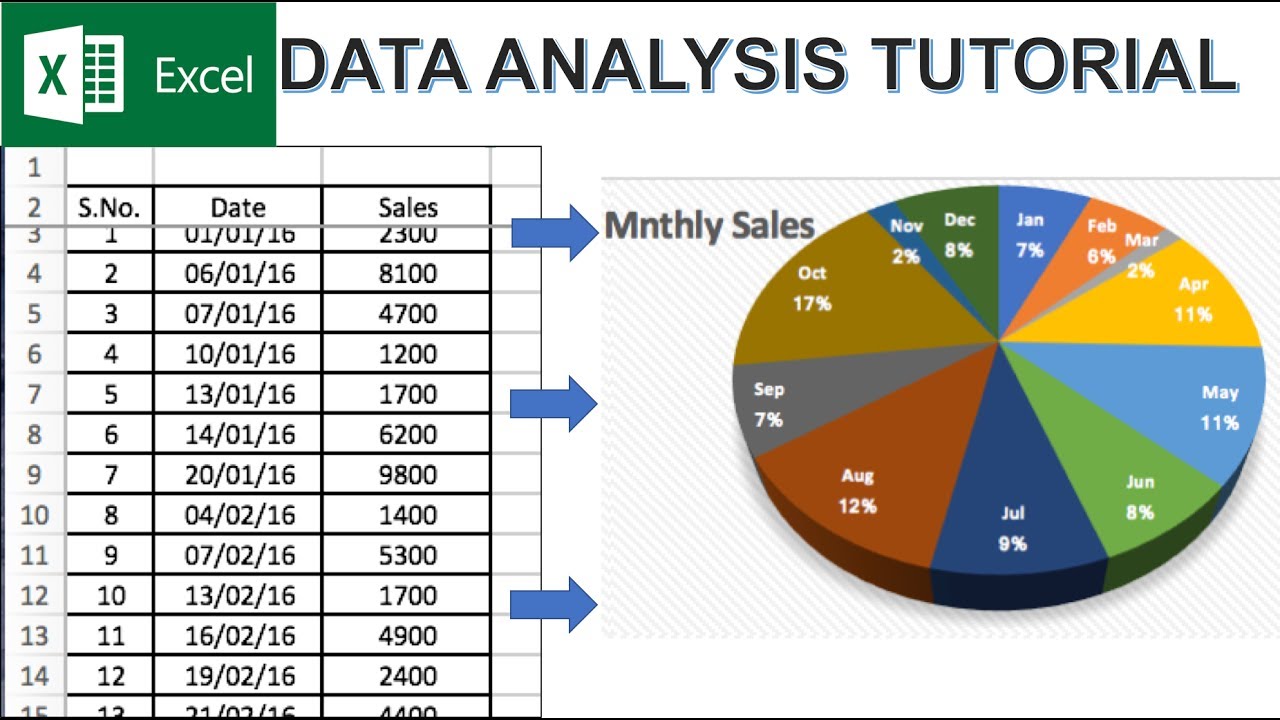
- Pie Charts: Use sparingly, but they are useful for showing parts of a whole (e.g., market share breakdown).
Always ensure your charts are clean, clearly labeled, and directly support the conclusion you are trying to present.
Conclusion: Mastering How To Get Data Analysis In Excel
Learning how to get data analysis in Excel is an ongoing journey, but by mastering the foundational tools—Conditional Formatting, Pivot Tables, key formulas like SUMIFS and XLOOKUP, and the powerful Analysis ToolPak—you are well on your way to becoming a skilled analyst.
The key is practice. Start small with data you already have, use the techniques described here to explore it, and turn those intimidating spreadsheets into insightful dashboards. Excel is a highly accessible and incredibly powerful tool when you know where to look!
Frequently Asked Questions (FAQ)
- What is the difference between a Pivot Table and a regular formula aggregation?
- A Pivot Table dynamically summarizes data by grouping categories, allowing instant restructuring without changing the source data. Formula aggregation (like using SUMIFS) requires manual input of criteria and is less flexible for multi-dimensional analysis.
- Is the Analysis ToolPak available in all versions of Microsoft Excel?
- Yes, the Analysis ToolPak has been a standard feature in Microsoft Excel for Windows and Mac for many years, though it always requires manual activation via the Add-ins menu.
- Why is data cleaning so important before performing data analysis in Excel?
- Data analysis is only as good as the data itself. Cleaning ensures consistency, handles missing values, removes duplicates, and standardizes formats (e.g., dates or currency), preventing inaccurate or misleading analytical results.
- What is the most crucial skill to learn for advanced data analysis?
- The most crucial skill is understanding the question you are trying to answer. Technologically, mastering Pivot Tables and advanced conditional formulas (like array formulas, if applicable to your version) provides the biggest leap in capability.
How To Get Data Analysis In Excel
How To Get Data Analysis In Excel Wallpapers
Collection of how to get data analysis in excel wallpapers for your desktop and mobile devices.
Serene How To Get Data Analysis In Excel Abstract for Mobile
Experience the crisp clarity of this stunning how to get data analysis in excel image, available in high resolution for all your screens.
Stunning How To Get Data Analysis In Excel Landscape for Your Screen
Find inspiration with this unique how to get data analysis in excel illustration, crafted to provide a fresh look for your background.
Breathtaking How To Get Data Analysis In Excel Design Nature
Transform your screen with this vivid how to get data analysis in excel artwork, a true masterpiece of digital design.
Stunning How To Get Data Analysis In Excel Background in 4K
This gorgeous how to get data analysis in excel photo offers a breathtaking view, making it a perfect choice for your next wallpaper.
Spectacular How To Get Data Analysis In Excel Moment Photography
A captivating how to get data analysis in excel scene that brings tranquility and beauty to any device.

Detailed How To Get Data Analysis In Excel Image Nature
Explore this high-quality how to get data analysis in excel image, perfect for enhancing your desktop or mobile wallpaper.

Dynamic How To Get Data Analysis In Excel Background for Desktop
A captivating how to get data analysis in excel scene that brings tranquility and beauty to any device.
Beautiful How To Get Data Analysis In Excel Picture in 4K
Discover an amazing how to get data analysis in excel background image, ideal for personalizing your devices with vibrant colors and intricate designs.
Breathtaking How To Get Data Analysis In Excel Landscape Photography
Explore this high-quality how to get data analysis in excel image, perfect for enhancing your desktop or mobile wallpaper.

Mesmerizing How To Get Data Analysis In Excel Wallpaper Collection
Explore this high-quality how to get data analysis in excel image, perfect for enhancing your desktop or mobile wallpaper.
Artistic How To Get Data Analysis In Excel Artwork Nature
Find inspiration with this unique how to get data analysis in excel illustration, crafted to provide a fresh look for your background.
Amazing How To Get Data Analysis In Excel Photo in HD
Explore this high-quality how to get data analysis in excel image, perfect for enhancing your desktop or mobile wallpaper.

Dynamic How To Get Data Analysis In Excel Photo for Desktop
Find inspiration with this unique how to get data analysis in excel illustration, crafted to provide a fresh look for your background.
Mesmerizing How To Get Data Analysis In Excel Scene in HD
Experience the crisp clarity of this stunning how to get data analysis in excel image, available in high resolution for all your screens.

Captivating How To Get Data Analysis In Excel Image Collection
Immerse yourself in the stunning details of this beautiful how to get data analysis in excel wallpaper, designed for a captivating visual experience.
Vivid How To Get Data Analysis In Excel View for Your Screen
Explore this high-quality how to get data analysis in excel image, perfect for enhancing your desktop or mobile wallpaper.

Amazing How To Get Data Analysis In Excel Moment Nature
Explore this high-quality how to get data analysis in excel image, perfect for enhancing your desktop or mobile wallpaper.
High-Quality How To Get Data Analysis In Excel Photo Art
Explore this high-quality how to get data analysis in excel image, perfect for enhancing your desktop or mobile wallpaper.

Vivid How To Get Data Analysis In Excel Scene Illustration
Explore this high-quality how to get data analysis in excel image, perfect for enhancing your desktop or mobile wallpaper.
Detailed How To Get Data Analysis In Excel Capture in 4K
Explore this high-quality how to get data analysis in excel image, perfect for enhancing your desktop or mobile wallpaper.
Download these how to get data analysis in excel wallpapers for free and use them on your desktop or mobile devices.