How To Get Guidelines In Photoshop
How To Get Guidelines In Photoshop: The Ultimate Alignment Toolkit
Hey there, fellow designer! Are you tired of eyeballing your layouts, hoping that your text boxes and visual elements are perfectly centered? Good news: Photoshop has a super simple, yet incredibly powerful feature called Guidelines. These are absolutely essential for any serious design work, ensuring consistency, symmetry, and professional alignment.
If you've ever wondered exactly How To Get Guidelines In Photoshop, you've landed in the right place. We're going to walk through everything from making them appear, setting them up with precision, and managing them like a pro. Let's dive in and elevate your design workflow!
Why Guidelines Are Your Best Friend in Photoshop
Guidelines are non-printing vertical and horizontal lines that help you align elements accurately within your canvas. Think of them as invisible rulers overlaid on your project. They are indispensable for achieving professional results, whether you're designing a website mock-up, a detailed brochure, or just cropping an image perfectly.
Using guidelines prevents misalignment and ensures that repetitive elements, like navigation buttons or column margins, remain consistent across your document. They significantly speed up your workflow by providing visual anchors that elements will magnetically snap to (if you have "Snap" enabled, which we highly recommend!).
Step-by-Step: How To Get Guidelines In Photoshop
The process of generating guidelines is remarkably easy, but it relies on one critical tool being visible first: the Rulers. If you can't see the Rulers, you can't pull out the guides!
Making the Rulers Visible (The Prerequisite)
Rulers provide the framework necessary for dragging and placing guidelines accurately. If your canvas looks bare, here is the first step you need to take.
Here's how to quickly bring up those crucial measurement bars:
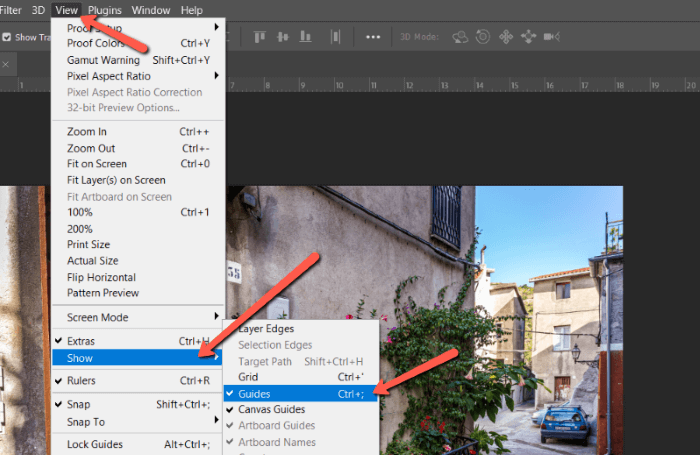
- Go to the top menu bar and select View.
- Look down the menu until you see the option Rulers.
- Click on Rulers, or use the super-fast shortcut: Ctrl + R (Windows) or Cmd + R (Mac).
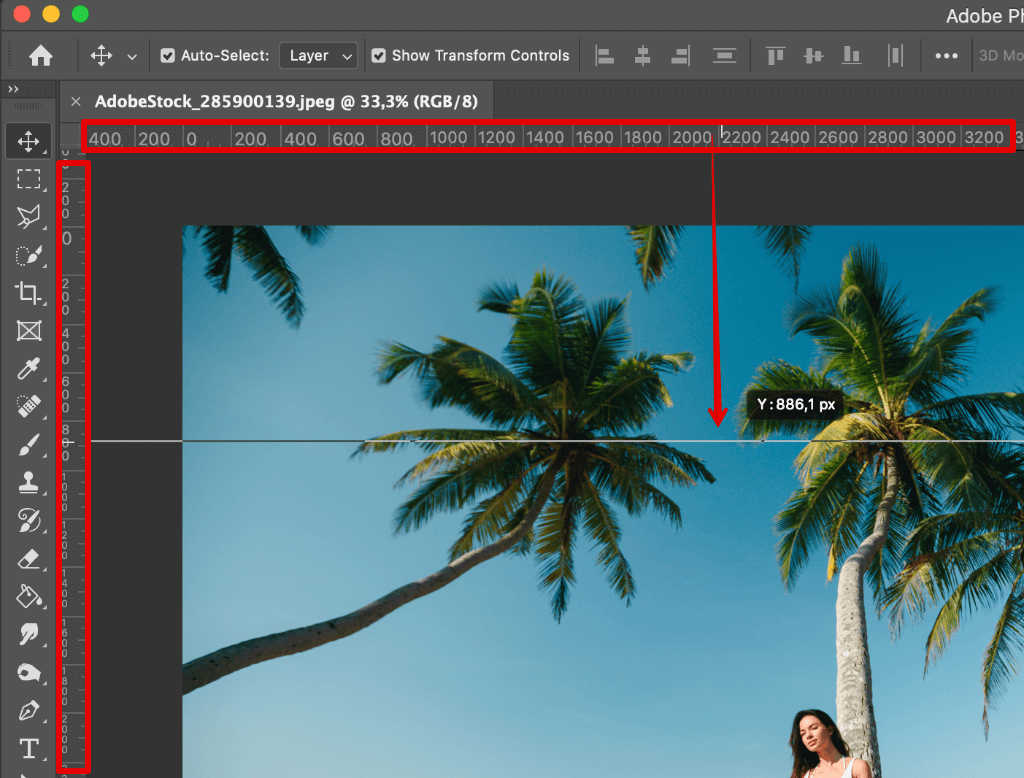
Once activated, you will see a horizontal ruler along the top edge of your canvas and a vertical ruler down the left edge. Now you are ready to start placing your guidelines.
Drawing Your First Custom Guidelines
This is the simplest way to add a guideline exactly where you need it. It's an intuitive drag-and-drop mechanism.
- For a Horizontal Guideline: Hover your mouse over the top (horizontal) ruler.
- For a Vertical Guideline: Hover your mouse over the left (vertical) ruler.
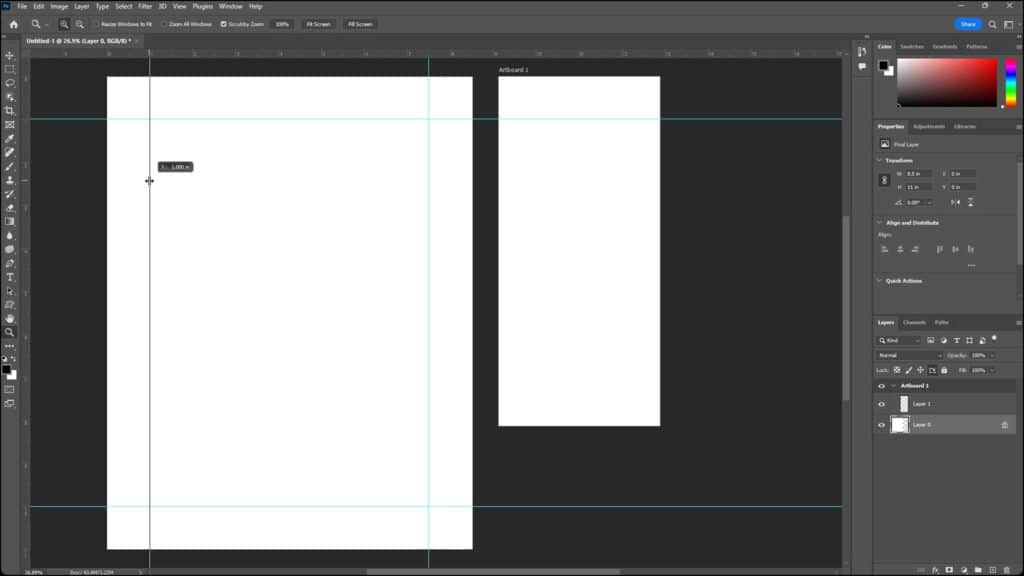
- Click and drag your mouse onto the canvas. As you drag, a blue line—your new guideline—will follow your cursor.
- Release the mouse button when the guideline is in the desired location.
If you need to move a guideline after placing it, simply select the Move Tool (V) and drag the guide to a new position. Remember that guidelines will automatically snap to the edges of objects or the center of the canvas if Snap is active.
Pro Tip for Precision: If you need a guideline at a precise pixel coordinate (e.g., exactly 250px from the left), don't bother dragging! Instead, go to View > New Guide.... In the dialog box, specify the orientation (Horizontal or Vertical) and input the exact position. This ensures pixel-perfect alignment every time.
Mastering Guideline Management
As your design complexity increases, you might end up with dozens of guidelines. Knowing how to efficiently manage them is key to maintaining a clean and functional workspace.
Quick Access Shortcuts for Guidelines
Speed is everything when you are working on a deadline. Memorizing these essential keyboard shortcuts will dramatically reduce the time spent clicking through menus.
- Toggle Visibility (Hide/Show): Ctrl + ; (Windows) or Cmd + ; (Mac). This is the fastest way to check your composition without the blue lines cluttering the view.
- New Guide Dialogue: Alt + V + E (Windows) or Option + V + E (Mac). While this isn't a single keystroke, it navigates the menus quickly without the mouse.
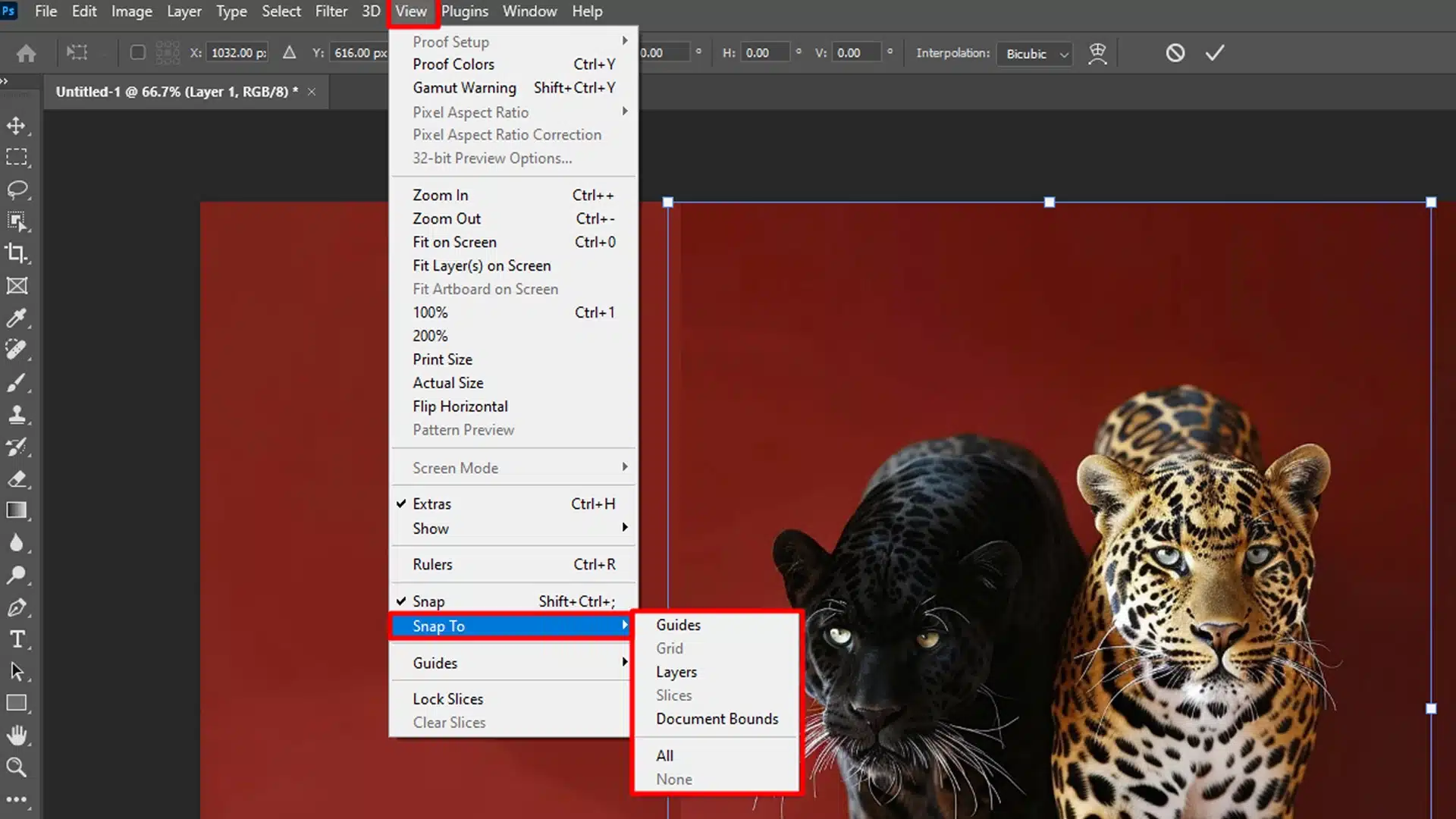
- Toggle Snap: Shift + Ctrl + ; (Windows) or Shift + Cmd + ; (Mac). Turn snapping off when you need micro-adjustments and on when placing large elements.
How to Clear Guidelines Quickly
Finished a project and need to start fresh? You don't have to drag every single guideline back to the ruler. Photoshop provides a simple command to wipe the slate clean.
Go to the main menu bar, click View, and then select Clear Guides. Be warned: this command clears *all* guides on the canvas instantly. If you only want to remove one, use the Move Tool (V) and drag the unwanted guide back onto its corresponding ruler.
Locking Guidelines for Precision Work
Imagine setting up the perfect grid only to accidentally move a guide while placing a layer. Frustrating, right? This is why you must learn how to lock them down.
To lock your guides, preventing accidental movement, navigate to View > Lock Guides. When guides are locked, you cannot move them with the Move Tool until you uncheck this option. This feature is a massive time-saver when working on complex, multi-layered documents.
Using Guides to Create Layout Grids
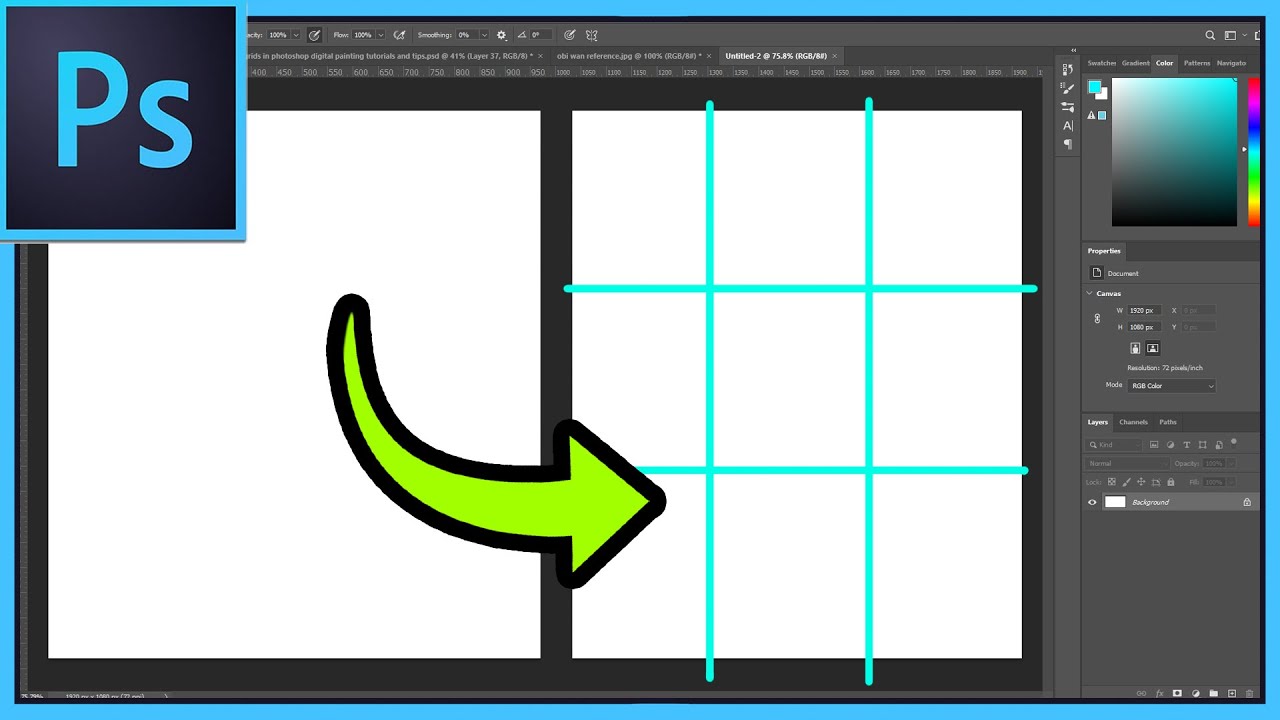
For advanced projects like UI design or magazine layouts, simply dragging individual guides isn't efficient. Thankfully, Photoshop has a powerful tool to generate complex grids based on columns, rows, and margins automatically.
This is arguably the most efficient way to generate accurate layouts if you need precise measurements for things like the 12-column grid system widely used in web design.
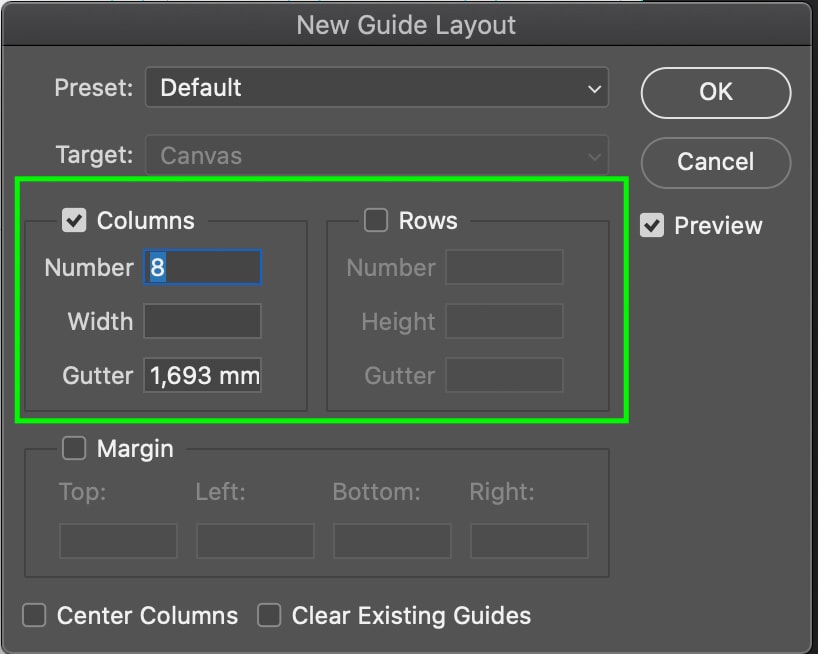
The tool is called New Guide Layout. You can find it under View > New Guide Layout...
When the dialogue box opens, you can define your layout:
- Presets: Start with a preset layout or choose "Custom" to enter specific values.
- Columns: Define the number of columns you need (e.g., 12 for web design).
- Gutter: Set the space between each column (the margin between elements).
- Rows: Define the number of horizontal rows (useful for brochure sections).
- Margins: Set the boundary space around the entire document (top, bottom, left, right).
Once you hit OK, Photoshop instantly floods your document with a perfect, mathematically calculated grid. Using this method is essential for maintaining scalable and consistent design frameworks.
Conclusion
Mastering How To Get Guidelines In Photoshop is a fundamental skill that transforms your design efficiency and the overall professionalism of your work. By starting with Rulers (Ctrl/Cmd + R), moving to simple drag-and-drop guides, and then leveraging the powerful New Guide Layout tool for complex grids, you gain total control over alignment and composition.
Remember those essential shortcuts—especially the ability to hide (Cmd/Ctrl + ;) and lock your guides—to keep your workflow smooth. Consistent use of these alignment tools will save you time and ensure that every element in your design is exactly where it needs to be. Now go forth and align everything perfectly!
Frequently Asked Questions (FAQ)
- Can guidelines be printed?
- No. Guidelines are purely visual aids within the Photoshop workspace. They are non-printing elements and will not appear in exported files (like JPEGs or PDFs) or physical printouts.
- My guidelines are snapping to random points. How do I fix this?
- This is likely due to the "Snap" feature being active. While Snap is usually helpful, it can interfere with fine adjustments. You can toggle Snap off by going to View > Snap, or use the shortcut Shift + Cmd + ; (Mac) or Shift + Ctrl + ; (Windows).
- I accidentally changed the color of my guidelines. How can I change it back?
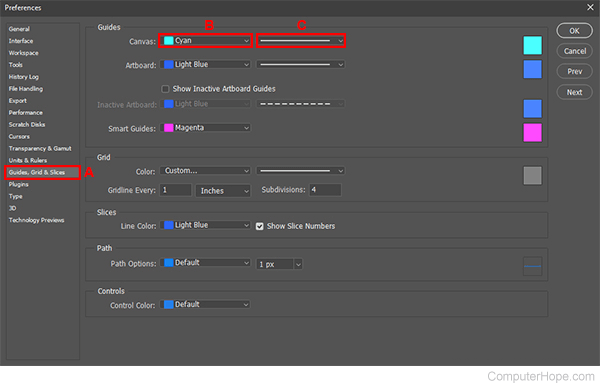
- You can customize the appearance of your guidelines in Photoshop Preferences. Go to Edit > Preferences > Guides, Grids & Slices. Here you can change the color (blue is default) and the style (Line or Dashed).
- Is there a difference between Guides and Grids?
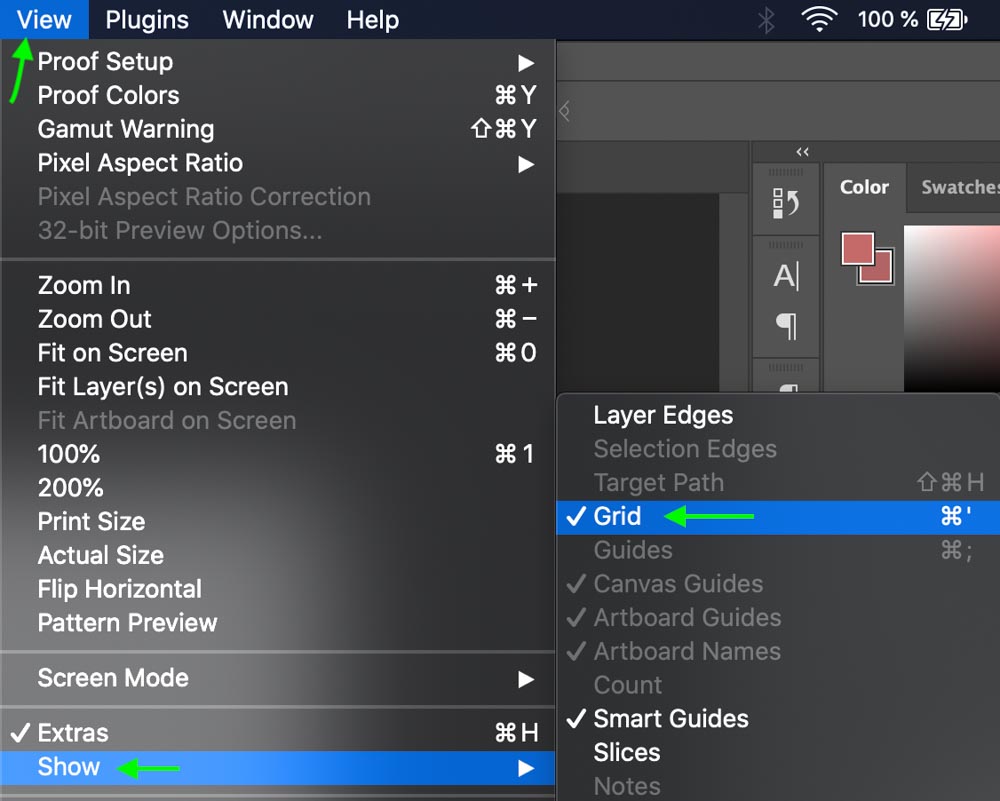
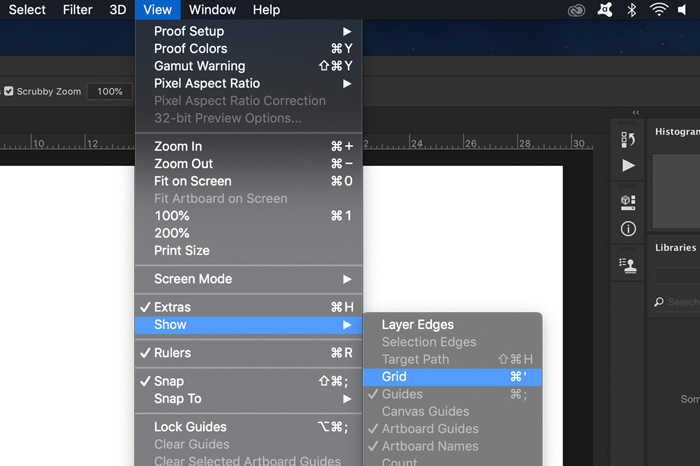
- Yes. Guides (or Guidelines) are individual lines you pull from the rulers or generate through the New Guide/New Guide Layout command. Grids (which can be accessed via View > Show > Grid) are uniform, repeatable patterns (like graph paper) set up in Preferences, often used for general spatial reference rather than precise alignment points.
How To Get Guidelines In Photoshop
How To Get Guidelines In Photoshop Wallpapers
Collection of how to get guidelines in photoshop wallpapers for your desktop and mobile devices.
Stunning How To Get Guidelines In Photoshop Moment for Mobile
Find inspiration with this unique how to get guidelines in photoshop illustration, crafted to provide a fresh look for your background.
Lush How To Get Guidelines In Photoshop Photo Photography
A captivating how to get guidelines in photoshop scene that brings tranquility and beauty to any device.

Serene How To Get Guidelines In Photoshop View Digital Art
Transform your screen with this vivid how to get guidelines in photoshop artwork, a true masterpiece of digital design.

Detailed How To Get Guidelines In Photoshop Design for Your Screen
Experience the crisp clarity of this stunning how to get guidelines in photoshop image, available in high resolution for all your screens.
Crisp How To Get Guidelines In Photoshop Photo for Desktop
Immerse yourself in the stunning details of this beautiful how to get guidelines in photoshop wallpaper, designed for a captivating visual experience.
Breathtaking How To Get Guidelines In Photoshop View Collection
Discover an amazing how to get guidelines in photoshop background image, ideal for personalizing your devices with vibrant colors and intricate designs.
Detailed How To Get Guidelines In Photoshop Artwork Photography
Discover an amazing how to get guidelines in photoshop background image, ideal for personalizing your devices with vibrant colors and intricate designs.
Lush How To Get Guidelines In Photoshop Wallpaper for Your Screen
A captivating how to get guidelines in photoshop scene that brings tranquility and beauty to any device.

Amazing How To Get Guidelines In Photoshop Landscape Photography
Discover an amazing how to get guidelines in photoshop background image, ideal for personalizing your devices with vibrant colors and intricate designs.

Gorgeous How To Get Guidelines In Photoshop Image in 4K
A captivating how to get guidelines in photoshop scene that brings tranquility and beauty to any device.
Amazing How To Get Guidelines In Photoshop Capture Illustration
Experience the crisp clarity of this stunning how to get guidelines in photoshop image, available in high resolution for all your screens.
Detailed How To Get Guidelines In Photoshop Scene Art
Explore this high-quality how to get guidelines in photoshop image, perfect for enhancing your desktop or mobile wallpaper.

Exquisite How To Get Guidelines In Photoshop Picture Digital Art
Find inspiration with this unique how to get guidelines in photoshop illustration, crafted to provide a fresh look for your background.
Mesmerizing How To Get Guidelines In Photoshop Design Photography
Transform your screen with this vivid how to get guidelines in photoshop artwork, a true masterpiece of digital design.

Serene How To Get Guidelines In Photoshop Capture for Your Screen
Discover an amazing how to get guidelines in photoshop background image, ideal for personalizing your devices with vibrant colors and intricate designs.
Mesmerizing How To Get Guidelines In Photoshop Design Collection
Transform your screen with this vivid how to get guidelines in photoshop artwork, a true masterpiece of digital design.

Exquisite How To Get Guidelines In Photoshop Moment Art
A captivating how to get guidelines in photoshop scene that brings tranquility and beauty to any device.

Lush How To Get Guidelines In Photoshop Artwork Concept
Find inspiration with this unique how to get guidelines in photoshop illustration, crafted to provide a fresh look for your background.

Crisp How To Get Guidelines In Photoshop Photo Photography
This gorgeous how to get guidelines in photoshop photo offers a breathtaking view, making it a perfect choice for your next wallpaper.
High-Quality How To Get Guidelines In Photoshop Abstract Concept
Experience the crisp clarity of this stunning how to get guidelines in photoshop image, available in high resolution for all your screens.
Download these how to get guidelines in photoshop wallpapers for free and use them on your desktop or mobile devices.