How To Get Iphone Apps Back
How To Get Iphone Apps Back: Your Ultimate Stress-Free Guide
Oh no! You reach for your iPhone, ready to open your favorite game or essential utility, only to find it has completely vanished. This is a common and incredibly frustrating experience. Maybe you accidentally deleted it, maybe it got misplaced during an iOS update, or perhaps it's just hiding in plain sight.
The good news is that if you ever downloaded an app, Apple remembers it. You absolutely can learn How To Get Iphone Apps Back without needing to buy them again or panic about lost data. We're here to walk you through the simplest and most effective methods to recover those missing icons and get your digital life back in order.
Let's dive into the foolproof ways to ensure you successfully get all your iPhone apps back where they belong.
Method 1: The Easiest Way – Reinstalling from the App Store
Before you start digging through settings and backups, the App Store should be your first port of call. When you delete an app, you are typically just deleting the local installation, not the record of your purchase. Since Apple IDs keep a comprehensive history, retrieving those apps is usually just a tap away.
Checking Your Purchase History
The 'Purchased' section in the App Store is the magic portal to recovering anything you've ever downloaded—even free apps. This method is crucial for anyone trying to figure out How To Get Iphone Apps Back efficiently.
Steps to Re-download Apps:
- Open the App Store on your iPhone.
- Tap on your Profile Picture/Icon located in the upper right-hand corner.
- Select Purchased (or "My Purchases" if you are using Family Sharing).
- Tap the Not on this iPhone tab to see all apps you own that are currently missing from your device.
- Use the search bar at the top if you know the name of the missing app, or scroll through the list.
- Once you find the app, tap the Cloud icon with a downward arrow next to it. This initiates the download and restores the app to your Home Screen.
Remember, this works for both paid and free apps, and you will not be charged again for purchased items.
Method 2: Digging Through the App Library
Since iOS 14, iPhones use the App Library to organize your applications, especially those you don't use often. Sometimes, you haven't deleted the app at all—you've just accidentally told your phone to remove it from the Home Screen, sending it directly to the App Library instead.
Understanding the App Library Concept
The App Library is the last page of your Home Screen, far to the right. It automatically sorts all your installed apps into folders (like Productivity, Social, or Utilities). If you are looking for How To Get Iphone Apps Back to your main screen, this is the quickest fix.
Steps for Retrieving Hidden Apps:
- Swipe left past your last Home Screen page to access the App Library.
- Locate the missing app either by browsing the categories or using the search bar at the top.
- Once you find the app icon, tap and hold it until a menu pops up.
- Select Add to Home Screen.
Voila! The app will instantly reappear on your Home Screen. This is a common solution when apps seem to disappear after a brief cleaning session.
Method 3: Restoring from an iCloud or iTunes Backup
Sometimes, simply downloading the app isn't enough; you need the app and the specific data (like high scores, chat history, or specific settings) that went missing. If you recently restored your phone as new or had a catastrophic deletion, restoring from a backup is the definitive solution.
When to Use a Backup Restore
A backup restore is necessary when multiple apps are missing, or when you need the internal app data recovered. Be warned: restoring a backup will revert your phone to the exact state it was in when the backup was created. Any new data or photos added since that backup will be lost unless backed up separately.
Steps for Restoring from iCloud:
- Go to Settings > General > Transfer or Reset iPhone.
- Tap Erase All Content and Settings. You must erase the device first to access the setup screens.
- Follow the setup prompts until you reach the Apps & Data screen.
- Choose Restore from iCloud Backup and sign in to iCloud.
- Select the most relevant backup date that contains the apps you need to recover.
Your iPhone will reboot and start downloading all the apps and data from that specific backup. This is the most comprehensive way to learn How To Get Iphone Apps Back with their associated data.
Method 4: Troubleshooting Common Scenarios
Sometimes the app hasn't been deleted or hidden, but instead, it is restricted by a setting you may have forgotten about.
Apps Missing After an iOS Update
After a major iOS update, your phone might automatically offload apps it deems unused to save space. Offloaded apps still show their icon, but you need an internet connection to use them. However, if the icon is completely gone, check your Home Screen settings.
Go to Settings > Home Screen. Ensure that under "Newly Downloaded Apps," the option is set to Add to Home Screen, not "App Library Only." If it was set to App Library Only, you simply need to pull the app back from the library (refer to Method 2).
Apps Hidden by Screen Time Restrictions
If you or someone else set up Screen Time on your device, certain categories or apps might be restricted from appearing entirely. If you're wondering How To Get Iphone Apps Back that seem to be system apps (like Safari or Camera) or social media, check here first.
Steps to Check for Restrictions:
- Go to Settings > Screen Time.
- Tap Content & Privacy Restrictions.
- Check iTunes & App Store Purchases. Ensure the Installing Apps setting is allowed.
- Also, check Allowed Apps. Make sure toggles for essential default apps like Mail or Safari are green.
- Finally, check Content Restrictions > Apps. If this is set to an age restriction (e.g., 9+), apps rated higher than that will be hidden. Adjust this to "Allow All" temporarily to see if the app reappears.
If restrictions were the problem, adjusting them instantly brings the missing apps back to your screen.
Conclusion
Losing apps on your iPhone can feel like a major headache, but in almost every case, they haven't been lost forever—they're just waiting to be restored! Whether they were accidentally deleted, offloaded during an update, or simply sent to the App Library, the solution is straightforward.
The easiest path to know How To Get Iphone Apps Back is usually through the App Store's Purchased section or a quick check of the App Library. Only resort to a full system backup restore if you need to recover lost app data. Take a deep breath, follow these steps, and you'll have your iPhone exactly the way you like it in no time!
Frequently Asked Questions (FAQ)
- Can I recover an app if I deleted it months ago?
- Yes, absolutely. As long as you are signed into the same Apple ID, your purchase history in the App Store keeps a permanent record of every app you have ever downloaded, regardless of when you deleted it. You can simply re-download it from the 'Purchased' section.
- Why does the app icon show a cloud instead of the app?
- If you see a cloud icon, it means the app has been "offloaded." iOS automatically offloads apps you haven't used recently to save storage space. The app's data is still saved, but the core program needs to be re-downloaded. Simply tap the cloud icon, and the app will instantly restore.
- I know I didn't delete the app, but I can't find it anywhere. What is the fastest check?
- The fastest check is to use the iPhone's Spotlight Search. Swipe down from the middle of your Home Screen and type the name of the app. If the app appears in the search results, it means it is still installed but likely hidden in a folder or deep within the App Library.
- If I restore from an old backup, will I lose my current photos and texts?
- Yes, you will. Restoring from a backup reverts your entire device to that specific time and date. Any data created or received after the backup was made (including new photos, messages, or changes in settings) will be overwritten. Always back up your latest critical data before performing a full restore.
How To Get Iphone Apps Back
How To Get Iphone Apps Back Wallpapers
Collection of how to get iphone apps back wallpapers for your desktop and mobile devices.

Dynamic How To Get Iphone Apps Back Photo in HD
Find inspiration with this unique how to get iphone apps back illustration, crafted to provide a fresh look for your background.
Mesmerizing How To Get Iphone Apps Back Background Photography
Experience the crisp clarity of this stunning how to get iphone apps back image, available in high resolution for all your screens.
Serene How To Get Iphone Apps Back Scene Art
Transform your screen with this vivid how to get iphone apps back artwork, a true masterpiece of digital design.

Vivid How To Get Iphone Apps Back Capture for Mobile
Experience the crisp clarity of this stunning how to get iphone apps back image, available in high resolution for all your screens.
Breathtaking How To Get Iphone Apps Back Moment Collection
Transform your screen with this vivid how to get iphone apps back artwork, a true masterpiece of digital design.
Vivid How To Get Iphone Apps Back Image Digital Art
Transform your screen with this vivid how to get iphone apps back artwork, a true masterpiece of digital design.
Crisp How To Get Iphone Apps Back Capture Collection
This gorgeous how to get iphone apps back photo offers a breathtaking view, making it a perfect choice for your next wallpaper.
Dynamic How To Get Iphone Apps Back Picture Collection
A captivating how to get iphone apps back scene that brings tranquility and beauty to any device.

Captivating How To Get Iphone Apps Back Artwork Nature
Find inspiration with this unique how to get iphone apps back illustration, crafted to provide a fresh look for your background.

Crisp How To Get Iphone Apps Back Moment Concept
Find inspiration with this unique how to get iphone apps back illustration, crafted to provide a fresh look for your background.

Amazing How To Get Iphone Apps Back Landscape Nature
Experience the crisp clarity of this stunning how to get iphone apps back image, available in high resolution for all your screens.

Crisp How To Get Iphone Apps Back Wallpaper Art
Immerse yourself in the stunning details of this beautiful how to get iphone apps back wallpaper, designed for a captivating visual experience.
Spectacular How To Get Iphone Apps Back Artwork Digital Art
This gorgeous how to get iphone apps back photo offers a breathtaking view, making it a perfect choice for your next wallpaper.
Mesmerizing How To Get Iphone Apps Back Artwork Collection
Discover an amazing how to get iphone apps back background image, ideal for personalizing your devices with vibrant colors and intricate designs.
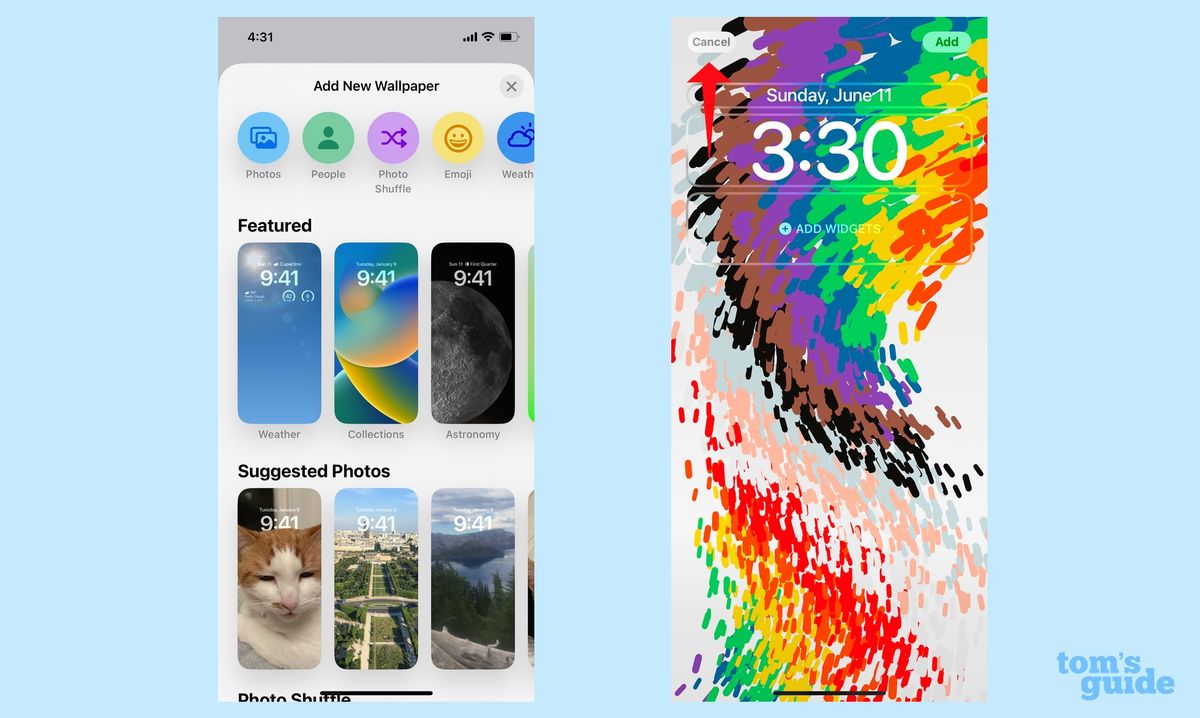
Exquisite How To Get Iphone Apps Back View Art
This gorgeous how to get iphone apps back photo offers a breathtaking view, making it a perfect choice for your next wallpaper.
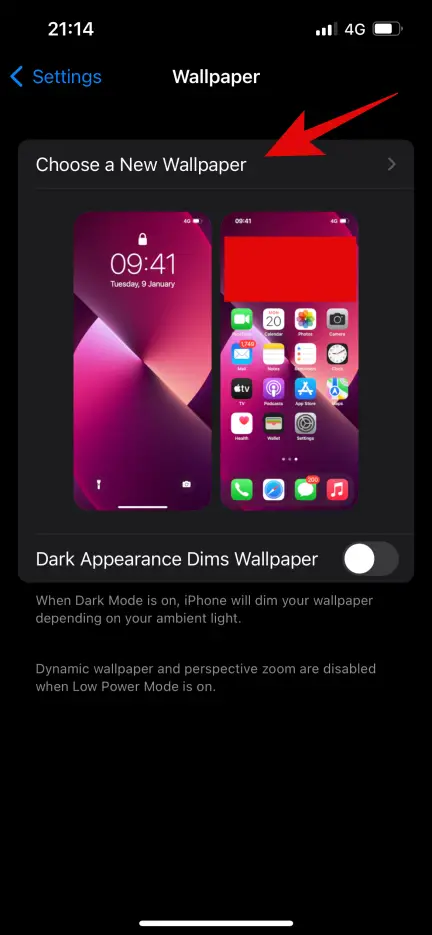
Spectacular How To Get Iphone Apps Back Abstract for Mobile
Immerse yourself in the stunning details of this beautiful how to get iphone apps back wallpaper, designed for a captivating visual experience.
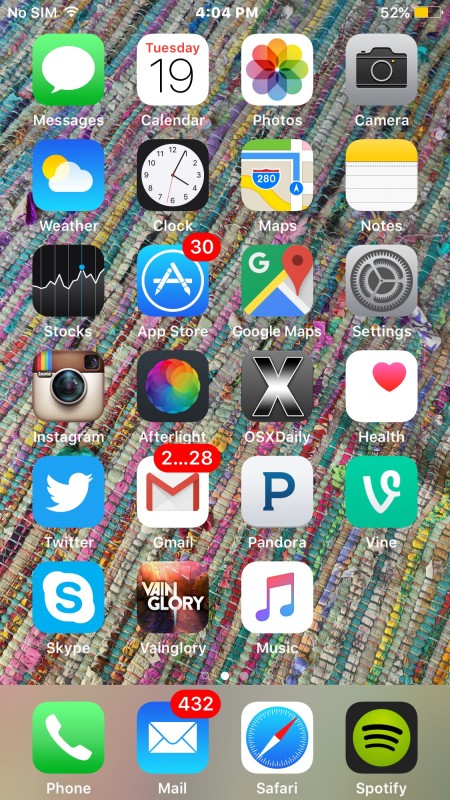
High-Quality How To Get Iphone Apps Back Moment for Mobile
Explore this high-quality how to get iphone apps back image, perfect for enhancing your desktop or mobile wallpaper.
Spectacular How To Get Iphone Apps Back Picture Collection
Find inspiration with this unique how to get iphone apps back illustration, crafted to provide a fresh look for your background.

Vibrant How To Get Iphone Apps Back Scene Concept
Explore this high-quality how to get iphone apps back image, perfect for enhancing your desktop or mobile wallpaper.
Amazing How To Get Iphone Apps Back Photo Illustration
Discover an amazing how to get iphone apps back background image, ideal for personalizing your devices with vibrant colors and intricate designs.
Download these how to get iphone apps back wallpapers for free and use them on your desktop or mobile devices.