How Do I Uninstall Software On A Mac
The Complete Guide: How Do I Uninstall Software On A Mac Without Leaving Junk Files
So, your Mac is starting to feel a little sluggish, or maybe you just downloaded an app that you never ended up using. Whatever the reason, you've hit that moment of digital spring cleaning and are wondering: How do I uninstall software on a Mac?
If your current method involves simply dragging the app icon from your Applications folder straight to the Trash, stop right there. While that technically "removes" the application, it often leaves behind countless residual files, preferences, and data fragments hidden deep within your system folders. Over time, these remnants can clutter your hard drive and slow down your machine.
This guide will walk you through three effective methods—from the quickest fix to the deep, manual cleaning—to ensure you fully remove applications and reclaim your precious disk space.
Method 1: The Classic Drag-and-Drop (The Quick Fix)
This is the most common method, ideal for apps that are simple, self-contained, and haven't deeply integrated themselves into your system (like a small utility or a basic game). Remember, this method is fast, but usually leaves residual files behind.
H3: Step-by-Step Instructions
- Close the App: Make sure the application you want to delete is completely closed (not just minimized). Check the Dock—if there's a small dot under the icon, right-click and choose "Quit."
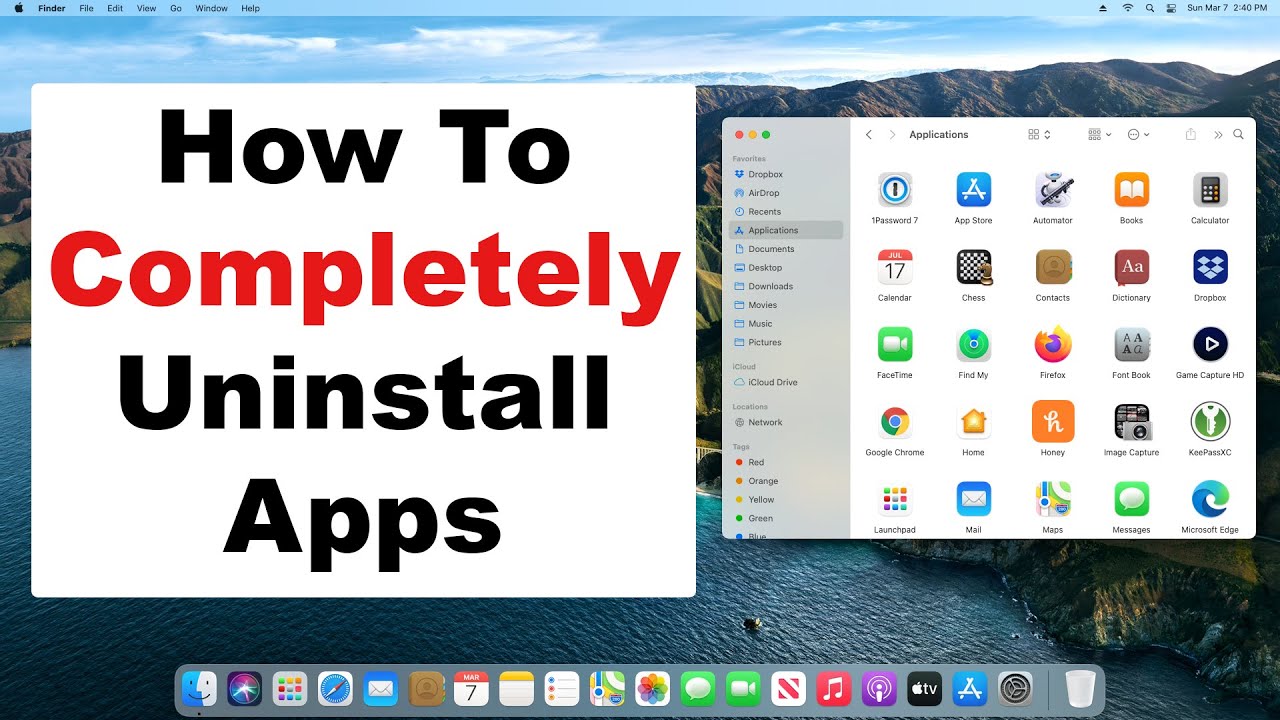
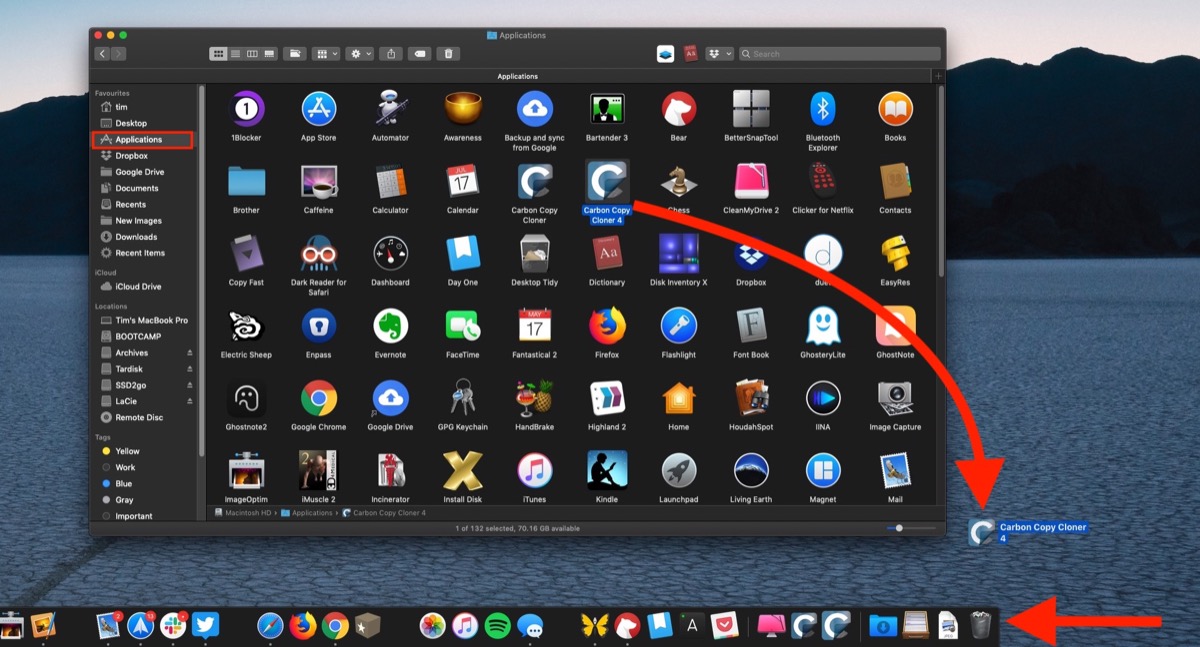
- Open Finder: Click the Finder icon on your Dock.
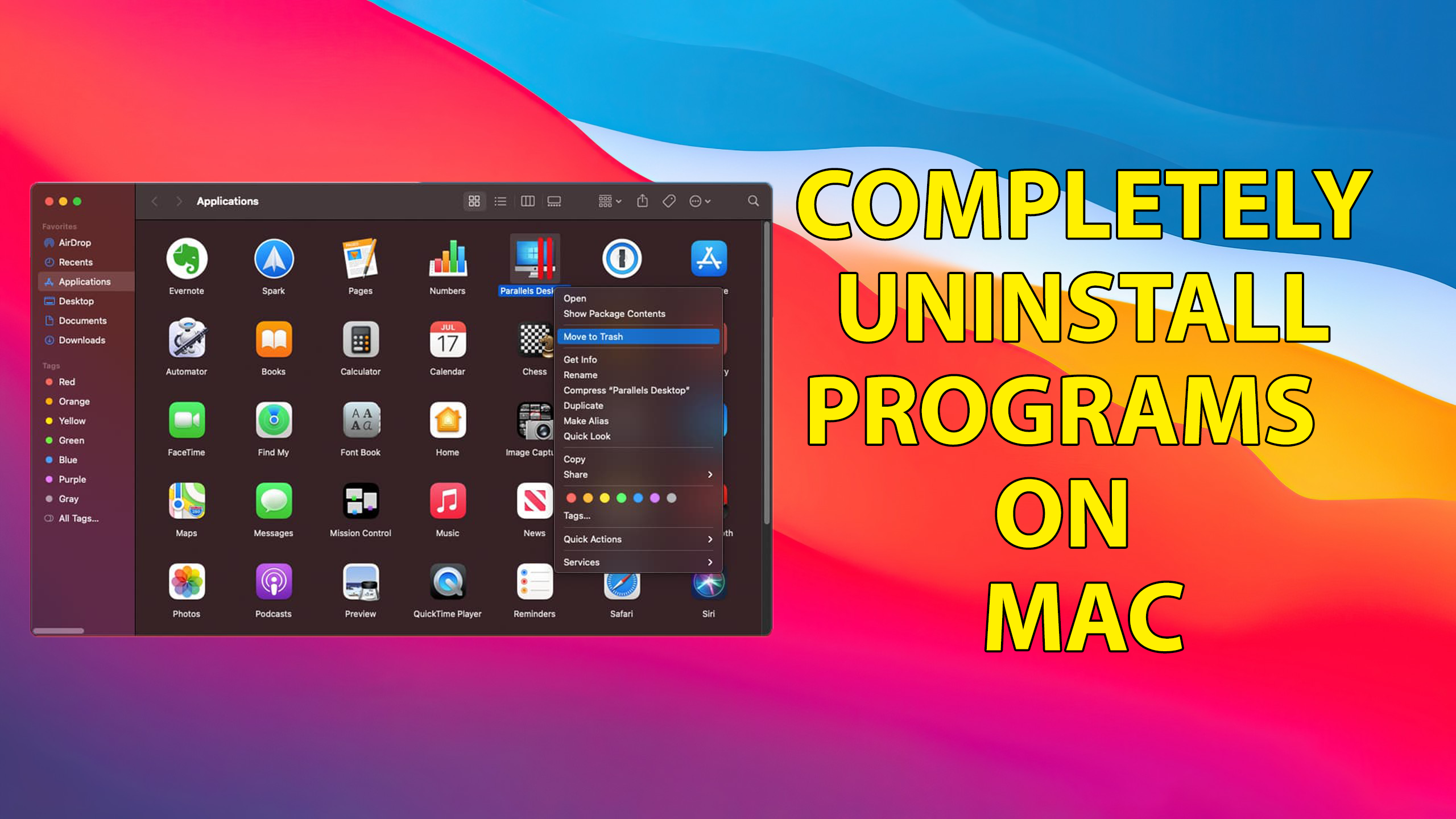
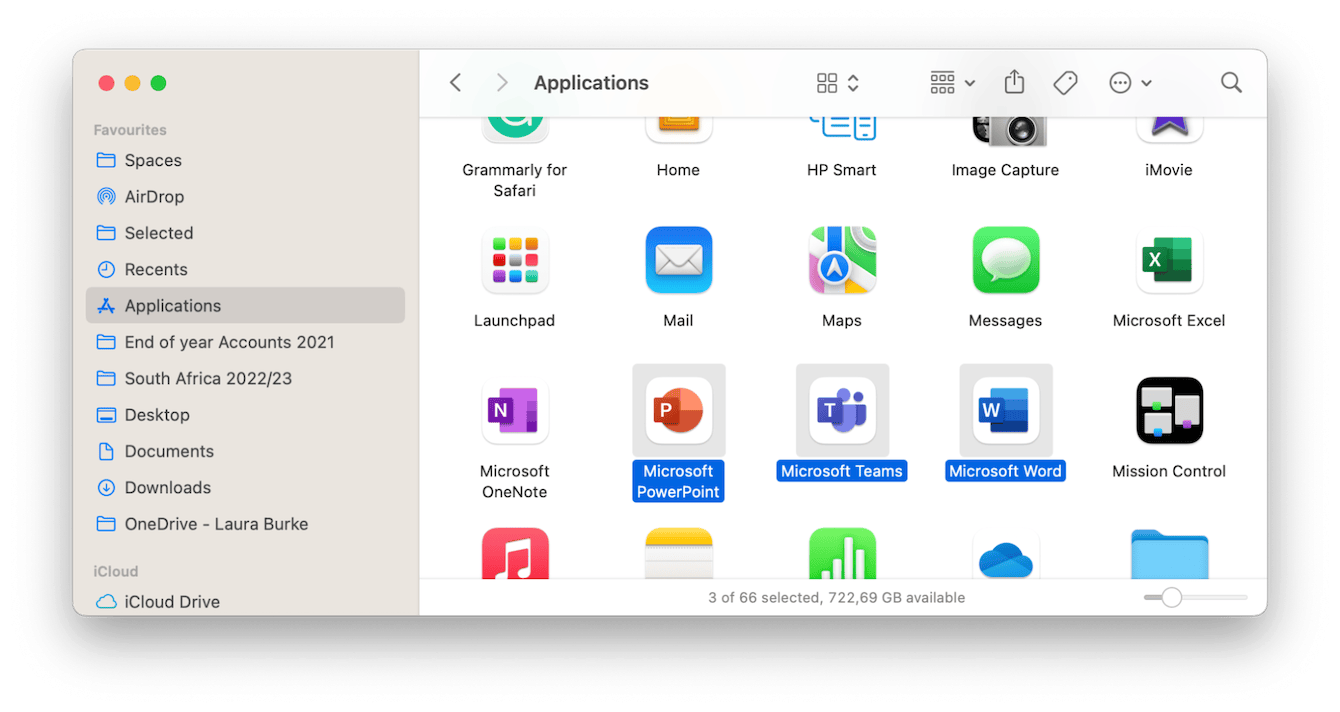
- Navigate to Applications: In the sidebar, select the "Applications" folder.
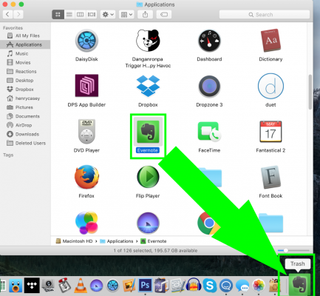
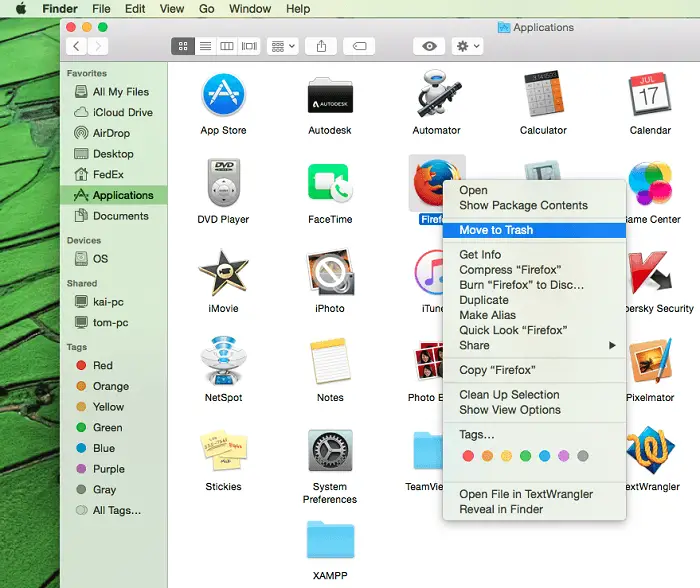
- Drag to Trash: Locate the application you want to remove. Click and drag its icon directly into the Trash Can icon on your Dock.
- Empty the Trash: Right-click the Trash Can and select "Empty Trash." You may need to confirm this action or enter your admin password.
For most simple apps, this process is sufficient to get rid of the executable file. However, for large or complex software (like Adobe products, Steam, or virtualization software), you need to move on to Method 2.
Method 2: The Thorough Manual Cleanup (The Power User Approach)
If you truly want to answer "How do I uninstall software on a Mac?" in the cleanest way possible, you must dive into the Library folder. This is where applications store their preferences, caches, and support files. Removing these ensures a complete, zero-footprint uninstall.
Warning: Be extremely careful when deleting files in the Library. Only delete folders clearly associated with the application you are removing. Deleting the wrong folder can cause system instability.
H3: Locating and Deleting Residual Files
Before starting this process, complete the basic drag-and-drop step (Method 1).
- Access the Library: Open Finder. Click the "Go" menu in the top menu bar, hold down the
Optionkey, and click "Library" (it only appears whenOptionis held). - Search Key Folders: Once inside the Library, you need to check several folders for leftovers matching the app's name or the developer's name:
Application Support(Often holds the largest chunk of residual data.)Caches(Holds temporary files that can quickly accumulate.)Preferences(Holds configuration files, often ending in.plist.)Containers(Holds sandboxed app data.)LaunchAgents(Sometimes used by complex apps to run background processes.)
- Remove Files: Search or manually look for folders named after the application (e.g., "Photoshop" or "Microsoft Office"). Drag these specific, associated folders to the Trash.
- Empty Trash (Again): Once you are certain you have removed everything related to the uninstalled app, empty your Trash.
This manual method requires time and precision, but it is the most effective way to recover every megabyte of storage space the app consumed.
For more detailed information on macOS file hierarchy and system files, you can check out this authoritative resource: Wikipedia: macOS File System Structure.
Method 3: Using Launchpad for App Store Downloads
If the software was installed exclusively through the Apple App Store, the uninstall process is much cleaner and simpler, similar to how you remove apps on an iPhone or iPad.
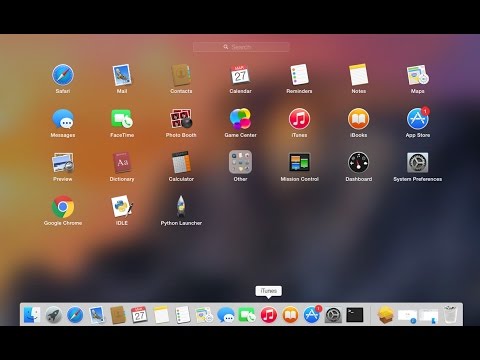
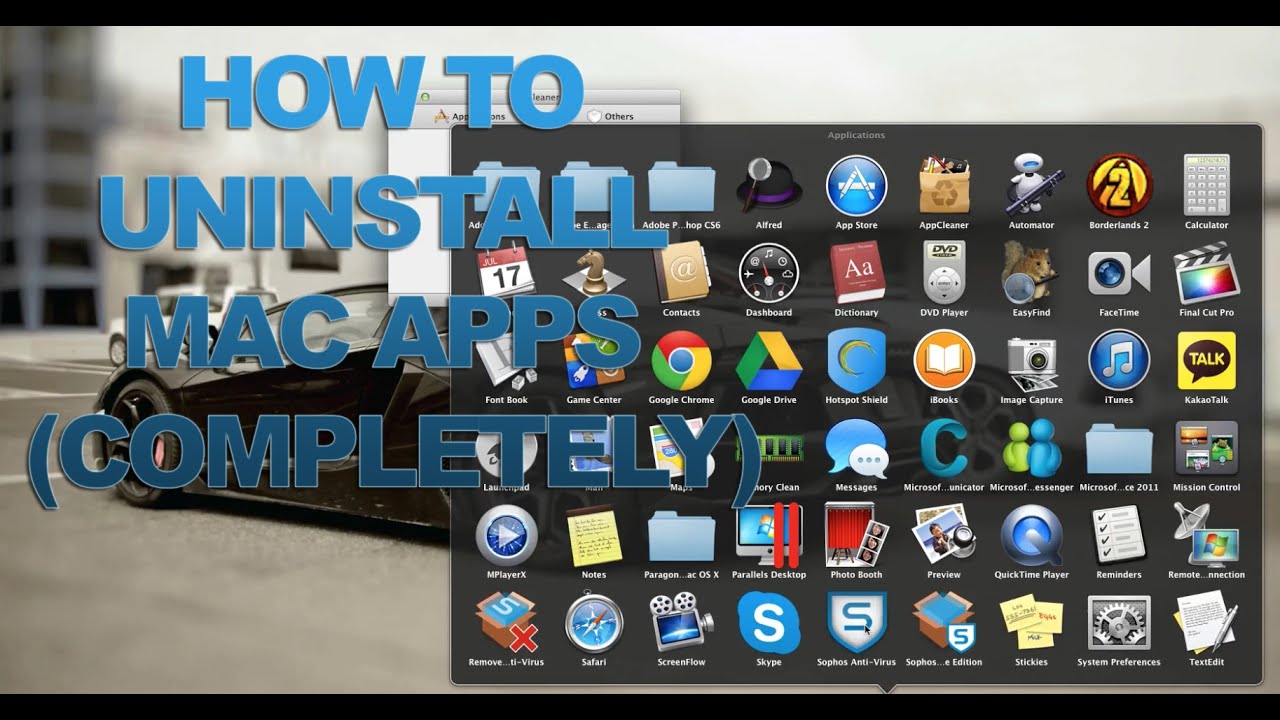
- Open Launchpad: Click the Launchpad icon (the silver rocket ship) on your Dock.
- Enter Jiggle Mode: Click and hold the icon of the app you want to delete until all the icons begin to "jiggle."
- Click 'X': A small 'X' button will appear in the corner of the deletable apps. Click the 'X' next to the software you want gone.
- Confirm Deletion: Click "Delete" when prompted.
When you delete an application this way, macOS automatically removes the primary app file and most associated support files, making it a generally cleaner process than Method 1.
Method 4: Utilizing Specialized Uninstaller Tools
What about the truly stubborn, deeply-integrated software that comes with its own proprietary installer (think antivirus programs, specialized drivers, or complex suites)?
These applications often install their own hidden uninstallers or system extensions (Kext files) that even the thorough manual clean cannot fully eradicate. This is where third-party clean-up tools or dedicated developer uninstallers come into play.
H3: When to Use a Third-Party Tool
If you are uninstalling a major application, always check if the developer included a native uninstaller package. For example, some professional tools place an "Uninstall [App Name]" utility right inside the Applications folder.
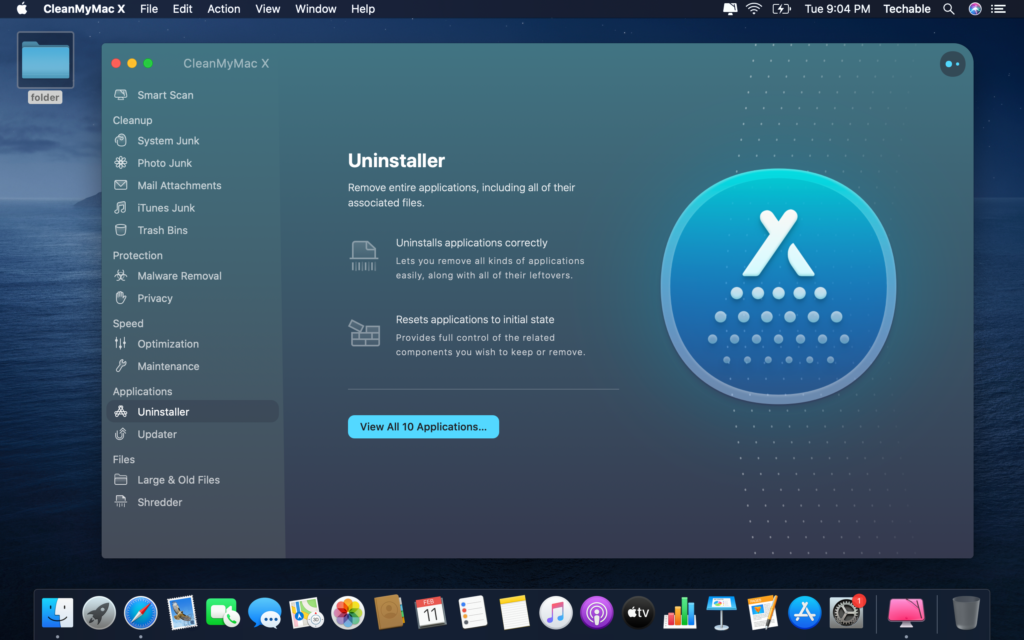
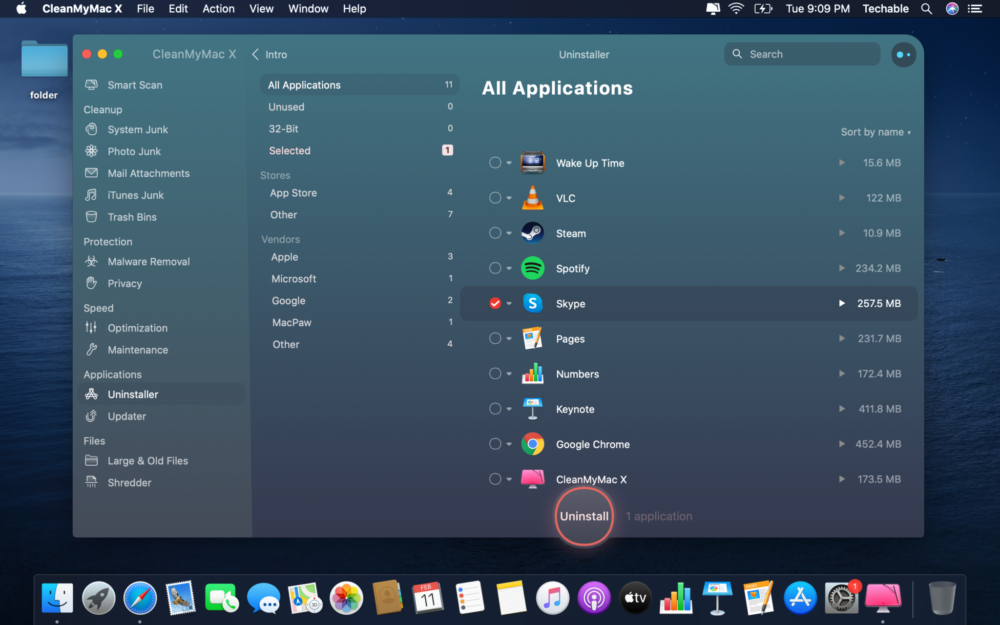
If no native uninstaller exists, consider reputable third-party tools like CleanMyMac X or AppCleaner. These utilities automate the process, scanning all the hidden Library folders for you, ensuring that all linked files are found and deleted safely. This is often the fastest and safest solution for beginners or those managing a large number of applications.
Using certified cleaning applications is generally considered a strong recommendation from experts, especially for maintaining long-term system health. Learn more about Mac system maintenance recommendations here.
Comparison Table: Uninstall Methods at a Glance
Choosing the right method depends on your comfort level and how integrated the app is.
| Method | Completeness | Time Investment | Best For |
|---|---|---|---|
| Drag-and-Drop (Method 1) | Poor (Leaves remnants) | Very Fast | Simple, new, or temporary apps. |
| Launchpad (Method 3) | Good (App Store apps only) | Fast | Apps downloaded directly from the App Store. |
| Manual Cleanup (Method 2) | Excellent (Requires caution) | Slow/Moderate | Advanced users wanting zero residual files. |
| Third-Party Tools (Method 4) | Excellent (Automated) | Very Fast | Stubborn apps or users who prioritize ease and safety. |
If you are actively cleaning up your Mac, you might also be interested in other ways to free up memory and storage. [Baca Juga: Optimize Mac Storage and Performance]
Conclusion: Achieving a Truly Clean Uninstall
The answer to How do I uninstall software on a Mac is not a single, simple step. While dragging an icon to the Trash is the standard operation, a truly complete, clean uninstall requires diving into the hidden Library folders or using a specialized uninstaller tool.
For everyday, small apps, the Drag-and-Drop might suffice. But for larger, system-integrated software, neglecting the residual files in ~/Library/Application Support is simply leaving behind digital junk. Adopt the manual cleanup process (Method 2) or invest in a trusted cleaner (Method 4) to keep your Mac running smoothly and efficiently for years to come.
Frequently Asked Questions (FAQ)
- Why do Macs leave behind residual files if the system is so efficient?
Residual files (like preference lists and cache data) are often left behind intentionally. If you decide to reinstall the application later, these files allow the app to immediately recall your settings. However, if the app is permanently gone, they serve no purpose other than clutter.
- Can I delete apps that came pre-installed on my Mac (System Apps)?
No, not easily or safely. Apps essential to macOS (like Safari, Mail, Messages, etc.) are protected by System Integrity Protection (SIP). Attempting to delete these can destabilize your operating system. It is best to simply hide or ignore them.
- If an app has its own uninstaller utility, should I use it?
Yes, absolutely. If a developer provides a dedicated uninstaller, it is almost always the most complete and safest way to remove that specific application, as the utility knows exactly which files and extensions it installed across your system.
- Do I need to restart my Mac after uninstalling software?
While not strictly necessary for every app, it is a good practice, especially if you manually deleted items from the Library or uninstalled complex software. Restarting ensures that any background processes or caches associated with the deleted app are completely flushed from the system memory.
This article aims to provide expert advice based on years of experience optimizing macOS systems. We hope this complete guide helps you keep your Mac clean and fast!
[Baca Juga: Troubleshoot MacOS Startup Issues]How Do I Uninstall Software On A Mac
How Do I Uninstall Software On A Mac Wallpapers
Collection of how do i uninstall software on a mac wallpapers for your desktop and mobile devices.

Exquisite How Do I Uninstall Software On A Mac Photo in 4K
Find inspiration with this unique how do i uninstall software on a mac illustration, crafted to provide a fresh look for your background.

Gorgeous How Do I Uninstall Software On A Mac Photo Art
Immerse yourself in the stunning details of this beautiful how do i uninstall software on a mac wallpaper, designed for a captivating visual experience.

Vibrant How Do I Uninstall Software On A Mac View Nature
Discover an amazing how do i uninstall software on a mac background image, ideal for personalizing your devices with vibrant colors and intricate designs.
Serene How Do I Uninstall Software On A Mac Scene Art
Explore this high-quality how do i uninstall software on a mac image, perfect for enhancing your desktop or mobile wallpaper.

Beautiful How Do I Uninstall Software On A Mac Picture Nature
Experience the crisp clarity of this stunning how do i uninstall software on a mac image, available in high resolution for all your screens.
Beautiful How Do I Uninstall Software On A Mac Wallpaper in HD
Transform your screen with this vivid how do i uninstall software on a mac artwork, a true masterpiece of digital design.

Vivid How Do I Uninstall Software On A Mac View for Desktop
Discover an amazing how do i uninstall software on a mac background image, ideal for personalizing your devices with vibrant colors and intricate designs.

Gorgeous How Do I Uninstall Software On A Mac Moment Nature
Immerse yourself in the stunning details of this beautiful how do i uninstall software on a mac wallpaper, designed for a captivating visual experience.
Artistic How Do I Uninstall Software On A Mac Scene Illustration
Find inspiration with this unique how do i uninstall software on a mac illustration, crafted to provide a fresh look for your background.
Artistic How Do I Uninstall Software On A Mac Background Collection
Find inspiration with this unique how do i uninstall software on a mac illustration, crafted to provide a fresh look for your background.

Spectacular How Do I Uninstall Software On A Mac Moment in HD
A captivating how do i uninstall software on a mac scene that brings tranquility and beauty to any device.
Spectacular How Do I Uninstall Software On A Mac Landscape Art
This gorgeous how do i uninstall software on a mac photo offers a breathtaking view, making it a perfect choice for your next wallpaper.

Artistic How Do I Uninstall Software On A Mac Background for Your Screen
A captivating how do i uninstall software on a mac scene that brings tranquility and beauty to any device.
Artistic How Do I Uninstall Software On A Mac Moment Art
A captivating how do i uninstall software on a mac scene that brings tranquility and beauty to any device.

Crisp How Do I Uninstall Software On A Mac Artwork Digital Art
This gorgeous how do i uninstall software on a mac photo offers a breathtaking view, making it a perfect choice for your next wallpaper.
Vivid How Do I Uninstall Software On A Mac Design for Your Screen
Explore this high-quality how do i uninstall software on a mac image, perfect for enhancing your desktop or mobile wallpaper.

Crisp How Do I Uninstall Software On A Mac Abstract Collection
This gorgeous how do i uninstall software on a mac photo offers a breathtaking view, making it a perfect choice for your next wallpaper.
Serene How Do I Uninstall Software On A Mac Artwork Concept
Discover an amazing how do i uninstall software on a mac background image, ideal for personalizing your devices with vibrant colors and intricate designs.
Stunning How Do I Uninstall Software On A Mac Image Digital Art
A captivating how do i uninstall software on a mac scene that brings tranquility and beauty to any device.
Beautiful How Do I Uninstall Software On A Mac Capture Illustration
Explore this high-quality how do i uninstall software on a mac image, perfect for enhancing your desktop or mobile wallpaper.
Download these how do i uninstall software on a mac wallpapers for free and use them on your desktop or mobile devices.