How To Get Back Deleted Files On Windows
How To Get Back Deleted Files On Windows: Your Easy Recovery Guide
Oh no, that heart-sinking moment when you realize you've accidentally deleted an important file! Whether it was a crucial work document, a treasured family photo, or that highly complex spreadsheet, the feeling of loss can be overwhelming. Before you start panicking or throwing your monitor out the window, take a deep breath.
The good news is that when you delete a file on Windows, it usually isn't gone forever—at least not immediately. There are several powerful methods available to help you figure out How To Get Back Deleted Files On Windows. This guide walks you through the simplest built-in tricks to the more powerful advanced solutions, all in an easy-to-follow format.
The key to successful data recovery is acting fast and following these steps precisely. Let's dive into how you can rescue your data!
Don't Panic! Immediate Steps After Deletion
When a file is deleted, Windows doesn't actually erase the data itself. Instead, it marks the space the file occupied as "free" and available for new data. If new data writes over that space, the original file becomes permanently overwritten and unrecoverable. This concept is vital.
Therefore, your first and most critical step is to stop using the drive where the file was located immediately. If you deleted a file from your C: drive (usually your main operating system drive), you should try to shut down your PC as soon as possible or avoid installing new programs, downloading files, or saving new documents.
The Golden Rules of File Deletion Recovery:
- **Stop Usage:** Do not save, download, or install anything new onto the affected drive.
- **Act Quickly:** The less time that passes, the higher your chances of recovery.
- **Determine Deletion Type:** Was it a standard deletion (to the Recycle Bin) or a permanent one (Shift + Delete)?
Method 1: The Easiest Way – Checking the Recycle Bin
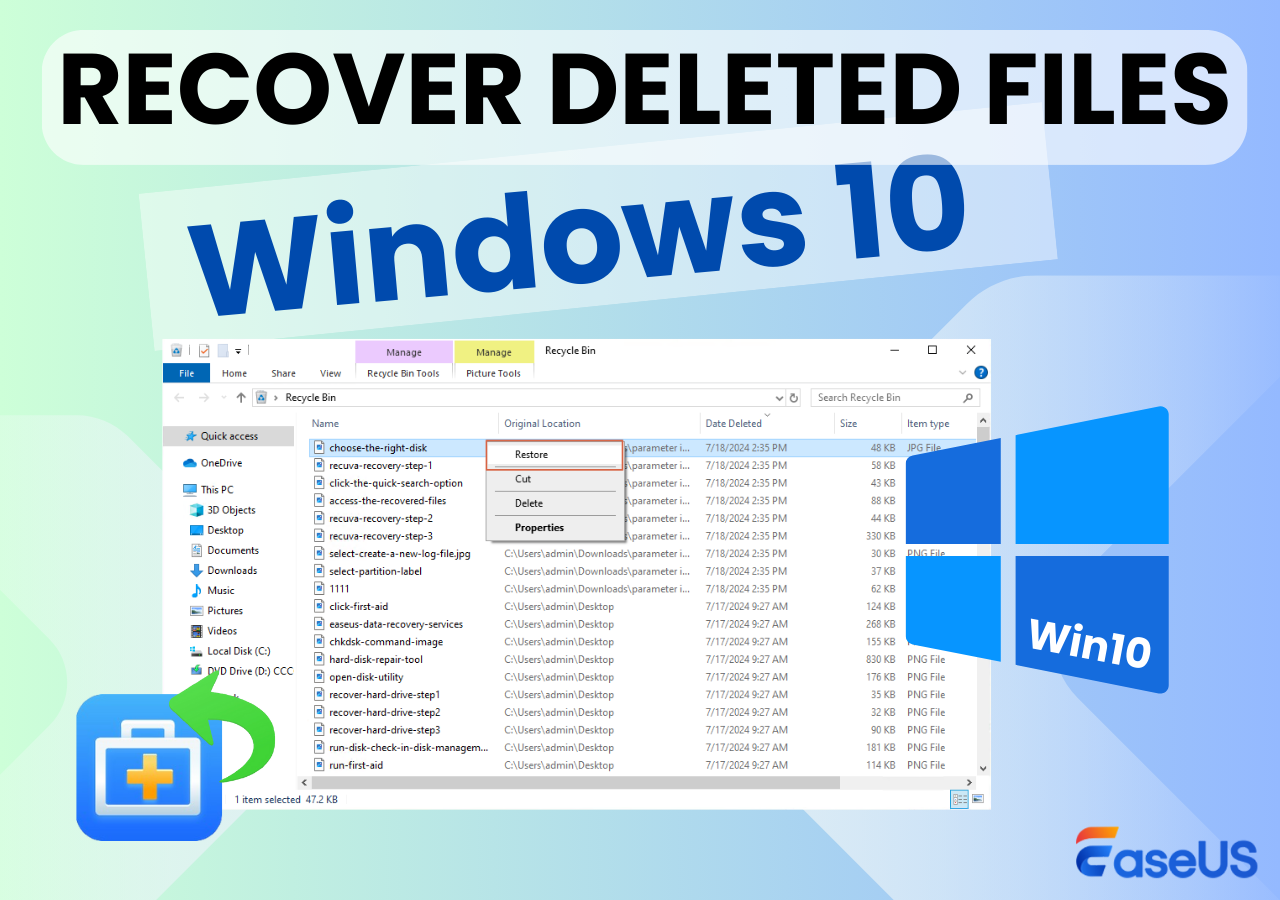
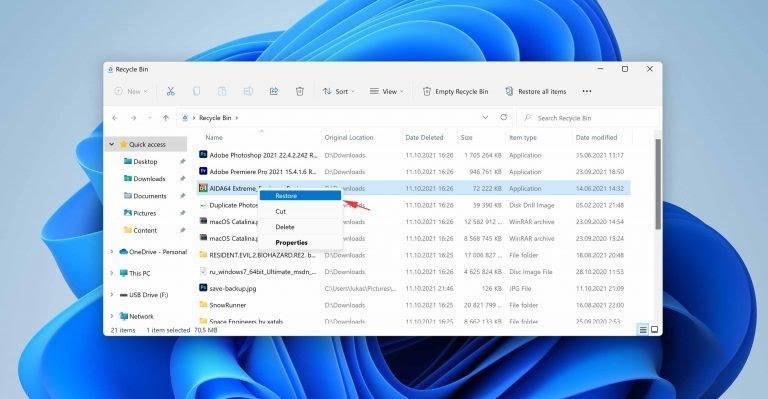
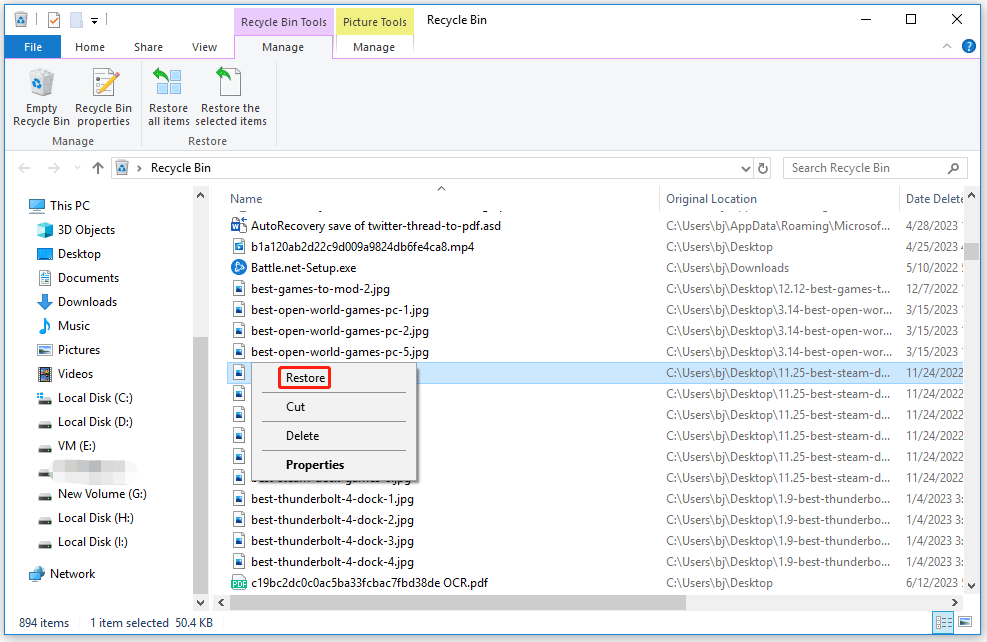
This is the simplest solution for How To Get Back Deleted Files On Windows. Most standard deletions send files directly to the Recycle Bin, acting as a temporary holding cell.
If you used the standard "Delete" key or right-clicked and selected "Delete," the file is almost certainly here. Let's check:
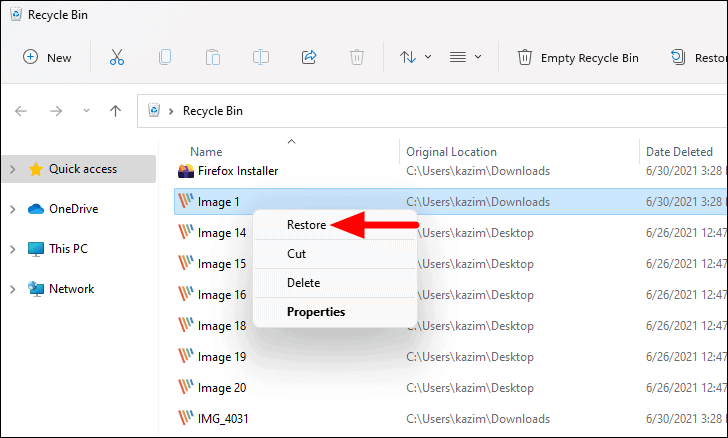
- Locate the Recycle Bin icon on your desktop and double-click it.
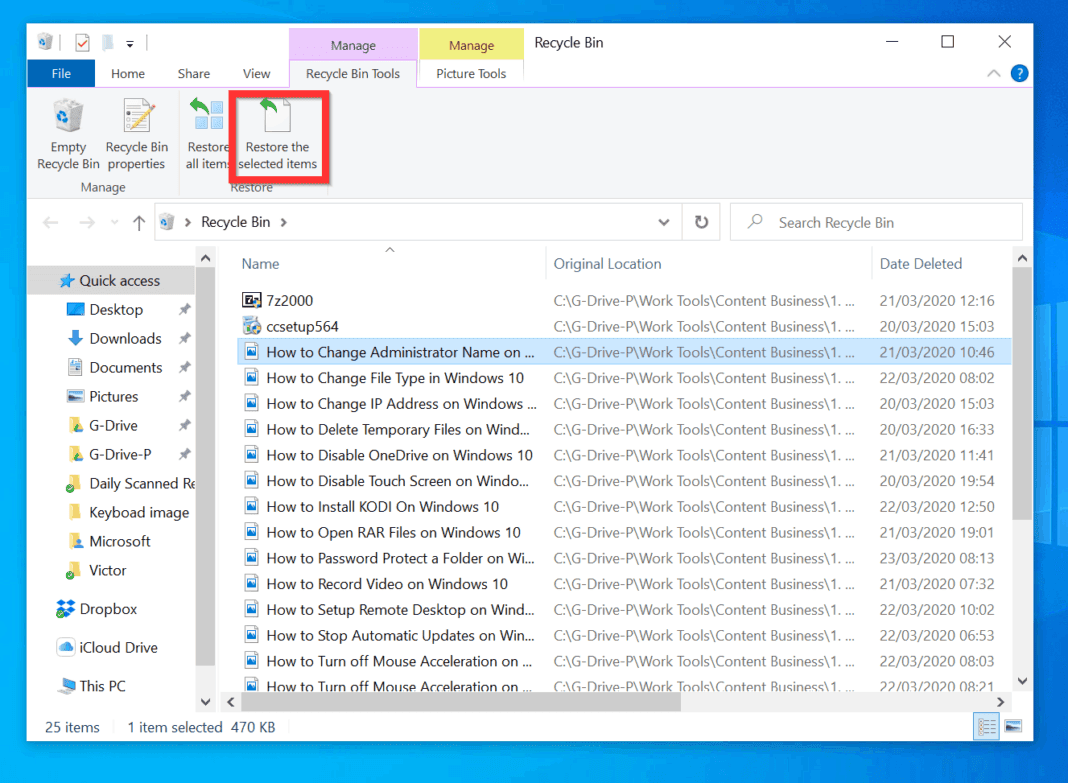
- Browse or use the search bar within the Recycle Bin window to find your missing file.
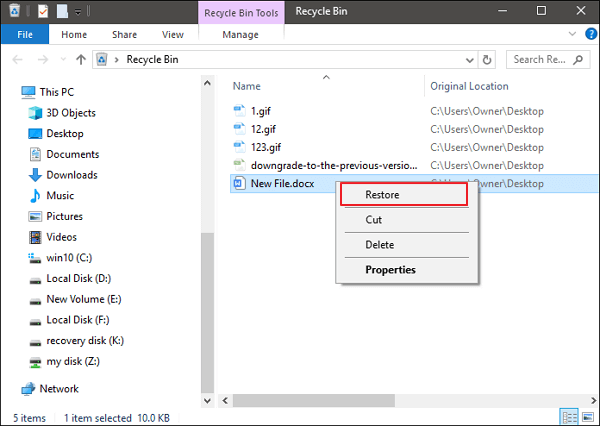
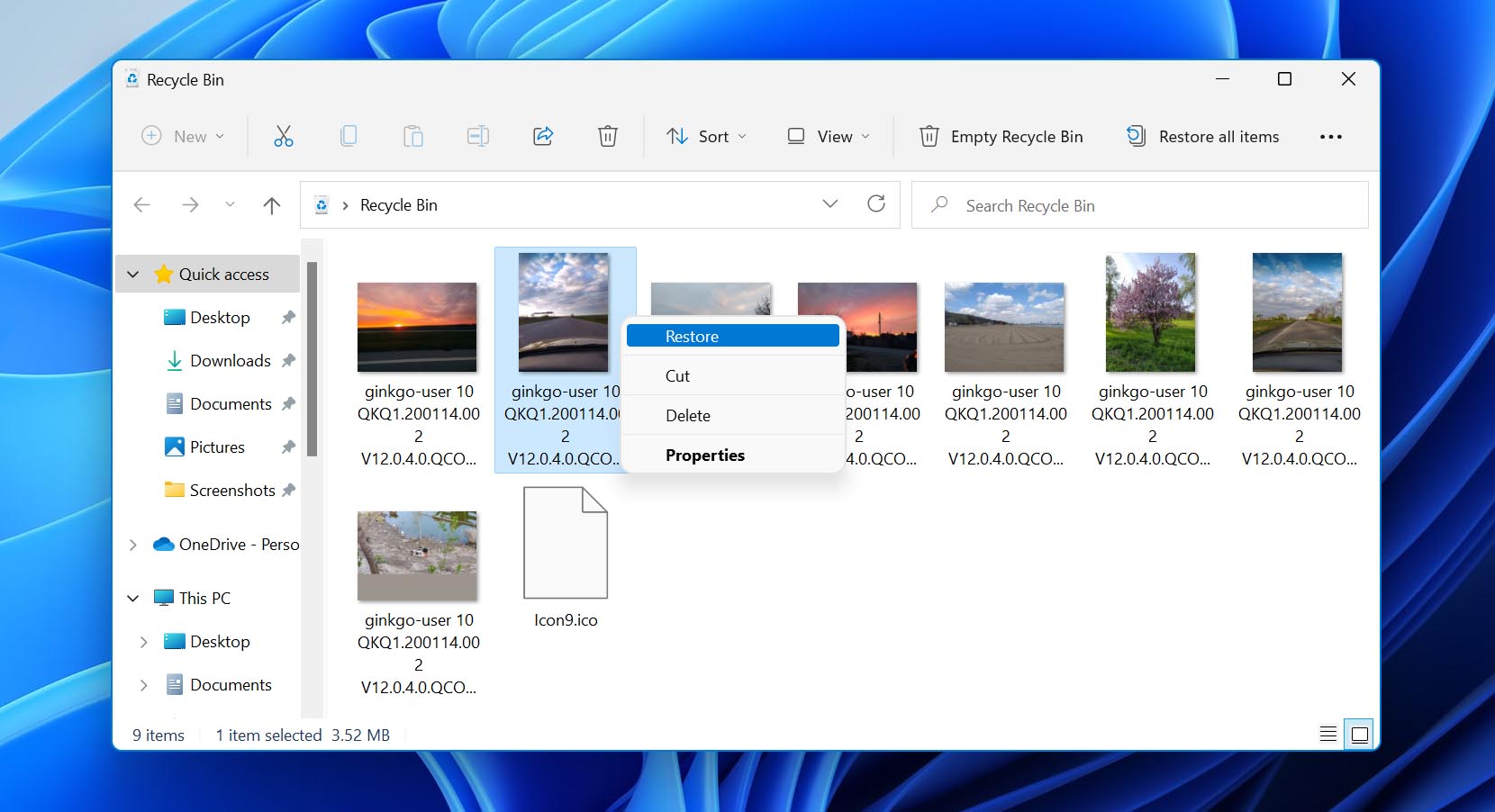
- Once you locate the file, right-click on it.
- Select "Restore." This action returns the file to its original location on your hard drive.
Congratulations! If the file was in the Recycle Bin, the crisis is over.
When the File Isn't in the Recycle Bin
If the Recycle Bin is empty or the file isn't there, it means the file was permanently deleted. This happens if you:
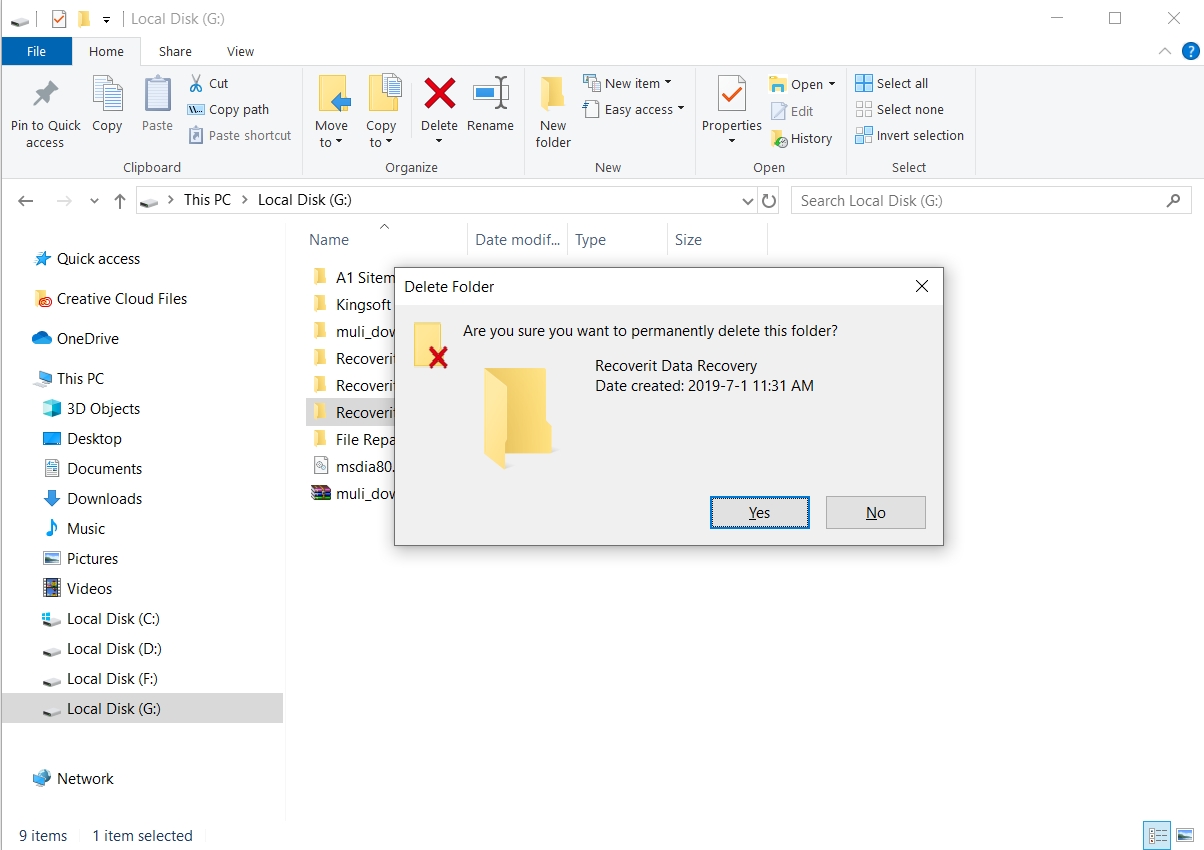
- Used Shift + Delete keyboard shortcut.
- Emptied the Recycle Bin after deleting the file.
- Deleted files from a USB drive or network drive (which often bypass the bin).
In this case, we move on to the more powerful recovery methods using Windows' built-in features.
Method 2: Utilizing Windows Features for Recovery
Windows offers a couple of excellent features, provided you had them enabled before the deletion occurred. These methods rely on having system backups or copies of files saved over time.
File History: Your Digital Time Machine
File History is a backup feature in Windows 8 and later versions that automatically saves copies of your files (Documents, Music, Pictures, Videos, and Desktop folders) if you have an external drive configured for backup. If you use this feature, retrieving your file is relatively simple.
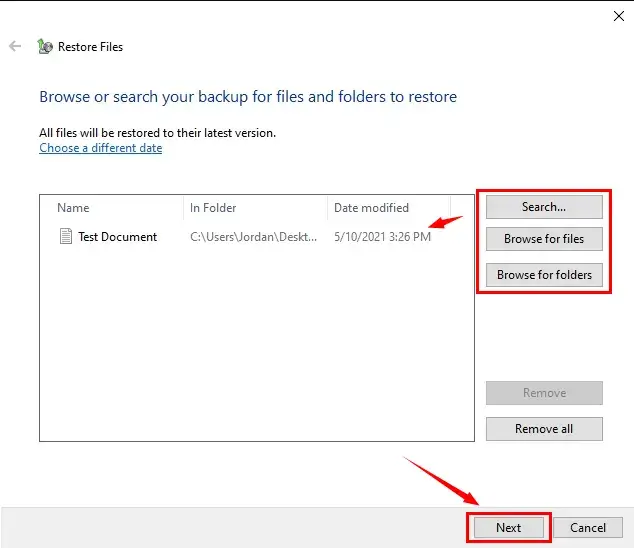
- Type "File History" into the Windows search bar and open "Restore your files with File History."
- Navigate to the folder where the missing file was originally stored.
- Use the arrows at the bottom of the window to scroll back through time until you find the desired version of the file.
- Once you find the file, select it and click the green "Restore" button to return it to its original location.
Restoring Previous Versions
Windows also creates "Shadow Copies" of files and folders as part of the System Protection settings. If System Protection was enabled on the drive where the deletion occurred, you might be able to restore the folder to an earlier state.
Go to the parent folder where the deleted file was located (e.g., if the file was in C:\Users\YourName\Documents, go to the Documents folder). Right-click on the folder and select "Properties." Then, click the "Previous Versions" tab.
You will see a list of previous versions of that folder based on restore points. Select a version that predates the deletion and click "Restore." Warning: restoring an entire folder will revert everything within it to that older state.
Method 3: Advanced Recovery Using Third-Party Software
If the Recycle Bin is empty and Windows features like File History weren't enabled, don't despair! This is often the most reliable method for How To Get Back Deleted Files On Windows, especially if the files were permanently deleted (Shift + Delete).
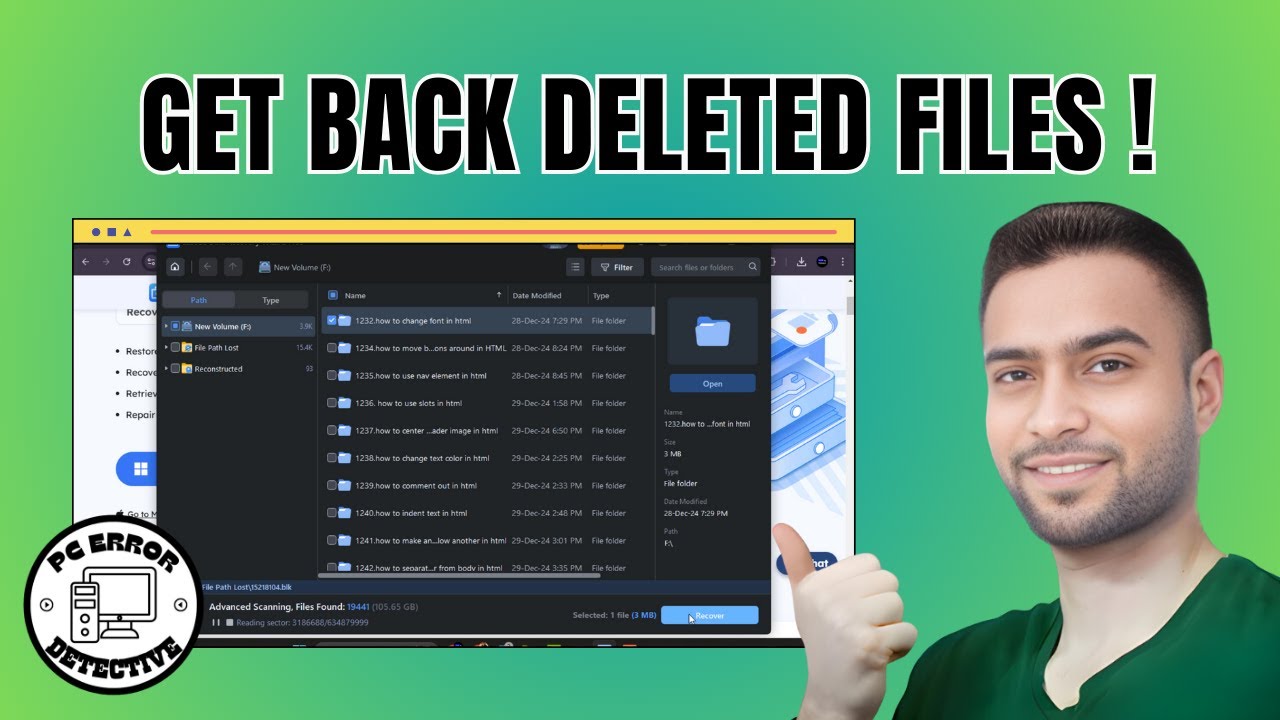
Third-party data recovery programs are designed to scan the raw sectors of your hard drive, locate file remnants, and reconstruct the file structure, even if the operating system has marked the space as free. Tools like Recuva, Disk Drill, or EaseUS Data Recovery are highly popular.
Choosing the Right Data Recovery Tool
When selecting software, keep these points in mind. Crucially, **do not install the recovery software on the same drive** you are trying to recover data from, as this risks overwriting the very files you wish to retrieve.
- **Installation Location:** Install the software on a different partition or external USB drive.
- **Deep Scan Capability:** Ensure the tool offers a "deep scan" for severely damaged or deleted data.
- **Preview Feature:** The ability to preview the deleted file before recovery ensures you are retrieving the correct item.
- **File Type Support:** Check that the software supports the file type you are looking for (e.g., DOCX, JPG, MP4).
Step-by-Step Software Recovery Process
While specific steps vary by software, the general workflow remains the same:
- **Install and Run:** Install the software on a safe drive (not the source drive).
- **Select Drive:** Choose the drive or partition where the file was deleted.
- **Scan:** Run the scan. Start with a quick scan; if that fails, run a deep scan.
- **Filter and Preview:** Filter the results by file name or type. Use the preview function to check file integrity.
- **Recover:** Select the files you want and choose a *new* safe destination to save them (e.g., an external drive or a different partition). Never restore the file back to the source drive immediately after recovery.
Remember, successfully recovering permanently deleted files requires speed and patience, especially during the deep scan process.
Conclusion
Losing a file can feel catastrophic, but modern operating systems and recovery tools provide multiple safety nets. Whether you simply need to pull a document out of the Recycle Bin, leverage Windows' built-in File History backup, or require advanced third-party software, there is almost always a path to recovery.
The best defense against data loss is always prevention—make sure to regularly back up your critical data. However, if disaster strikes, following this guide on How To Get Back Deleted Files On Windows will maximize your chances of success. Stay calm, stop using the affected drive, and start your recovery process today!
Frequently Asked Questions (FAQ)
- Can I recover files that were deleted weeks ago?
- It depends entirely on how much activity has occurred on the hard drive since the deletion. If the data hasn't been overwritten, recovery software might still find it. However, the older the deletion, the lower the chances, as normal system operation constantly writes new data.
- What is the difference between deleting and Shift + Deleting a file?
- Standard "Delete" moves the file to the Recycle Bin, where it can easily be restored. "Shift + Delete" bypasses the Recycle Bin entirely, permanently marking the space as free. This requires the use of File History or third-party recovery software to get the files back.
- Is it safe to use free data recovery software?
- Many reputable companies offer free versions of their data recovery tools (e.g., Recuva). These free tools are usually safe but often have limitations on the amount of data you can recover (e.g., up to 500 MB). Always download software directly from the official developer's website to avoid malware.
- Does recovering a file fix a corrupted file?
- No. Data recovery software is designed to find and reconstruct deleted file structures, not repair existing corruption. If a file was already corrupted *before* deletion, recovering it will likely still result in a corrupted file.
- If I format my hard drive, can I still recover files?
- A standard format (quick format) only clears the file system index, making most data recoverable with deep scanning software, provided no new data has been written yet. However, a full format or secure data wipe makes recovery nearly impossible.
How To Get Back Deleted Files On Windows
How To Get Back Deleted Files On Windows Wallpapers
Collection of how to get back deleted files on windows wallpapers for your desktop and mobile devices.
High-Quality How To Get Back Deleted Files On Windows Capture Concept
Explore this high-quality how to get back deleted files on windows image, perfect for enhancing your desktop or mobile wallpaper.

Amazing How To Get Back Deleted Files On Windows Background for Mobile
Experience the crisp clarity of this stunning how to get back deleted files on windows image, available in high resolution for all your screens.
Captivating How To Get Back Deleted Files On Windows Background Illustration
A captivating how to get back deleted files on windows scene that brings tranquility and beauty to any device.
Breathtaking How To Get Back Deleted Files On Windows Artwork in 4K
Transform your screen with this vivid how to get back deleted files on windows artwork, a true masterpiece of digital design.
Exquisite How To Get Back Deleted Files On Windows Scene for Mobile
Immerse yourself in the stunning details of this beautiful how to get back deleted files on windows wallpaper, designed for a captivating visual experience.

Vivid How To Get Back Deleted Files On Windows Background Illustration
Transform your screen with this vivid how to get back deleted files on windows artwork, a true masterpiece of digital design.

Exquisite How To Get Back Deleted Files On Windows Design Nature
Find inspiration with this unique how to get back deleted files on windows illustration, crafted to provide a fresh look for your background.
Vibrant How To Get Back Deleted Files On Windows View Nature
Discover an amazing how to get back deleted files on windows background image, ideal for personalizing your devices with vibrant colors and intricate designs.

High-Quality How To Get Back Deleted Files On Windows Scene in HD
Explore this high-quality how to get back deleted files on windows image, perfect for enhancing your desktop or mobile wallpaper.
Captivating How To Get Back Deleted Files On Windows Landscape Art
This gorgeous how to get back deleted files on windows photo offers a breathtaking view, making it a perfect choice for your next wallpaper.
Mesmerizing How To Get Back Deleted Files On Windows Picture in 4K
Explore this high-quality how to get back deleted files on windows image, perfect for enhancing your desktop or mobile wallpaper.

Captivating How To Get Back Deleted Files On Windows Abstract Concept
Immerse yourself in the stunning details of this beautiful how to get back deleted files on windows wallpaper, designed for a captivating visual experience.
Dynamic How To Get Back Deleted Files On Windows Capture for Your Screen
Find inspiration with this unique how to get back deleted files on windows illustration, crafted to provide a fresh look for your background.
Breathtaking How To Get Back Deleted Files On Windows Design Digital Art
Explore this high-quality how to get back deleted files on windows image, perfect for enhancing your desktop or mobile wallpaper.
Vibrant How To Get Back Deleted Files On Windows Picture for Your Screen
Discover an amazing how to get back deleted files on windows background image, ideal for personalizing your devices with vibrant colors and intricate designs.

Spectacular How To Get Back Deleted Files On Windows Picture Photography
A captivating how to get back deleted files on windows scene that brings tranquility and beauty to any device.
Breathtaking How To Get Back Deleted Files On Windows Abstract for Your Screen
Transform your screen with this vivid how to get back deleted files on windows artwork, a true masterpiece of digital design.
Lush How To Get Back Deleted Files On Windows Landscape Illustration
A captivating how to get back deleted files on windows scene that brings tranquility and beauty to any device.

Serene How To Get Back Deleted Files On Windows Picture in 4K
Transform your screen with this vivid how to get back deleted files on windows artwork, a true masterpiece of digital design.
Artistic How To Get Back Deleted Files On Windows Moment Collection
Find inspiration with this unique how to get back deleted files on windows illustration, crafted to provide a fresh look for your background.
Download these how to get back deleted files on windows wallpapers for free and use them on your desktop or mobile devices.