How To Get A Google Form Link
How To Get A Google Form Link: Your Ultimate Sharing Guide
So, you've spent time crafting the perfect Google Form—whether it's for surveys, registrations, or quick polls. Great job! Now comes the crucial step: sharing it with the world. But wait, where exactly do you find that magical URL? Don't worry, getting the link to your Google Form is super simple once you know where to look. This guide will walk you through the precise steps on How To Get A Google Form Link, ensuring your form reaches your intended audience without a hitch.
Whether you need a full URL, a shortened link, or embed code, Google Forms has multiple options available. We will focus on the most reliable methods for quick and efficient sharing. Let's dive right in and turn you into a linking expert!
Step 1: Navigating to the 'Send' Menu
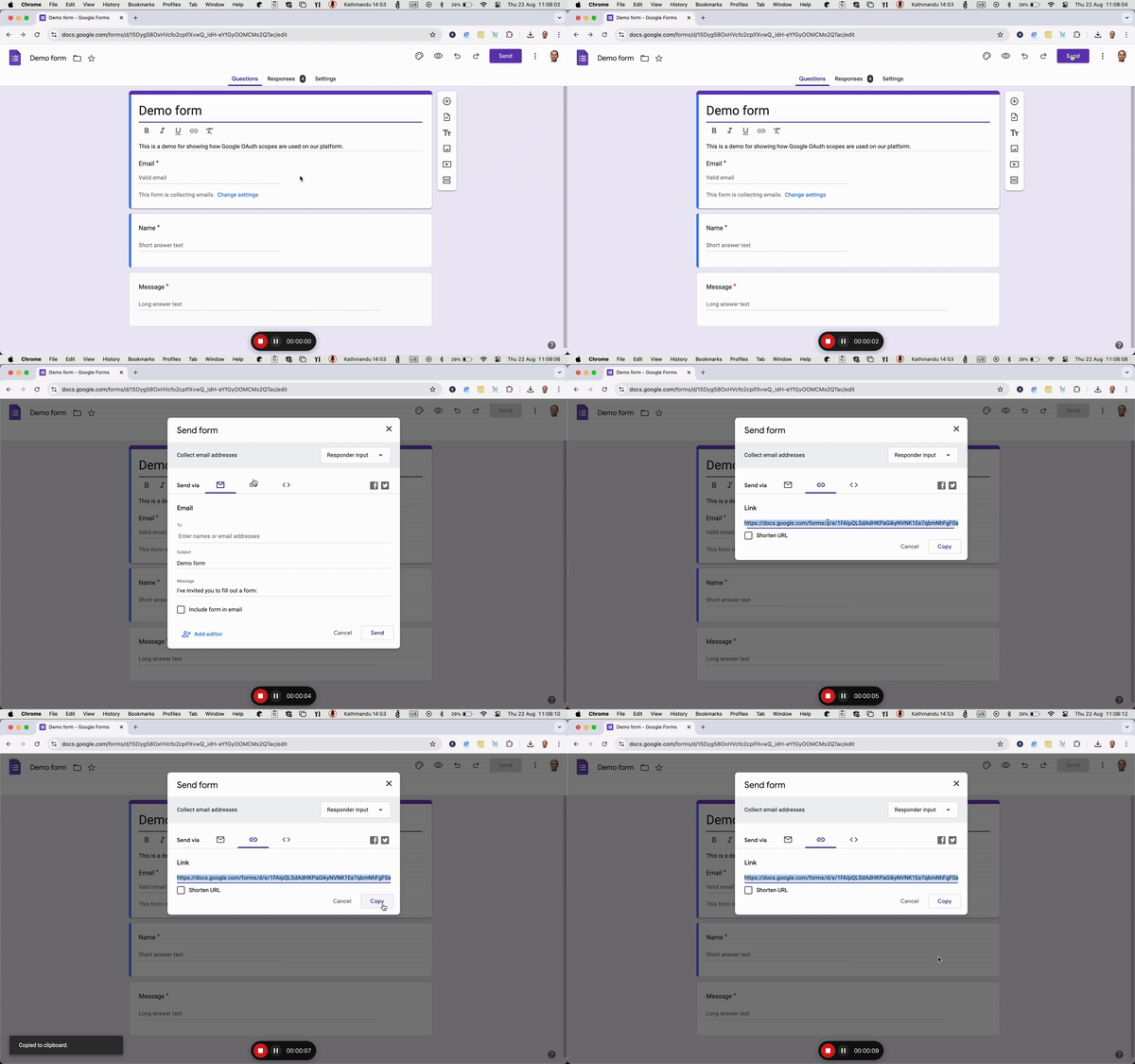
The first step in finding your form's unique URL is accessing the "Send" menu. This is the central hub for all sharing methods Google Forms provides. Finding it is straightforward, but you must be viewing your form in the editing mode.
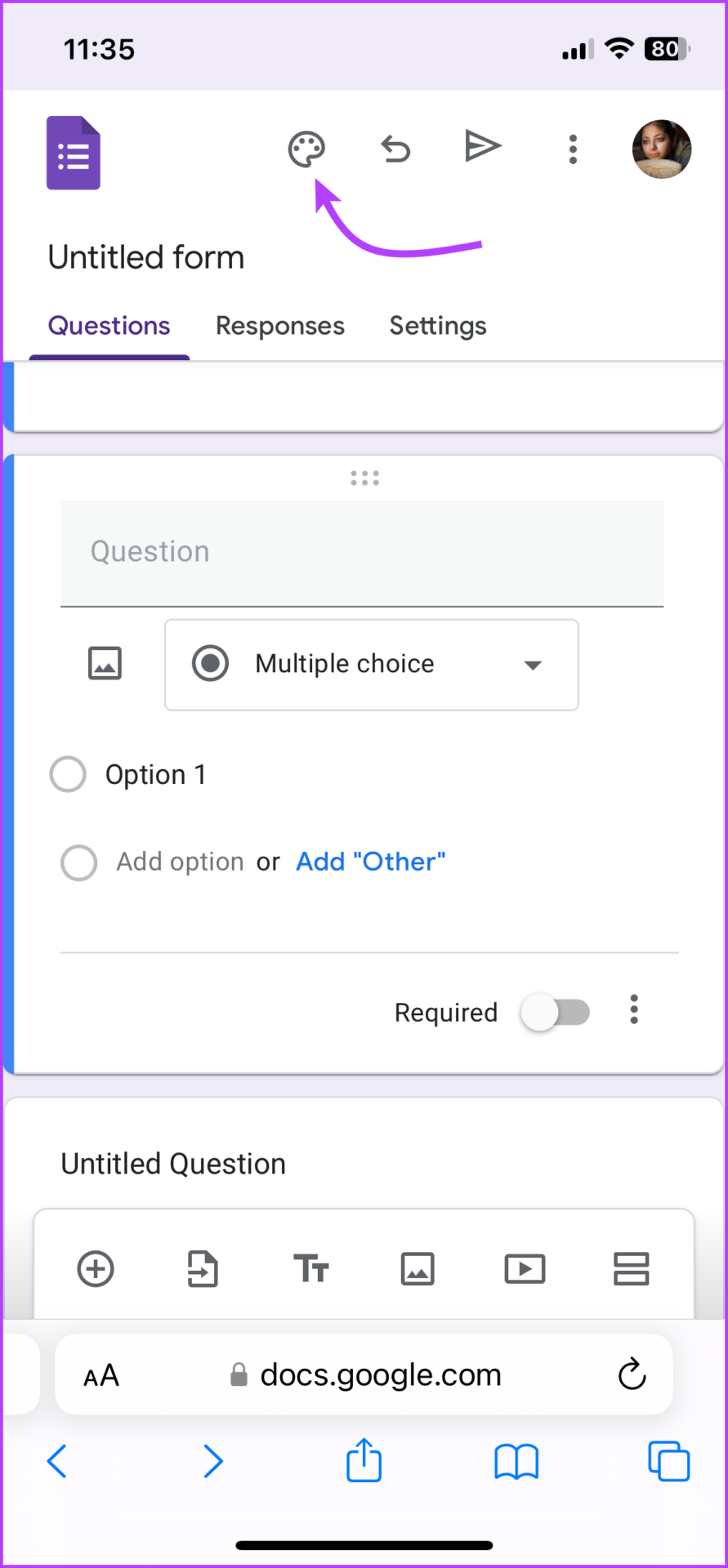
You must be signed into the Google account that owns the form. Look towards the top right-hand corner of your screen. You will see three main buttons: "Responses," "Settings," and crucially, the large purple "Send" button. It's usually prominent, making it hard to miss.
Clicking this button opens a brand-new window dedicated entirely to sending options. This window is where the magic happens when you need to figure out how to get a Google Form link quickly and efficiently.
Step 2: Understanding the Sharing Tabs (Email, Link, Embed)
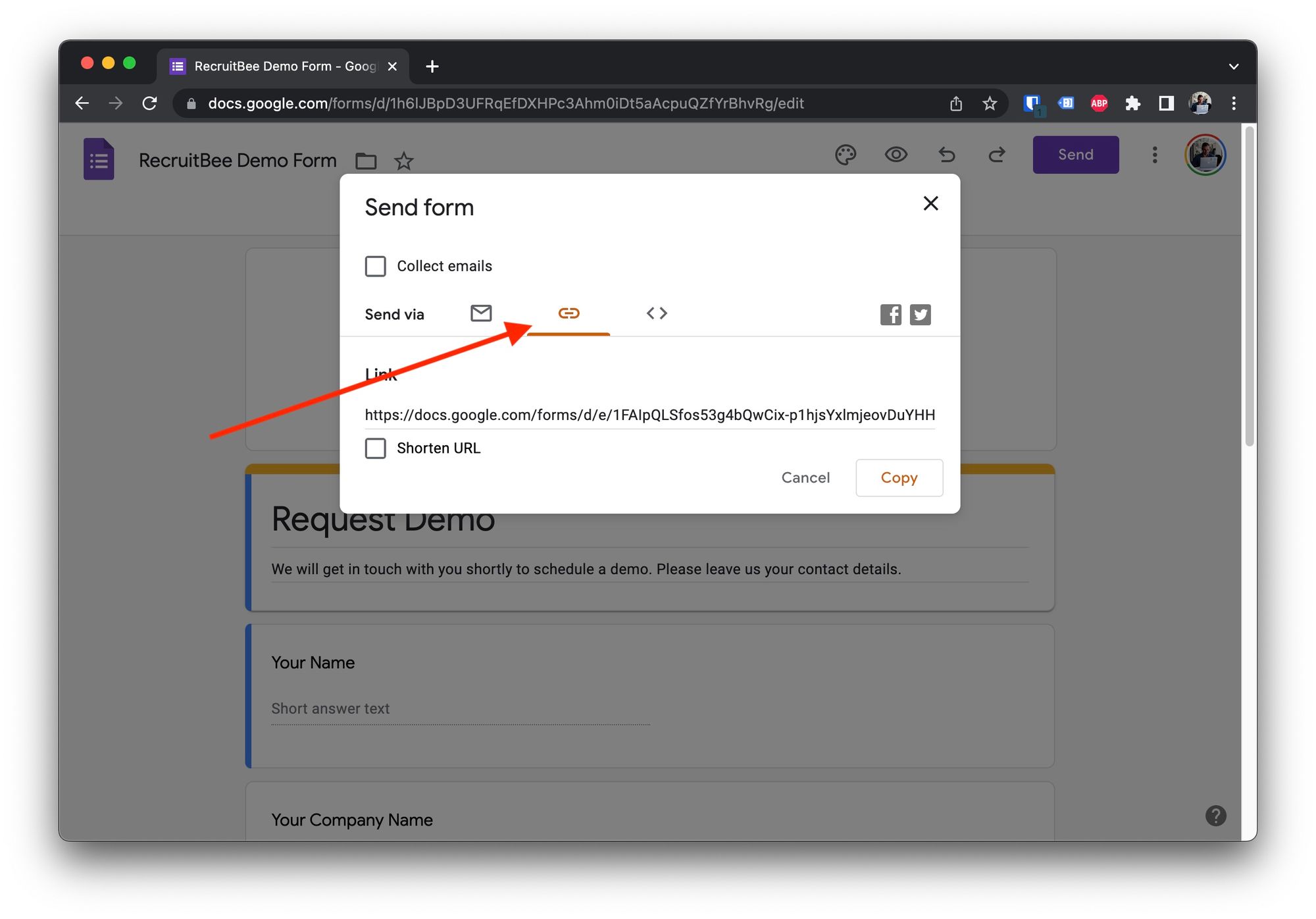
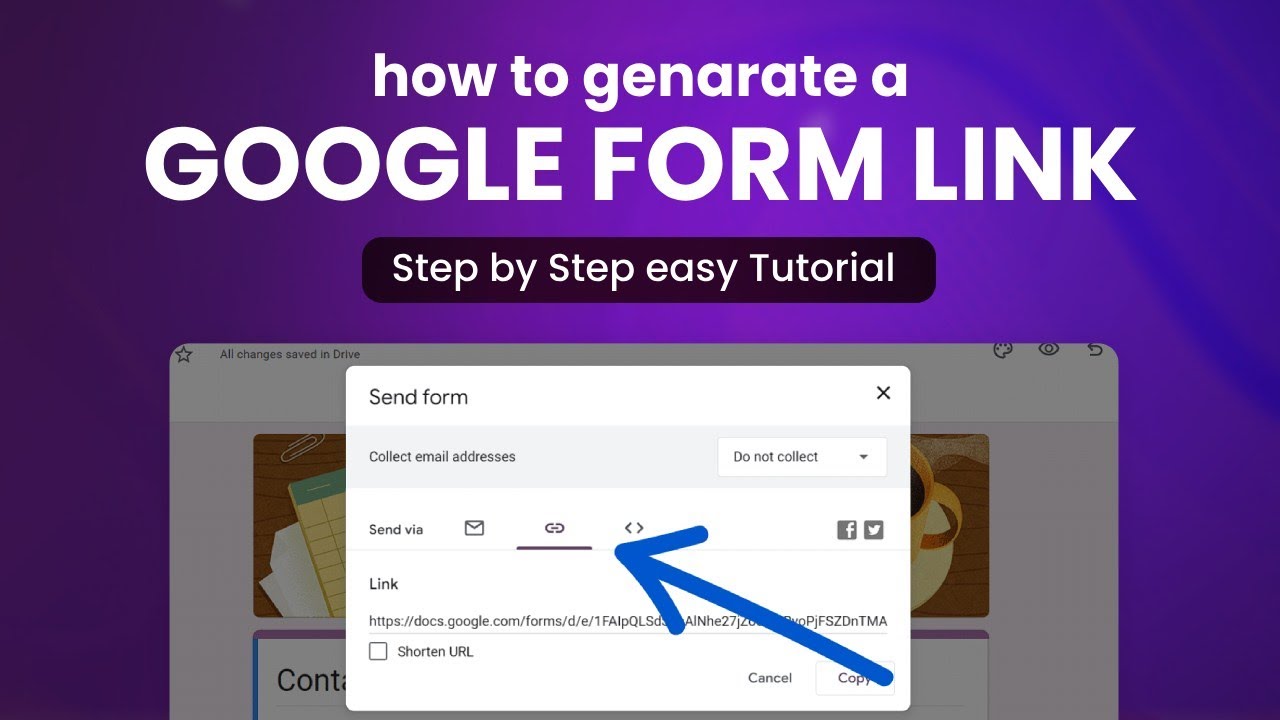
Once the "Send Form" dialog box pops up, you'll notice there are three distinct icons at the top, representing different ways to distribute your form. While all are valuable, we are primarily interested in the middle icon.
It is important to understand what each icon does before moving forward. This way, you can choose the right distribution method for your specific needs.
- Email Icon (Envelope): This tab is for sending the form directly via email. You can type in recipient addresses and customize the subject line.
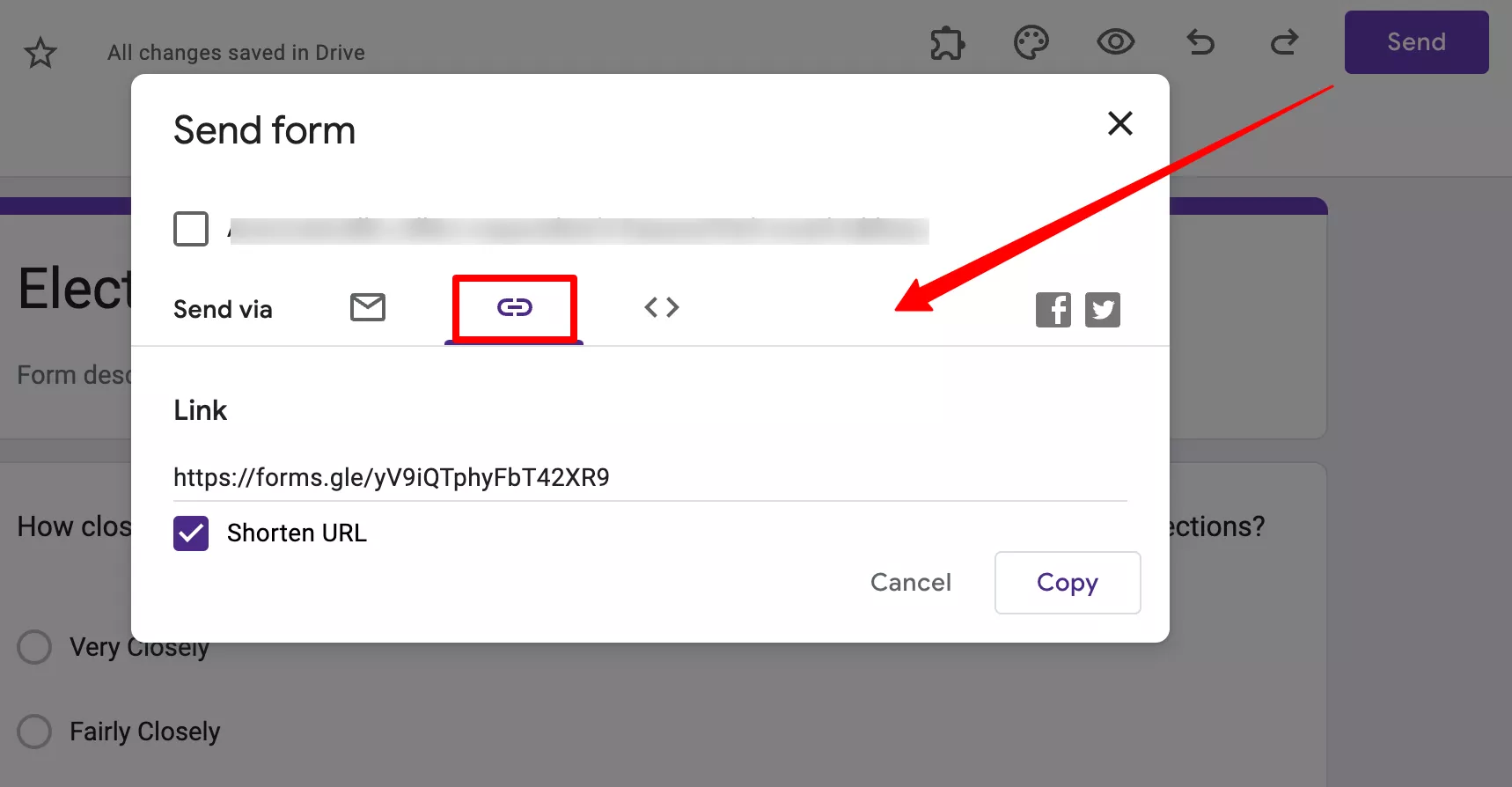
- Link Icon (Chain Link): This is the key tab for finding and copying the raw URL. If you want to post the link on social media or in a chat, this is your destination.
- Embed Icon (< >): This provides HTML code if you plan to integrate the form directly into a website or blog post, allowing users to fill it out without leaving your page.
To successfully master how to get a Google Form link for sharing widely, simply click the chain link icon. This action immediately generates and displays the unique URL for your form in a large text box.
Harnessing the Power of the Shortened URL
You might notice that the standard Google Form link is incredibly long. It's a massive string of characters that looks unprofessional and takes up unnecessary space when shared in tweets, texts, or printed documents. Nobody wants to deal with that mess!
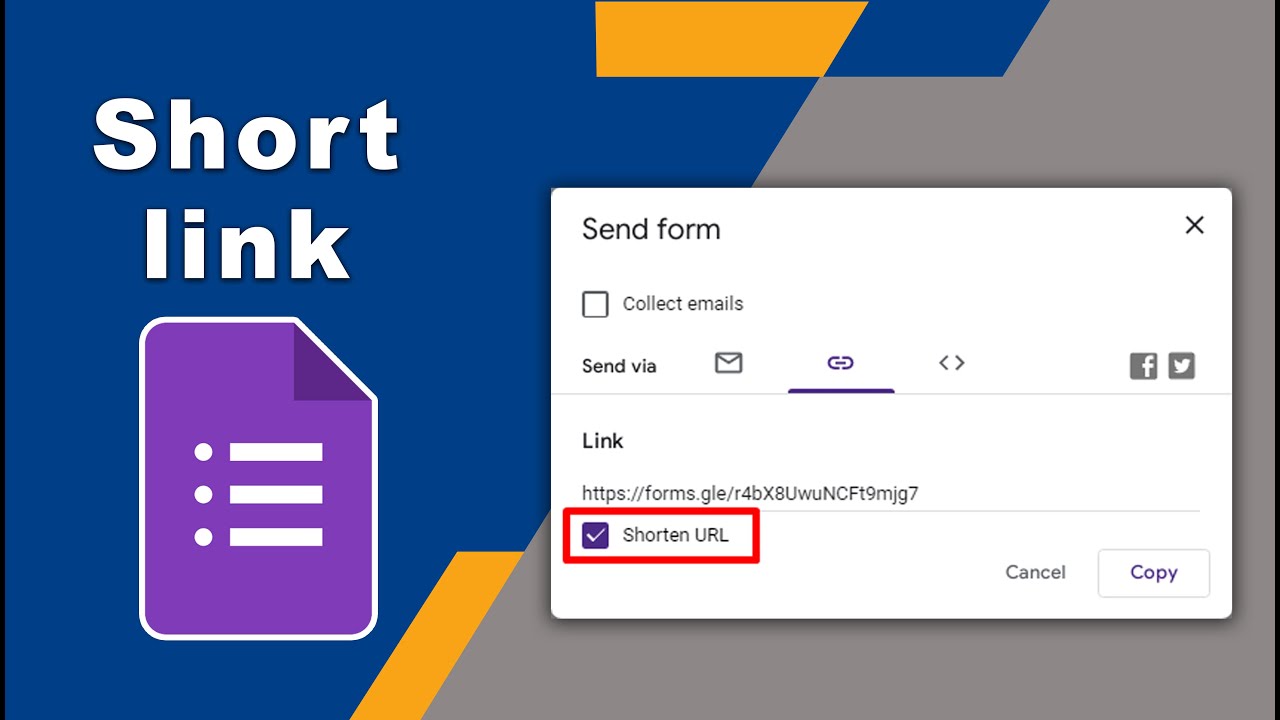
Thankfully, Google offers a fantastic built-in solution. When you are on the "Link" tab, look below the massive URL field. You will see a convenient checkbox labeled "Shorten URL." Click that box immediately!
Google will automatically condense that massive, unwieldy link into a much more manageable and shareable short version. Using the shortened URL is highly recommended because it's cleaner, easier to copy, and generally looks much better to your respondents. Always remember that both the long and the short link lead to the exact same form, functioning identically.
Copying the Link and Final Distribution
Once you have selected your preferred URL format—definitely go with the shortened one—the last crucial step is copying it. Right next to the URL field (or below it, depending on the screen size), there is a prominent "Copy" button. Give that a click, and the link is instantly saved to your clipboard.
That is all there is to it! You have successfully mastered how to get a Google Form link. Now, you can paste this link into any platform your audience uses. Think about sharing avenues like an internal Slack channel, an external email newsletter, or even integrating it into a digital presentation.
Alternative Method: Getting the Link from Google Drive
What if you just closed the form editing window, or you are browsing your files in Google Drive and suddenly realize you need the sharing link? You don't necessarily have to open the form in editing mode to retrieve the sharing URL, which can save a bit of time.
Since your form is inherently saved in Google Drive, you can access the sharing options directly from the file management interface. This method is incredibly useful for quickly grabbing the sharing URL without needing to load the entire form editor, though it requires a bit of caution regarding permissions.
Using the Right-Click Menu in Drive
This is a super handy shortcut for those who spend a lot of time organizing files. Navigate to the Google Drive folder where your form resides. Identify the form file—it has a distinct purple icon—and follow these quick steps:
- Right-click directly on the Google Form file name.
- Hover your mouse over the "Share" option in the context menu that appears.
- A sub-menu will prompt you to "Copy link." Click this.
While fast, be cautious. The link generated this way might sometimes be the 'editing' link if you haven't properly configured the general sharing permissions on the file itself in Drive. For this reason, the "Send" button method inside the form editor is usually the most reliable way to guarantee you get the dedicated public viewing URL.
Checking Link Sharing Permissions Before Distribution
Before you widely distribute that beautifully shortened link, stop for one moment! If your form is intended for the general public, you absolutely must ensure that the sharing settings are configured correctly. Failure to do so means people might click your link only to be met with a frustrating "Permission Denied" message.
In the "Send" dialog box, before you copy the link, check the settings near the bottom under the "Email" tab or the file sharing settings in Drive. If you are sharing outside of your organization, make sure access is set to "Anyone with the link can view." This ensures that anyone who receives the link to your form can successfully open and fill it out without needing to sign into a specific Google account.
If you skip this crucial step, all your effort in figuring out how to get a Google Form link will be wasted! Always double-check permissions to avoid respondent frustration.
After Getting the Link: What Happens Next?
Once the link is distributed, your job transitions from sharing to actively collecting data. The link remains perpetually active, provided you haven't manually stopped accepting responses within the form settings. This status is visible on the "Responses" tab.
When someone clicks the link, they will see the live, public version of your form and can submit their answers. All responses flow back directly into the "Responses" tab of your Google Form editor, where you can view summaries or link to a Google Sheet for deeper analysis.
For convenience, always keep a copy of the shortened link handy, perhaps saved in a dedicated document or bookmark. This practice is especially helpful if you need to share the form periodically or include it in different marketing materials over time.
Conclusion: Sharing Success is Just a Click Away
Congratulations! You now know exactly how to get a Google Form link using the simplest and most reliable method available within the Forms editor. The purple "Send" button is your gateway to distribution, and the chain-link icon is your specific path to retrieving the clean, public URL.
To recap, mastering this process requires just these three simple takeaway steps:
- Click the "Send" button in the top right corner of the editing screen.
- Select the Link icon (the chain link).
- Check the "Shorten URL" box for a much cleaner link, then click Copy.
With this knowledge, you can efficiently share your valuable surveys, registration forms, and questionnaires with the world, ensuring a smooth and professional data collection process every time. Happy linking!
Frequently Asked Questions About Google Form Links
- How long does a Google Form link remain active?
- A Google Form link remains active indefinitely unless you, as the creator, manually toggle off the "Accepting responses" setting inside the form editor. The link itself never expires.
- Can I track how many times my Google Form link has been clicked?
- Google Forms itself does not offer direct click tracking or analytics on the link distribution. However, if you use the shortened link functionality, you can use external third-party URL shorteners (like Bitly or TinyURL) instead of the built-in Google option to gain detailed analytics on clicks, location, and traffic source.
- What is the difference between the Editor Link and the Live Link?
- The Editor Link is the URL visible in your browser's address bar when you are actively modifying the form; this is only for you and collaborators. The Live Link (obtained specifically via the "Send" button) is the public URL respondents use to fill out the survey. You must always use the Live Link for distribution.
- Can I change the actual text of the shortened Google Form link?
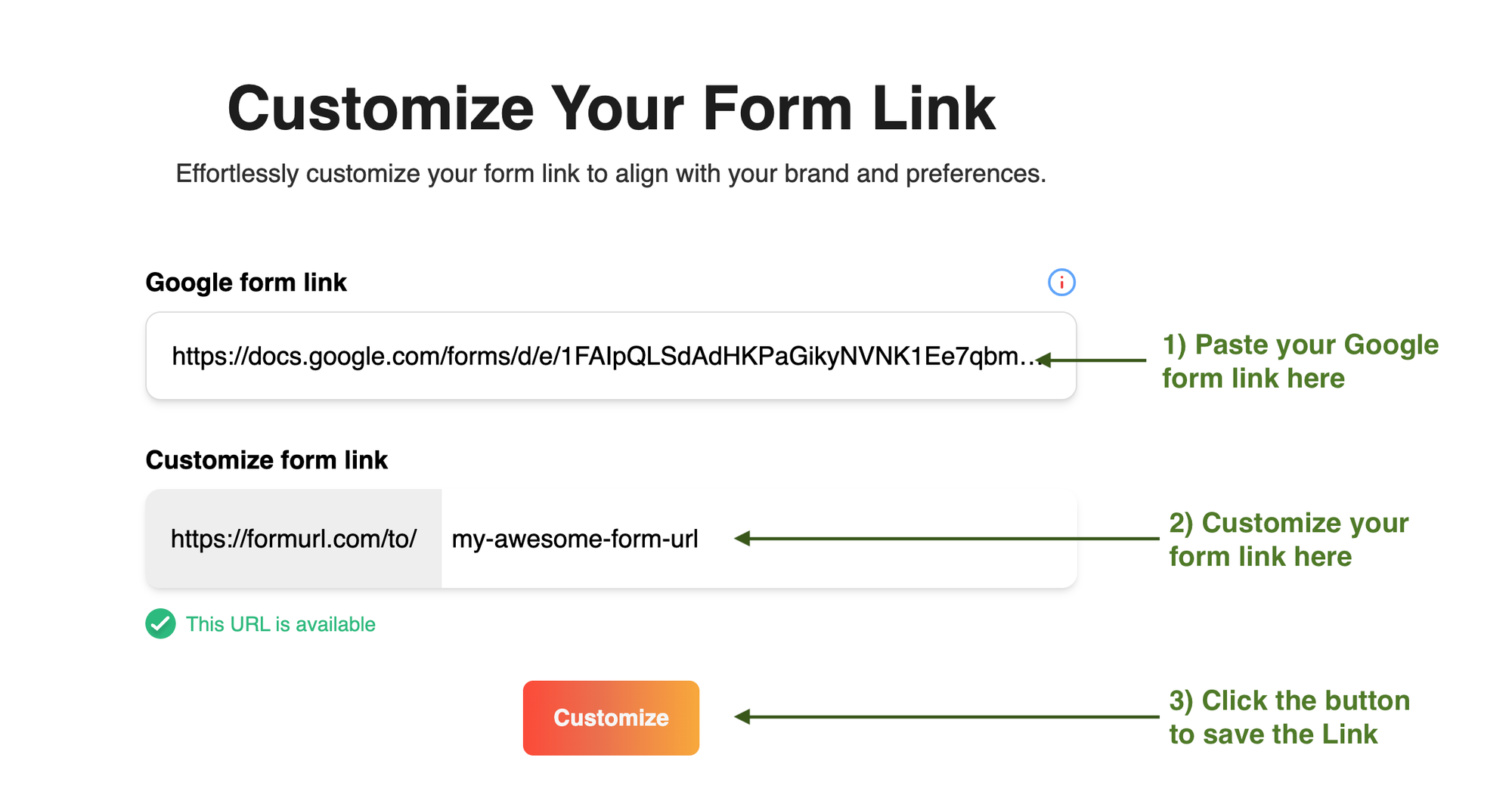
- No, the built-in Google Forms URL shortener generates a unique, unchangeable string of letters and numbers (e.g., forms.gle/xyz123). If you need a custom vanity URL that uses specific words, you must copy the long URL and use an external, specialized custom URL shortening service.
How To Get A Google Form Link
How To Get A Google Form Link Wallpapers
Collection of how to get a google form link wallpapers for your desktop and mobile devices.

Mesmerizing How To Get A Google Form Link Background Concept
Discover an amazing how to get a google form link background image, ideal for personalizing your devices with vibrant colors and intricate designs.
Vivid How To Get A Google Form Link Image for Desktop
Experience the crisp clarity of this stunning how to get a google form link image, available in high resolution for all your screens.
Crisp How To Get A Google Form Link Scene for Mobile
Find inspiration with this unique how to get a google form link illustration, crafted to provide a fresh look for your background.
Lush How To Get A Google Form Link Image Concept
This gorgeous how to get a google form link photo offers a breathtaking view, making it a perfect choice for your next wallpaper.
Dynamic How To Get A Google Form Link Artwork Photography
Immerse yourself in the stunning details of this beautiful how to get a google form link wallpaper, designed for a captivating visual experience.
Stunning How To Get A Google Form Link Moment in HD
Find inspiration with this unique how to get a google form link illustration, crafted to provide a fresh look for your background.
Gorgeous How To Get A Google Form Link Background Collection
Find inspiration with this unique how to get a google form link illustration, crafted to provide a fresh look for your background.
Breathtaking How To Get A Google Form Link Landscape Collection
Discover an amazing how to get a google form link background image, ideal for personalizing your devices with vibrant colors and intricate designs.
Vibrant How To Get A Google Form Link Wallpaper for Your Screen
Explore this high-quality how to get a google form link image, perfect for enhancing your desktop or mobile wallpaper.
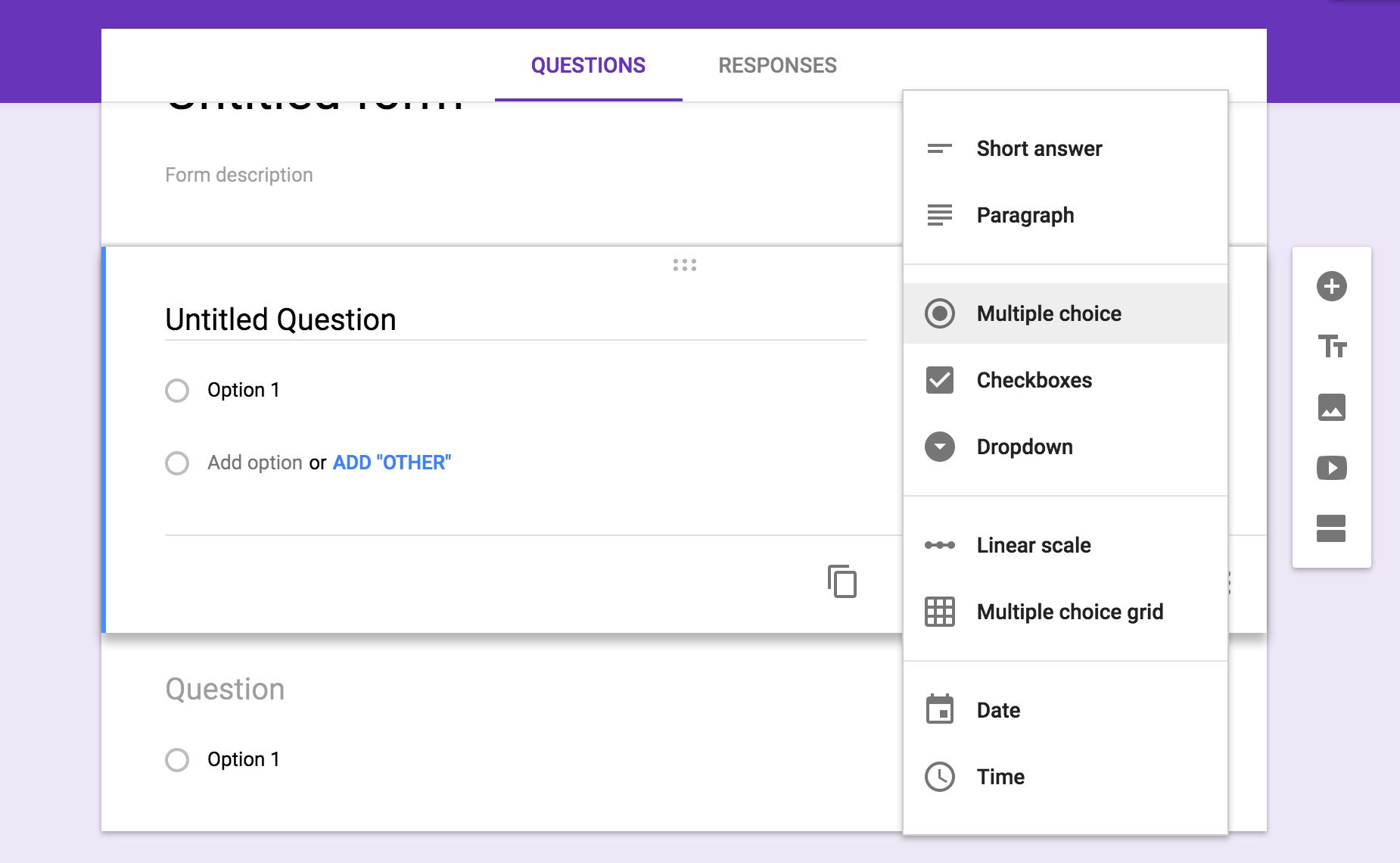
Amazing How To Get A Google Form Link Design for Desktop
Explore this high-quality how to get a google form link image, perfect for enhancing your desktop or mobile wallpaper.
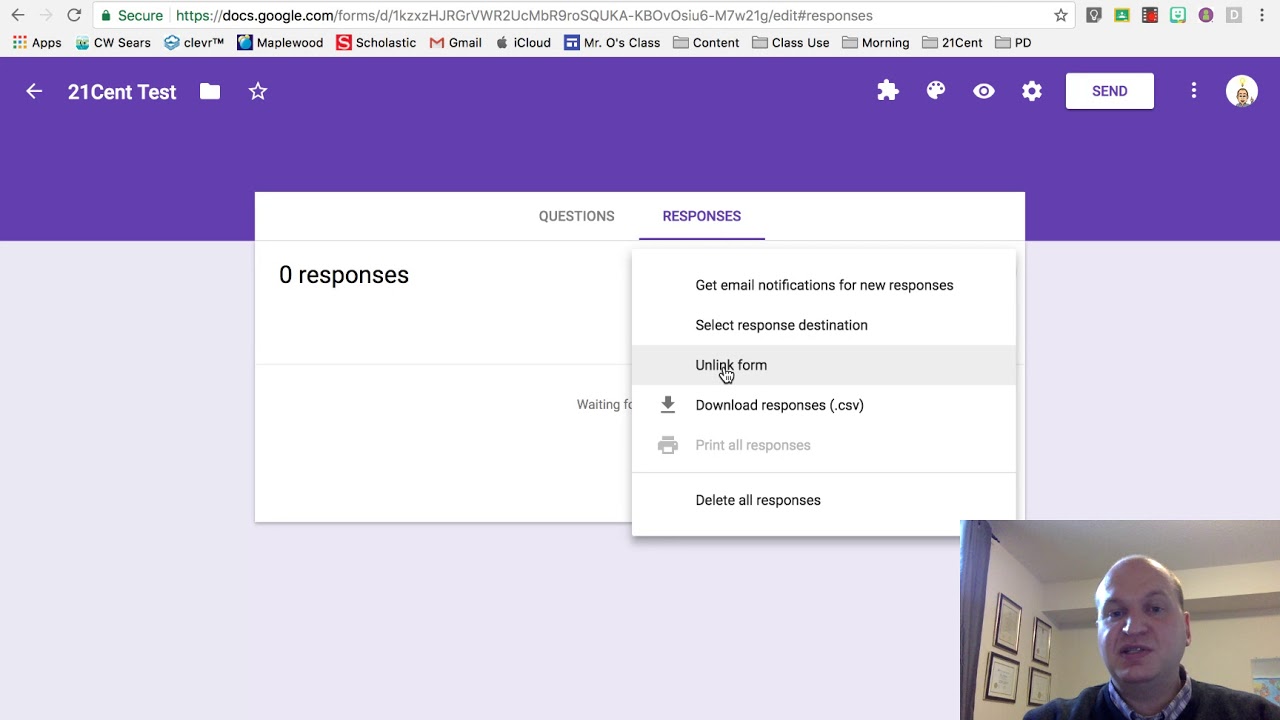
Stunning How To Get A Google Form Link Photo for Mobile
Find inspiration with this unique how to get a google form link illustration, crafted to provide a fresh look for your background.
Beautiful How To Get A Google Form Link Abstract for Your Screen
Discover an amazing how to get a google form link background image, ideal for personalizing your devices with vibrant colors and intricate designs.

Beautiful How To Get A Google Form Link Abstract in 4K
Discover an amazing how to get a google form link background image, ideal for personalizing your devices with vibrant colors and intricate designs.

Gorgeous How To Get A Google Form Link Image Collection
Find inspiration with this unique how to get a google form link illustration, crafted to provide a fresh look for your background.
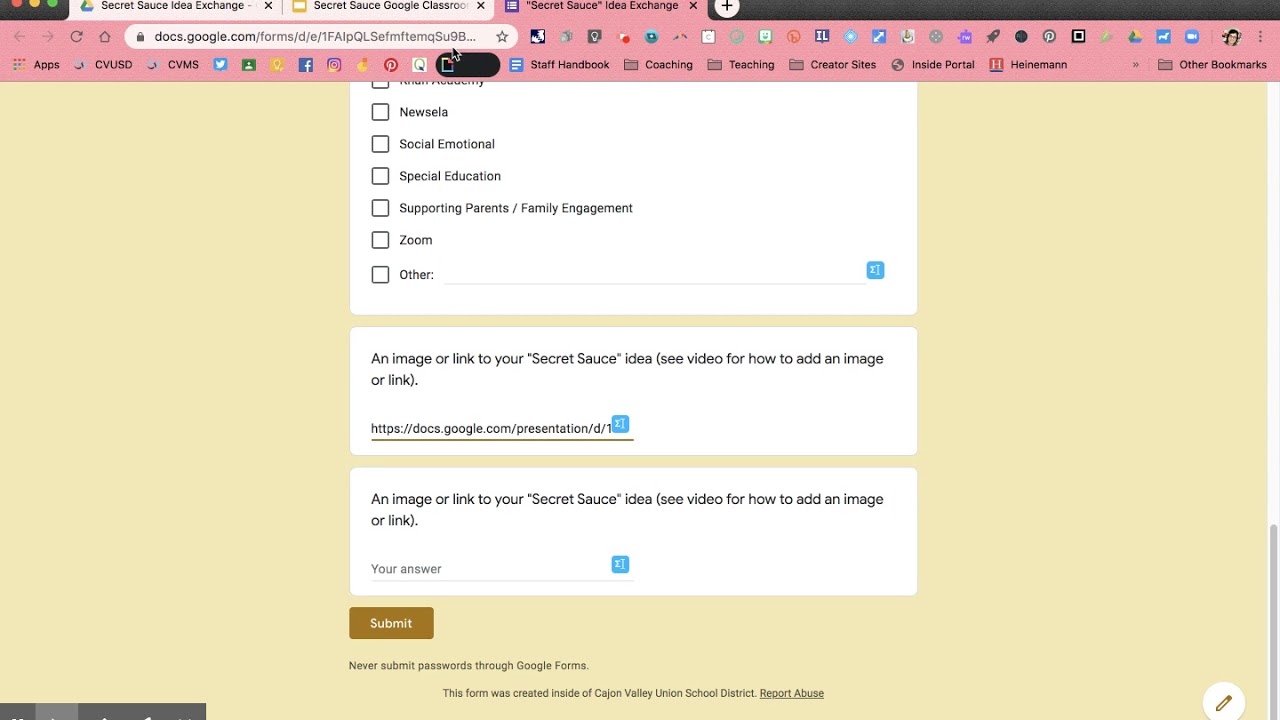
Captivating How To Get A Google Form Link Picture Concept
This gorgeous how to get a google form link photo offers a breathtaking view, making it a perfect choice for your next wallpaper.

Captivating How To Get A Google Form Link Capture for Your Screen
A captivating how to get a google form link scene that brings tranquility and beauty to any device.
Dynamic How To Get A Google Form Link Artwork Concept
Find inspiration with this unique how to get a google form link illustration, crafted to provide a fresh look for your background.
Serene How To Get A Google Form Link Background for Your Screen
Discover an amazing how to get a google form link background image, ideal for personalizing your devices with vibrant colors and intricate designs.
Dynamic How To Get A Google Form Link View Nature
A captivating how to get a google form link scene that brings tranquility and beauty to any device.

Captivating How To Get A Google Form Link Image Digital Art
Find inspiration with this unique how to get a google form link illustration, crafted to provide a fresh look for your background.
Download these how to get a google form link wallpapers for free and use them on your desktop or mobile devices.