How To Get Mla Format On Google Docs
How To Get Mla Format On Google Docs: A Step-by-Step Guide
Struggling to format your academic paper? You're not alone! Many students rely on Google Docs for its convenience, but figuring out the precise requirements of MLA format can feel like navigating a maze. Whether you're writing for English, Humanities, or any other course requiring the 9th edition standard, getting your document perfect is crucial for securing that good grade.
The great news is that Google Docs has all the tools you need. This guide will walk you through exactly How To Get Mla Format On Google Docs, covering everything from margins and fonts to the tricky header and Works Cited page. Let's get your paper ready for submission!
Setting Up the Essentials: Margins and Font
Before you even type your first sentence, establishing the baseline formatting is essential. MLA has very strict guidelines about the look and feel of the text itself. Ignoring these basics is the fastest way to lose points!
Choosing the Right Font and Size
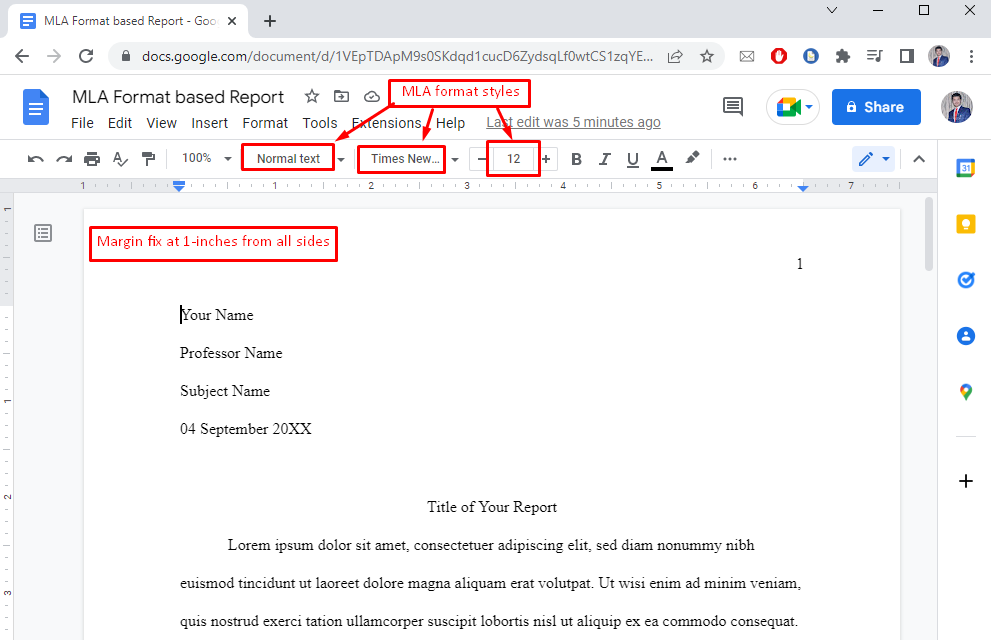
MLA recommends using a legible font that is easy for your professor to read. The standard choice has long been Times New Roman, but many sans-serif fonts are now acceptable, provided they match the text size.
Here's how to set your font in Google Docs:
- Go to the font dropdown menu (usually showing "Arial" by default).
- Select "Times New Roman."
- Ensure the font size is set to 12 point.
If your professor allows a different standard font (like Calibri or Arial), make sure to stick to the 12pt size requirement.
Adjusting Margins and Line Spacing
The entire document, including the Works Cited page, must be double-spaced. Furthermore, all margins must be exactly one inch on all four sides (top, bottom, left, and right). This is a non-negotiable rule when learning How To Get Mla Format On Google Docs.
Follow these quick steps:
- Setting Margins: Click on "File" in the top menu, then select "Page setup." Ensure that all four margin inputs (Top, Bottom, Left, Right) are set to "1."
- Setting Spacing: Click on "Format" in the top menu, hover over "Line and paragraph spacing," and select "Double."
Also, make sure there is no extra space after paragraphs. While still in the "Line and paragraph spacing" menu, confirm that "Remove space after paragraph" is selected.
Creating the MLA Header and Running Head
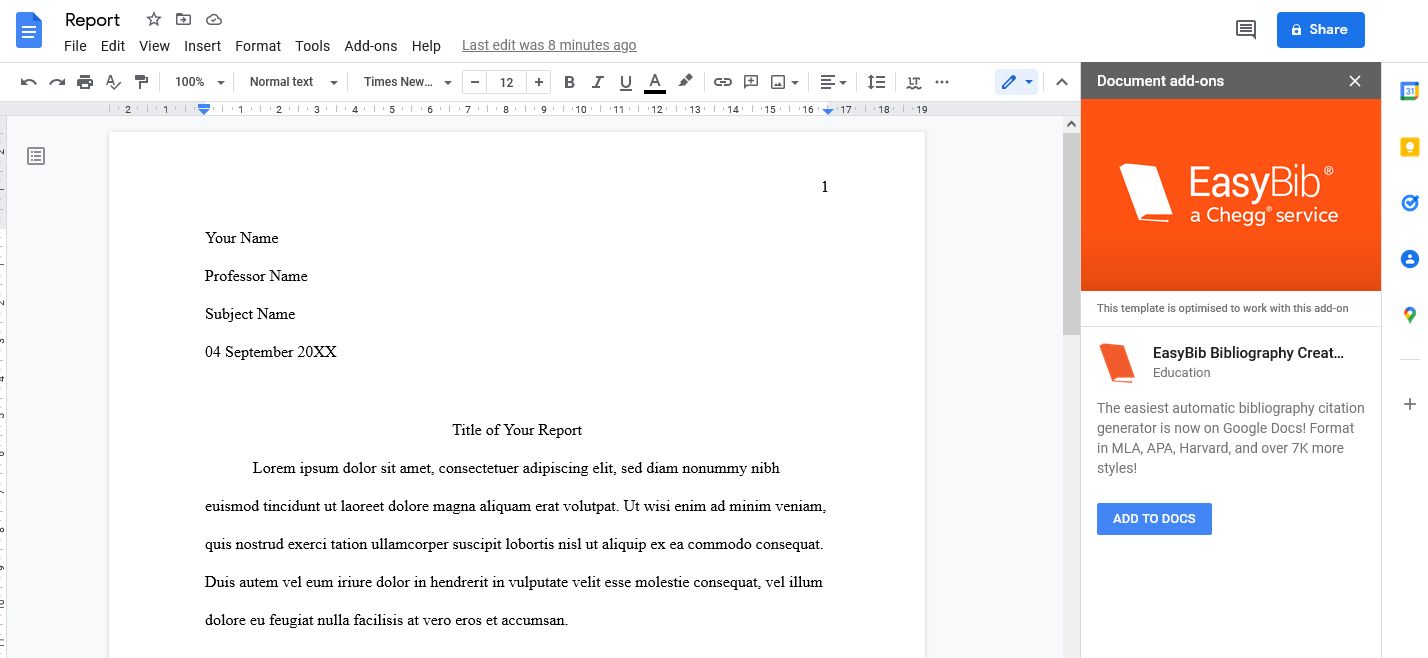
The header area is the trickiest part of MLA formatting in Google Docs because it involves two distinct elements: the four-line identifying information on page one and the running page number at the top right of every page.
The First-Page Header (Your Information)
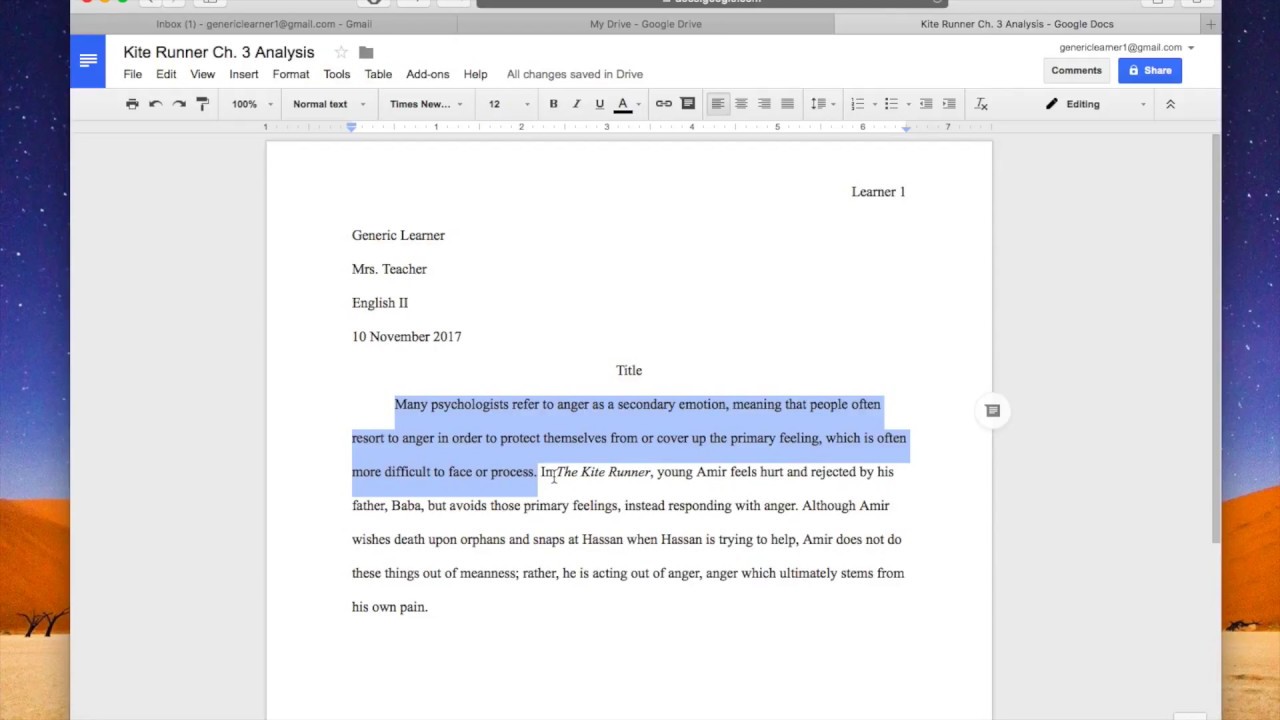
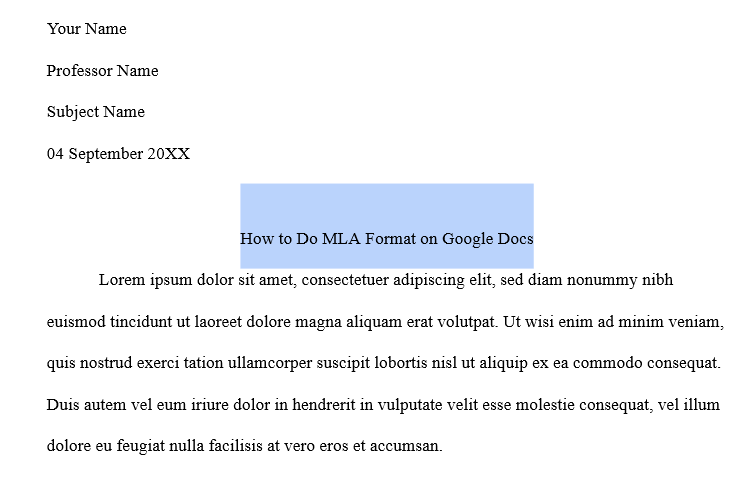
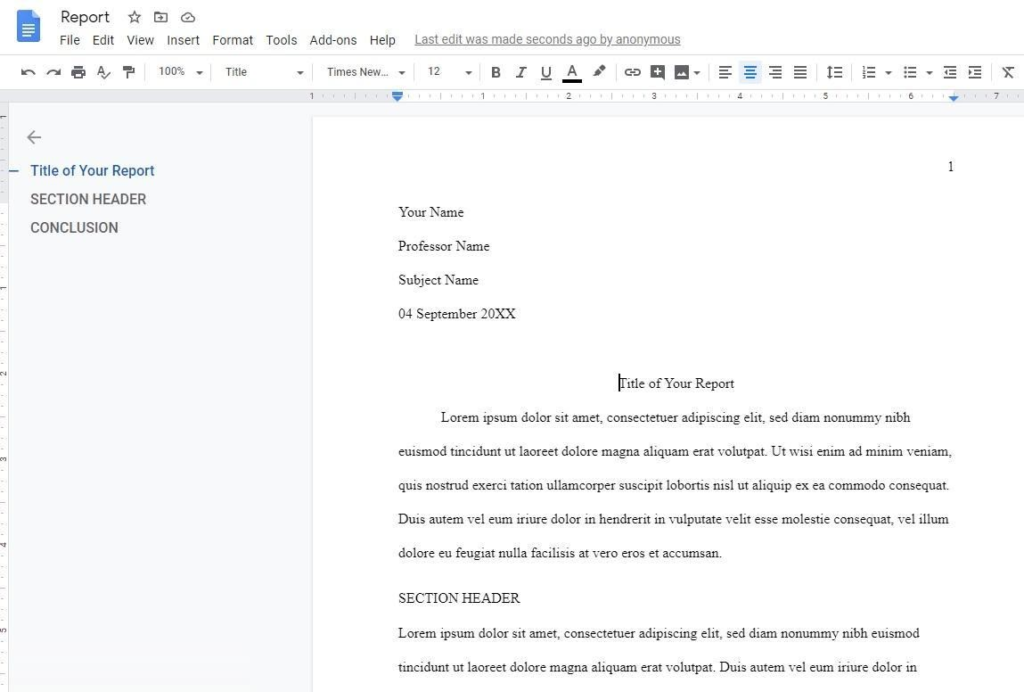
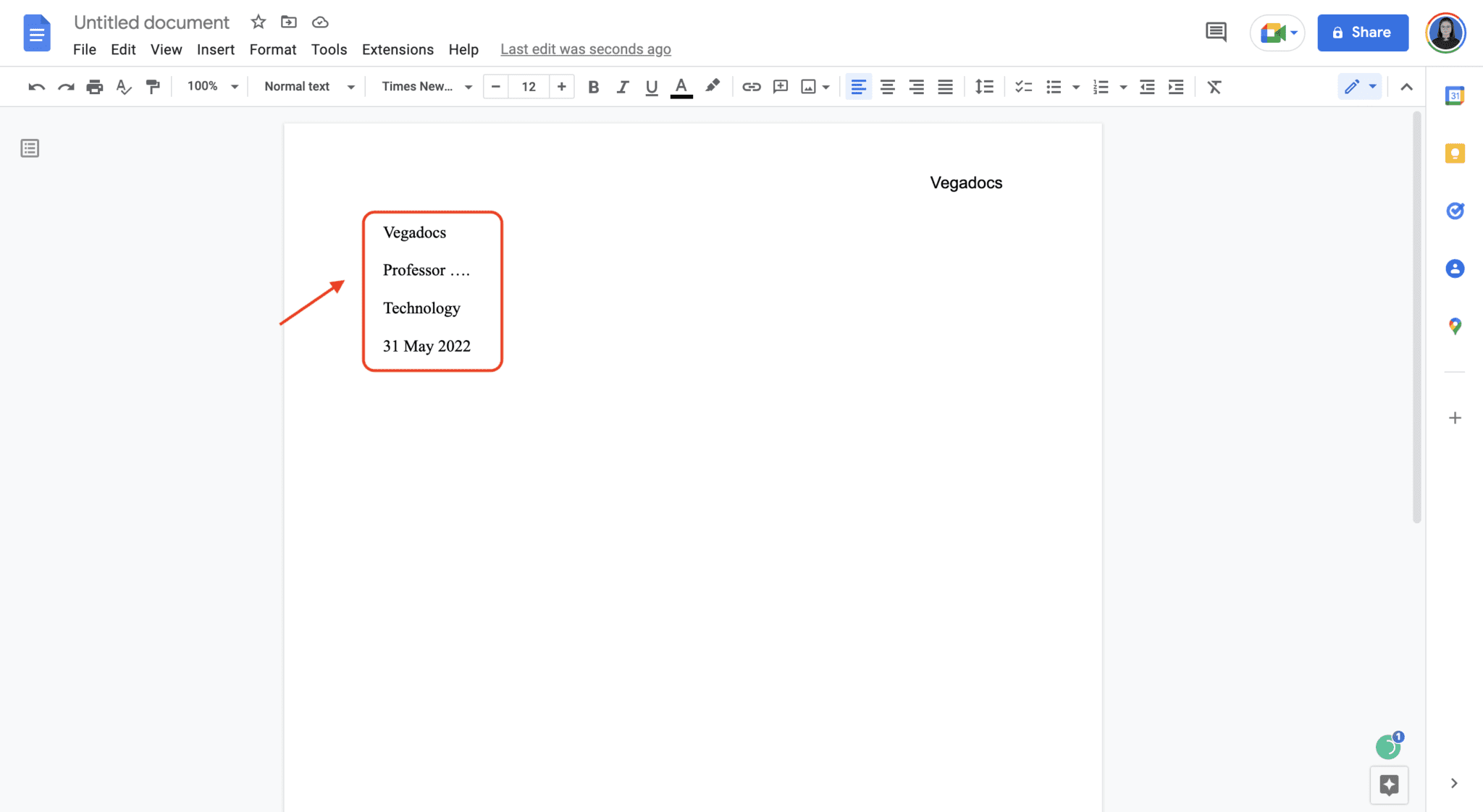
Unlike some other styles, MLA does not use a separate title page. Instead, all identifying information goes in the top left corner of the very first page. This four-line block is also double-spaced.
Starting at the top of the first page (not in the header section), type the following four items, hitting Enter after each one:
- Your Full Name
- Your Instructor's Name (e.g., Prof. Smith)
- The Course Name and Number (e.g., English 101)
- The Date (formatted Day Month Year, e.g., 25 May 2024)
Inserting the Running Head (Page Numbers)
The running head appears on the top right of every page and must include your last name followed by the page number. It's crucial that this automatically updates, so you must use the page number function.
Follow these steps to correctly implement the MLA running head:
- Go to the main menu and select "Insert."
- Hover over "Page numbers" and choose the option that places numbers in the top right corner, starting on the first page.
- Double-click inside the header area (top right) where the number now appears.
- Type your last name immediately before the page number. Ensure there is a single space between your last name and the number.
- Highlight your last name and the page number, and make sure the font is set to 12pt Times New Roman, just like the rest of the paper.
This ensures that every subsequent page will display your last name and the correct corresponding page number.
Troubleshooting: Making Sure the Page Number is Right
Sometimes, Google Docs defaults to skipping the first page number. If you find your first page lacks the running head, go back to "Insert" -> "Page numbers." Check if the box for "Different first page header/footer" is accidentally checked off in your header menu options. If it is, uncheck it!
Title and Body Formatting Rules
Once your header is complete, you are ready to write the main body of the paper. Directly below the four-line header block (which you should have already double-spaced), you will type your paper's title.
Centering the Title (But Not Making It Bold!)
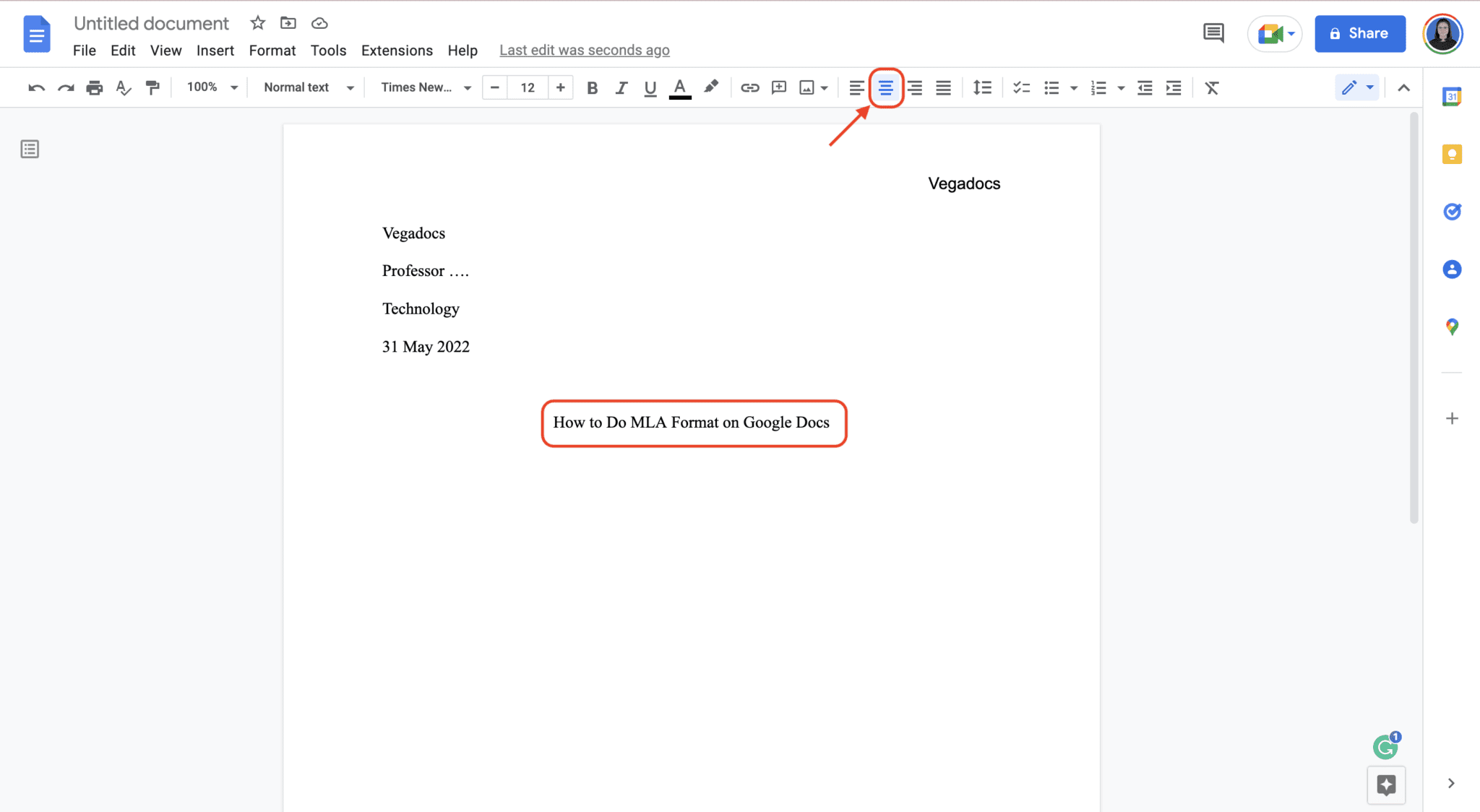
Your title should be centered on the line, but it should not be italicized, bolded, underlined, or put in quotation marks (unless it includes a title of another work). Just use standard 12pt Times New Roman text.
After typing and centering your title, hit Enter once (maintaining the double spacing). This brings you to the first line of your paper.
Remember that the first line of every paragraph must be indented 0.5 inches. Google Docs will automatically handle this if you simply press the Tab key at the beginning of the paragraph.
Handling In-Text Citations and Works Cited
The final crucial component of How To Get Mla Format On Google Docs is the Works Cited page. This page must begin on a brand new page, separate from the body of your essay.
To start a new page correctly, do not repeatedly hit the Enter key! Instead, click "Insert" -> "Break" -> "Page break." This ensures that even if you edit the text on the previous page, the Works Cited page remains correctly positioned.
Formatting the Works Cited Page
The Works Cited page has specific requirements you must meet:
- Center the title "Works Cited" at the top of the new page (do not bold, italicize, or underline).
- Maintain the double-spacing throughout the entire page.
- Use a Hanging Indent for all entries.
A hanging indent means that the first line of each citation starts flush against the left margin, and all subsequent lines are indented by 0.5 inches. This is not the standard paragraph indent, so here's how to set it up in Google Docs:
- Select all your citation entries.
- Go to "Format" -> "Align & indent" -> "Indentation options."
- Under "Special indent," choose "Hanging."
- Ensure the measurement box is set to 0.5 inches. Click "Apply."
Finally, remember to alphabetize all your entries based on the author's last name (or the title if no author is present). This careful attention to detail shows mastery of How To Get Mla Format On Google Docs.
Conclusion
Mastering MLA formatting doesn't have to be a headache, even when working in Google Docs. By focusing on the foundational elements—the correct font, one-inch margins, double spacing, and the specialized header—you can quickly transform a plain document into a professional, correctly formatted academic paper.
The key steps we covered are ensuring the running head is correctly implemented with the page number function, setting the correct indentation for paragraphs, and properly setting up the hanging indent on your Works Cited page. Now that you know How To Get Mla Format On Google Docs, you can spend less time stressing about structure and more time focusing on writing a brilliant essay.
Frequently Asked Questions (FAQ)
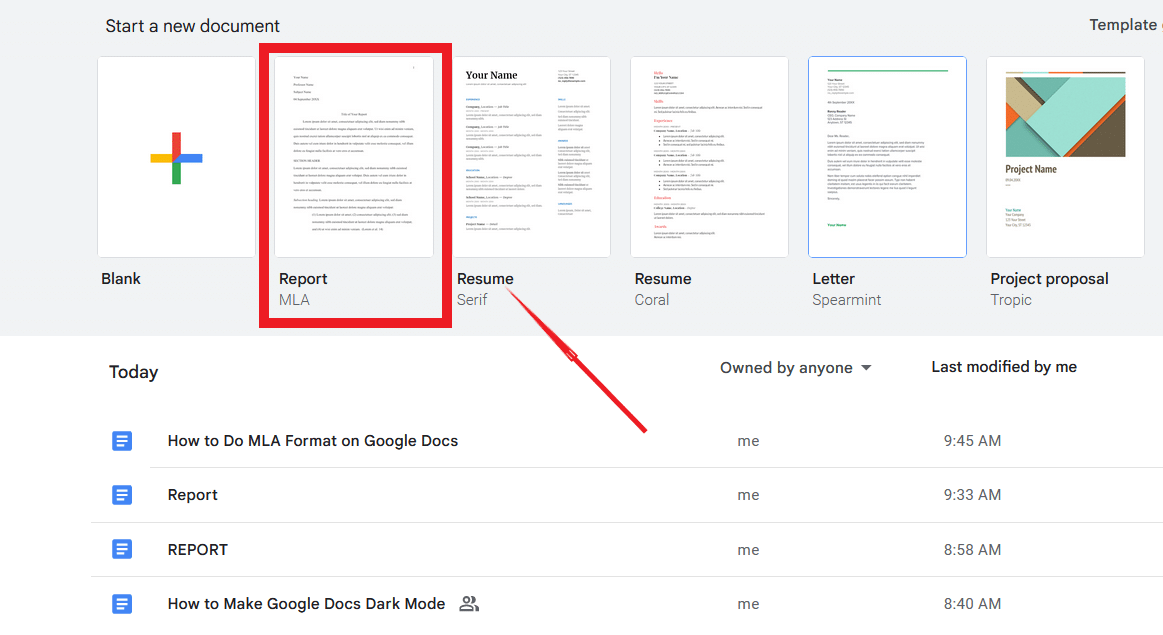
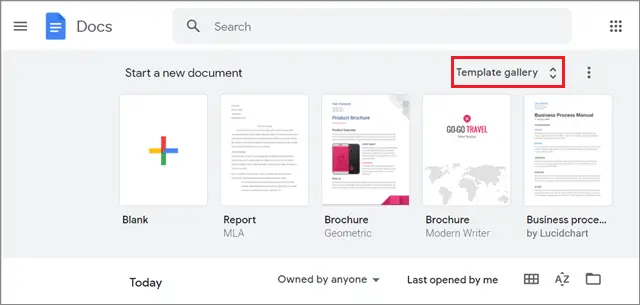
- Can I use a template to set up MLA format in Google Docs?
- While Google Docs offers some basic templates, they are often outdated or do not include the precise hanging indent and running head structure required by the latest MLA 9th edition. It is always safer and more accurate to manually follow the steps above.
- Does the title of my paper need to be bold or italicized?
- No. The title should be centered but should use the same standard 12pt Times New Roman font as the rest of your text. Only use italics if your title contains the title of a longer work (like a book or movie).
- What if I forget to set the 0.5-inch paragraph indent?
- MLA requires a 0.5-inch indent for the first line of every paragraph in the body of the paper. If you forget to set this, your paper will look like block text, which may result in point deductions.
- How do I make sure the entire document is double-spaced?
- Go to Format > Line and paragraph spacing > Double. It is best practice to do this immediately after setting your font and margins, before you start typing the bulk of your paper.
How To Get Mla Format On Google Docs
How To Get Mla Format On Google Docs Wallpapers
Collection of how to get mla format on google docs wallpapers for your desktop and mobile devices.
:max_bytes(150000):strip_icc()/003_how-to-do-mla-format-on-google-docs-4843232-5b771dd441c8450aa9e013c87c4eb446.jpg "Artistic How To Get Mla Format On Google Docs Wallpaper Collection")
Artistic How To Get Mla Format On Google Docs Wallpaper Collection
This gorgeous how to get mla format on google docs photo offers a breathtaking view, making it a perfect choice for your next wallpaper.

Breathtaking How To Get Mla Format On Google Docs Moment for Your Screen
Explore this high-quality how to get mla format on google docs image, perfect for enhancing your desktop or mobile wallpaper.
Lush How To Get Mla Format On Google Docs Image Illustration
A captivating how to get mla format on google docs scene that brings tranquility and beauty to any device.
:max_bytes(150000):strip_icc()/015_how-to-do-mla-format-on-google-docs-4843232-b72eb72953bc4e48b299fcee87ef15d9.jpg "Beautiful How To Get Mla Format On Google Docs Abstract Art")
Beautiful How To Get Mla Format On Google Docs Abstract Art
Explore this high-quality how to get mla format on google docs image, perfect for enhancing your desktop or mobile wallpaper.
Mesmerizing How To Get Mla Format On Google Docs Capture Concept
Experience the crisp clarity of this stunning how to get mla format on google docs image, available in high resolution for all your screens.
Vibrant How To Get Mla Format On Google Docs View Digital Art
Discover an amazing how to get mla format on google docs background image, ideal for personalizing your devices with vibrant colors and intricate designs.

Detailed How To Get Mla Format On Google Docs Scene in 4K
Explore this high-quality how to get mla format on google docs image, perfect for enhancing your desktop or mobile wallpaper.
Mesmerizing How To Get Mla Format On Google Docs Artwork Collection
Explore this high-quality how to get mla format on google docs image, perfect for enhancing your desktop or mobile wallpaper.
:max_bytes(150000):strip_icc()/GDocs_MLA-01-64fef7da2ac94c6287bc258e7cd06670.jpg "Detailed How To Get Mla Format On Google Docs Artwork Collection")
Detailed How To Get Mla Format On Google Docs Artwork Collection
Transform your screen with this vivid how to get mla format on google docs artwork, a true masterpiece of digital design.
Detailed How To Get Mla Format On Google Docs Capture Digital Art
Experience the crisp clarity of this stunning how to get mla format on google docs image, available in high resolution for all your screens.

Crisp How To Get Mla Format On Google Docs Landscape in 4K
This gorgeous how to get mla format on google docs photo offers a breathtaking view, making it a perfect choice for your next wallpaper.
Vivid How To Get Mla Format On Google Docs View Digital Art
Explore this high-quality how to get mla format on google docs image, perfect for enhancing your desktop or mobile wallpaper.
High-Quality How To Get Mla Format On Google Docs View for Your Screen
Explore this high-quality how to get mla format on google docs image, perfect for enhancing your desktop or mobile wallpaper.
Stunning How To Get Mla Format On Google Docs Design in HD
Immerse yourself in the stunning details of this beautiful how to get mla format on google docs wallpaper, designed for a captivating visual experience.

Captivating How To Get Mla Format On Google Docs Picture in HD
This gorgeous how to get mla format on google docs photo offers a breathtaking view, making it a perfect choice for your next wallpaper.
Artistic How To Get Mla Format On Google Docs Image for Your Screen
A captivating how to get mla format on google docs scene that brings tranquility and beauty to any device.
:max_bytes(150000):strip_icc()/GDocs_MLA-010-611a0fda5c2c40e99afe89f0dc667c47.jpg "Mesmerizing How To Get Mla Format On Google Docs Abstract for Mobile")
Mesmerizing How To Get Mla Format On Google Docs Abstract for Mobile
Experience the crisp clarity of this stunning how to get mla format on google docs image, available in high resolution for all your screens.

Exquisite How To Get Mla Format On Google Docs Artwork Collection
Immerse yourself in the stunning details of this beautiful how to get mla format on google docs wallpaper, designed for a captivating visual experience.
High-Quality How To Get Mla Format On Google Docs Scene for Mobile
Transform your screen with this vivid how to get mla format on google docs artwork, a true masterpiece of digital design.
:max_bytes(150000):strip_icc()/GDocs_MLA-012-a002da4afac0450f8019d178f62957c4.jpg "Exquisite How To Get Mla Format On Google Docs Wallpaper Nature")