How To Get Rid Of Malicious Software
Malware Attack? Here Is Exactly How To Get Rid Of Malicious Software Safely and Permanently
There are few things scarier in the digital world than the sudden realization that your computer might be compromised. That slow performance, those random pop-ups, or the inability to access your files—these are the hallmarks of a malicious software infection.
The good news? Dealing with malware is often intimidating but rarely impossible. With the right strategy and a cool head, you absolutely can reclaim your device.
This comprehensive guide, written by security experts, will walk you through the precise steps on **how to get rid of malicious software**, turning panic into successful cleanup.
Step 1: The Early Warning System—Identifying the Infection
Before you start deleting things, you need to be certain you're dealing with malware, and not just an old, slow computer. Malware manifests in several common ways, often designed to be sneaky, but eventually, they slip up.
Common Symptoms of Malicious Software
- **Sudden Performance Drop:** Your computer, which ran fine last week, is now painfully slow. Applications crash frequently.
- **Pop-Up Overload:** You see persistent pop-up ads, even when your browser is closed. Some may impersonate legitimate security warnings.
- **Browser Hijacking:** Your homepage changes without your permission, or your searches are redirected to unfamiliar sites.
- **Lack of Storage:** Hard drive space suddenly disappears, often due to file encryption (Ransomware) or logging (Keyloggers).
- **Security Software Disabled:** Your antivirus program or firewall mysteriously turns off and cannot be reactivated.
If you suspect an infection, do not delay. Every moment the malware runs, it potentially steals more data or causes further damage.
Step 2: Critical First Steps—Isolating the Threat to Get Rid Of Malicious Software
The most important step is prevention of further infection or data loss. Think of this as quarantine.
A. Disconnect from the Internet
Pull the plug or turn off the Wi-Fi immediately. Most modern malware needs the internet to communicate with its Command and Control (C2) servers—either to download more components, encrypt files, or transmit your stolen data.
B. Enter Safe Mode
Safe Mode loads only the bare minimum drivers and services needed for your operating system to function. This prevents most malicious software from running at startup, giving you the upper hand.
To enter Safe Mode (on Windows), restart your computer and repeatedly press F8 or use the Shift + Restart function. Choose "Safe Mode with Networking" only if absolutely necessary for downloading tools, otherwise stick to standard Safe Mode.
C. Back Up Crucial Data
If the infection is serious (e.g., suspected ransomware), you might need to wipe the entire disk. While in Safe Mode, back up irreplaceable documents, photos, and files to an external hard drive or cloud service that was NOT connected during the infection period. Remember: never back up executables (.exe) or application files, as these might contain the malware itself. The Cybersecurity and Infrastructure Security Agency (CISA) strongly recommends this pre-emptive step.
Step 3: The Deep Clean—The Removal Process
Now that the malware is paralyzed, we can execute the cleanup.
1. Uninstall Suspicious Programs
Go to your system's Program List and look for any applications you do not recognize, especially those installed immediately before the symptoms appeared. Uninstall them. Be wary of programs with generic names like "Optimizer," "System Cleaner," or strange letter/number combinations.
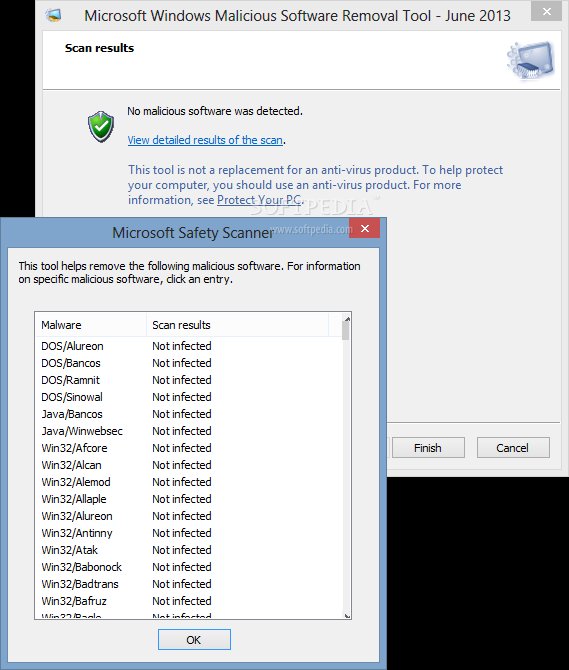
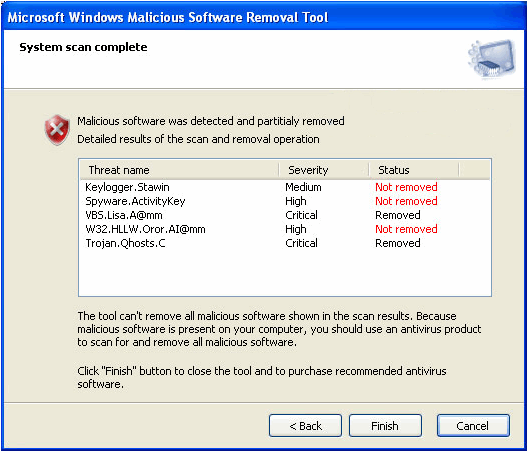
2. Run a Full System Scan with Antimalware Software
You need a reliable, up-to-date scanner. If your primary antivirus was compromised, use a reputable secondary scanner. Malware often prevents installation, which is why Safe Mode is essential.
It is best practice to run *two* different, high-quality antimalware programs. The first might miss something that the second detects. Allow the software to quarantine and remove everything it flags as malicious.
3. Clean the Browser
Malware loves hiding in browser extensions. Open your browser settings (Chrome, Firefox, Edge) and manually check the extensions list. Remove anything you didn't knowingly install.
Additionally, clear your cache, cookies, and browsing history. Consider completely resetting the browser configuration to factory defaults to ensure no malicious settings (like proxy changes) remain.
[Baca Juga: Advanced Browser Security Settings]
4. Check System Startup Locations
Advanced malware often embeds itself in the registry or startup folders to ensure persistence. Use the Task Manager (Windows: Ctrl+Shift+Esc) and navigate to the "Startup" tab. Disable any programs that look suspicious or unnecessary. If you are comfortable, you can also use tools like Microsoft Autoruns to inspect deeper system persistence locations, but proceed with caution.
Step 4: Post-Cleanup and Prevention Strategy
Once the scan reports are clean, restart your computer normally and perform another quick scan. If all looks good, it's time to secure the perimeter.
A. Change All Important Passwords
This is non-negotiable. If the malware included a keylogger or infostealer, all your passwords—banking, email, social media—may be compromised. Change them immediately from a *clean* device or after you are certain your device is clean. Use a strong, unique password for every service, preferably managed by a reputable password manager.
B. Update Everything
Vulnerabilities in old software (operating systems, browsers, Adobe products, Java) are the primary entry points for infections. Ensure your OS is fully patched and all applications are running the latest version. Keeping software updated is the single best preventative measure, according to industry reports.
C. Adopt Better Browsing Habits
Be skeptical. Never click on pop-ups, attachments from unknown senders, or links that look too good to be true. If an email claims to be from your bank, navigate directly to the bank's website instead of clicking the embedded link.
[Baca Juga: Using Two-Factor Authentication Effectively]
Malware Identification and Removal Difficulty Table
Understanding what you are fighting helps immensely in determining the necessary response:
| Malware Type | Primary Symptom | Removal Difficulty |
|---|---|---|
| Adware | Excessive pop-ups and browser redirects. | Easy (Standard Antivirus Scan) |
| Trojan | Slow performance, disabled security. Hidden in system processes. | Moderate (Safe Mode Scan Required) |
| Ransomware | Files encrypted/renamed; demands for payment. | Very High (System Wipe Often Necessary) |
| Rootkit | Hides deep within the kernel; undetectable by standard tools. | Expert (Specialized Tools or Reformat) |
Conclusion: Stay Calm and Scan On
The process of learning how to get rid of malicious software can feel overwhelming, but by following a structured, step-by-step approach—isolation, identification, cleanup, and prevention—you minimize risk and maximize your chances of a full recovery.
Remember that a clean device is an updated device. Implement strong passwords and two-factor authentication today to protect your digital life tomorrow. If you are dealing with persistent or highly advanced threats like Rootkits, do not hesitate to seek professional IT assistance.
For a deeper understanding of malware taxonomy, you can refer to authoritative technical sources.
Frequently Asked Questions (FAQ)
- Should I pay the ransom if I have Ransomware?
No. Security experts strongly advise against paying. Paying does not guarantee the return of your files, finances the attackers, and makes you a bigger target for future attacks.
- Can I use free antimalware software for cleanup?
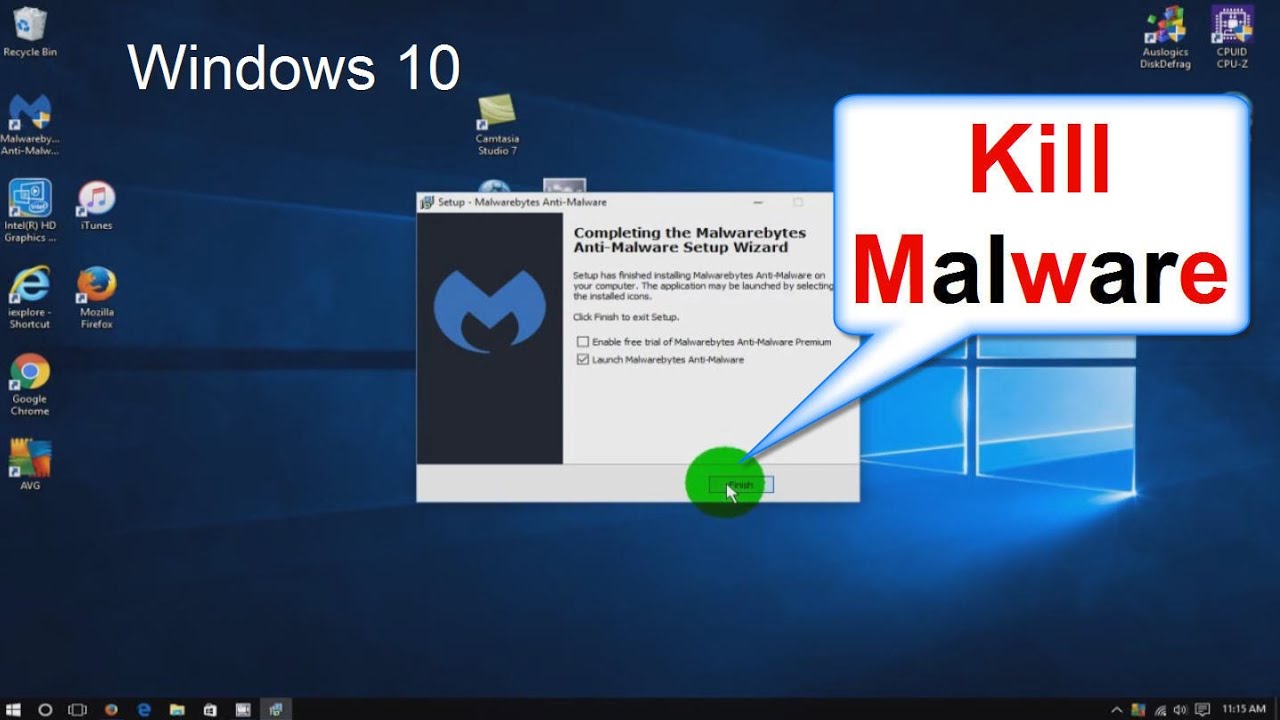
Yes, many free tools (like Malwarebytes or Windows Defender in Safe Mode) are excellent for detection and cleanup. However, for real-time, comprehensive protection, a paid suite often provides superior defense layers.
- Does Factory Reset (Wipe) definitely remove all malware?
A full factory reset, which involves completely wiping the hard drive and reinstalling the operating system from a clean source, is the only way to be 100% certain that all software-based malicious threats are removed. However, this should only be done if standard cleanup steps fail.
- Is it better to disable Wi-Fi or unplug the Ethernet cable?
If you suspect infection, physically unplugging the Ethernet cable is the fastest, most reliable way to sever the connection, as some clever malware can override software-based Wi-Fi toggles.
How To Get Rid Of Malicious Software
How To Get Rid Of Malicious Software Wallpapers
Collection of how to get rid of malicious software wallpapers for your desktop and mobile devices.

Spectacular How To Get Rid Of Malicious Software Artwork for Your Screen
Find inspiration with this unique how to get rid of malicious software illustration, crafted to provide a fresh look for your background.

Dynamic How To Get Rid Of Malicious Software Abstract Art
A captivating how to get rid of malicious software scene that brings tranquility and beauty to any device.
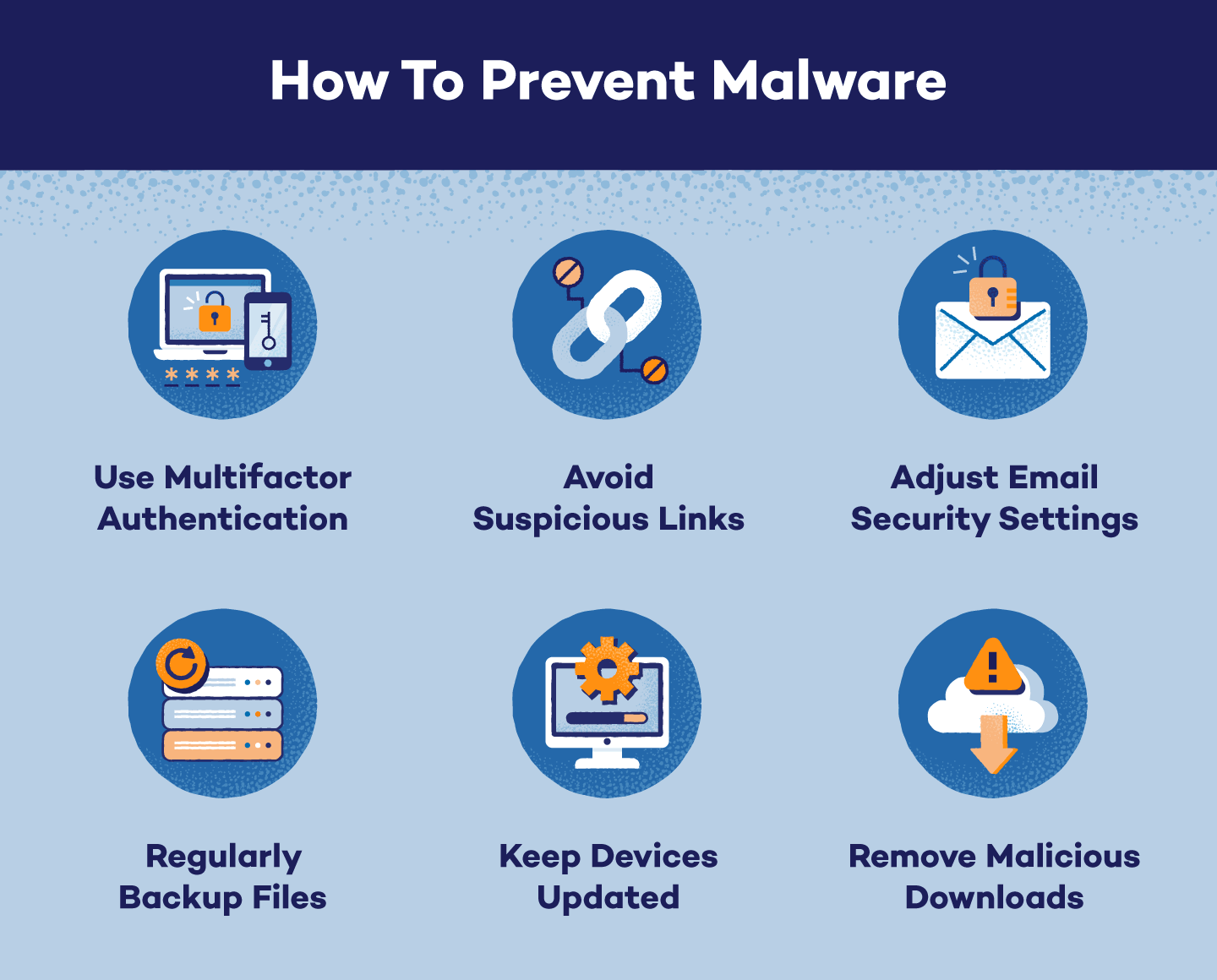
Vivid How To Get Rid Of Malicious Software Capture for Desktop
Discover an amazing how to get rid of malicious software background image, ideal for personalizing your devices with vibrant colors and intricate designs.
Lush How To Get Rid Of Malicious Software Picture Collection
A captivating how to get rid of malicious software scene that brings tranquility and beauty to any device.
Beautiful How To Get Rid Of Malicious Software Image for Your Screen
Transform your screen with this vivid how to get rid of malicious software artwork, a true masterpiece of digital design.
Detailed How To Get Rid Of Malicious Software Wallpaper in HD
Explore this high-quality how to get rid of malicious software image, perfect for enhancing your desktop or mobile wallpaper.
Captivating How To Get Rid Of Malicious Software Background Digital Art
Find inspiration with this unique how to get rid of malicious software illustration, crafted to provide a fresh look for your background.

Captivating How To Get Rid Of Malicious Software View Art
Find inspiration with this unique how to get rid of malicious software illustration, crafted to provide a fresh look for your background.
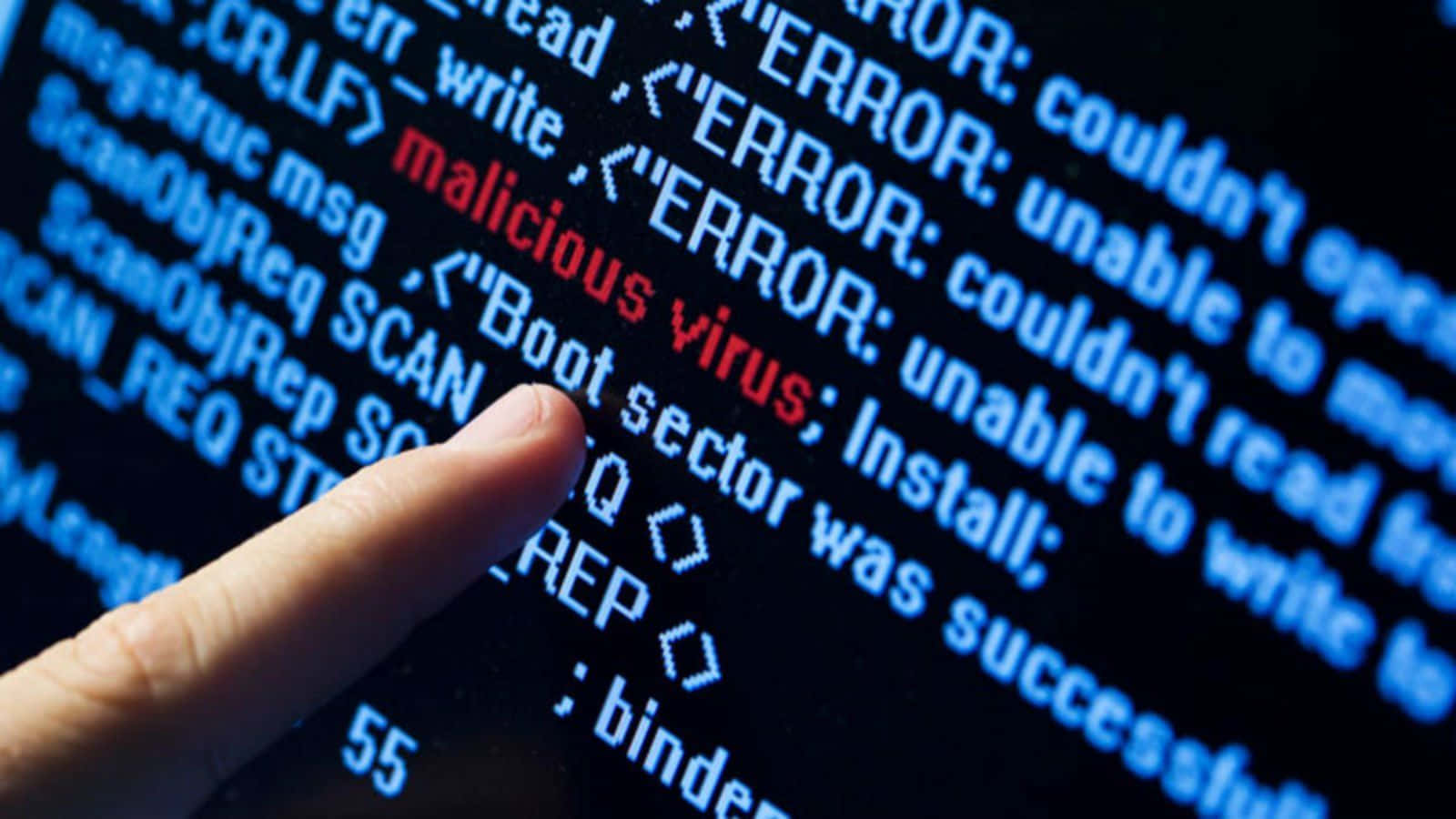
Dynamic How To Get Rid Of Malicious Software Capture in HD
Immerse yourself in the stunning details of this beautiful how to get rid of malicious software wallpaper, designed for a captivating visual experience.
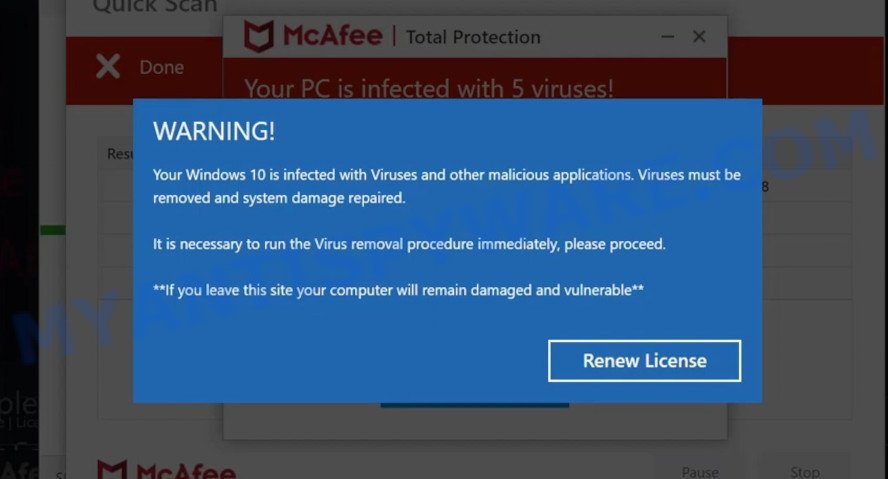
Spectacular How To Get Rid Of Malicious Software Abstract Illustration
Immerse yourself in the stunning details of this beautiful how to get rid of malicious software wallpaper, designed for a captivating visual experience.

Mesmerizing How To Get Rid Of Malicious Software Abstract for Mobile
Explore this high-quality how to get rid of malicious software image, perfect for enhancing your desktop or mobile wallpaper.
Captivating How To Get Rid Of Malicious Software Design Art
Immerse yourself in the stunning details of this beautiful how to get rid of malicious software wallpaper, designed for a captivating visual experience.
Vivid How To Get Rid Of Malicious Software Landscape in HD
Discover an amazing how to get rid of malicious software background image, ideal for personalizing your devices with vibrant colors and intricate designs.
Captivating How To Get Rid Of Malicious Software Background Art
Find inspiration with this unique how to get rid of malicious software illustration, crafted to provide a fresh look for your background.

Gorgeous How To Get Rid Of Malicious Software Design Digital Art
Find inspiration with this unique how to get rid of malicious software illustration, crafted to provide a fresh look for your background.
Dynamic How To Get Rid Of Malicious Software View for Desktop
Immerse yourself in the stunning details of this beautiful how to get rid of malicious software wallpaper, designed for a captivating visual experience.
Crisp How To Get Rid Of Malicious Software Abstract in HD
Immerse yourself in the stunning details of this beautiful how to get rid of malicious software wallpaper, designed for a captivating visual experience.

Captivating How To Get Rid Of Malicious Software Abstract for Desktop
Immerse yourself in the stunning details of this beautiful how to get rid of malicious software wallpaper, designed for a captivating visual experience.

High-Quality How To Get Rid Of Malicious Software Moment Art
Experience the crisp clarity of this stunning how to get rid of malicious software image, available in high resolution for all your screens.
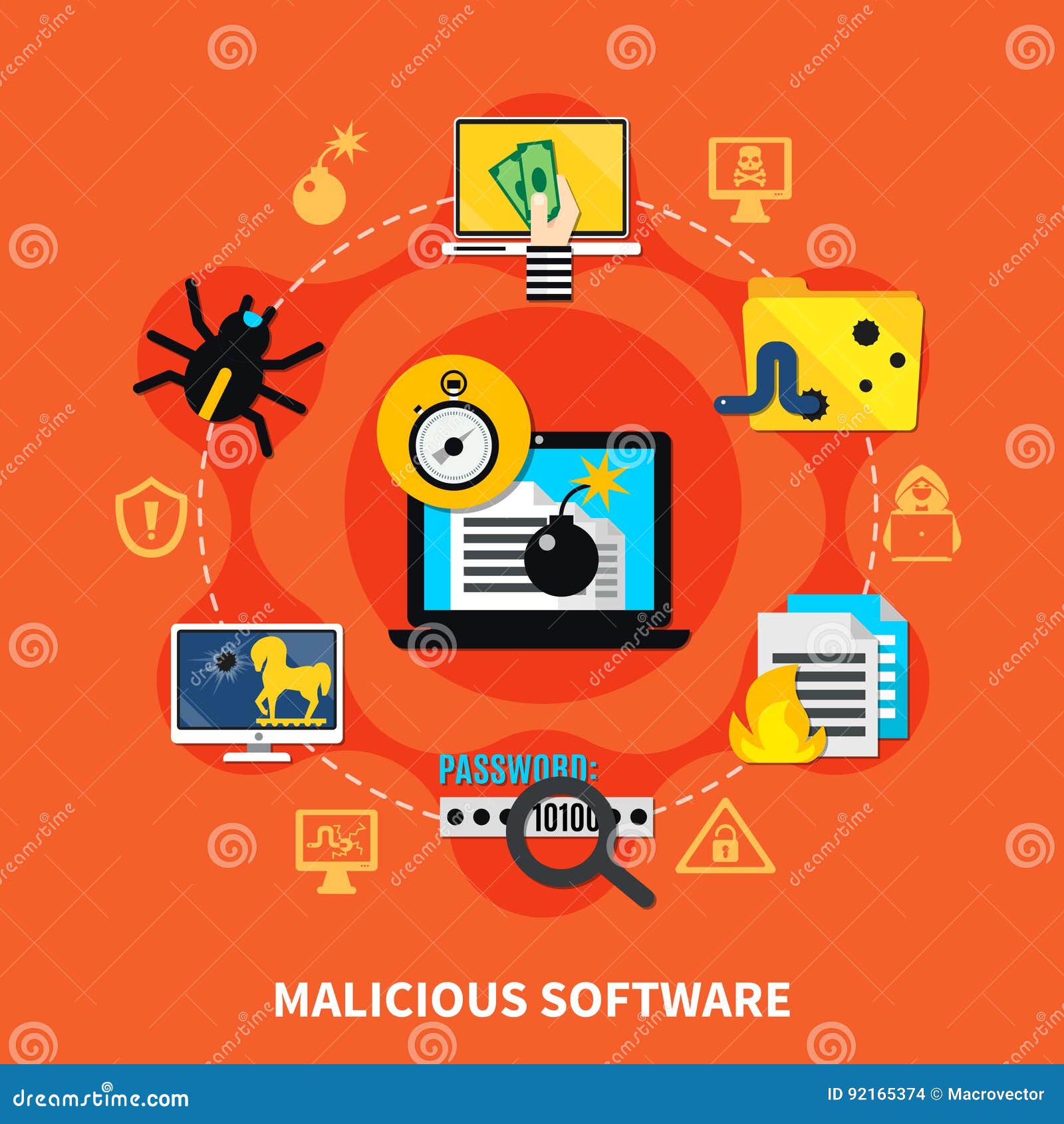
Beautiful How To Get Rid Of Malicious Software Landscape Nature
Discover an amazing how to get rid of malicious software background image, ideal for personalizing your devices with vibrant colors and intricate designs.
Download these how to get rid of malicious software wallpapers for free and use them on your desktop or mobile devices.