Virtual Computer Software
Tired of Hardware Limits? Discover the Power of Virtual Computer Software
Do you ever wish you could run Windows, macOS, and Linux all at once without owning three separate computers? Or perhaps you need to test dangerous files in a secure sandbox? If so, you're about to meet your new best friend: Virtual Computer Software.
This technology is no longer just for system administrators or enterprise data centers. Today, virtualization is a mainstream tool that can revolutionize how developers code, how students learn, and how everyday users stay secure.
In this comprehensive guide, we'll peel back the layers on virtual computer software, explaining exactly how it works, why you need it, and how to choose the perfect application for your needs.
Understanding Virtual Computer Software: More Than Just an Emulator
At its core, virtual computer software creates a complete, isolated operating environment—known as a Virtual Machine (VM)—within your existing computer (the host). Think of it as a computer inside a window.
Unlike an emulator, which mimics hardware to run software (like a PlayStation emulator running PS games), virtualization runs the guest operating system (OS) directly on your CPU's hardware instructions, leading to near-native performance.
The Key Components of a Virtual Environment
When we talk about virtualization, three main terms come into play:
- Host OS: The operating system on the physical machine you are currently using (e.g., your Windows 11 PC).
- Guest OS: The operating system running inside the VM (e.g., an installation of Ubuntu Linux).
- Hypervisor: The software layer that manages and allocates resources (CPU, RAM, storage) between the host and the guest. This is the "Virtual Computer Software" itself.
This isolation means the guest OS cannot directly affect the host OS, making VMs invaluable for security and development work.
The Core Mechanics: How Virtualization Works
The magic behind efficient virtualization lies almost entirely in the hypervisor. There are two primary types of hypervisors, each serving different needs:
Type 1 Hypervisors (Bare-Metal)
Type 1 hypervisors run directly on the host computer's hardware, replacing the host OS entirely. They are designed for large-scale enterprise server environments where maximum performance and efficiency are critical.
Examples include VMware ESXi and Microsoft Hyper-V (when installed directly on the server). These are foundational for cloud computing platforms.
Type 2 Hypervisors (Hosted)
Type 2 hypervisors, which most desktop users utilize, run as a conventional application on top of the host OS (e.g., Oracle VirtualBox running on your Windows desktop). They rely on the host OS for basic resource allocation.
While slightly less performant than Type 1, they are vastly easier to install and manage for personal and testing purposes. You can learn more about the technical differences between these types on Wikipedia's Hypervisor definition page.
Modern CPUs also feature hardware-assisted virtualization (like Intel VT-x and AMD-V), which significantly speeds up the process by allowing the CPU to execute guest OS instructions directly.
Why Bother? 5 Essential Use Cases for Virtual Machines
If you're still wondering if installing virtual computer software is worth the time, consider these game-changing applications that leverage the power of VM isolation:
- Software Testing and Development: Developers use VMs to create clean, standardized environments for building and testing applications without polluting their main operating system.
- Running Legacy or Incompatible Software: Need to run a niche application that only works on Windows XP or an old version of Linux? A VM is the perfect time capsule.
- Enhanced Security and Sandboxing: VMs act as "sandboxes." If you download suspicious files or want to visit risky websites, doing it within a VM ensures that any potential malware is trapped and cannot reach your host machine.
- Unified OS Testing: Web designers and QA professionals must ensure their work looks good across all platforms. A VM setup allows you to test easily across Windows, macOS, and various Linux distributions simultaneously.
- Disaster Recovery and Backup: Virtual machines are easy to back up, clone, and move. If a VM fails, you can simply revert to a previous snapshot—a powerful feature for mitigating system failure.
This capability is often called "Snapshots" and is one of the most beloved features among power users. [Baca Juga: Virtual Machine Snapshots Guide]
Choosing the Right Tool: A Comparison of Popular Virtual Computer Software
The market for desktop virtualization is rich, with options ranging from free, open-source projects to robust, enterprise-grade applications. Your choice depends heavily on your budget and technical needs.
| Software | Type | Cost | Best For |
|---|---|---|---|
| Oracle VM VirtualBox | Type 2 (Hosted) | Free / Open Source | Beginners, hobbyists, basic testing, general home use. |
| VMware Workstation Pro / Player | Type 2 (Hosted) | Player is Free; Pro is Paid | Professionals, demanding workloads, better hardware integration. |
| Microsoft Hyper-V | Type 1 (Bare-Metal) | Included with Windows Pro/Enterprise | Windows users requiring tight OS integration and good performance. |
| Parallels Desktop | Type 2 (Hosted) | Paid Subscription | Mac users needing seamless Windows integration (especially on Apple Silicon). |
If you are starting out, VirtualBox is an excellent, zero-cost entry point. If performance for professional testing or IT training is your priority, VMware is often considered the industry gold standard.
Expert Tips: Setting Up Your First Virtual Environment
Before you download your chosen virtual computer software, keep these essential tips in mind to ensure a smooth and high-performance experience:
1. Enable Hardware Virtualization
Most modern CPUs support hardware virtualization (VT-x or AMD-V), but it is often disabled by default in the BIOS/UEFI settings. You MUST enable this for any VM to run efficiently. Without it, performance will be severely degraded.
2. Allocate Resources Wisely
Remember that the VM borrows resources from your host machine. If you give a guest OS 16GB of RAM and your host only has 16GB, your host machine will grind to a halt. A good rule of thumb is to dedicate no more than 50% of your total RAM and half of your CPU cores to the guest.
3. Install Guest Additions/Tools
After installing the guest OS (e.g., Windows), the very next step is to install the specific additions provided by your virtual computer software (like "VirtualBox Guest Additions" or "VMware Tools"). These drivers enhance graphics performance, enable file sharing, and allow dynamic screen resizing.
For guidance on optimizing resource allocation for specific OS configurations, check out this guide on [Baca Juga: VM Resource Optimization Strategies].
The Future of Virtualization: Containers and Cloud Computing
While traditional virtual computer software remains vital, the concept of isolation has evolved rapidly with the rise of containers (like Docker and Kubernetes). Containers are often mistakenly conflated with VMs, but they serve different purposes.
A VM virtualizes the entire machine, including the kernel, making it heavier but offering superior security isolation. A container, however, virtualizes only the application layer and shares the host OS kernel.
Containers are lighter, faster to start, and perfect for microservices and modern application deployment. According to recent tech reports, container usage is growing significantly faster than traditional VMs in new cloud deployments, driven by platforms like AWS and Azure. You can read more about industry trends in Gartner's latest predictions for cloud evolution.
However, VMs are not going away. They remain the fundamental isolation technology upon which the entire cloud infrastructure is built, ensuring separation between thousands of tenants running on the same physical hardware. This foundational aspect of cloud security is non-negotiable, as detailed in many academic papers on cloud security architecture, such as those found on IEEE Xplore.
Conclusion
Virtual Computer Software is a transformative technology that unlocks efficiency, security, and flexibility for users across all levels. Whether you are a student running legacy software, a developer testing cross-platform compatibility, or a security enthusiast exploring dangerous code, the ability to create isolated digital environments is an indispensable skill.
Take the time to enable virtualization in your BIOS, download a free Type 2 hypervisor like VirtualBox, and start experimenting. The world of computing expands immensely when you can create a new machine with just a few clicks.
Frequently Asked Questions (FAQ)
- Is Virtual Computer Software secure?
Yes, inherently. VMs provide strong isolation from the host OS. Even if a virus infects the VM, it is generally unable to "break out" and harm the host machine, provided your hypervisor is up-to-date and correctly configured.
- Does running a VM slow down my computer?
It can, depending on your hardware and how many resources (CPU, RAM) you allocate to the guest. If you allocate resources responsibly (leaving enough for the host), the performance impact should be manageable. High-performance VMs require a strong multi-core processor and plenty of RAM.
- What is the difference between a VM and Dual Booting?
Dual booting requires restarting your computer to switch between operating systems, as only one OS can run at a time. A VM allows both the host and guest OS to run concurrently within a window, making switching instantaneous.
- Can I run a Mac OS VM on a Windows PC?
This is often technically challenging and legally restricted by Apple's End-User License Agreement (EULA), which usually only permits macOS virtualization on Apple-branded hardware (Macs).
Virtual Computer Software
Virtual Computer Software Wallpapers
Collection of virtual computer software wallpapers for your desktop and mobile devices.

Serene Virtual Computer Software Design in HD
Explore this high-quality virtual computer software image, perfect for enhancing your desktop or mobile wallpaper.
Beautiful Virtual Computer Software View for Mobile
Explore this high-quality virtual computer software image, perfect for enhancing your desktop or mobile wallpaper.

Gorgeous Virtual Computer Software Design Concept
This gorgeous virtual computer software photo offers a breathtaking view, making it a perfect choice for your next wallpaper.

Dynamic Virtual Computer Software Capture Photography
Immerse yourself in the stunning details of this beautiful virtual computer software wallpaper, designed for a captivating visual experience.

Detailed Virtual Computer Software Wallpaper in HD
Discover an amazing virtual computer software background image, ideal for personalizing your devices with vibrant colors and intricate designs.
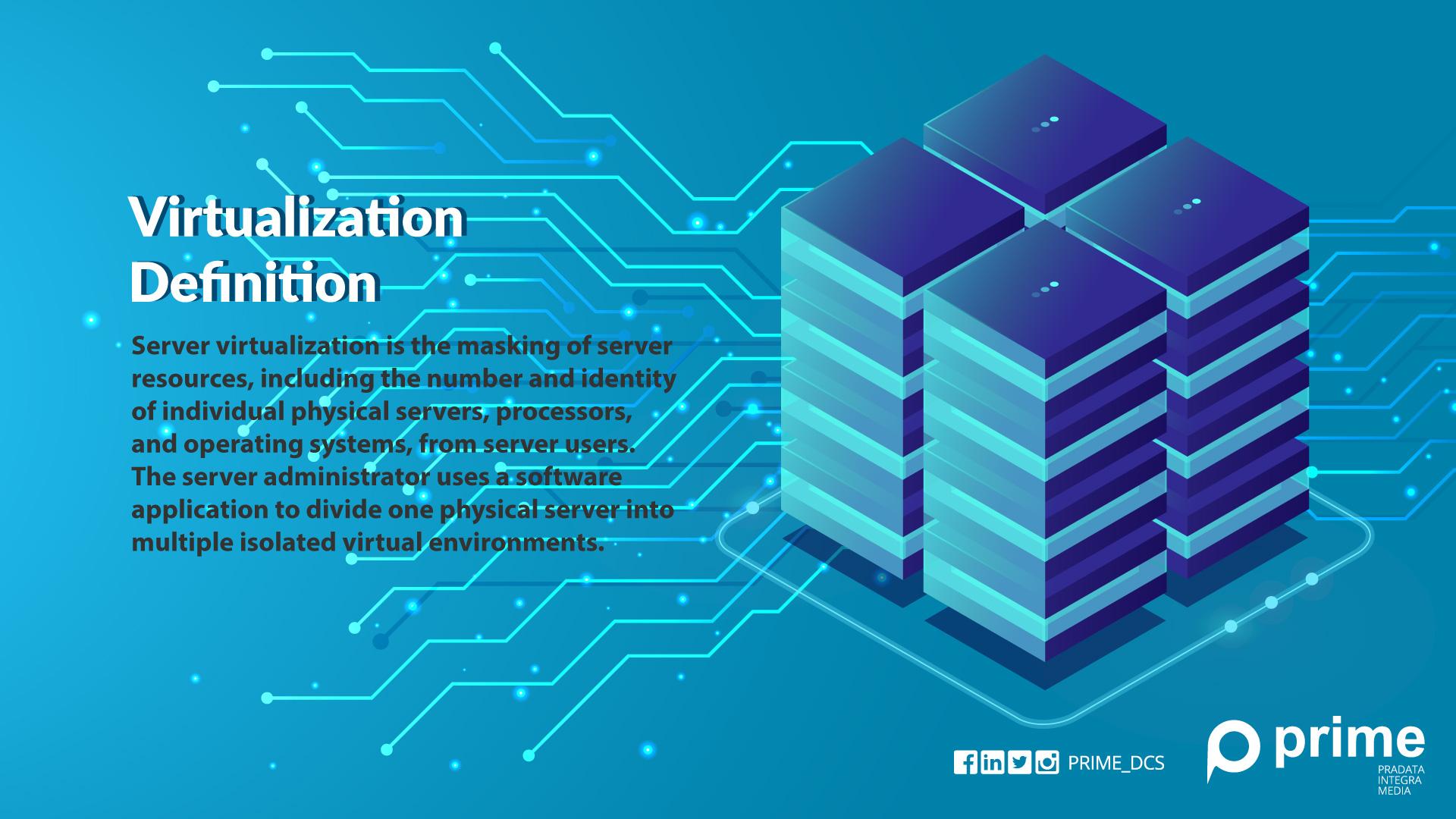
High-Quality Virtual Computer Software Moment Photography
Explore this high-quality virtual computer software image, perfect for enhancing your desktop or mobile wallpaper.

Lush Virtual Computer Software Wallpaper for Desktop
Find inspiration with this unique virtual computer software illustration, crafted to provide a fresh look for your background.

Vivid Virtual Computer Software Wallpaper Illustration
Transform your screen with this vivid virtual computer software artwork, a true masterpiece of digital design.
Vibrant Virtual Computer Software Wallpaper Photography
Discover an amazing virtual computer software background image, ideal for personalizing your devices with vibrant colors and intricate designs.
Artistic Virtual Computer Software Scene for Mobile
Immerse yourself in the stunning details of this beautiful virtual computer software wallpaper, designed for a captivating visual experience.
Crisp Virtual Computer Software Capture in HD
Immerse yourself in the stunning details of this beautiful virtual computer software wallpaper, designed for a captivating visual experience.

Spectacular Virtual Computer Software Design Digital Art
Find inspiration with this unique virtual computer software illustration, crafted to provide a fresh look for your background.
Breathtaking Virtual Computer Software Wallpaper in 4K
Transform your screen with this vivid virtual computer software artwork, a true masterpiece of digital design.

Stunning Virtual Computer Software Artwork Art
A captivating virtual computer software scene that brings tranquility and beauty to any device.

Amazing Virtual Computer Software Artwork Illustration
Discover an amazing virtual computer software background image, ideal for personalizing your devices with vibrant colors and intricate designs.

Crisp Virtual Computer Software Picture Collection
A captivating virtual computer software scene that brings tranquility and beauty to any device.
Spectacular Virtual Computer Software Design in HD
This gorgeous virtual computer software photo offers a breathtaking view, making it a perfect choice for your next wallpaper.

Artistic Virtual Computer Software View for Desktop
This gorgeous virtual computer software photo offers a breathtaking view, making it a perfect choice for your next wallpaper.
Vibrant Virtual Computer Software Scene Art
Transform your screen with this vivid virtual computer software artwork, a true masterpiece of digital design.

Dynamic Virtual Computer Software Artwork Illustration
Immerse yourself in the stunning details of this beautiful virtual computer software wallpaper, designed for a captivating visual experience.
Download these virtual computer software wallpapers for free and use them on your desktop or mobile devices.