Gpo Install Software Msi
Automating Software Deployment: A Definitive Guide to GPO Install Software MSI
If you manage an enterprise environment, you know the pain of walking from desk to desk just to install a new version of Adobe Reader or a critical line-of-business application. It's tedious, prone to error, and frankly, a waste of time.
Luckily, the Windows Group Policy Object (GPO) is your best friend when it comes to scalability. Learning exactly how to GPO install software MSI files is not just a useful skill—it's mandatory for any efficient system administrator. This comprehensive guide will walk you through the process, ensuring your deployments are fast, reliable, and entirely automated.
We'll cover everything from the crucial network share setup to advanced deployment tactics like transform files (MST). Let's dive in and elevate your deployment game!
Understanding the Prerequisites: Preparation is Key
Before you even open the Group Policy Management Console (GPMC), a few foundational steps must be completed. Skipping these steps is the single biggest reason GPO software installations fail.
Network Share Setup and Permissions
The core principle of GPO installation is that the target computer must be able to read the installation source before the user logs in. This means the software package must reside on a central, shared location that every target machine can access.
Steps for Proper Share Configuration:
- Create a dedicated share (e.g.,
\\ServerName\SoftwareDeploy). - Place the clean MSI file (and any required transform files) directly in this share.
- NTFS Permissions: Grant "Read & Execute" permission to the domain group "Domain Computers" and "Authenticated Users."
- Share Permissions: Grant "Read" permission to "Everyone" or "Authenticated Users."
Pro Tip: Do not use mapped drives in GPO deployment paths; always use the Universal Naming Convention (UNC) path (e.g., \\DC01\SoftwareShare\AppName.msi).
Obtaining the Right MSI Package
Group Policy only works with Windows Installer packages (.msi). While EXE files are common, they cannot be deployed directly via GPO. You must use the MSI provided by the vendor. Ensure the MSI package you use is clean and doesn't require interactive user input during installation, as the installation runs under the System context silently.
Step-by-Step Configuration: How to GPO Install Software MSI
Once your network share is ready, we can move into the GPMC to deploy the software.
1. Creating and Linking the GPO
- Open GPMC (Group Policy Management Console).
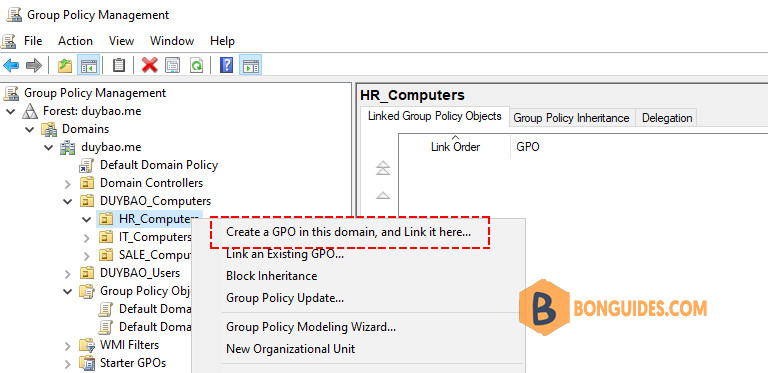
- Navigate to the appropriate Organizational Unit (OU) where the target computers/users reside.
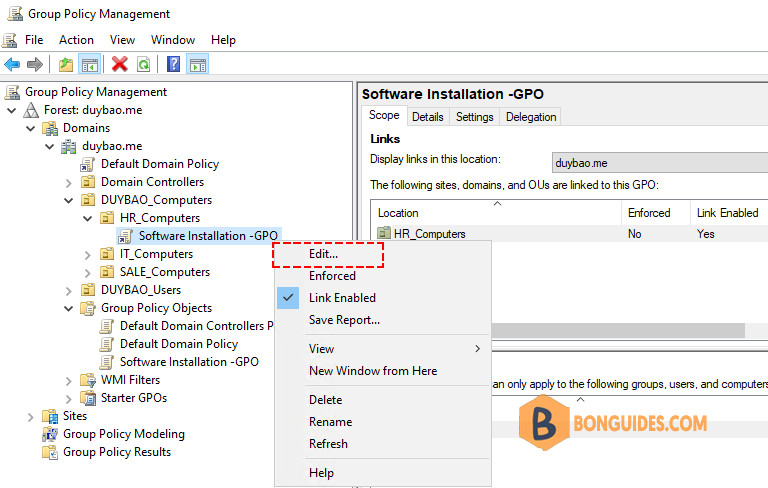
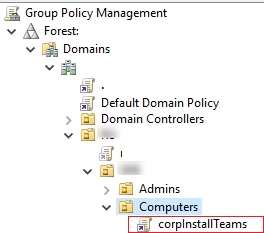
- Right-click the OU and select "Create a GPO in this domain, and Link it here." Give it a descriptive name (e.g.,
GPO_Software_ChromeInstall). - Right-click the newly created GPO and select "Edit."
2. Assigning the Software Package (Publish vs. Assign)
In the GPO Editor, navigate to either Computer Configuration or User Configuration, depending on your needs. This choice is critical and determines if the software installs automatically or if the user must initiate the installation.
If targeting Computers (Automatic Installation):
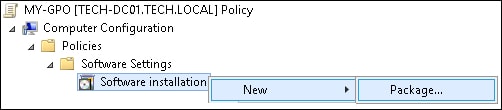
- Navigate to:
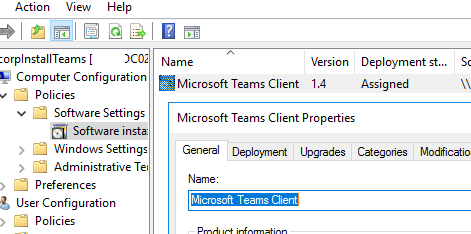
Computer Configuration>Policies>Software Settings>Software Installation. - Right-click
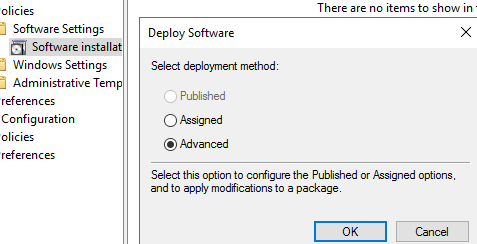
Software Installation>New>Package. - Browse to the UNC path of your MSI file (e.g.,
\\DC01\SoftwareShare\MyApp.msi). - Select "Assigned" when prompted for the deployment method.
If targeting Users (Optional Installation):
- Navigate to:
User Configuration>Policies>Software Settings>Software Installation. - Browse to the UNC path of your MSI file.
- Select "Published." This allows users to install the software via Control Panel > Programs and Features > Install a program from the network.
After linking the GPO, the target computers will apply the setting during the next Group Policy refresh (which happens automatically at startup or can be forced using gpupdate /force).
Troubleshooting Common Installation Issues
Even seasoned admins face issues. The most common pitfall when trying to GPO install software MSI is usually related to permissions or file access.
Permission Denied Errors
If the installation fails with a cryptic error code (like 1603 or related to access denied), 90% of the time it's due to incorrect permissions on the share.
Remember, the installation process runs under the local system account of the target computer, not the logged-in user. The 'Domain Computers' group must have read access to the share and the NTFS permissions on the folder containing the MSI.
If you used the 'Authenticated Users' group for both Share and NTFS Read access, ensure that group truly includes the 'Domain Computers' group in your domain structure.
Event Viewer Diagnostics
The single best source for diagnosis is the Event Viewer on the target client machine.
Navigate to: Windows Logs > Application. Look for events from source MsiInstaller and Application Management. These events will often contain the exact error code (e.g., Error 1202, Group Policy Processing failed) or the specific reason why the installation failed to initiate.
| Feature | Assigned (Computer/User) | Published (User Only) |
|---|---|---|
| Deployment Scope | Mandatory Installation | Optional Installation |
| Installation Trigger | System Startup (Computer) or User Logon (User) | Manual selection via Programs and Features |
| Uninstallation | Can be forced via GPO removal policy (mandatory removal). | User removes it manually. |
Advanced Deployment Strategies
Standard MSI deployment is often not enough. Many vendors package their software with default settings you need to change (e.g., disabling auto-updates, setting license keys, or changing installation directories).
Using MST Transform Files
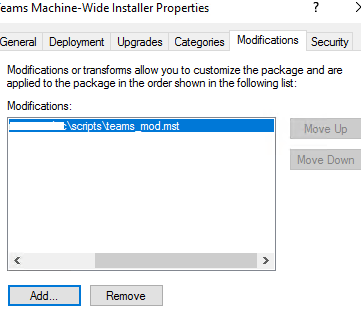
MSI files are usually locked down. To customize the installation, you use a Transform file (.mst). This file contains all the modifications needed without changing the original, digitally signed MSI package. You typically create these files using tools like Orca (part of the Windows SDK).
When creating the GPO package:
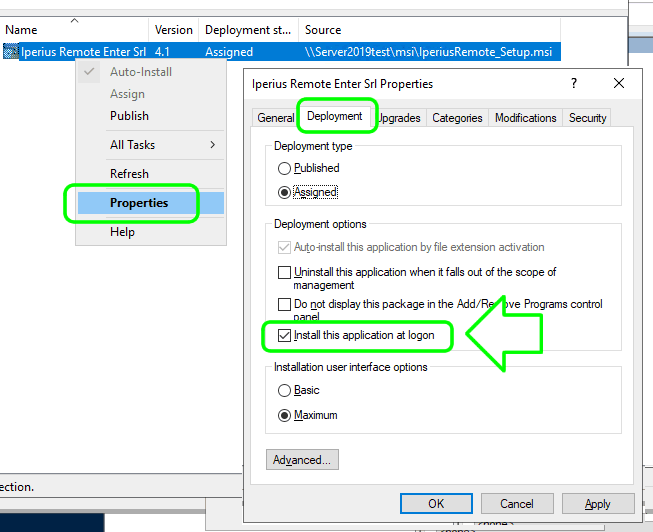
- Right-click the installed package in GPMC and select "Properties."
- Go to the "Modifications" tab.
- Click "Add" and point to the MST file located in the same network share as the MSI.
This ensures that every machine installing the software via this GPO will apply your custom settings immediately.
Forced Installation and Removal
If a user uninstalls a software package that was "Assigned" via GPO, the GPO will automatically re-install it the next time the policy refreshes (often called "healing").
To completely remove software from all deployed machines, open the GPO properties, right-click the package under "Software Installation," select "All Tasks," and choose "Remove." You then have two options:
- Immediately uninstall the software from users and computers: This forces removal upon next policy update.
- Allow users to continue to use the software, but prevent new installations: This is a soft stop.
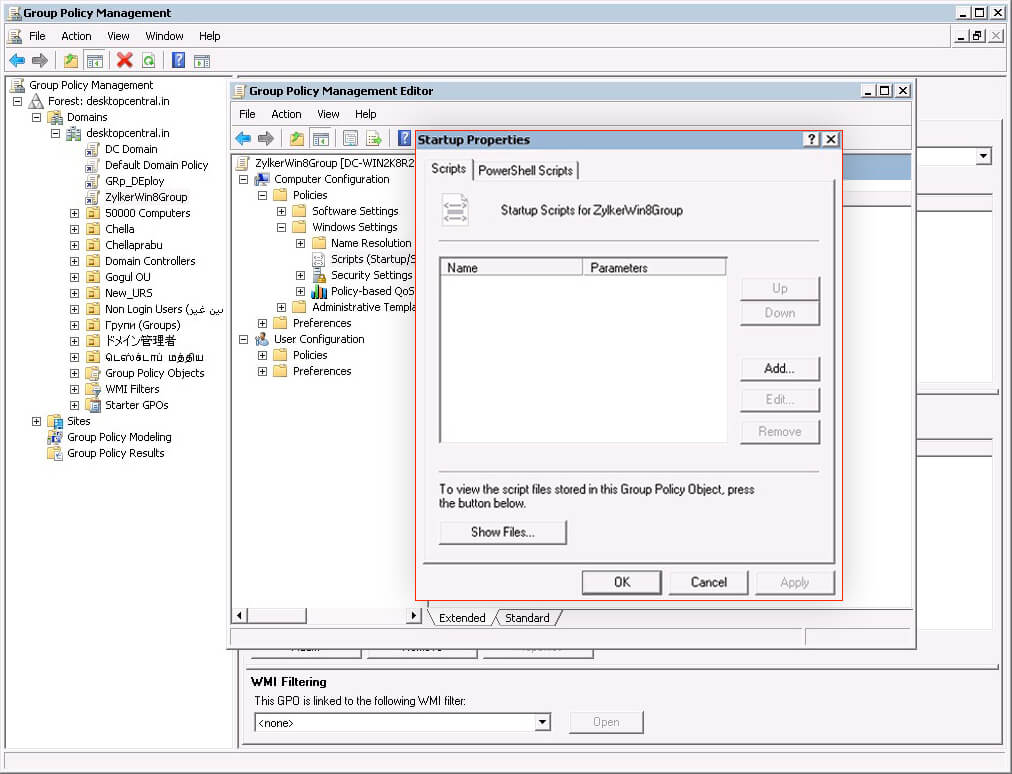
Mastering these advanced settings is crucial for maintaining standardization and compliance across your fleet. [Baca Juga: Managing User Profiles: Best Practices for GPO Startup Scripts]
For more detailed technical documentation on Windows Installer and MSI structure, refer to the official Microsoft Developer Documentation.
Conclusion: The Power of Policy
Deploying software using GPO and MSI packages transforms the way you manage your network. By following the meticulous steps of preparation, focusing sharply on permissions, and utilizing tools like transform files, you can achieve nearly 100% success rate in automated rollouts. This not only saves you countless hours but significantly enhances the security and uniformity of your entire domain structure. Stop installing manually, start managing centrally!
Frequently Asked Questions (FAQ)
- Why does my GPO install software MSI installation fail with error 1603?
Error 1603 is a common, generic installation error. The most frequent causes are incorrect permissions on the network share (the computer account cannot read the MSI file), or the MSI package itself has dependencies or customizations (like a faulty MST file) that prevent silent installation.
- What is the difference between 'Assign' and 'Publish' in GPO software deployment?
'Assign' (used in both Computer and User configuration) forces the installation or makes it available immediately upon policy application. 'Publish' (User configuration only) places the software in the Control Panel's Programs and Features list, allowing the user to choose when to install it.
- Do I need to reboot the computers for the GPO software installation to take effect?
If you applied the software under
Computer Configuration(Assigned), yes, a reboot is required because the installation runs during the machine's startup sequence. If applied underUser Configuration, a logoff/logon cycle is usually sufficient. - Can I use GPO to install EXE files?
No, GPO Software Installation is strictly limited to native Windows Installer (.msi) packages. To deploy EXE files, you must wrap the installation commands into a startup script (.bat or .ps1) and deploy the script via GPO, or use a dedicated tool like SCCM/Endpoint Configuration Manager.
Gpo Install Software Msi
Gpo Install Software Msi Wallpapers
Collection of gpo install software msi wallpapers for your desktop and mobile devices.
Breathtaking Gpo Install Software Msi Landscape for Desktop
Discover an amazing gpo install software msi background image, ideal for personalizing your devices with vibrant colors and intricate designs.
Artistic Gpo Install Software Msi Abstract Illustration
Immerse yourself in the stunning details of this beautiful gpo install software msi wallpaper, designed for a captivating visual experience.

Vivid Gpo Install Software Msi Wallpaper Photography
Explore this high-quality gpo install software msi image, perfect for enhancing your desktop or mobile wallpaper.
Stunning Gpo Install Software Msi Photo in 4K
A captivating gpo install software msi scene that brings tranquility and beauty to any device.

Mesmerizing Gpo Install Software Msi Photo Nature
Explore this high-quality gpo install software msi image, perfect for enhancing your desktop or mobile wallpaper.

Artistic Gpo Install Software Msi Wallpaper Illustration
A captivating gpo install software msi scene that brings tranquility and beauty to any device.
Vivid Gpo Install Software Msi Abstract Illustration
Transform your screen with this vivid gpo install software msi artwork, a true masterpiece of digital design.
Crisp Gpo Install Software Msi Scene Concept
Immerse yourself in the stunning details of this beautiful gpo install software msi wallpaper, designed for a captivating visual experience.

Breathtaking Gpo Install Software Msi Photo Nature
Explore this high-quality gpo install software msi image, perfect for enhancing your desktop or mobile wallpaper.
Mesmerizing Gpo Install Software Msi Abstract for Mobile
Experience the crisp clarity of this stunning gpo install software msi image, available in high resolution for all your screens.

Amazing Gpo Install Software Msi Image for Your Screen
Experience the crisp clarity of this stunning gpo install software msi image, available in high resolution for all your screens.

Amazing Gpo Install Software Msi Artwork Concept
Transform your screen with this vivid gpo install software msi artwork, a true masterpiece of digital design.
Vibrant Gpo Install Software Msi Scene for Desktop
Explore this high-quality gpo install software msi image, perfect for enhancing your desktop or mobile wallpaper.
Gorgeous Gpo Install Software Msi Picture in HD
Immerse yourself in the stunning details of this beautiful gpo install software msi wallpaper, designed for a captivating visual experience.
Mesmerizing Gpo Install Software Msi Design Photography
Experience the crisp clarity of this stunning gpo install software msi image, available in high resolution for all your screens.
Gorgeous Gpo Install Software Msi Artwork for Desktop
Find inspiration with this unique gpo install software msi illustration, crafted to provide a fresh look for your background.
High-Quality Gpo Install Software Msi Picture Photography
Discover an amazing gpo install software msi background image, ideal for personalizing your devices with vibrant colors and intricate designs.
Gorgeous Gpo Install Software Msi Moment Collection
Find inspiration with this unique gpo install software msi illustration, crafted to provide a fresh look for your background.

Vivid Gpo Install Software Msi Image Digital Art
Discover an amazing gpo install software msi background image, ideal for personalizing your devices with vibrant colors and intricate designs.

Captivating Gpo Install Software Msi Capture Collection
A captivating gpo install software msi scene that brings tranquility and beauty to any device.
Download these gpo install software msi wallpapers for free and use them on your desktop or mobile devices.