Hadoop Software Installation
The Ultimate Guide to Hadoop Software Installation: From Zero to Big Data Hero
So, you've decided to dive into the world of Big Data, and naturally, you've landed on Apache Hadoop. Excellent choice! Hadoop is the foundational framework for storing and processing massive datasets reliably. However, getting the software up and running—the actual **Hadoop software installation** process—can sometimes feel like navigating a maze.
Don't worry. This guide is designed to cut through the complexity. We'll walk through the prerequisites, explain the best setup mode for beginners, and provide clear, step-by-step instructions. We aim for a setup that is robust enough for development but simple enough not to cause headaches: the single-node setup, often called Pseudo-Distributed Mode.
Let's turn that installation challenge into a smooth, successful deployment.
1. Essential Prerequisites Before Hadoop Software Installation
Before you even think about downloading Hadoop binaries, we need to ensure your environment is ready. Think of these as the essential ingredients for baking a successful Big Data cake.
The primary requirements are:
- **Operating System (OS):** Linux (Ubuntu or CentOS are highly recommended) or macOS. While Windows is possible, it adds significant complexity, making Linux the preferred choice for production and learning.
- **Java Development Kit (JDK):** Hadoop is primarily written in Java. You must have Java installed (usually OpenJDK 8 or 11) and the `JAVA_HOME` environment variable configured correctly.
- **SSH (Secure Shell):** Hadoop uses SSH to manage nodes (even if it's just one node simulating a cluster). You need SSH client installed and passwordless SSH enabled for the local machine.
- **Memory and Disk:** For a learning environment (Pseudo-Distributed), 8GB RAM is comfortable, but 4GB can suffice. Ensure you have ample disk space for data storage.
Expert Tip: Always verify your Java version is compatible with the specific Hadoop distribution you plan to install. You can check official compatibility matrices on the Apache website here.
2. Choosing Your Hadoop Deployment Mode
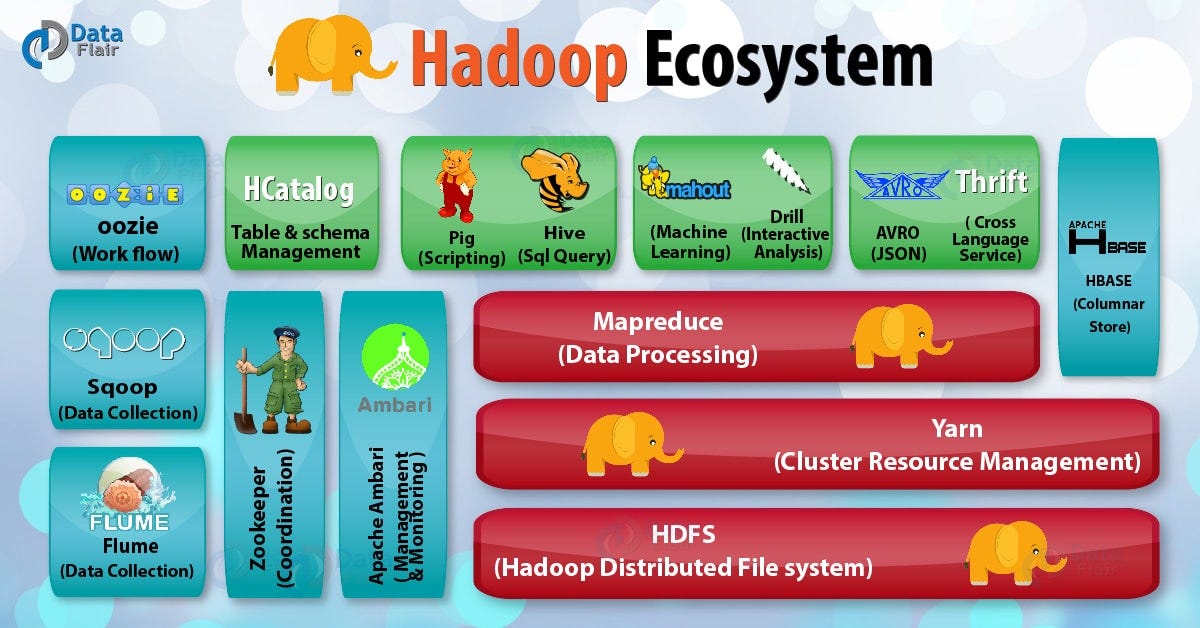
Hadoop isn't a single piece of software; it's an ecosystem that can be configured in a few ways depending on your needs:
Standalone (Local) Mode
This is the default setting. It runs Hadoop entirely as a single Java process. It's primarily used for testing and debugging, where you don't need the complexity of HDFS or YARN.
Pseudo-Distributed Mode (Single-Node Cluster)
This is perfect for beginners and developers. All core Hadoop daemons (NameNode, DataNode, ResourceManager, NodeManager) run on a single machine. It simulates a small cluster environment, allowing you to learn HDFS and MapReduce/YARN operations without needing multiple physical machines.
Fully-Distributed Mode
This is the production environment setup, involving multiple separate machines (nodes) acting as a cohesive cluster. This provides true scalability and fault tolerance.
For the rest of this **Hadoop software installation** guide, we will focus on the Pseudo-Distributed Mode, as it offers the best learning curve.
3. Step-by-Step Pseudo-Distributed Installation
Assuming your Java and SSH prerequisites are met, let's get the core software installed.
Downloading and Extracting Hadoop
Always download the stable, latest version from the official Apache mirrors. Once downloaded (e.g., `hadoop-3.3.6.tar.gz`), extract it to a convenient location like `/usr/local/`.
$ sudo tar -xzf hadoop-3.3.6.tar.gz -C /usr/local$ sudo mv /usr/local/hadoop-3.3.6 /usr/local/hadoop
Setting Environment Variables
Edit your shell profile (`~/.bashrc` or `~/.zshrc`) to add the necessary paths. This is crucial for running Hadoop commands globally.
# HADOOP SETUPexport HADOOP_HOME=/usr/local/hadoop
export HADOOP_INSTALL=$HADOOP_HOME
export PATH=$PATH:$HADOOP_HOME/bin
export PATH=$PATH:$HADOOP_HOME/sbin
export HADOOP_MAPRED_HOME=$HADOOP_HOME
export HADOOP_COMMON_HOME=$HADOOP_HOME
export HADOOP_HDFS_HOME=$HADOOP_HOME
export YARN_HOME=$HADOOP_HOME
Don't forget to reload your profile: `source ~/.bashrc`.
Modifying Essential Configuration Files
To switch from Standalone to Pseudo-Distributed Mode, you must edit four primary XML files located in `$HADOOP_HOME/etc/hadoop/`.
1. **`core-site.xml`**: Specifies the HDFS URL for the NameNode.
<configuration><property>
<name>fs.defaultFS</name>
<value>hdfs://localhost:9000</value>
</property>
</configuration>
2. **`hdfs-site.xml`**: Defines the replication factor (set to 1 for a single-node setup) and directory paths for NameNode and DataNode storage.
<configuration><property>
<name>dfs.replication</name>
<value>1</value>
</property>
<!-- (Add paths for namenode/datanode directories here) -->
</configuration>
3. **`mapred-site.xml`**: Specifies the framework used for MapReduce jobs (YARN).
4. **`yarn-site.xml`**: Defines the resource manager structure.
These configurations tell the Hadoop ecosystem to treat your single machine as both the master (NameNode/ResourceManager) and the worker (DataNode/NodeManager).
| File Name | Key Parameter | Function in Pseudo-Mode |
|---|---|---|
| core-site.xml | fs.defaultFS | Points to the NameNode (localhost). |
| hdfs-site.xml | dfs.replication | Set to 1 (since there is only one node). |
| mapred-site.xml | mapreduce.framework.name | Set to YARN. |
Formatting HDFS and Starting Daemons
Before using HDFS for the first time, you must format the NameNode. **WARNING:** Only run this command once! Running it again will wipe your file system metadata.
$ hdfs namenode -formatFinally, start the distributed file system daemons:
$ start-dfs.sh$ start-yarn.sh
You can verify that all daemons (NameNode, DataNode, ResourceManager, NodeManager) are running using the `jps` command.
To deepen your understanding of the underlying architecture, explore this resource on the fundamentals of distributed computing here.
4. Verification and Troubleshooting After Hadoop Installation
The successful **Hadoop software installation** isn't complete until you can confirm everything is operational. There are two primary ways to check:
Checking the Web UIs
Hadoop provides excellent web interfaces:
- **HDFS NameNode UI:** Check this at `http://localhost:9870` (or 50070 for older versions). This shows the status of the DataNodes and file system health.
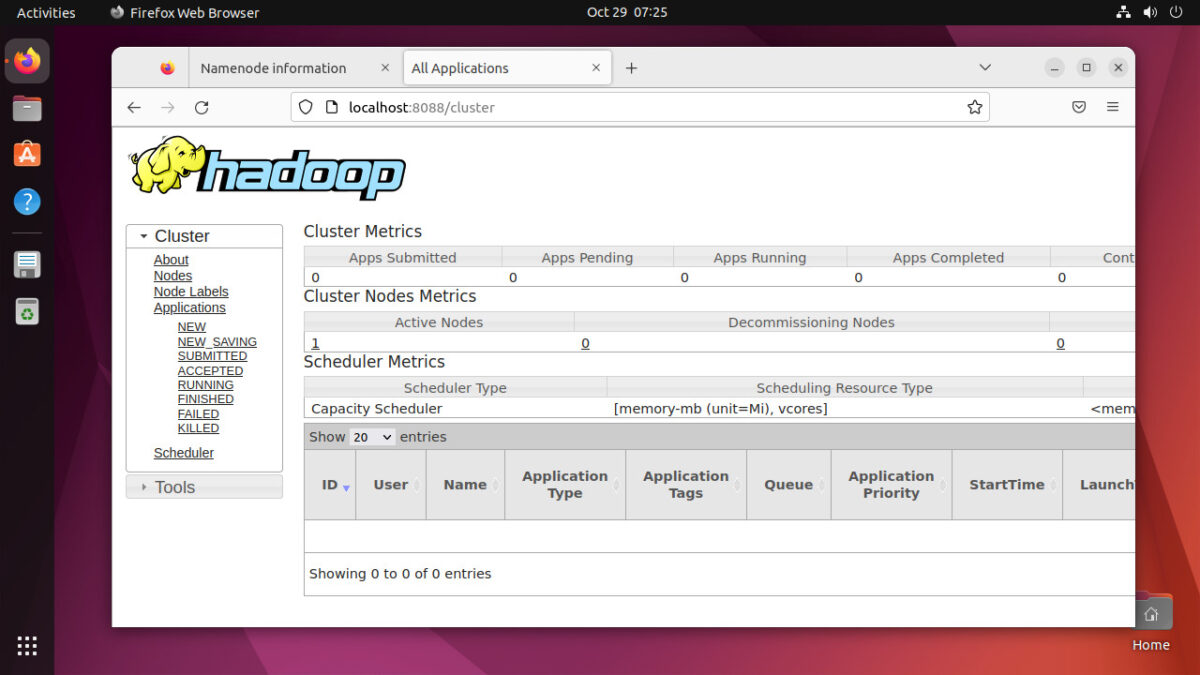
- **YARN ResourceManager UI:** Check this at `http://localhost:8088`. This shows submitted jobs, cluster resources, and node availability.
Running a Sample Job
The best proof that your YARN cluster works is by running a small test job, often the built-in example like the PI estimator or word count.
$ hdfs dfs -mkdir /input$ hdfs dfs -put $HADOOP_HOME/etc/hadoop/*.xml /input
$ hadoop jar $HADOOP_HOME/share/hadoop/mapreduce/hadoop-mapreduce-examples-*.jar wordcount /input /output
If this job executes successfully and generates an output directory, congratulations! Your installation is solid.
If you encounter issues, the logs in `$HADOOP_HOME/logs/` are your best friend. A common problem is Java Path mismatch; make sure `JAVA_HOME` is correctly set in your environment profile and within the `hadoop-env.sh` file.
[Baca Juga: Troubleshooting Common Hadoop YARN Errors]
Conclusion: Taking the Next Step
Mastering the initial Hadoop software installation in Pseudo-Distributed Mode is the critical first hurdle. By following these steps—ensuring your environment variables are spotless and your configuration files are precise—you now have a working sandbox environment. This setup allows you to experiment with HDFS commands, write MapReduce jobs, and understand how YARN manages resources, preparing you for complex, fully-distributed deployments later on.
The world of Big Data is vast, and you've just established your base camp. Happy processing!
[Baca Juga: Essential HDFS Commands Tutorial]
Frequently Asked Questions (FAQ)
Q: Why do I need passwordless SSH for a single-node setup?
A: Even when running on a single machine, Hadoop daemons treat each process (NameNode, DataNode) as a separate entity that needs to communicate securely. Hadoop scripts rely on SSH to remotely start and manage these local processes without constantly prompting for a password.
Q: What is the biggest difference between Hadoop 2 and Hadoop 3 installation?
A: Hadoop 3 offers major improvements, including support for more than 4,000 nodes, but the most visible change for installation is the default NameNode Web UI port, which moved from 50070 to 9870.
Q: My `jps` command doesn't show all the daemons. What went wrong?
A: This almost always points to a configuration error. Check the following: 1) Did you run `hdfs namenode -format`? 2) Is your `JAVA_HOME` variable pointing to a valid JDK directory? 3) Check the specific logs for the missing daemon (e.g., DataNode logs) for errors related to port conflicts or missing directories.
Hadoop Software Installation
Hadoop Software Installation Wallpapers
Collection of hadoop software installation wallpapers for your desktop and mobile devices.

Vivid Hadoop Software Installation Background Digital Art
Discover an amazing hadoop software installation background image, ideal for personalizing your devices with vibrant colors and intricate designs.

Dynamic Hadoop Software Installation Design for Mobile
This gorgeous hadoop software installation photo offers a breathtaking view, making it a perfect choice for your next wallpaper.
Dynamic Hadoop Software Installation Capture for Mobile
Find inspiration with this unique hadoop software installation illustration, crafted to provide a fresh look for your background.

Spectacular Hadoop Software Installation View Collection
Immerse yourself in the stunning details of this beautiful hadoop software installation wallpaper, designed for a captivating visual experience.

Breathtaking Hadoop Software Installation Design Collection
Explore this high-quality hadoop software installation image, perfect for enhancing your desktop or mobile wallpaper.

High-Quality Hadoop Software Installation Artwork Art
Experience the crisp clarity of this stunning hadoop software installation image, available in high resolution for all your screens.

Detailed Hadoop Software Installation Design in HD
Transform your screen with this vivid hadoop software installation artwork, a true masterpiece of digital design.

Breathtaking Hadoop Software Installation Background Collection
Discover an amazing hadoop software installation background image, ideal for personalizing your devices with vibrant colors and intricate designs.
Dynamic Hadoop Software Installation Landscape Illustration
Find inspiration with this unique hadoop software installation illustration, crafted to provide a fresh look for your background.

Beautiful Hadoop Software Installation Moment in 4K
Experience the crisp clarity of this stunning hadoop software installation image, available in high resolution for all your screens.
Spectacular Hadoop Software Installation Abstract Collection
This gorgeous hadoop software installation photo offers a breathtaking view, making it a perfect choice for your next wallpaper.
Lush Hadoop Software Installation Scene Nature
Immerse yourself in the stunning details of this beautiful hadoop software installation wallpaper, designed for a captivating visual experience.

Detailed Hadoop Software Installation Design Photography
Experience the crisp clarity of this stunning hadoop software installation image, available in high resolution for all your screens.

Vivid Hadoop Software Installation Scene Collection
Transform your screen with this vivid hadoop software installation artwork, a true masterpiece of digital design.
Mesmerizing Hadoop Software Installation Image Digital Art
Discover an amazing hadoop software installation background image, ideal for personalizing your devices with vibrant colors and intricate designs.
Lush Hadoop Software Installation Image in 4K
Immerse yourself in the stunning details of this beautiful hadoop software installation wallpaper, designed for a captivating visual experience.

Exquisite Hadoop Software Installation Background in HD
This gorgeous hadoop software installation photo offers a breathtaking view, making it a perfect choice for your next wallpaper.
High-Quality Hadoop Software Installation Image Photography
Explore this high-quality hadoop software installation image, perfect for enhancing your desktop or mobile wallpaper.

Vibrant Hadoop Software Installation Moment Photography
Discover an amazing hadoop software installation background image, ideal for personalizing your devices with vibrant colors and intricate designs.

Amazing Hadoop Software Installation Capture for Desktop
Transform your screen with this vivid hadoop software installation artwork, a true masterpiece of digital design.
Download these hadoop software installation wallpapers for free and use them on your desktop or mobile devices.