How To Get Mla Format On Word
How To Get Mla Format On Word: A Simple Step-by-Step Guide
Are you staring at a blank Microsoft Word document, dreading the tedious process of applying MLA formatting? You are not alone! MLA (Modern Language Association) style is mandatory for many academic papers, and getting those specific margins, indents, and headers just right can feel like wrestling a particularly stubborn octopus.
The good news is that Word is incredibly powerful, and once you know where the settings hide, mastering How To Get Mla Format On Word becomes quick and painless. This guide will walk you through setting up your document perfectly, saving you time and hopefully earning you those critical formatting points.
Let's dive right in and turn that intimidating blank page into a perfectly structured MLA masterpiece!
Setting Up the Basic MLA Document Parameters
Before you even type your first sentence, we need to ensure the backbone of your document is MLA compliant. This includes your page size, margins, and the all-important font choice.
Margins and Paper Size (The Easy Stuff)
MLA mandates a strict one-inch margin on all four sides of your paper (top, bottom, left, and right). Most modern versions of Word default to this setting, but it's always smart to double-check!
Here's how to confirm your margin settings:
- Navigate to the Layout tab in the Word ribbon.
- Click on Margins.
- Select Normal (this should automatically set all margins to 1 inch).
While you are in the Layout tab, quickly ensure your paper size is set to standard 8.5 x 11 inches. In the U.S., this is usually the default, but if you are using a different regional setting, you might need to adjust it under the Size button.
Choosing the Right MLA Font and Size
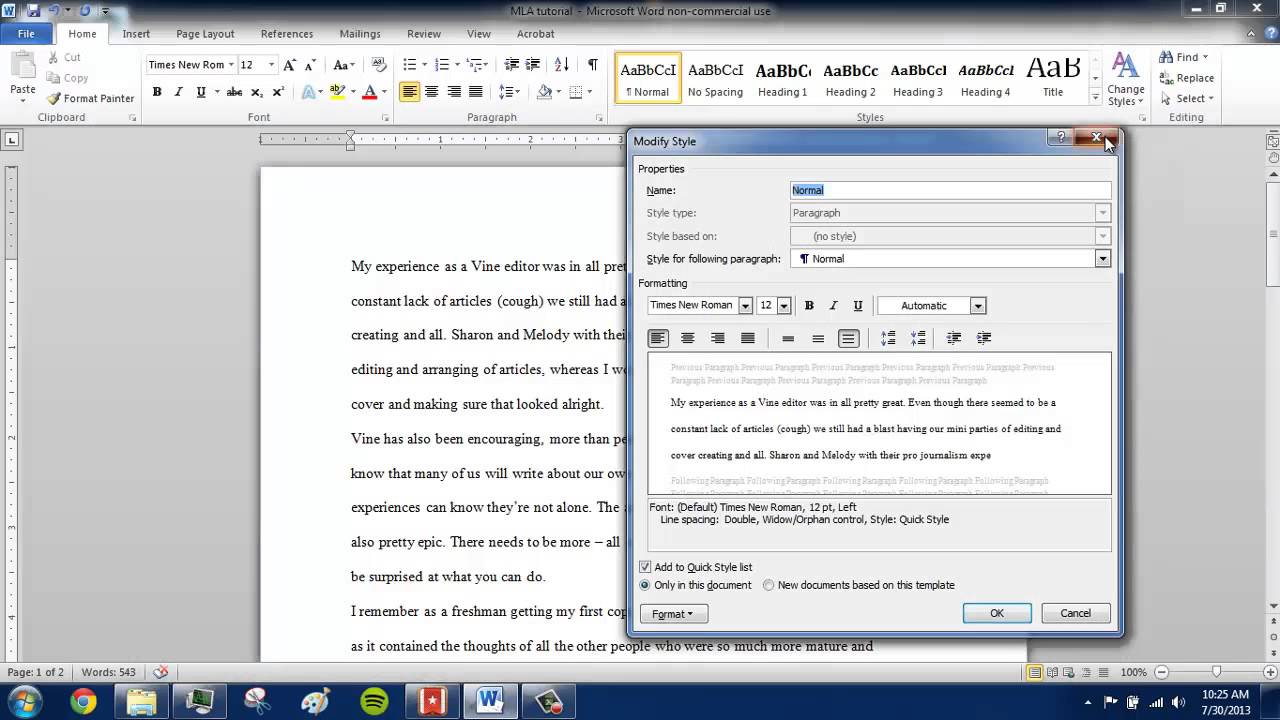
The MLA handbook suggests using a readily readable typeface. The standard go-to is Times New Roman, 12-point size. This is the gold standard that every professor expects.
To apply this across your entire document:
- Go to the Home tab.
- Select the font dropdown menu and choose Times New Roman.
- Set the size to 12 pt.
Pro Tip: Apply this setting immediately before you begin typing. If you forget, you can hit Ctrl + A (or Cmd + A on Mac) to select all text, and then apply the font change globally.
Mastering Line Spacing and Indentation in Word
This is where many students trip up. MLA requires precise double spacing and specific indentations for paragraphs and block quotes. Luckily, Word handles these functions efficiently.
Double Spacing Your Entire Document
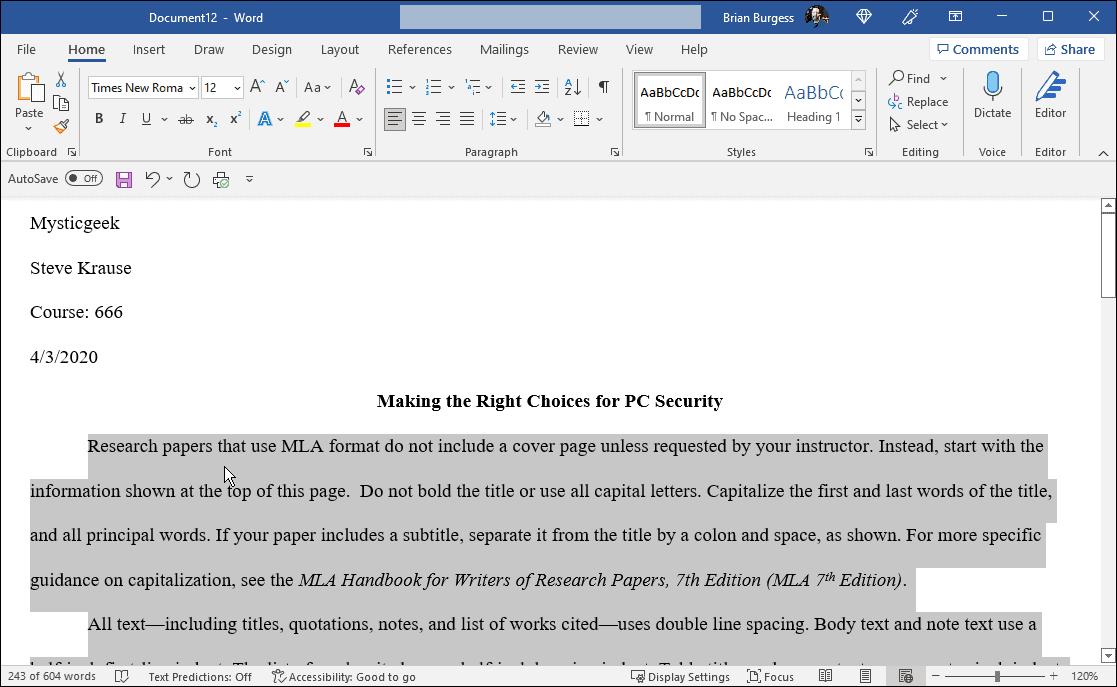
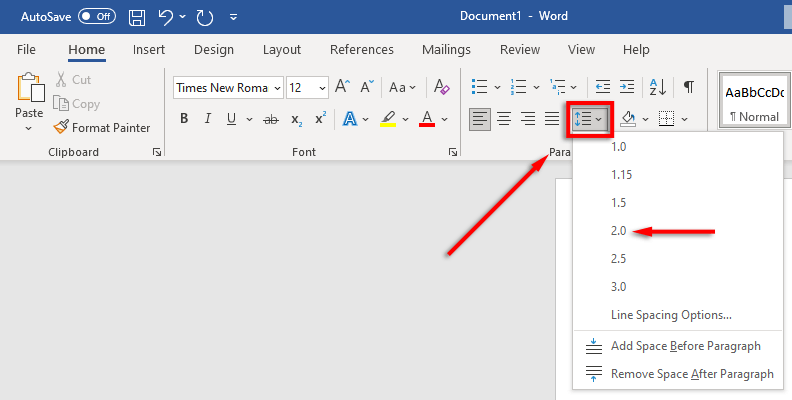
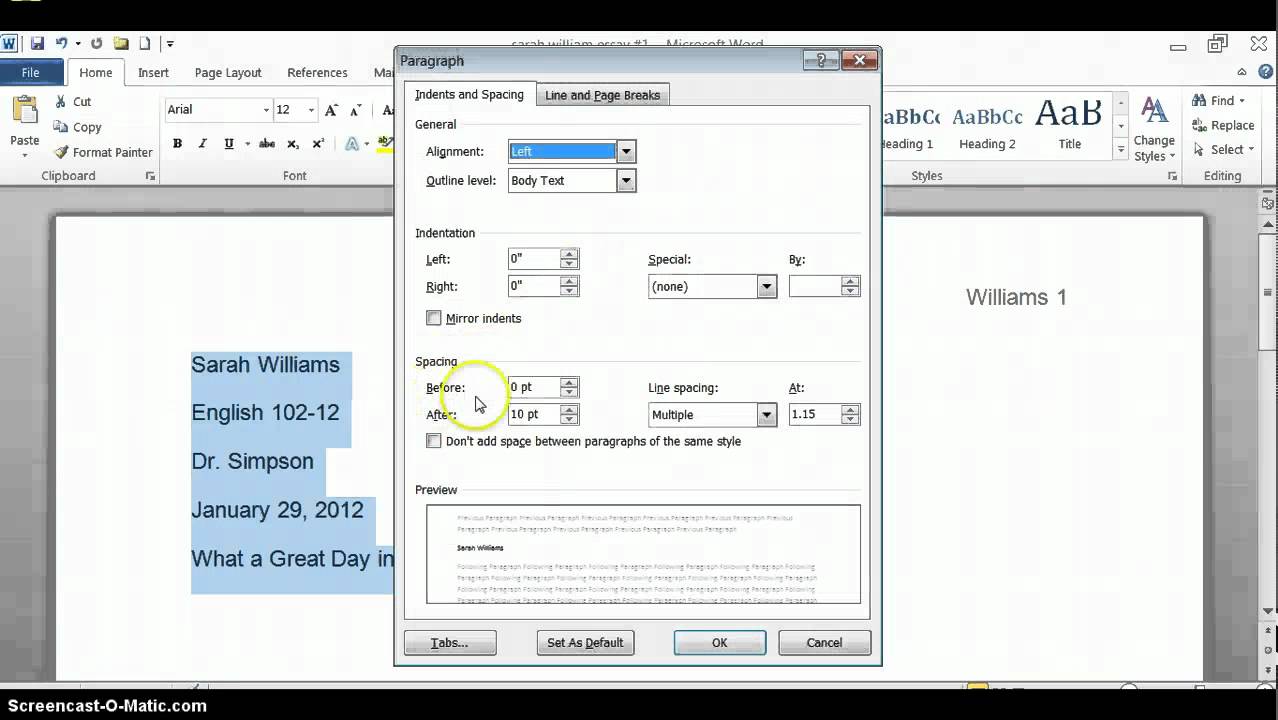
All text in an MLA paper—including the title, the body, and the Works Cited page—must be double-spaced. To make sure you get the proper 2.0 spacing without extra space before or after paragraphs, follow these steps:
- On the Home tab, look for the Paragraph section.
- Click the small arrow icon in the bottom right corner of the Paragraph box to open the detailed settings menu.
- Under the Indents and Spacing tab, find the Spacing section.
- Set the Line spacing dropdown to Double.
- Crucially, ensure that both Before and After spacing are set to 0 pt. This prevents Word from adding extra space between paragraphs, which is non-standard in MLA.
Hit OK, and congratulations! Your entire document is now perfectly double-spaced.
Creating the Half-Inch Indentation (First Line Indent)
Every paragraph in the body of your paper must have the first line indented half an inch (0.5"). Do not hit the Tab key repeatedly! Use Word's built-in feature for consistency.
You can set this in the same detailed Paragraph settings box we used for spacing:
- Under the Indents and Spacing tab, find the Indentation section.
- In the Special dropdown menu, select First line.
- Ensure the By setting is set to 0.5".
Now, every time you hit Enter to start a new paragraph, Word will automatically indent the first line correctly.
Adding the Crucial MLA Header and Page Numbers
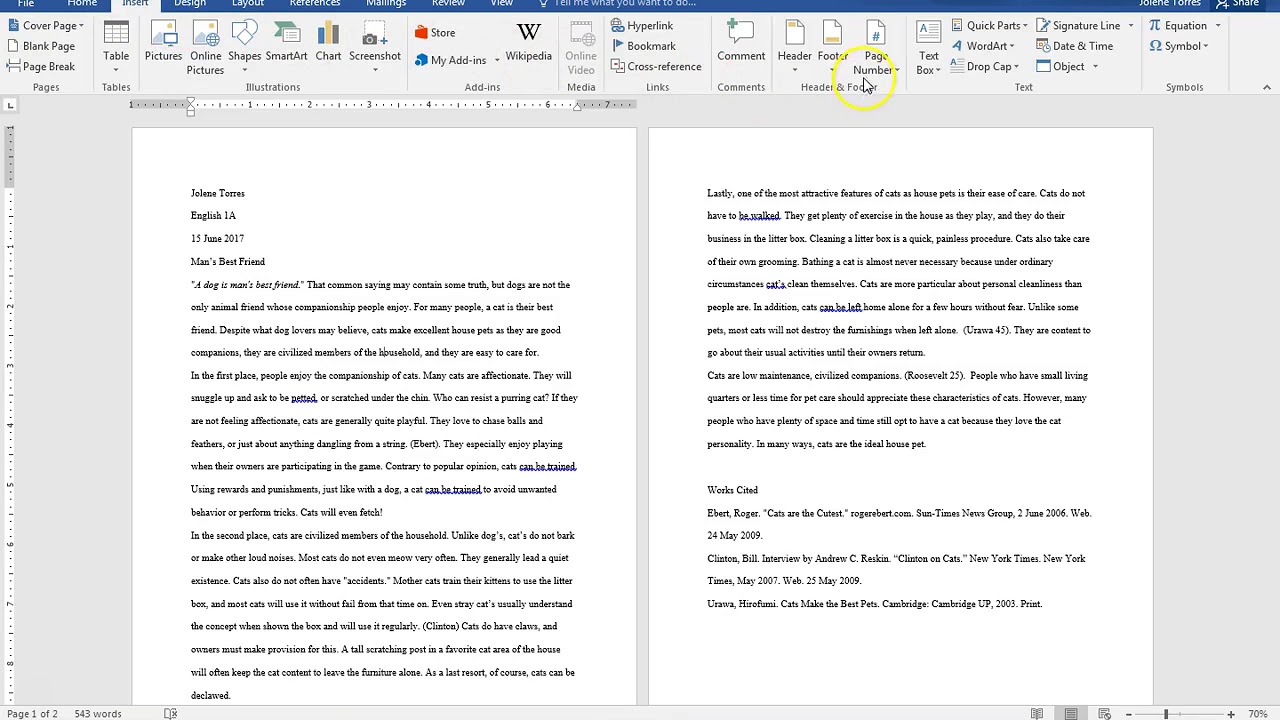
The running head in MLA format is a non-negotiable requirement. It consists of your last name followed immediately by the page number, right-aligned in the header of every page.
Inserting Running Headings with Last Name and Page Number
Do not manually type your name and page number on every page! Word will do this automatically for you:
- Go to the Insert tab.
- Click Page Number, hover over Top of Page, and select Plain Number 3 (this places the number on the right).
- Word will now automatically open the Header & Footer Tools tab.
- Click directly to the left of the page number in the header and type your last name (e.g., Smith 1). Be sure to include a single space between your name and the number.
- Ensure the font in the header matches the rest of the document (Times New Roman, 12 pt). If it doesn't, select the header text and apply the formatting manually.
- Click Close Header and Footer (or hit Esc).
Now, as you write, the page number will increase automatically on every subsequent page, ensuring your document is completely MLA-compliant.
Troubleshooting Header Issues
Sometimes, if you have section breaks or have copied text from another document, the header formatting gets messy. If your page numbers start from 0 or reset mid-document, here's a quick fix:
- Double-click the header to edit it.
- Select the page number.
- Right-click the number and choose Format Page Numbers.
- Under Page numbering, ensure Continue from previous section is selected, or specify Start at 1 if this is the very beginning of your paper.
The Important Details: Title Page, Works Cited, and In-text Citations
Now that the structural requirements are met, let's look at the content presentation. Note that MLA 9th edition typically does not require a separate title page unless specifically requested by your instructor.
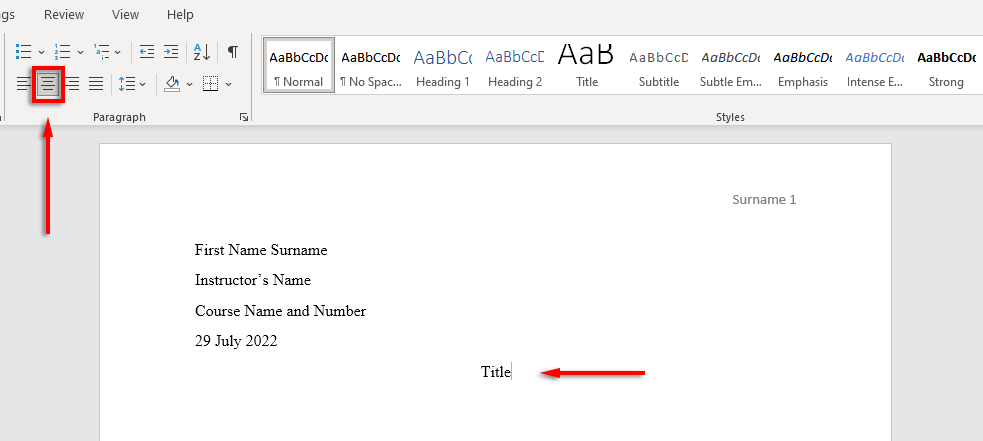
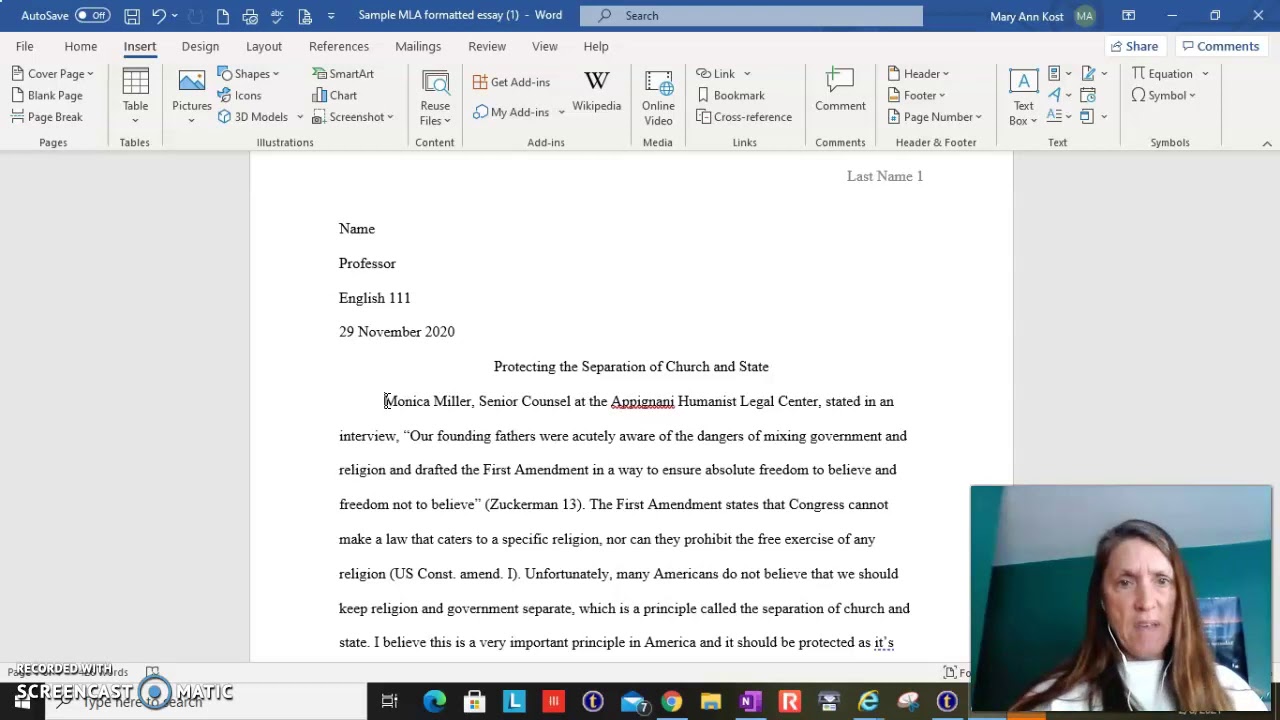
Instead of a title page, you place a four-line identification block on the first page, flush with the left margin. Remember, this whole block is double-spaced!
The MLA identification block should appear in this order:
- Your Name
- Instructor's Name
- Course Name/Number
- Date (Day Month Year format, e.g., 20 May 2023)
After the date, skip one line and center your paper's title. The title should be in 12 pt, Times New Roman, and only major words should be capitalized (Title Case). Do not bold, italicize, or underline your title!
Formatting the Works Cited Page
The final page of your paper is dedicated to the Works Cited list. This page must start on a separate page from the rest of your essay. Use Ctrl + Enter (or Cmd + Enter) to insert a Page Break rather than hitting Enter repeatedly.
Key formatting requirements for the Works Cited list include:
- Center the title "Works Cited" at the top of the page. Do not bold or underline.
- Maintain double spacing throughout.
- Alphabetize entries by the author's last name (or the title if there is no author).
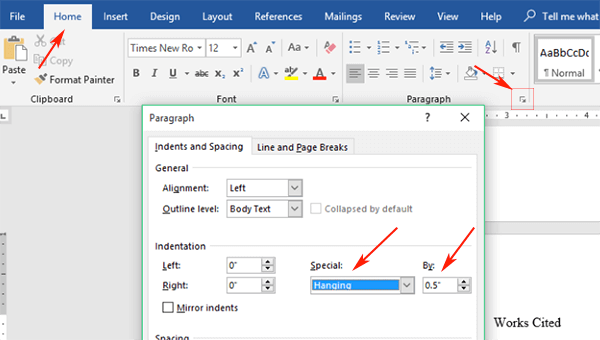
- Use a Hanging Indent for all entries.
To create a Hanging Indent in Word: Go back to the detailed Paragraph settings box. Under the Indentation section, change the Special dropdown menu to Hanging. This will indent every line after the first line by 0.5 inches.
Conclusion: You Are Now an MLA Formatting Expert!
By following these steps, you have successfully configured your Microsoft Word document to meet all the primary requirements of MLA style. You've mastered the one-inch margins, the double spacing, the essential Times New Roman font, the correct paragraph indentation, and the automatic running head.
Knowing How To Get Mla Format On Word is a core skill for any student. Take a moment to review your document using the navigation pane to ensure those page numbers are consistent and accurate. Now you can focus entirely on the quality of your writing, confident that your presentation is polished and professional!
Frequently Asked Questions (FAQ) About MLA in Word
- What if Word automatically adds extra space between paragraphs?
- This is the most common issue! Go to the Home tab, open the Paragraph settings, and ensure that both "Spacing Before" and "Spacing After" are set to 0 pt. Word often defaults to 8 pt spacing after a paragraph, which is not allowed in MLA.
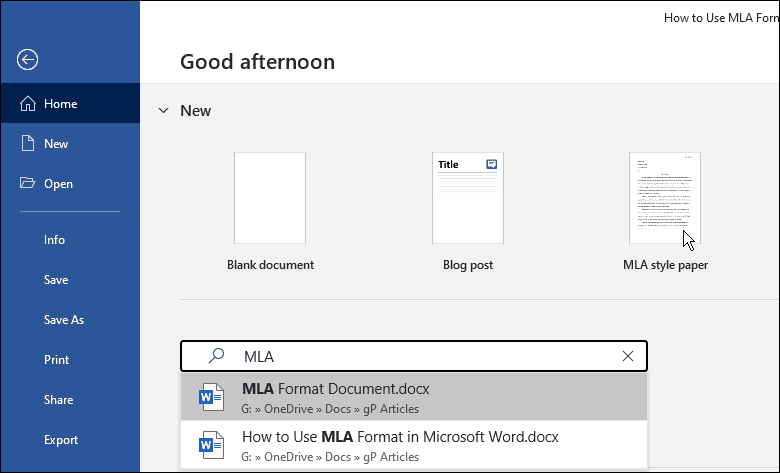
- Should I use the MLA template I found online in Word?
- While templates can be helpful, they often contain hidden section breaks or outdated formatting. It is always safer and more reliable to manually configure the document yourself using the steps above. Plus, understanding the settings helps you troubleshoot problems later!
- How do I quickly insert a block quote (long quotation) in MLA style?
- If your quotation is four lines or longer, it must be formatted as a block quote. The entire quote should be indented 1 inch from the left margin, double-spaced, and does not require quotation marks. You must temporarily adjust the paragraph indentation setting to 1 inch for that specific quote, then revert to 0.5 inch (First line indent) afterwards.
- Do I need to put the title of my paper in bold or underline it?
- No. The title should only be centered, in Title Case, and use the same 12 pt Times New Roman font as the rest of your paper. Avoid any special formatting like bolding, italics, or underlining unless the title includes a separate work title (like a novel or play title, which would be italicized).
How To Get Mla Format On Word
How To Get Mla Format On Word Wallpapers
Collection of how to get mla format on word wallpapers for your desktop and mobile devices.
Crisp How To Get Mla Format On Word Background Art
A captivating how to get mla format on word scene that brings tranquility and beauty to any device.

Artistic How To Get Mla Format On Word View Art
A captivating how to get mla format on word scene that brings tranquility and beauty to any device.

Beautiful How To Get Mla Format On Word Design Illustration
Transform your screen with this vivid how to get mla format on word artwork, a true masterpiece of digital design.
Spectacular How To Get Mla Format On Word Scene for Desktop
This gorgeous how to get mla format on word photo offers a breathtaking view, making it a perfect choice for your next wallpaper.

Exquisite How To Get Mla Format On Word Landscape Art
This gorgeous how to get mla format on word photo offers a breathtaking view, making it a perfect choice for your next wallpaper.

Serene How To Get Mla Format On Word Capture Illustration
Discover an amazing how to get mla format on word background image, ideal for personalizing your devices with vibrant colors and intricate designs.

Artistic How To Get Mla Format On Word Design Collection
Immerse yourself in the stunning details of this beautiful how to get mla format on word wallpaper, designed for a captivating visual experience.

Serene How To Get Mla Format On Word Scene Digital Art
Experience the crisp clarity of this stunning how to get mla format on word image, available in high resolution for all your screens.
Breathtaking How To Get Mla Format On Word Background in HD
Experience the crisp clarity of this stunning how to get mla format on word image, available in high resolution for all your screens.

Artistic How To Get Mla Format On Word Wallpaper Digital Art
Find inspiration with this unique how to get mla format on word illustration, crafted to provide a fresh look for your background.
Breathtaking How To Get Mla Format On Word Abstract Concept
Experience the crisp clarity of this stunning how to get mla format on word image, available in high resolution for all your screens.
Breathtaking How To Get Mla Format On Word Artwork in 4K
Discover an amazing how to get mla format on word background image, ideal for personalizing your devices with vibrant colors and intricate designs.

Stunning How To Get Mla Format On Word Image in HD
Immerse yourself in the stunning details of this beautiful how to get mla format on word wallpaper, designed for a captivating visual experience.
Amazing How To Get Mla Format On Word Image for Mobile
Discover an amazing how to get mla format on word background image, ideal for personalizing your devices with vibrant colors and intricate designs.

Lush How To Get Mla Format On Word View Digital Art
Find inspiration with this unique how to get mla format on word illustration, crafted to provide a fresh look for your background.

Vivid How To Get Mla Format On Word Scene for Your Screen
Experience the crisp clarity of this stunning how to get mla format on word image, available in high resolution for all your screens.
Artistic How To Get Mla Format On Word Abstract for Mobile
Find inspiration with this unique how to get mla format on word illustration, crafted to provide a fresh look for your background.
Artistic How To Get Mla Format On Word Wallpaper Digital Art
Immerse yourself in the stunning details of this beautiful how to get mla format on word wallpaper, designed for a captivating visual experience.