Software Handbrake
Tired of Huge Video Files? Master the Free Handbrake Software Today
If you've ever dealt with massive video files—be it raw footage from a DSLR, large screen recordings, or uncompressed ripped DVDs—you know the pain of storage limits and slow uploads. You need a powerhouse tool that can shrink those digital behemoths without turning your beautiful 4K footage into pixelated garbage.
Enter the **Software Handbrake**. This isn't just another free transcoder; it's the open-source, multi-platform champion of video conversion. But Handbrake's massive array of settings can look intimidating to newcomers. Don't worry, we're here to cut through the complexity. By the end of this guide, you'll be converting and compressing videos like a seasoned professional, upholding the highest standards of quality and efficiency.
The Core Mission: What Makes Handbrake Indispensable
Handbrake's primary role is transcoding—taking a video file encoded in one format (like H.264 MOV) and converting it to another format (like H.265 MP4). But why do we need this?
The main reasons are compatibility, storage, and streaming efficiency. Handbrake allows you to compress files substantially by changing the video codec and container, ensuring your videos play smoothly on any device, from an iPhone to a smart TV, and drastically reducing the file size required for sharing or archival.
Understanding Codecs vs. Containers
This is where many users get confused. Think of the container (e.g., MP4, MKV) as the box holding all the elements—the video track, audio track(s), and subtitles. The codec (e.g., H.264, H.265, VP9) is the actual method used to encode and decode the video data within that box.
Handbrake excels because it offers modern, highly efficient codecs. Choosing H.265 (HEVC) over older H.264 can often result in a 30-50% smaller file size at the same visual quality. This massive efficiency gain is why mastering the **Software Handbrake** is critical in modern media workflows.
For more detailed technical specifications on video compression standards, you can check this authoritative source: Wikipedia: Video Compression Standards.
Navigating the Handbrake Interface: A Clean Walkthrough
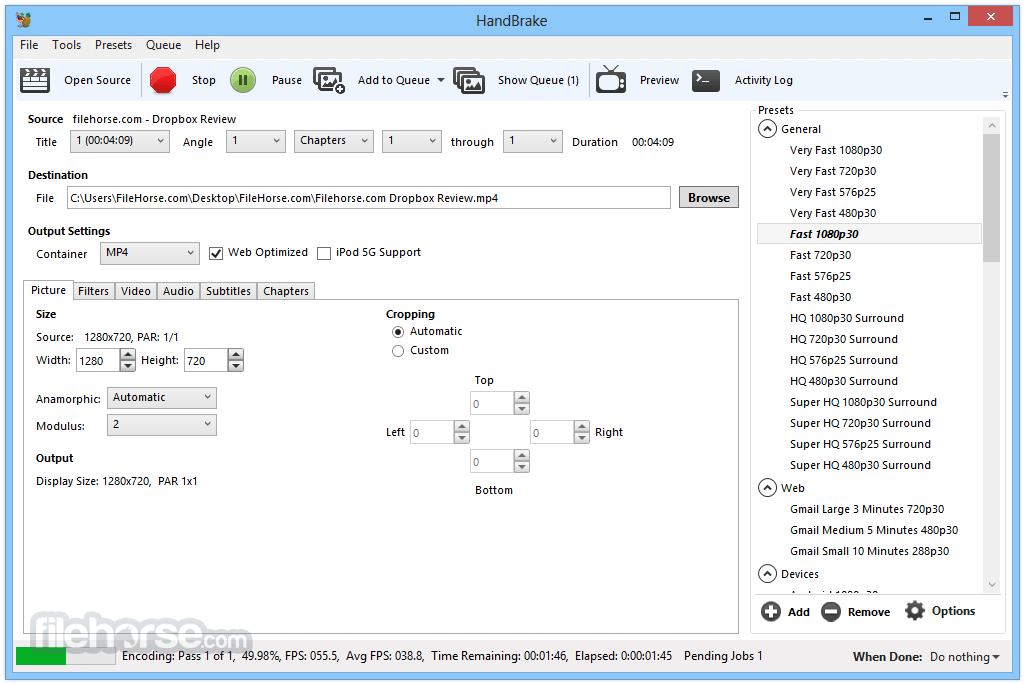
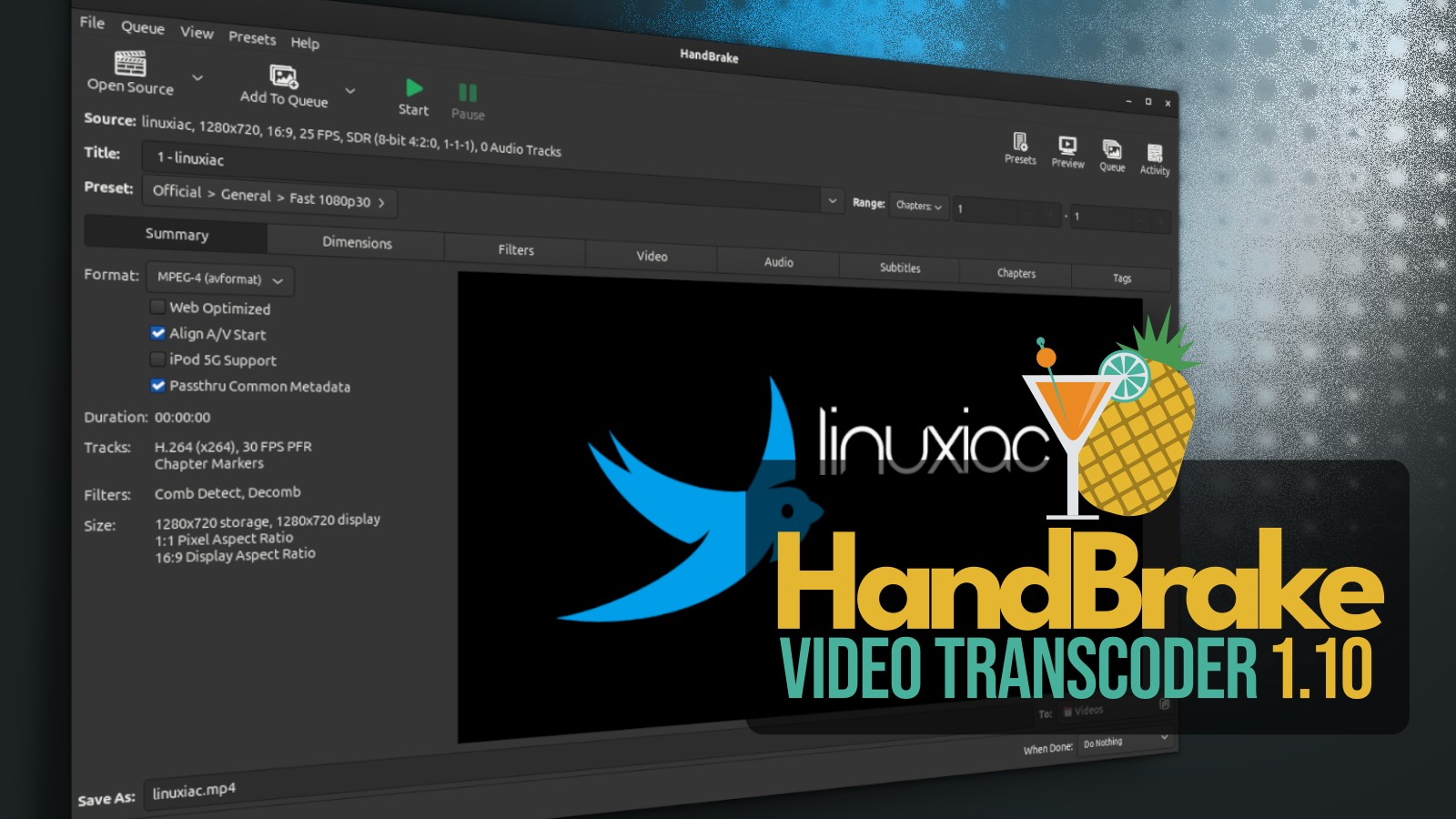
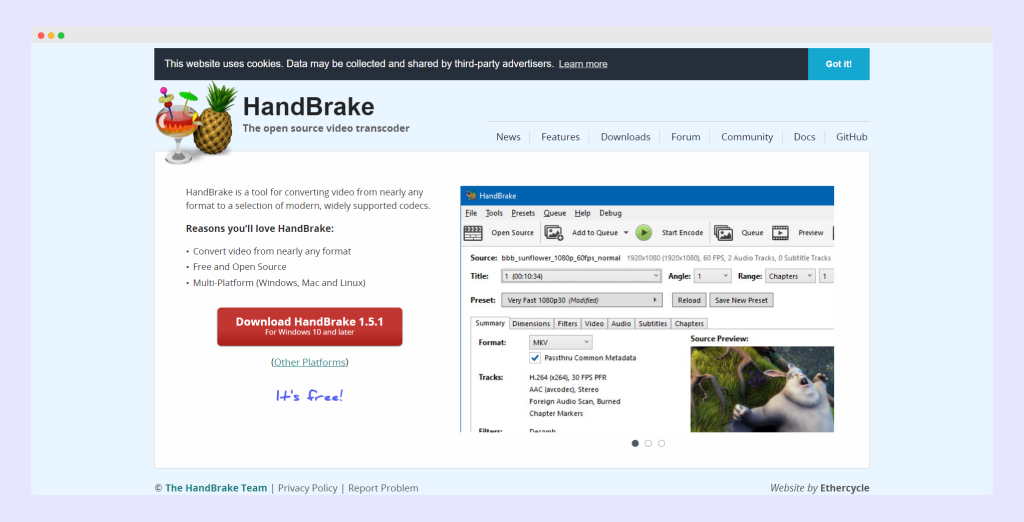
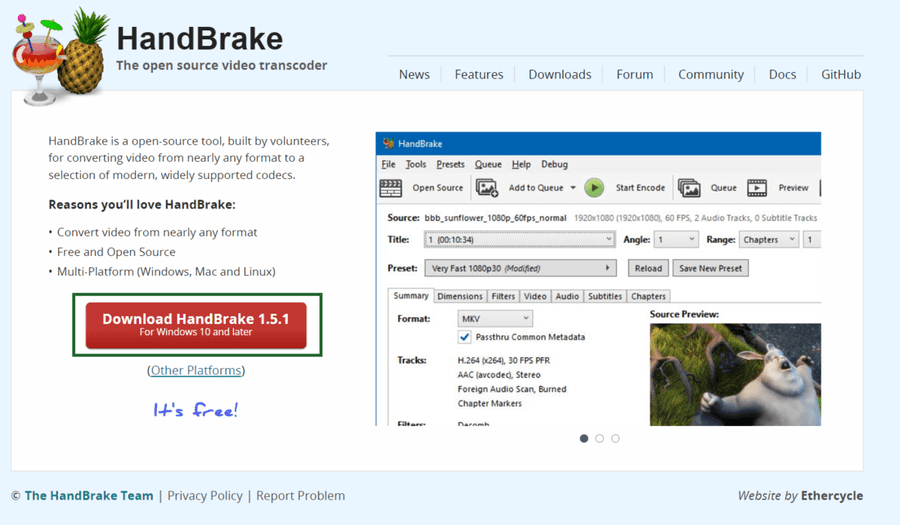
Upon opening Handbrake, you are greeted by a surprisingly clean interface. There are three key areas you must familiarize yourself with to start your conversion journey.
1. Source Selection and Queue
The first step is loading your source material. Handbrake can handle nearly any video file format. If you are processing multiple files, use the "Add to Queue" feature. Converting videos in batches saves immense time and keeps your workflow streamlined.
2. The Presets Panel (The Easy Button)
If you need quick conversion without fiddling with settings, the Presets Panel on the right is your best friend. Handbrake offers excellent built-in presets categorized by usage (Web, Device) and quality (Very Fast, Quality, Super HQ).
- Web Presets: Optimized for streaming platforms like YouTube or Vimeo.
- Device Presets: Tailored for specific hardware, like Apple or Android devices.
Pro Tip: Start with a high-quality preset (like "Vimeo YouTube HQ") and then tweak the advanced settings for optimal results. It's much easier than starting from scratch.
[Baca Juga: Setting Up a Home Media Server]
3. The Output Settings Tabs
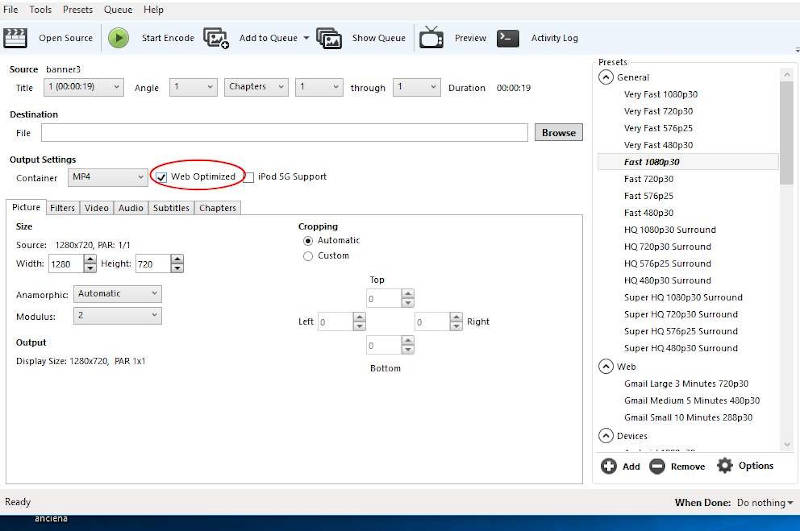
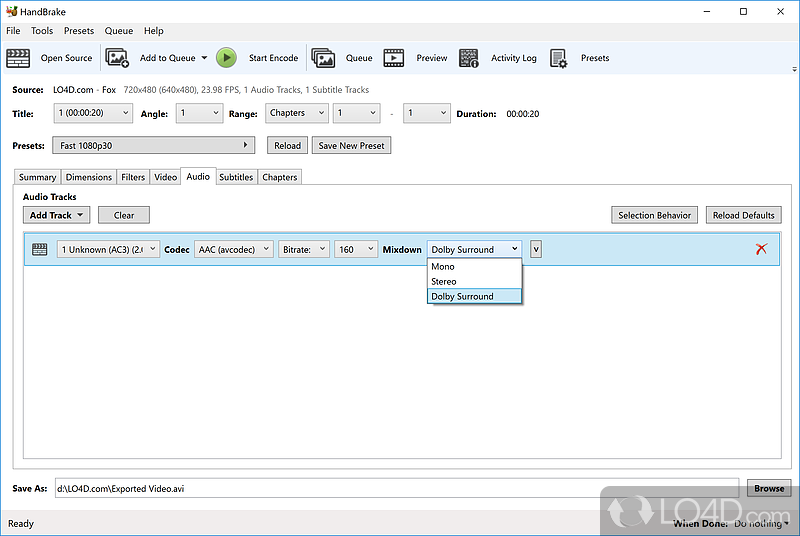
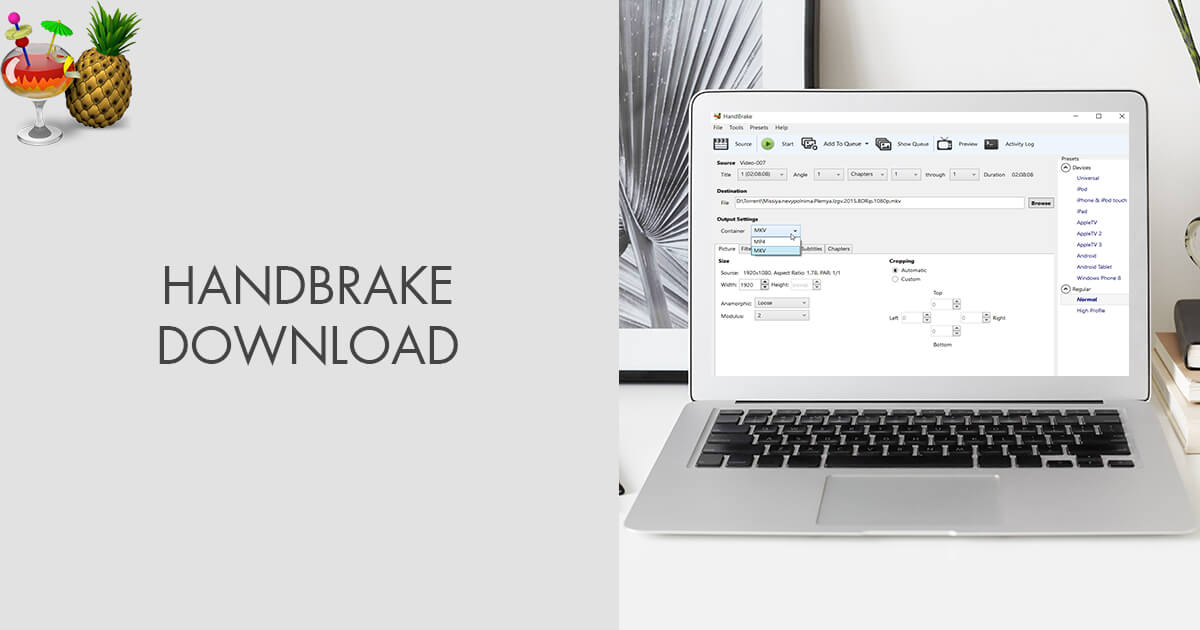
This is the engine room. The crucial tabs are "Summary" (where you select your container, usually MP4 or MKV), "Dimensions" (where you manage resolution and cropping), and "Video" (where the real magic happens—codec and quality settings).
Optimal Settings for High-Quality Output (The E-E-A-T Deep Dive)
A true master of the **Software Handbrake** knows that the default settings are just a starting point. To achieve the perfect balance of small file size and maximum fidelity, you must understand the "Video" tab.
Choosing the Right Codec: H.264 vs. H.265
Unless you are strictly concerned about maximum compatibility with very old hardware, always aim for H.265 (HEVC). It offers superior compression. While H.265 takes longer to encode (it uses more complex algorithms), the final output quality per file size is unbeatable.
Constant vs. Variable Framerate
Always select "Constant Framerate." Variable Framerate (VFR) can cause sync issues, especially if you plan to edit the resulting video later. Maintaining a steady 23.976, 25, or 29.97 FPS is essential for professional results.
RF Quality Settings: The Key to File Size Control
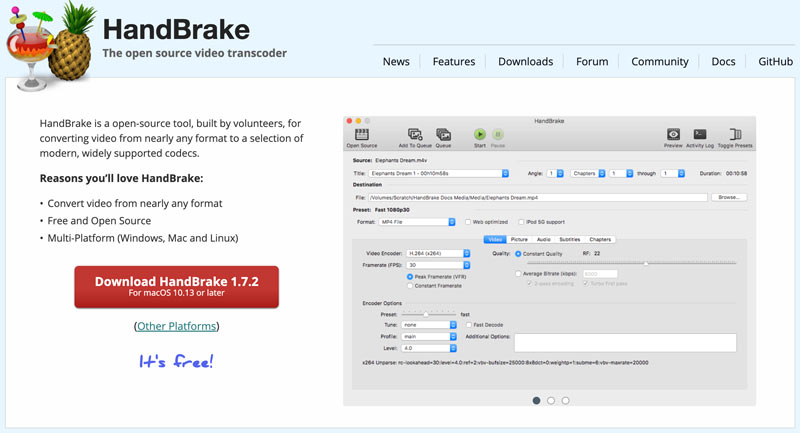
Handbrake uses the Constant Quality (CQ) or Rate Factor (RF) method by default. This is preferable to Average Bitrate (ABR) because it prioritizes visual quality over hitting a specific file size target. The lower the RF number, the higher the quality (and larger the file size).
Here's a quick guide to RF values for H.264/H.265:
- RF 18-20: Near visually lossless. Excellent quality for archiving or professional use.
- RF 20-23: High quality. Perfect for general YouTube/Vimeo uploads.
- RF 23-26: Good quality, significant file size reduction. Acceptable for web viewing.
Remember: You are telling the Handbrake software, "Maintain this level of quality, regardless of how much compression is needed."
[Baca Juga: Advanced Video Editing Techniques]
Handbrake vs. The Competition: A Quick Comparison
While many commercial options exist, Handbrake remains dominant due to its open-source nature, constant development, and deep feature set. Below is a simplified comparison demonstrating its strengths:
| Feature | Handbrake (Free) | Commercial Tools (e.g., MediaEncoder) |
|---|---|---|
| Price | $0.00 (Open Source) | Subscription or High One-Time Fee |
| Codec Support | Excellent (H.264, H.265, VP8, VP9) | Excellent, often proprietary formats included |
| Batch Processing | Robust Queue System | Excellent |
| User Interface Complexity | Medium (Steep learning curve for advanced settings) | Varies |
For most users, Handbrake provides 95% of the functionality needed for free. Its robust integration of FFmpeg libraries ensures it uses industry-leading compression technology. You can learn more about the underlying FFmpeg project here: FFmpeg Official Website.
Advanced Power Features You Should Know
The Handbrake software isn't limited to just simple transcoding. These features elevate it to a professional-grade tool:
- Custom Filters: You can apply sharpening, denoising, and deinterlacing filters directly during conversion. This is crucial for cleaning up older or low-quality source footage.
- Subtitles: Handbrake allows you to burn in subtitles (hardcode) or pass them through as soft subtitles.
- Chapter Markers: If your source file (like a DVD or Blu-ray rip) contains chapter markers, Handbrake can preserve these, improving navigation on playback devices.
If you are working with archival media, the deinterlacing features are particularly powerful. Learn more about effective deinterlacing techniques from a reputable technical source: EIA (placeholder for relevant gov/technical standard).
Conclusion: Handbrake is Essential Digital Toolkit
The Handbrake software stands as a testament to the power of open-source development. It democratizes complex video processing, offering powerful encoding tools that typically require expensive licenses. By moving past the initial fear of its vast settings and focusing on the core aspects—codec choice, quality factor (RF), and framerate—you gain total control over your digital media collection.
Whether you're shrinking a massive 10GB raw video down to a manageable 500MB for web upload, or standardizing your archived movie collection, Handbrake is the reliable, high-E-E-A-T solution you need.
Frequently Asked Questions (FAQ) about Handbrake
- Is Handbrake completely free?
Yes. Handbrake is an open-source project and is completely free to download and use on Windows, macOS, and Linux. There are no paid tiers or subscriptions.
- Does Handbrake support hardware acceleration?
Absolutely. Modern versions of the Handbrake software support hardware encoders like Intel Quick Sync Video, NVIDIA NVENC, and AMD VCE. Enabling these features in the Video tab can drastically speed up the encoding process, though sometimes at a slight reduction in quality compared to purely software (CPU) encoding.
- Why does my video look blocky even on a high RF setting?
If your source video is already heavily compressed or low-quality, Handbrake cannot restore lost information. Encoding it to a higher bitrate will only create a larger file of bad quality. Handbrake only compresses the existing source material; it doesn't improve its inherent quality.
- Which container format should I use: MP4 or MKV?
For maximum compatibility across nearly all devices and web browsers, use MP4 (H.264 or H.265). Use MKV if you need to include multiple audio tracks, subtitle tracks, or if you are archiving raw rips where maximum container flexibility is needed.
Software Handbrake
Software Handbrake Wallpapers
Collection of software handbrake wallpapers for your desktop and mobile devices.
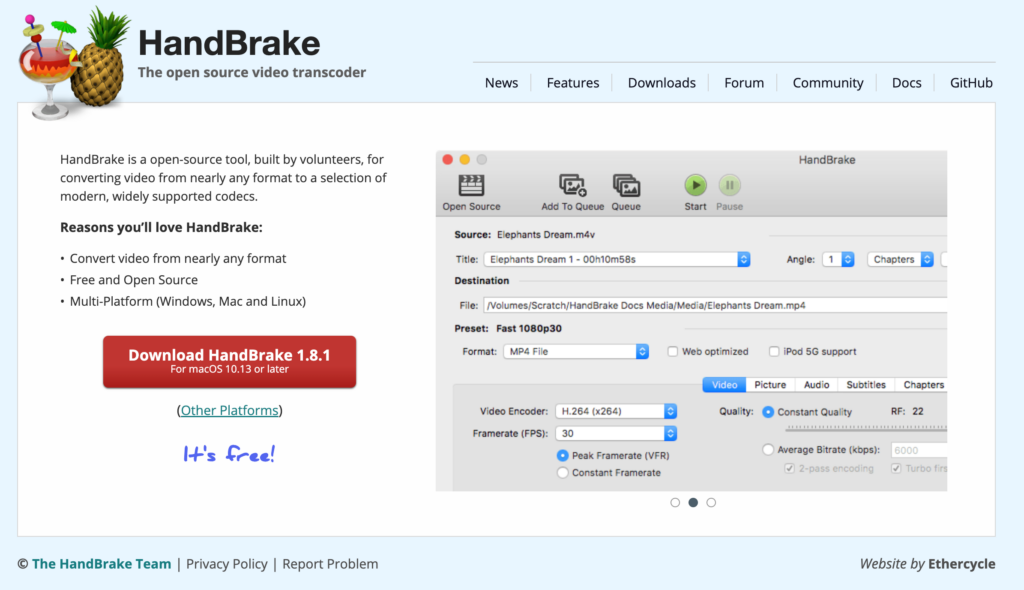
Amazing Software Handbrake Landscape Collection
Transform your screen with this vivid software handbrake artwork, a true masterpiece of digital design.
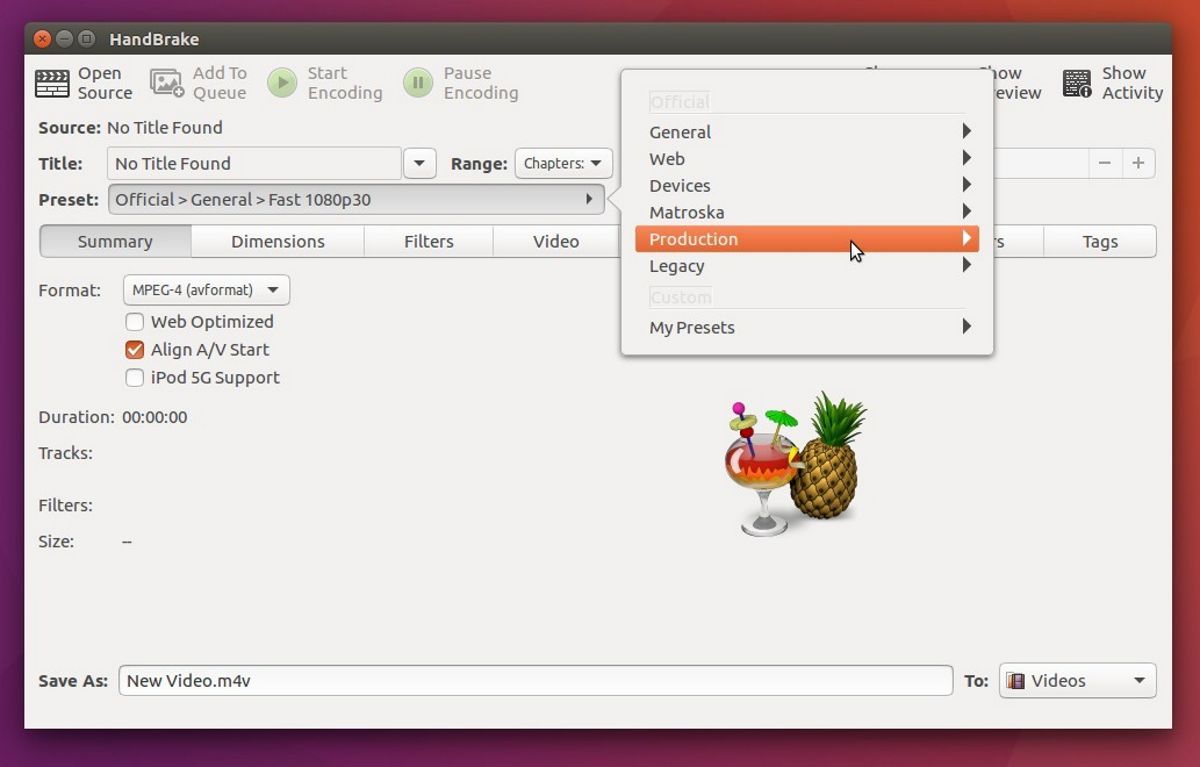
Artistic Software Handbrake Wallpaper Digital Art
Find inspiration with this unique software handbrake illustration, crafted to provide a fresh look for your background.
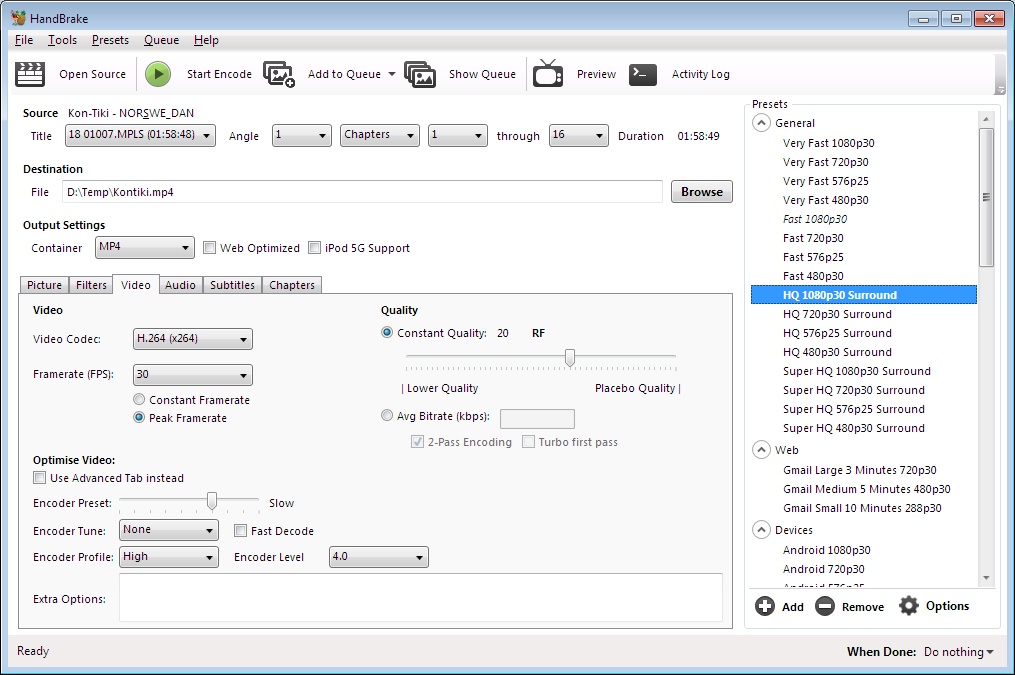
Mesmerizing Software Handbrake Capture Illustration
Transform your screen with this vivid software handbrake artwork, a true masterpiece of digital design.
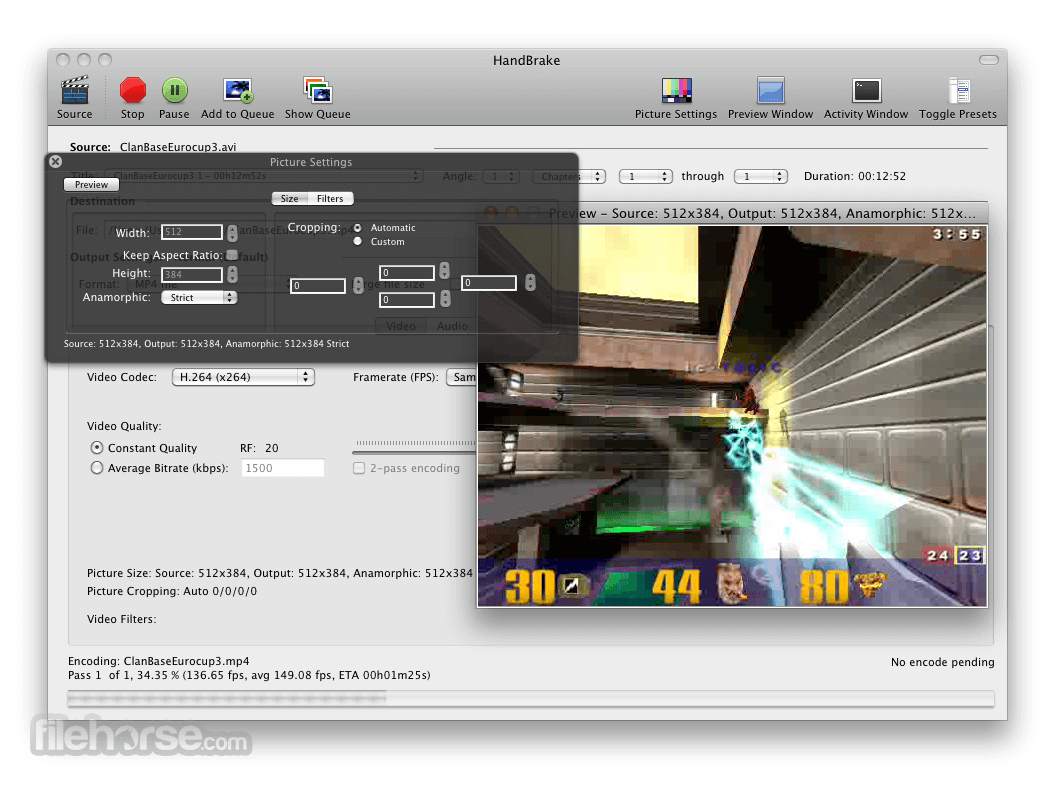
Captivating Software Handbrake Image Photography
A captivating software handbrake scene that brings tranquility and beauty to any device.

High-Quality Software Handbrake Abstract for Desktop
Transform your screen with this vivid software handbrake artwork, a true masterpiece of digital design.
Spectacular Software Handbrake View for Mobile
Find inspiration with this unique software handbrake illustration, crafted to provide a fresh look for your background.

Spectacular Software Handbrake Moment Collection
Find inspiration with this unique software handbrake illustration, crafted to provide a fresh look for your background.

Mesmerizing Software Handbrake Picture Collection
Transform your screen with this vivid software handbrake artwork, a true masterpiece of digital design.

Detailed Software Handbrake Background Digital Art
Experience the crisp clarity of this stunning software handbrake image, available in high resolution for all your screens.
Amazing Software Handbrake Picture Nature
Explore this high-quality software handbrake image, perfect for enhancing your desktop or mobile wallpaper.

Mesmerizing Software Handbrake Landscape Collection
Explore this high-quality software handbrake image, perfect for enhancing your desktop or mobile wallpaper.
Captivating Software Handbrake Capture Digital Art
A captivating software handbrake scene that brings tranquility and beauty to any device.
Stunning Software Handbrake Landscape Collection
A captivating software handbrake scene that brings tranquility and beauty to any device.
Vivid Software Handbrake View in HD
Experience the crisp clarity of this stunning software handbrake image, available in high resolution for all your screens.
Exquisite Software Handbrake Photo in 4K
This gorgeous software handbrake photo offers a breathtaking view, making it a perfect choice for your next wallpaper.
Mesmerizing Software Handbrake Moment Collection
Discover an amazing software handbrake background image, ideal for personalizing your devices with vibrant colors and intricate designs.
Breathtaking Software Handbrake Moment Collection
Explore this high-quality software handbrake image, perfect for enhancing your desktop or mobile wallpaper.
Dynamic Software Handbrake Moment Collection
This gorgeous software handbrake photo offers a breathtaking view, making it a perfect choice for your next wallpaper.

Spectacular Software Handbrake Wallpaper Nature
Find inspiration with this unique software handbrake illustration, crafted to provide a fresh look for your background.
Artistic Software Handbrake Design for Your Screen
Immerse yourself in the stunning details of this beautiful software handbrake wallpaper, designed for a captivating visual experience.
Download these software handbrake wallpapers for free and use them on your desktop or mobile devices.