How To Get A Graph On Google Docs
How To Get A Graph On Google Docs: The Ultimate Easy Guide
Are you staring at a document full of raw data and realizing that text alone just isn't cutting it? If you need to visualize complex information clearly and professionally, adding a graph is the perfect solution. Learning How To Get A Graph On Google Docs might seem daunting, but it's surprisingly simple, especially when leveraging the power of Google Sheets.
Google Docs is fantastic for collaborative writing, but when it comes to sophisticated data visualization, its sibling, Google Sheets, is the real powerhouse. The great news is that these two tools integrate seamlessly, allowing you to create beautiful, dynamic charts directly within your document. We're going to walk through the easiest methods step-by-step, ensuring you can impress your audience with clear, insightful visuals.
Method 1: The Quickest Way (Using Google Sheets)
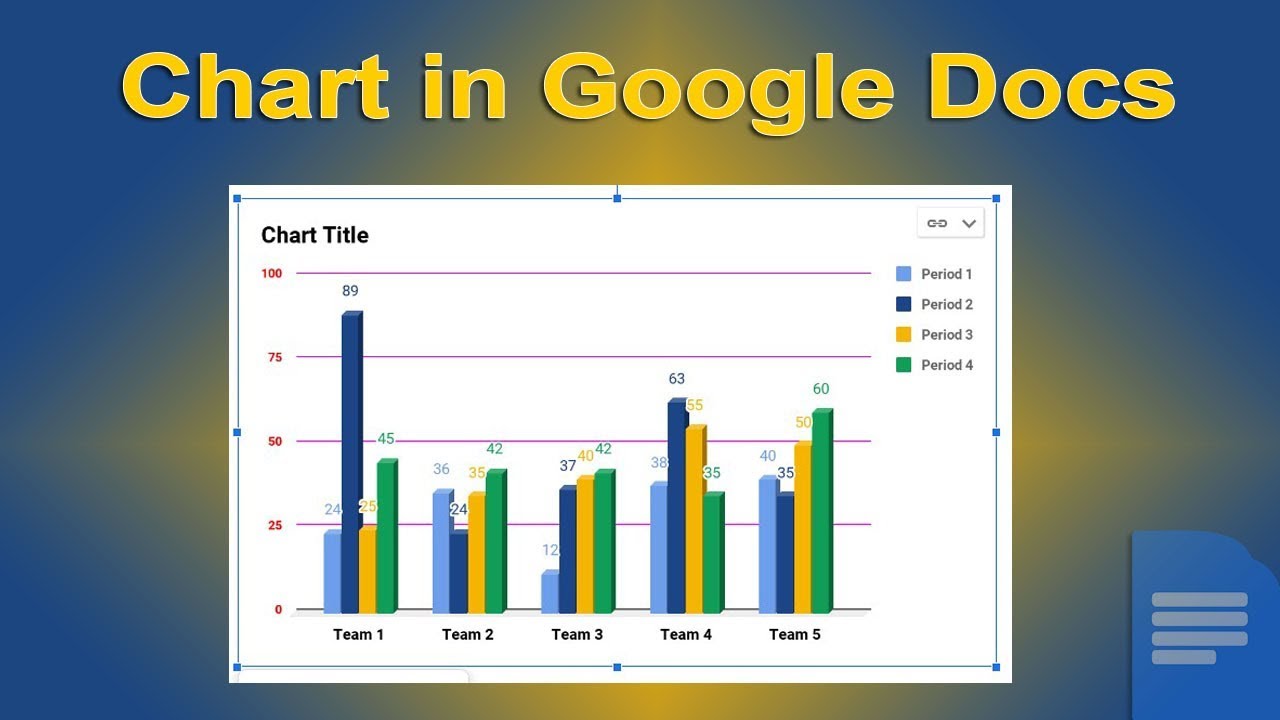
The standard, most flexible, and recommended way to insert a graph into Google Docs is by first creating it in Google Sheets. This method allows you access to powerful charting tools and ensures your graph remains easily editable and even dynamic.
Step 1: Preparing Your Data in Google Sheets
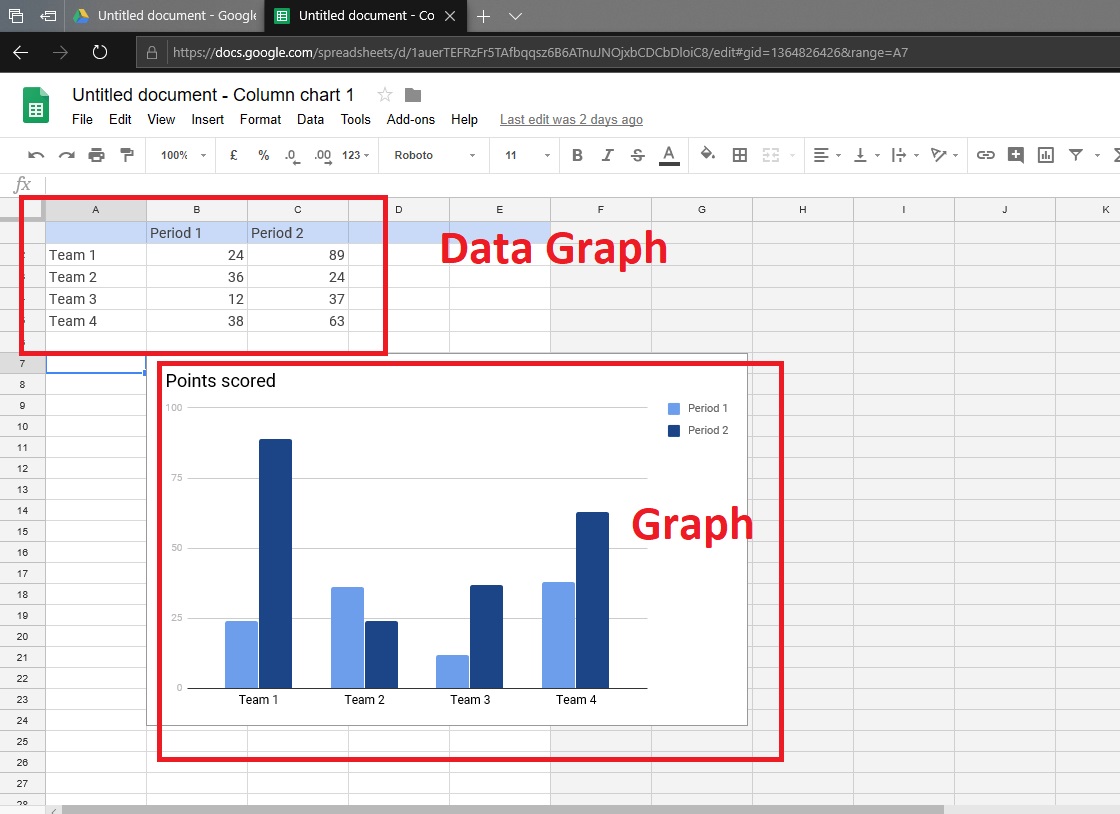
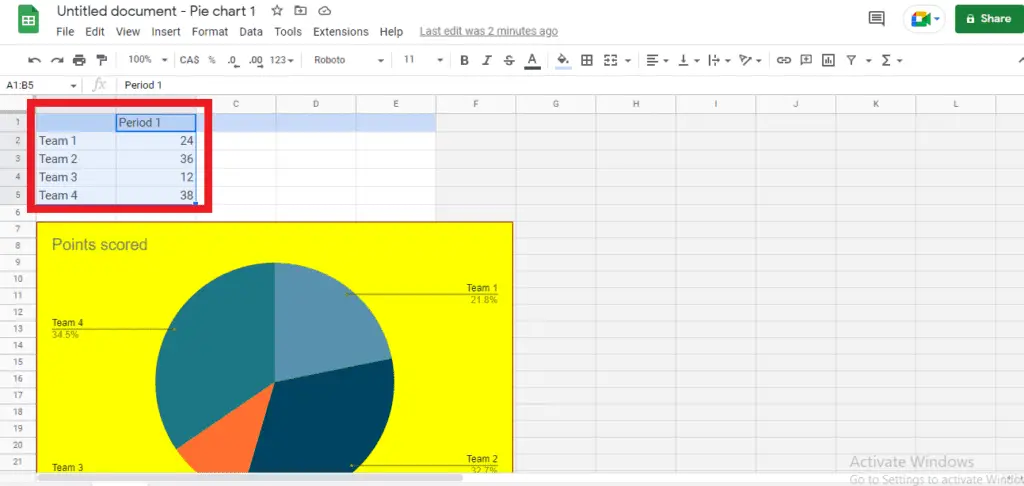
Before you even open Google Docs, you need organized data. Open a new or existing Google Sheet and ensure your data is structured correctly. Typically, you should have headers for your axes and clear data points organized in columns or rows.
- Open Google Sheets and input your data. Use the first row for headers (like "Month" and "Sales").
- Make sure there are no blank rows or columns interrupting your data set, as this can confuse the charting tool.
- Save your spreadsheet. It's always best practice to name it something descriptive, like "Q3 Sales Data."
This organized foundation is essential for producing an accurate and readable graph. If your data is messy, the resulting visual will be too.
Step 2: Creating the Chart
Now that your data is clean, the fun part begins: turning numbers into visual insights. Google Sheets makes this part incredibly easy with its built-in Chart Editor.
Follow these steps inside Google Sheets:
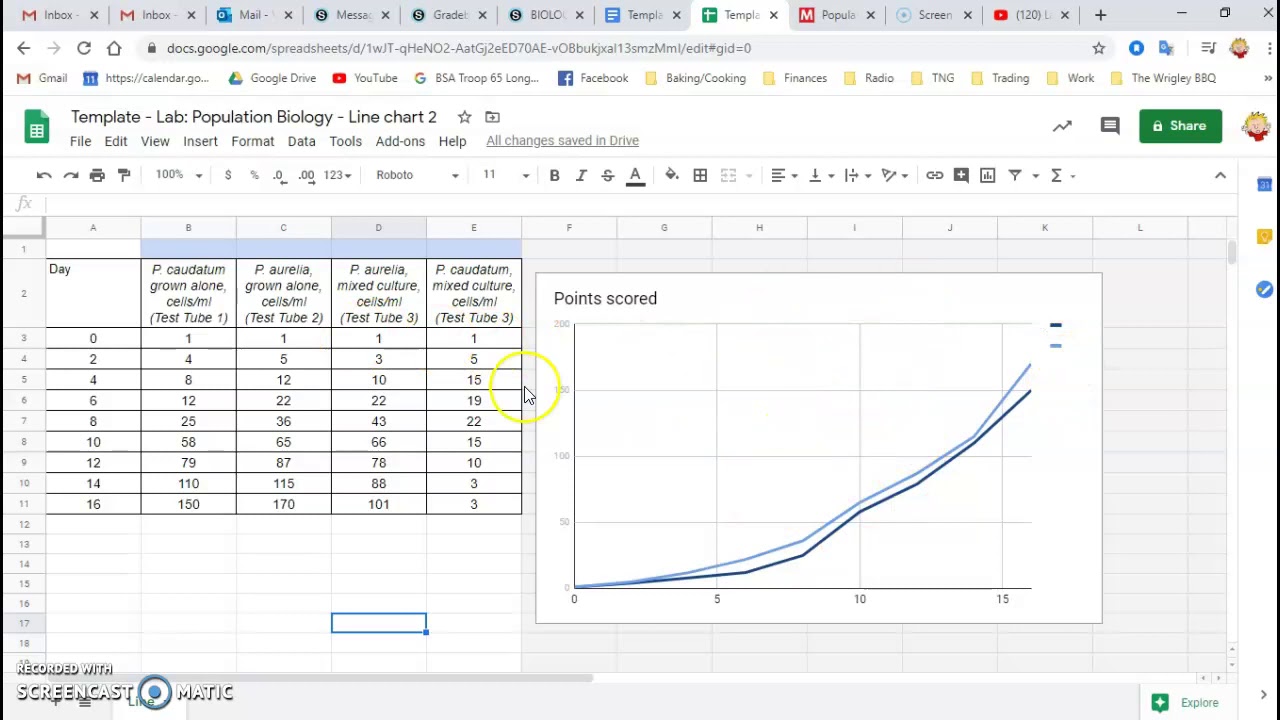
- Select the entire range of data you want to visualize, including the headers.
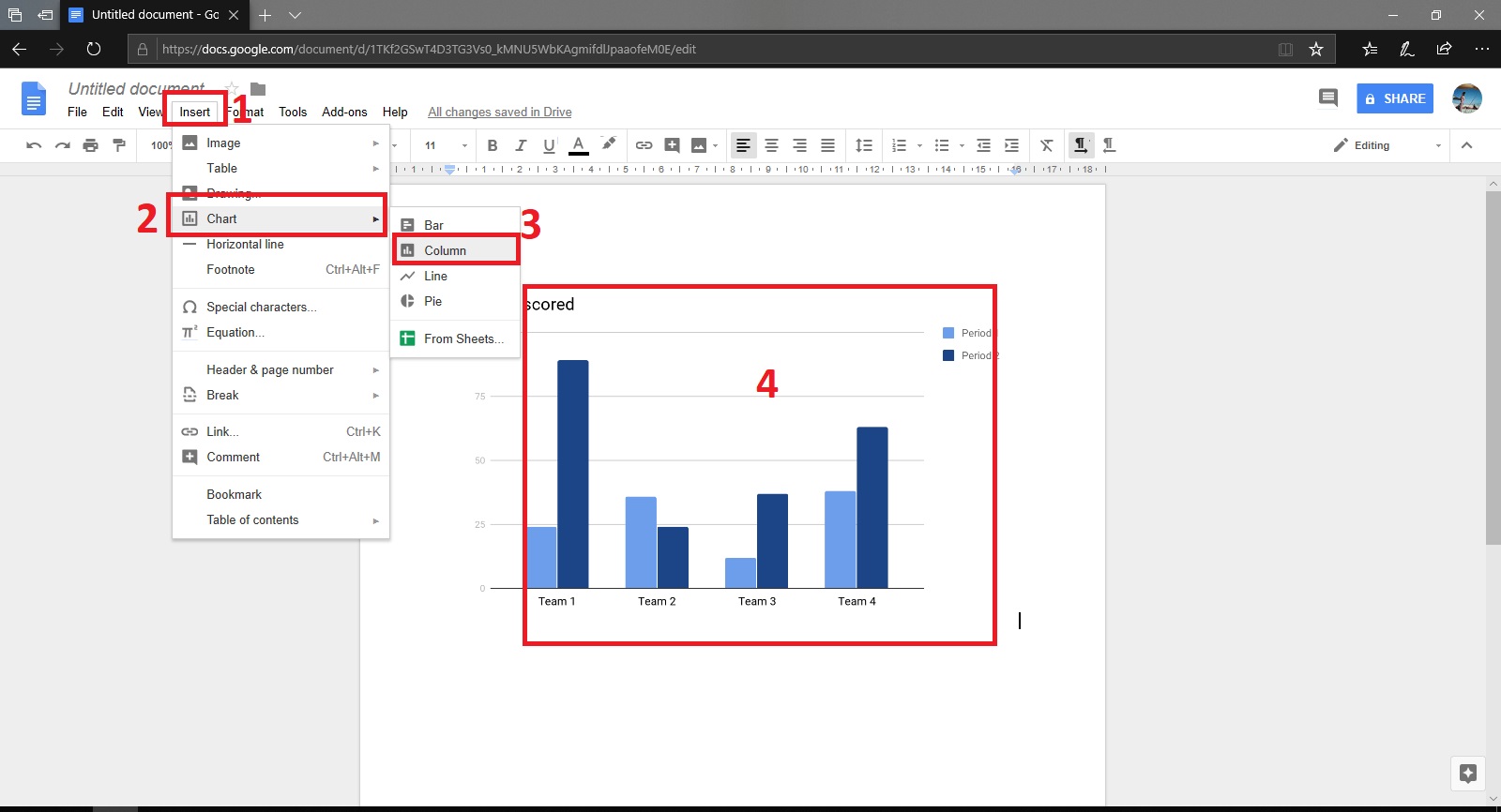
- Go to the "Insert" menu at the top.
- Click "Chart." The Chart Editor panel will automatically appear on the right side of your screen.
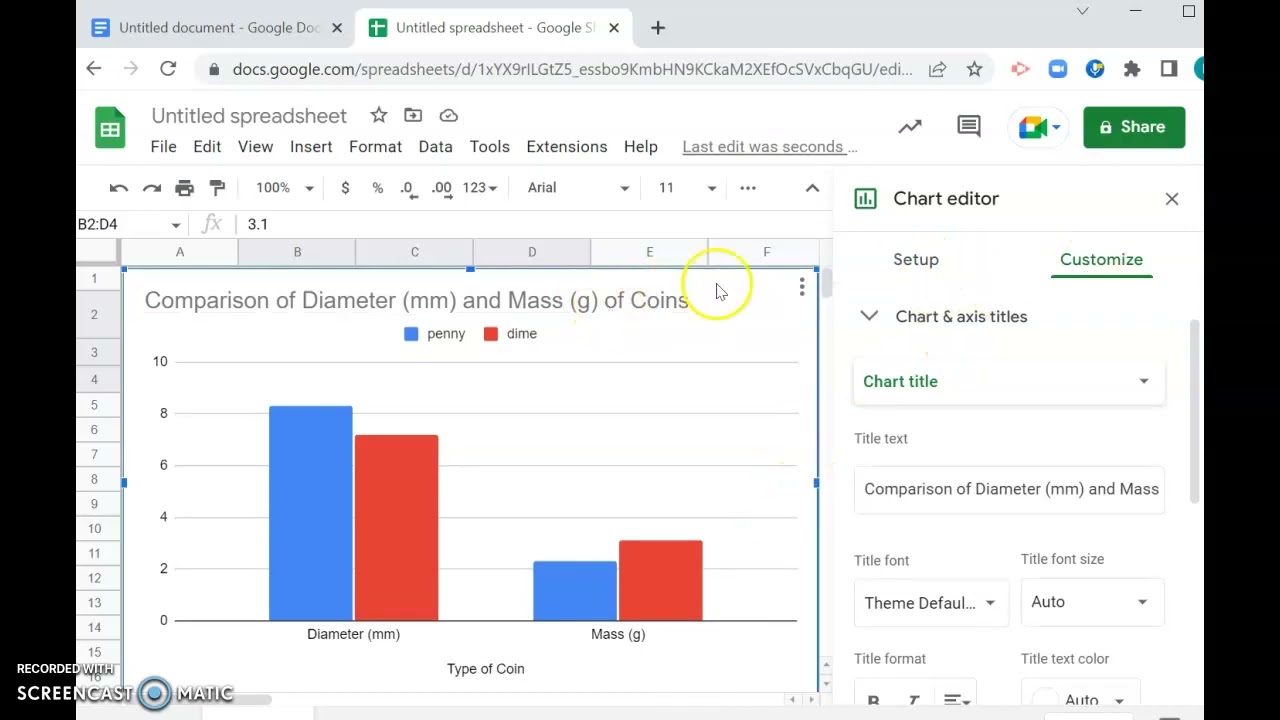
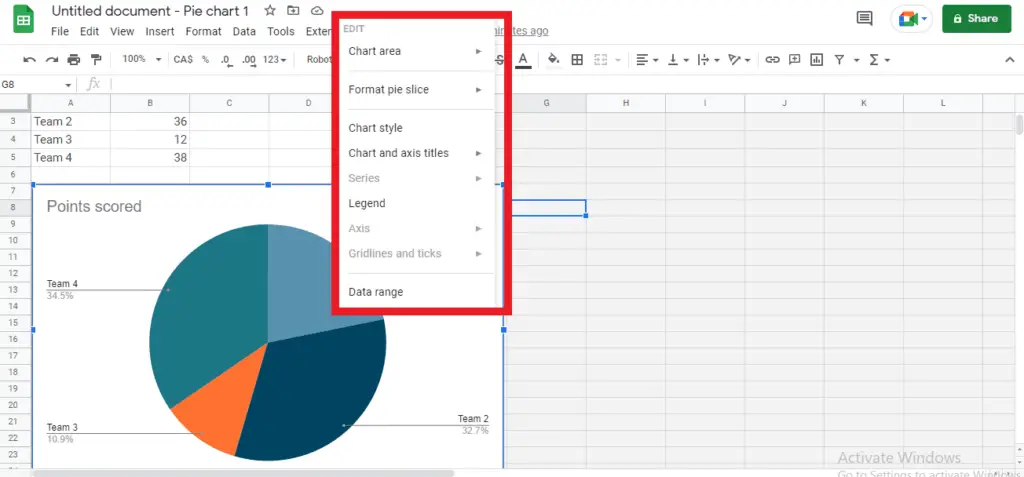
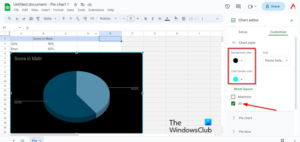
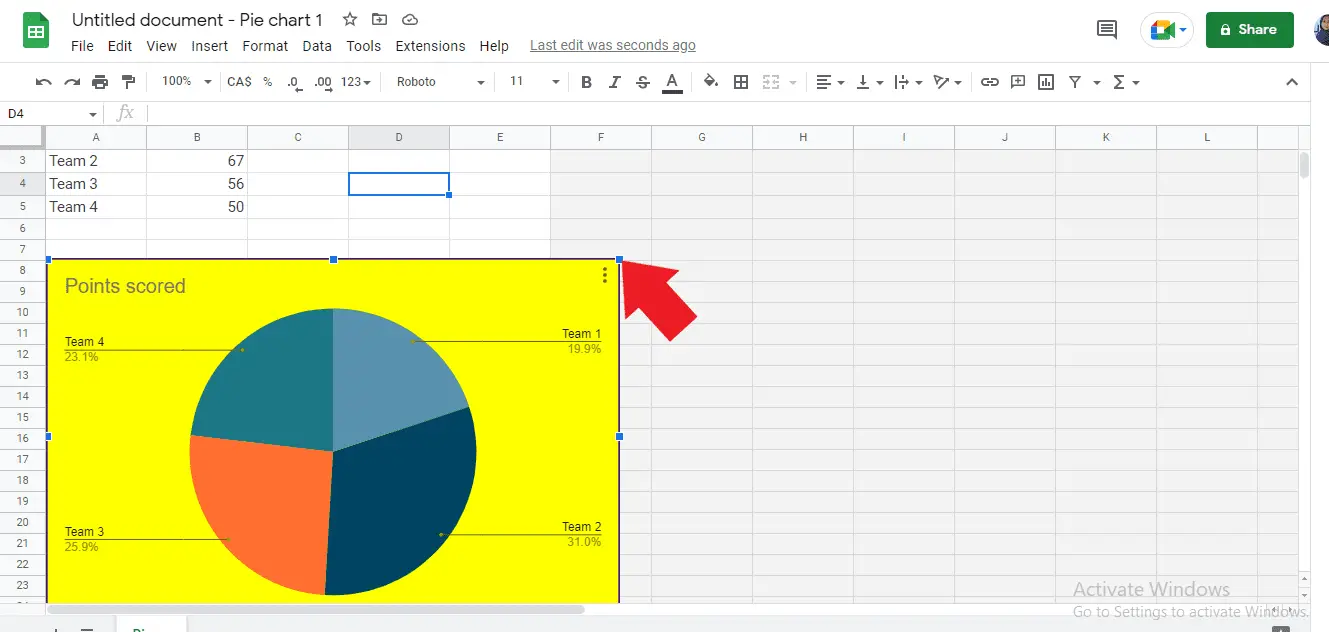
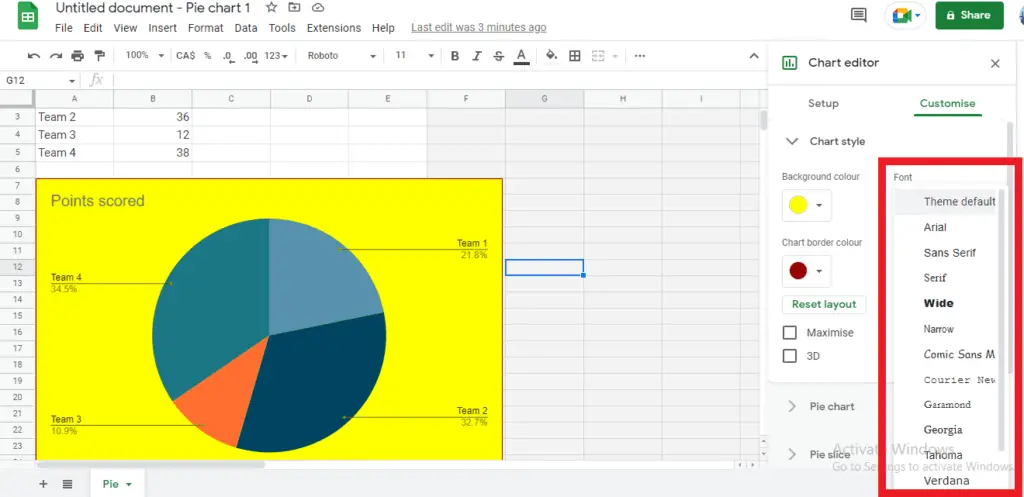
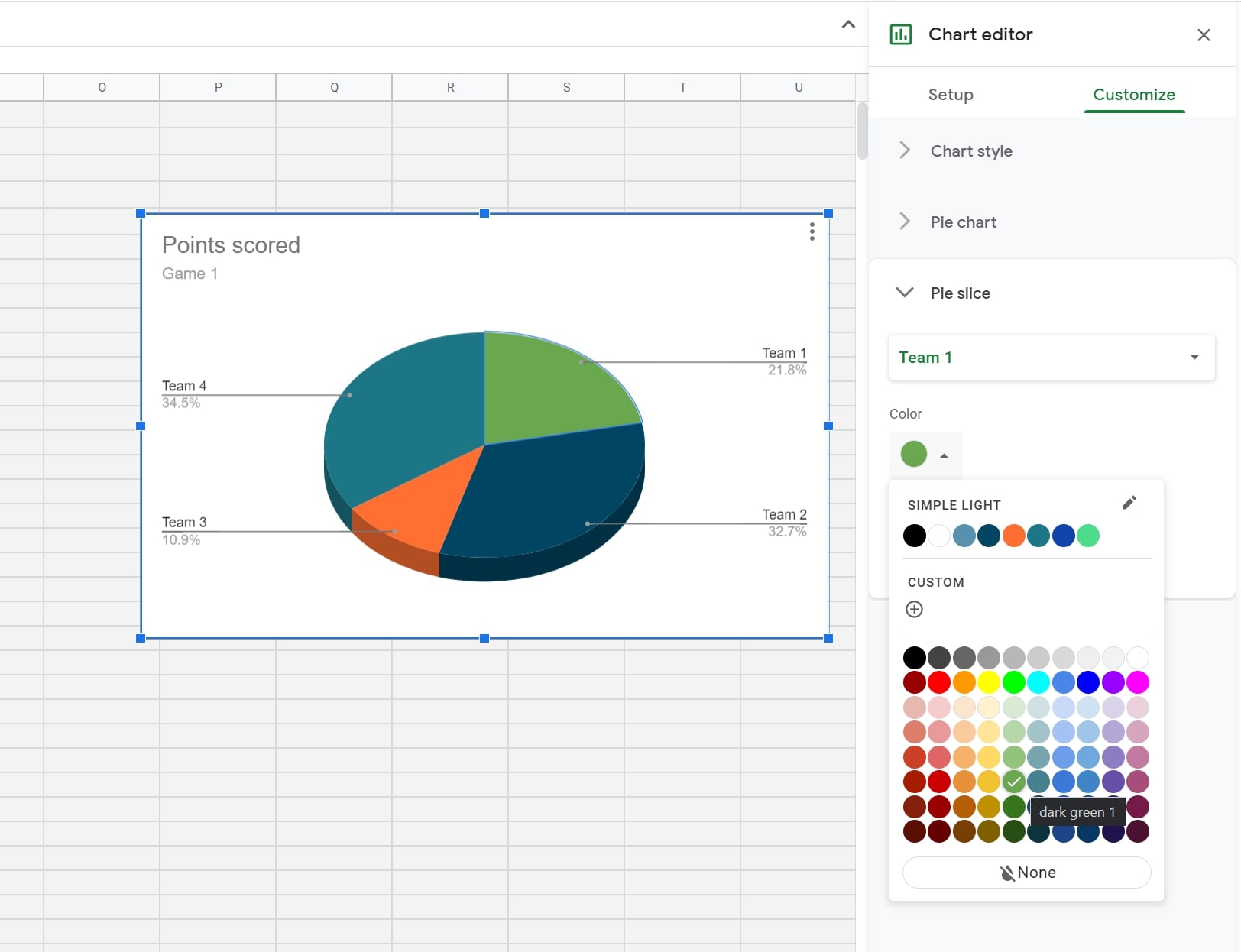
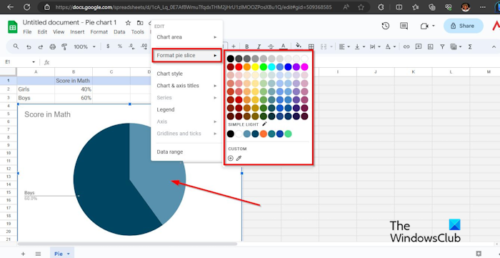
The Chart Editor usually suggests a suitable chart type (like a column or line graph) based on your data structure. Feel free to explore the "Setup" tab to change the chart type (e.g., Pie, Bar, Scatter) and use the "Customize" tab to adjust colors, titles, axis labels, and fonts. Spend a few minutes making the graph visually appealing before moving back to your document.
Step 3: Inserting the Graph into Google Docs
This is where we directly address How To Get A Graph On Google Docs. Once the chart is perfected in Sheets, switching back to Docs is seamless.
- Open your Google Doc and place your cursor where you want the graph to appear.
- Go to "Insert" in the top menu.
- Hover over "Chart" and select "From Sheets."
- A dialogue box will appear showing your recent spreadsheets. Select the sheet containing the chart you just created.
- Select the specific chart from the list of available charts within that sheet.
- Crucially, ensure the "Link to spreadsheet" box is checked (we'll explain why this matters shortly).
- Click "Import."
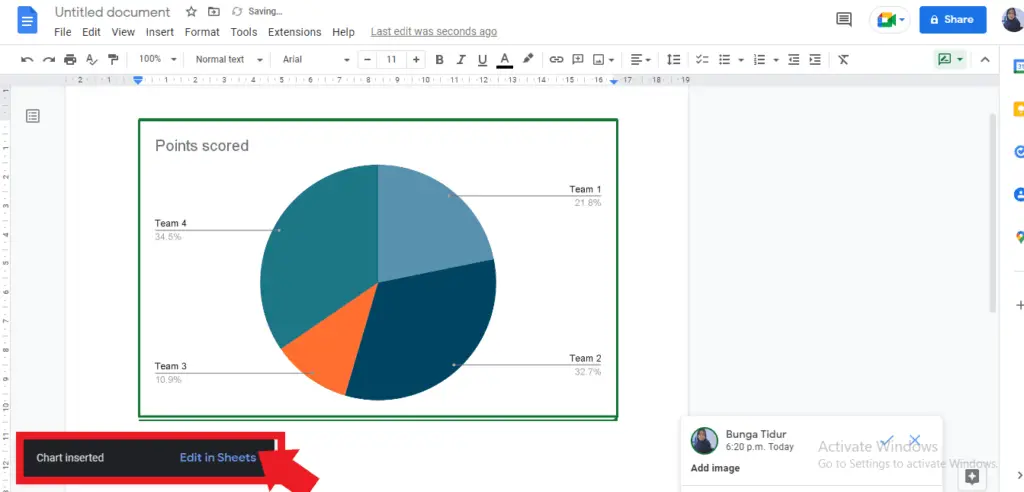
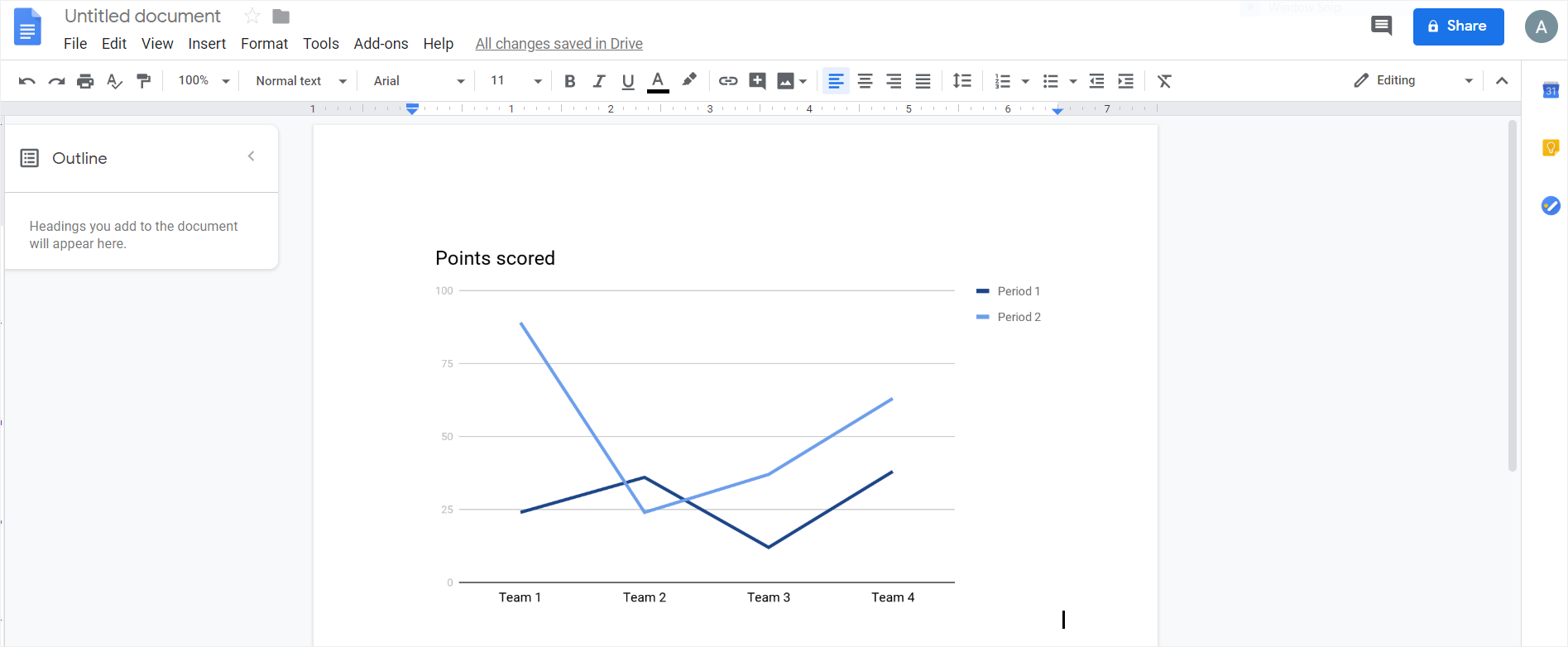
Voila! Your professional graph is now embedded directly into your Google Doc. This process is highly efficient and guarantees fidelity in data representation.
Understanding Linked vs. Unlinked Graphs
When you insert a chart from Google Sheets, you are given the option to link it. This linkage is one of the most powerful features Google offers. It controls whether your graph updates automatically if the underlying data changes in the original spreadsheet.
When to Use Linked Graphs (Dynamic Data)
Linked graphs are perfect for reports, dashboards, or documents that require continuous updates. If the sales team adds new numbers to the sheet daily, your document reflects those changes quickly.
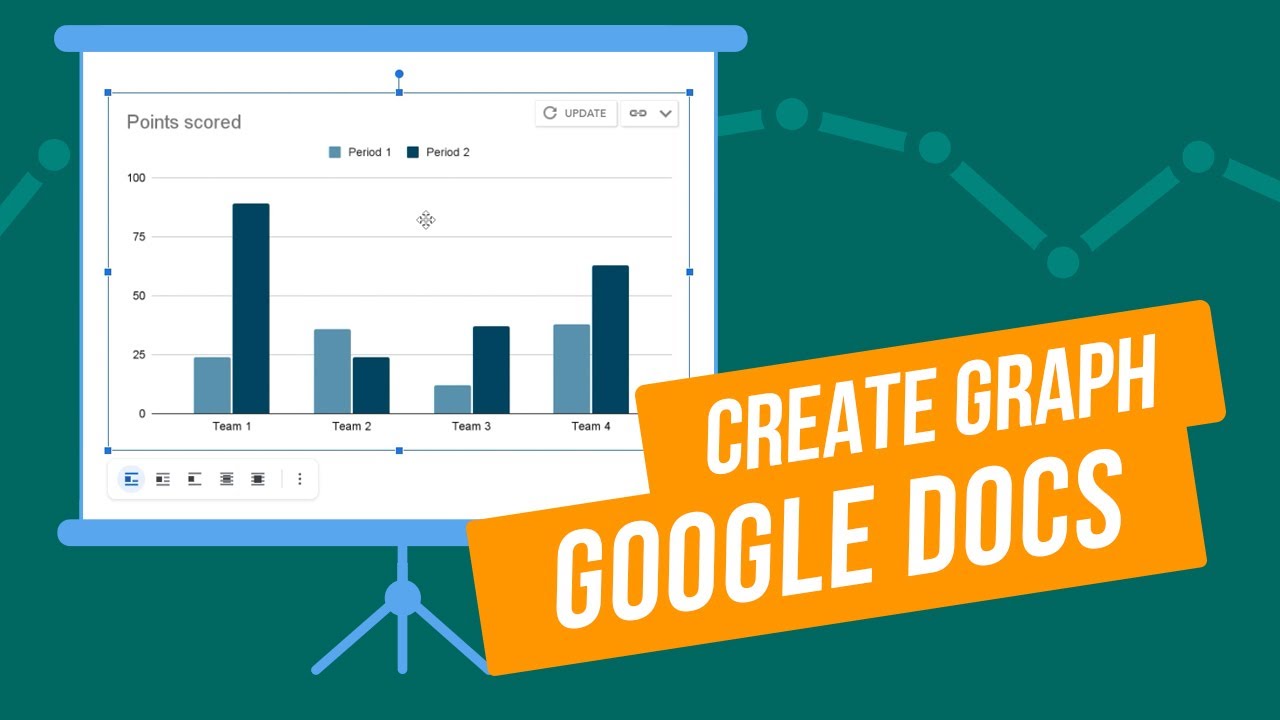
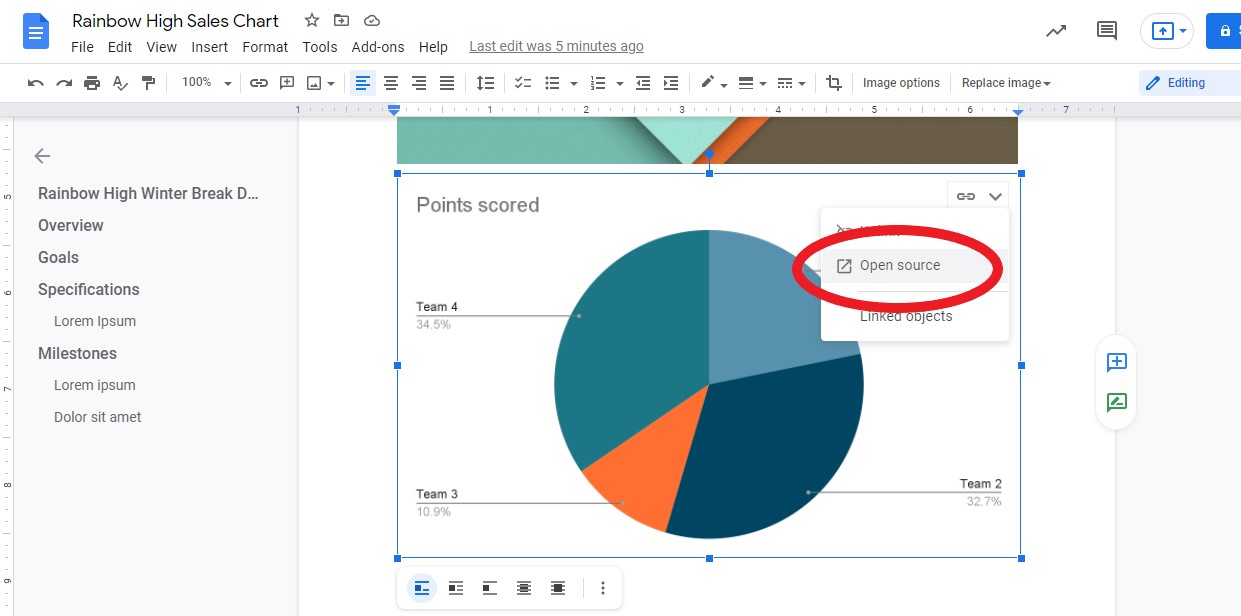
If the data in the original Google Sheet changes, a small "Update" button will appear in the upper right corner of the chart in your Google Doc. Simply click "Update," and the image will instantly reflect the new data. This saves massive amounts of time compared to manually re-importing images.
When to Use Unlinked Graphs (Static Report)
If you are writing an academic paper, a formal contract, or a historical report where the data must remain exactly the same as it was on the day of publishing, choose an unlinked graph. By unchecking the "Link to spreadsheet" option during import, you essentially take a static snapshot of the chart.
This version acts like a simple picture. Even if the data source in the Sheet changes drastically later, your document will retain the original visualization. This ensures data integrity for archived documents.
Method 2: Drawing Simple Graphs Directly (The Drawing Tool)
While the Sheets integration is powerful, sometimes you just need a very basic diagram or a flowchart that approximates a graph, perhaps with boxes and arrows rather than data points. For these basic visual elements, you can use the built-in Drawing tool in Google Docs.
To access this tool, go to "Insert," select "Drawing," and then click "+ New." You can use lines, shapes, and text boxes to manually construct a visual representation. This is not suitable for plotting numerical data, but it is useful for conceptual diagrams.
Limitations of the Drawing Tool
The main limitation is accuracy. Since you are manually drawing axes and bars, this method is highly prone to human error and is time-consuming. You will not be able to rely on mathematical precision, nor will the chart automatically update.
Therefore, if precision matters, stick firmly to the Google Sheets method for How To Get A Graph On Google Docs.
Tips and Tricks for Polishing Your Graphs
Once the chart is in your document, you still have some control over its presentation. You cannot edit the data directly in Docs, but you can adjust its appearance within the text flow.
Here are a few ways to enhance the readability of your imported graph:
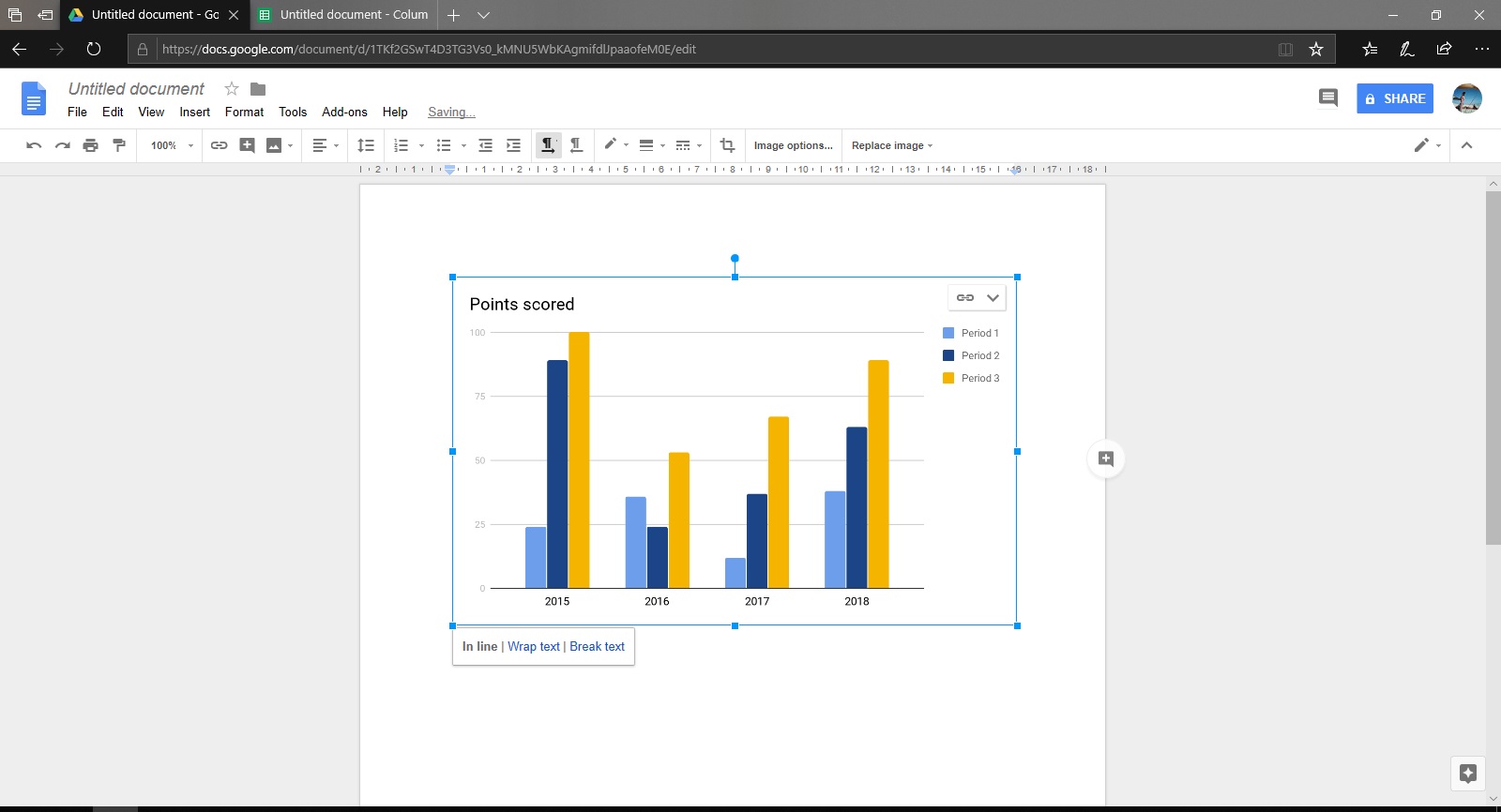
- Text Wrapping: Click the imported image/graph and choose a wrapping style (e.g., "Wrap text" or "Break text"). This determines how the surrounding paragraphs interact with the image.
- Sizing: Drag the corner handles to resize the graph. Be cautious not to distort the proportions, which can misrepresent the data.
- Contextual Caption: Always add a descriptive caption below the graph using the standard paragraph tool. This helps readers immediately understand what they are looking at.
- Source Citation: If required, include a footnote or source citation right below the graph, especially if the data originated externally.
Using these subtle formatting tips ensures your graph not only looks professional but also integrates cleanly into the overall flow of your report or article.
Conclusion
Adding dynamic, professional visualizations to your reports is a game-changer, improving comprehension and audience engagement immediately. You now know exactly How To Get A Graph On Google Docs by harnessing the seamless integration with Google Sheets.
By preparing your data meticulously in Sheets, selecting the right chart type, and linking it correctly during the import process, you create documents that are both visually appealing and effortlessly maintained. Whether you need a static snapshot or a dynamically updating dashboard, Google Docs provides the tools necessary to embed powerful visual data with just a few clicks. Start turning your raw numbers into compelling narratives today!
Frequently Asked Questions (FAQ)
- Can I edit the data of the graph directly in Google Docs?
- No. You cannot edit the raw data directly within Google Docs. To modify the data or the chart design, you must go back to the original Google Sheet where the graph was created. Since the chart is linked, updates will appear in Docs after you click the 'Update' button.
- What if I delete the original Google Sheet? What happens to the graph in Google Docs?
- If the sheet is deleted or moved, the link will break. The graph will remain in Google Docs as a static, uneditable image (a snapshot of the last updated version). You will lose the ability to refresh or update it.
- Can I insert a graph from Microsoft Excel?
- You cannot directly import a live Excel chart into Google Docs while maintaining dynamic linking. You would need to first upload the Excel file to Google Sheets and convert it, or export the chart from Excel as a static image (like a PNG or JPG) and insert that image into Docs.
- Is there a limit to the number of graphs I can insert?
- While Google Docs doesn't impose a strict limit on linked items, inserting an extremely large number of linked charts (dozens or more) may slow down the loading and responsiveness of your document, especially if the source sheets are large or complex.
How To Get A Graph On Google Docs
How To Get A Graph On Google Docs Wallpapers
Collection of how to get a graph on google docs wallpapers for your desktop and mobile devices.

Vibrant How To Get A Graph On Google Docs View Art
Explore this high-quality how to get a graph on google docs image, perfect for enhancing your desktop or mobile wallpaper.
Artistic How To Get A Graph On Google Docs Picture Photography
A captivating how to get a graph on google docs scene that brings tranquility and beauty to any device.
Artistic How To Get A Graph On Google Docs Photo Collection
Immerse yourself in the stunning details of this beautiful how to get a graph on google docs wallpaper, designed for a captivating visual experience.
Exquisite How To Get A Graph On Google Docs Artwork Illustration
A captivating how to get a graph on google docs scene that brings tranquility and beauty to any device.
Gorgeous How To Get A Graph On Google Docs Capture Nature
Immerse yourself in the stunning details of this beautiful how to get a graph on google docs wallpaper, designed for a captivating visual experience.
Captivating How To Get A Graph On Google Docs Background for Desktop
Find inspiration with this unique how to get a graph on google docs illustration, crafted to provide a fresh look for your background.
Mesmerizing How To Get A Graph On Google Docs Capture Art
Experience the crisp clarity of this stunning how to get a graph on google docs image, available in high resolution for all your screens.
Mesmerizing How To Get A Graph On Google Docs Capture Nature
Transform your screen with this vivid how to get a graph on google docs artwork, a true masterpiece of digital design.

Detailed How To Get A Graph On Google Docs Wallpaper in 4K
Transform your screen with this vivid how to get a graph on google docs artwork, a true masterpiece of digital design.
Gorgeous How To Get A Graph On Google Docs View Nature
Immerse yourself in the stunning details of this beautiful how to get a graph on google docs wallpaper, designed for a captivating visual experience.
Stunning How To Get A Graph On Google Docs View in HD
A captivating how to get a graph on google docs scene that brings tranquility and beauty to any device.
Vibrant How To Get A Graph On Google Docs Design Photography
Explore this high-quality how to get a graph on google docs image, perfect for enhancing your desktop or mobile wallpaper.
Crisp How To Get A Graph On Google Docs View Concept
Find inspiration with this unique how to get a graph on google docs illustration, crafted to provide a fresh look for your background.
Spectacular How To Get A Graph On Google Docs Artwork Illustration
Immerse yourself in the stunning details of this beautiful how to get a graph on google docs wallpaper, designed for a captivating visual experience.

Vivid How To Get A Graph On Google Docs View Collection
Transform your screen with this vivid how to get a graph on google docs artwork, a true masterpiece of digital design.
Vibrant How To Get A Graph On Google Docs Wallpaper Art
Explore this high-quality how to get a graph on google docs image, perfect for enhancing your desktop or mobile wallpaper.
Gorgeous How To Get A Graph On Google Docs Background Art
Find inspiration with this unique how to get a graph on google docs illustration, crafted to provide a fresh look for your background.
Spectacular How To Get A Graph On Google Docs Background in HD
A captivating how to get a graph on google docs scene that brings tranquility and beauty to any device.
Dynamic How To Get A Graph On Google Docs Capture Photography
This gorgeous how to get a graph on google docs photo offers a breathtaking view, making it a perfect choice for your next wallpaper.
Exquisite How To Get A Graph On Google Docs Image for Mobile
Find inspiration with this unique how to get a graph on google docs illustration, crafted to provide a fresh look for your background.
Download these how to get a graph on google docs wallpapers for free and use them on your desktop or mobile devices.
0 Response to "How To Get A Graph On Google Docs"
Post a Comment