Using Group Policy To Install Software
Stop Manual Installs: The Definitive Guide to Using Group Policy To Install Software
Let's be honest: are you still walking from desk to desk, clicking 'Next' through endless installation wizards? If you manage more than ten computers, that task isn't just inefficient—it's a massive time sink that actively hinders productivity.
There is a better way. If your environment runs on Windows Server and uses Active Directory (AD), you have a powerful tool at your fingertips for centralized management: Group Policy Objects (GPOs).
This comprehensive guide is designed for IT administrators ready to transition from manual mayhem to automated magic. We will dive deep into using Group Policy to install software, covering everything from initial preparation to successful deployment and troubleshooting.
If you want to establish an expert, reliable, and scalable method for software distribution, keep reading. We're about to transform your workday.
Why Deploy Software with Group Policy?
The primary advantage of using GPO for software installation is scalability and consistency. Instead of relying on individual user actions or manual scripts, GPO ensures that designated software is deployed reliably across hundreds, or even thousands, of machines.
This centralized method guarantees license compliance, standardizes the user environment, and drastically reduces helpdesk tickets related to outdated or missing applications.
Group Policy works by enforcing configurations or running designated installation packages at computer startup or user logon, making the deployment process automatic and non-intrusive for the end-user.
Prerequisites: What You Need Before Starting
While the process of using Group Policy to install software is robust, it requires specific preparation. Skipping these steps is the number one reason deployments fail.
The Importance of MSI Packages
Group Policy natively supports deployment using Windows Installer Packages (.MSI files). These files are essential because they contain structured, clean installation instructions that the Windows operating system can execute silently and reliably. Avoid using standard .EXE files, as they often require manual interaction and cannot be reliably managed by GPO.
If your vendor only provides an .EXE, you may need to use third-party tools to wrap it into an MSI package, or look for an alternative deployment method, such as custom scripts deployed via GPO.
Setting Up a Network Shared Folder
The target computers must be able to access the installation files during the deployment phase. Therefore, you must create a centralized, secure network shared folder—often referred to as the Distribution Point.
Ensure that the share permissions (Sharing tab) and the NTFS permissions (Security tab) are correctly configured. All relevant computers (via the 'Domain Computers' group) and the GPO management user must have at least Read access to the shared folder.
It is vital that you use the UNC path (e.g., \\ServerName\SoftwareShare\AppName.msi) when configuring the GPO, as local paths will fail.
Learn more about Active Directory structure on Wikipedia.
Step-by-Step: Using Group Policy To Install Software
Here is the core procedure for configuring the deployment within the Group Policy Management Console (GPMC).
1. Creating the Distribution Point
First, place the clean .MSI file into the network share you established earlier (e.g., \\DC01\Software\VLC\vlc.msi). Do not move this file after linking it to the GPO, or the deployment will break.
2. Configuring the Group Policy Object (GPO)
Open the GPMC. Either edit an existing GPO or create a new one dedicated solely to software deployment (recommended for easy management).
- Navigate to: Computer Configuration (for machine-wide installs) or User Configuration (if the software is user-specific).
- Expand: Policies > Software Settings > Software installation.
- Right-click on Software installation, select New > Package...
- Browse to your MSI file using the UNC path (e.g.,
\\DC01\Software\VLC\vlc.msi).
Once you select the file, you will be prompted to choose a deployment method.
3. Choosing Deployment Method: Publish vs. Assign
This is a critical decision point. You must understand the difference between publishing and assigning software, as it affects where and when the installation occurs.
| Feature | Assigned | Published |
|---|---|---|
| Scope | Can be to Users or Computers. | Only available to Users. |
| Installation Trigger | Automatic (for Computers, at startup) or Mandatory (for Users, shortcut appears). | Optional. User must install it manually from Control Panel (Programs and Features). |
| Removal | Can be set to automatically remove when GPO is out of scope. | Must be removed manually by the user. |
| Best Use Case | Mandatory core software (e.g., Antivirus, Office). | Optional tools that specific users might need (e.g., specialized PDF editor). |
4. Scope and Testing
Once the package is configured, link the GPO to the appropriate Organizational Unit (OU) containing the target computer accounts or user accounts. Always test on a small, isolated OU first.
To force the policy update on a test machine, run Command Prompt as an administrator and execute:
gpupdate /force
If you assigned the software under Computer Configuration, the installation will occur upon the *next* reboot. If assigned under User Configuration, it will install at the *next* user logon.
[Baca Juga: Troubleshooting GPO Deployment Errors]
Troubleshooting Common Group Policy Installation Issues
Even seasoned admins face deployment hiccups. Most issues boil down to three main categories:
1. Permission Errors: The client machine often cannot access the .MSI file. Double-check that 'Domain Computers' (or the specific computer accounts) have Read access to both the network share and the underlying NTFS folders.
2. Path Errors: Ensure you used the UNC path, not a mapped drive or a local path, when linking the MSI file in the GPMC.
3. Software Errors: The MSI package itself might be faulty or improperly built. Sometimes, certain software packages require a specific set of installation switches that GPO does not natively provide. Check the Event Viewer on the client machine (under Application logs, source MsiInstaller) for specific failure codes.
For deep technical diagnostics, consult the official Microsoft documentation regarding Group Policy software deployment logs. Refer to Microsoft Docs for AD DS troubleshooting.
[Baca Juga: Advanced GPO Scripting Techniques]
Conclusion
Using Group Policy to install software is an essential skill for any modern administrator. By leveraging the power of MSI packages and carefully configuring your GPOs, you move beyond the tedious work of manual installation and toward scalable, automated IT infrastructure management.
While the initial setup requires precision—especially regarding permissions and path configuration—the long-term benefits in terms of time savings and environmental consistency are undeniable. Master this process, and you master deployment.
Frequently Asked Questions (FAQ) about Group Policy Software Installation
Can I use GPO to install .EXE files?
GPO's native Software Installation feature only supports .MSI files. While you can deploy .EXE files using Startup Scripts within a GPO, this method is less reliable, harder to manage, and lacks the rollback capabilities of a proper MSI deployment.
How do I force the GPO installation immediately?
After linking the GPO, run
gpupdate /forceon the client machine. However, for Computer Configuration installs (Assigned), a reboot is still required for the installation to execute during the computer startup phase.How do I uninstall software deployed via Group Policy?
In the GPMC, go to the software package under Software Installation, right-click, and select "All Tasks" > "Remove." When prompted, choose "Immediately uninstall the software from users and computers." This setting ensures a clean removal upon the next reboot/logon.
What is the difference between 'Basic' and 'Advanced' deployment settings?
The 'Basic' option offers quick Assign or Publish choices. 'Advanced' allows you to customize the package using the Modifications tab (for applying MST transformation files), set specific requirements, and manage automatic removal settings.
Using Group Policy To Install Software
Using Group Policy To Install Software Wallpapers
Collection of using group policy to install software wallpapers for your desktop and mobile devices.
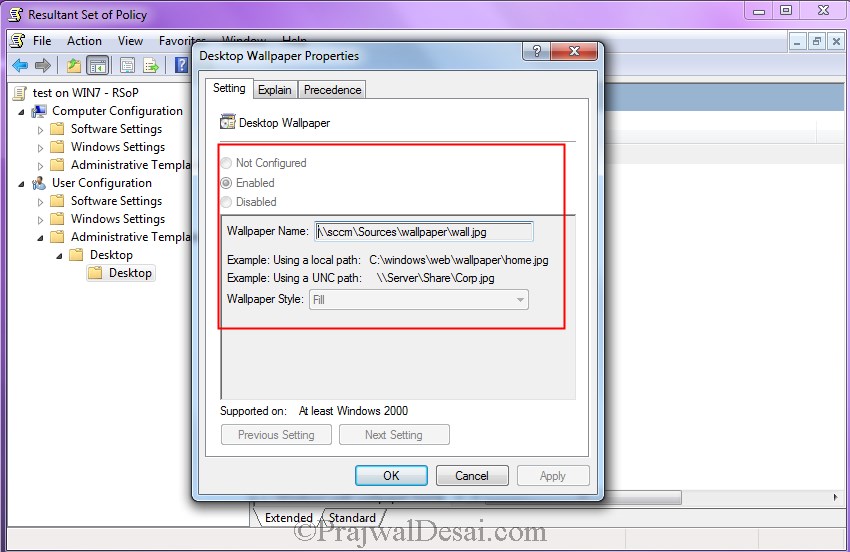
Crisp Using Group Policy To Install Software Landscape Photography
Immerse yourself in the stunning details of this beautiful using group policy to install software wallpaper, designed for a captivating visual experience.
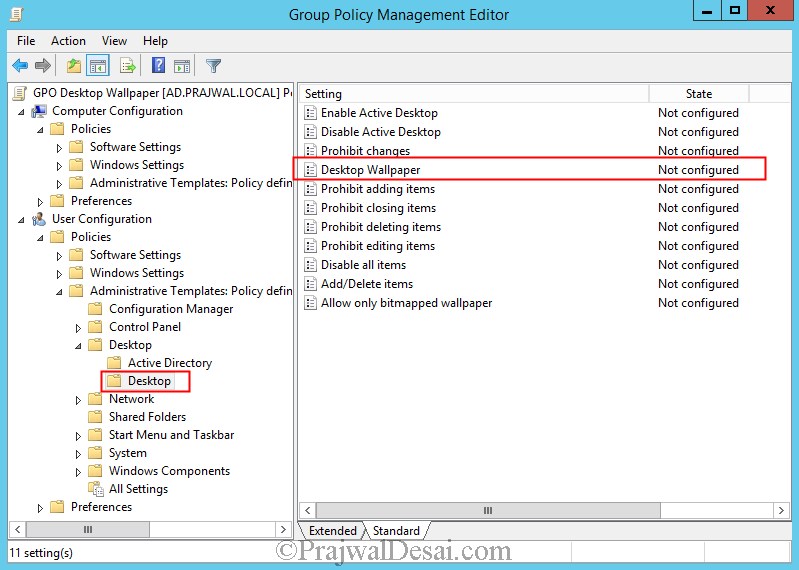
Breathtaking Using Group Policy To Install Software Picture Digital Art
Discover an amazing using group policy to install software background image, ideal for personalizing your devices with vibrant colors and intricate designs.
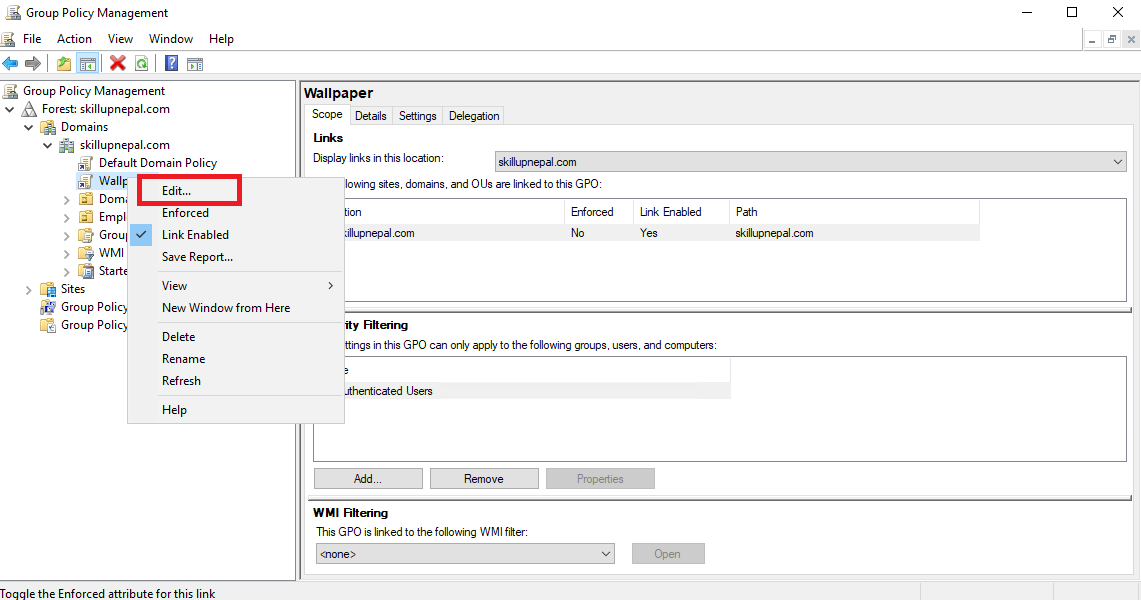
Serene Using Group Policy To Install Software Wallpaper Nature
Experience the crisp clarity of this stunning using group policy to install software image, available in high resolution for all your screens.

High-Quality Using Group Policy To Install Software Picture in HD
Explore this high-quality using group policy to install software image, perfect for enhancing your desktop or mobile wallpaper.
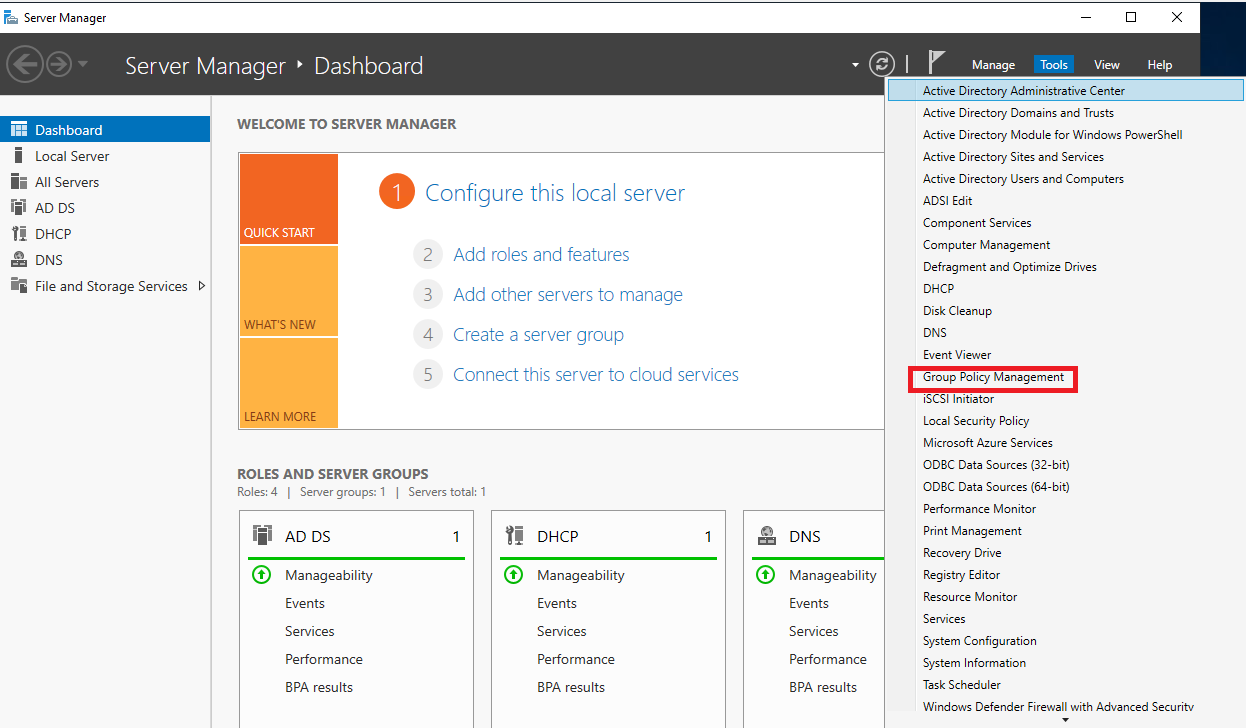
Spectacular Using Group Policy To Install Software Background for Mobile
Immerse yourself in the stunning details of this beautiful using group policy to install software wallpaper, designed for a captivating visual experience.

Artistic Using Group Policy To Install Software Image for Your Screen
Find inspiration with this unique using group policy to install software illustration, crafted to provide a fresh look for your background.

Stunning Using Group Policy To Install Software Picture Photography
Immerse yourself in the stunning details of this beautiful using group policy to install software wallpaper, designed for a captivating visual experience.
Amazing Using Group Policy To Install Software Scene in 4K
Experience the crisp clarity of this stunning using group policy to install software image, available in high resolution for all your screens.
Exquisite Using Group Policy To Install Software Abstract Art
This gorgeous using group policy to install software photo offers a breathtaking view, making it a perfect choice for your next wallpaper.

Captivating Using Group Policy To Install Software Capture Illustration
This gorgeous using group policy to install software photo offers a breathtaking view, making it a perfect choice for your next wallpaper.

Stunning Using Group Policy To Install Software Scene Art
Find inspiration with this unique using group policy to install software illustration, crafted to provide a fresh look for your background.
Dynamic Using Group Policy To Install Software Background for Mobile
Find inspiration with this unique using group policy to install software illustration, crafted to provide a fresh look for your background.
Vivid Using Group Policy To Install Software View Collection
Explore this high-quality using group policy to install software image, perfect for enhancing your desktop or mobile wallpaper.
Crisp Using Group Policy To Install Software Scene for Desktop
Find inspiration with this unique using group policy to install software illustration, crafted to provide a fresh look for your background.

Lush Using Group Policy To Install Software View for Desktop
Immerse yourself in the stunning details of this beautiful using group policy to install software wallpaper, designed for a captivating visual experience.
Stunning Using Group Policy To Install Software Moment Concept
A captivating using group policy to install software scene that brings tranquility and beauty to any device.

Exquisite Using Group Policy To Install Software Wallpaper for Your Screen
Find inspiration with this unique using group policy to install software illustration, crafted to provide a fresh look for your background.
Amazing Using Group Policy To Install Software Background for Desktop
Transform your screen with this vivid using group policy to install software artwork, a true masterpiece of digital design.
Lush Using Group Policy To Install Software Design Nature
Immerse yourself in the stunning details of this beautiful using group policy to install software wallpaper, designed for a captivating visual experience.
0 Response to "Using Group Policy To Install Software"
Post a Comment