How To Get Rid Of Green Screen In Photoshop
How To Get Rid Of Green Screen In Photoshop: The Ultimate Guide
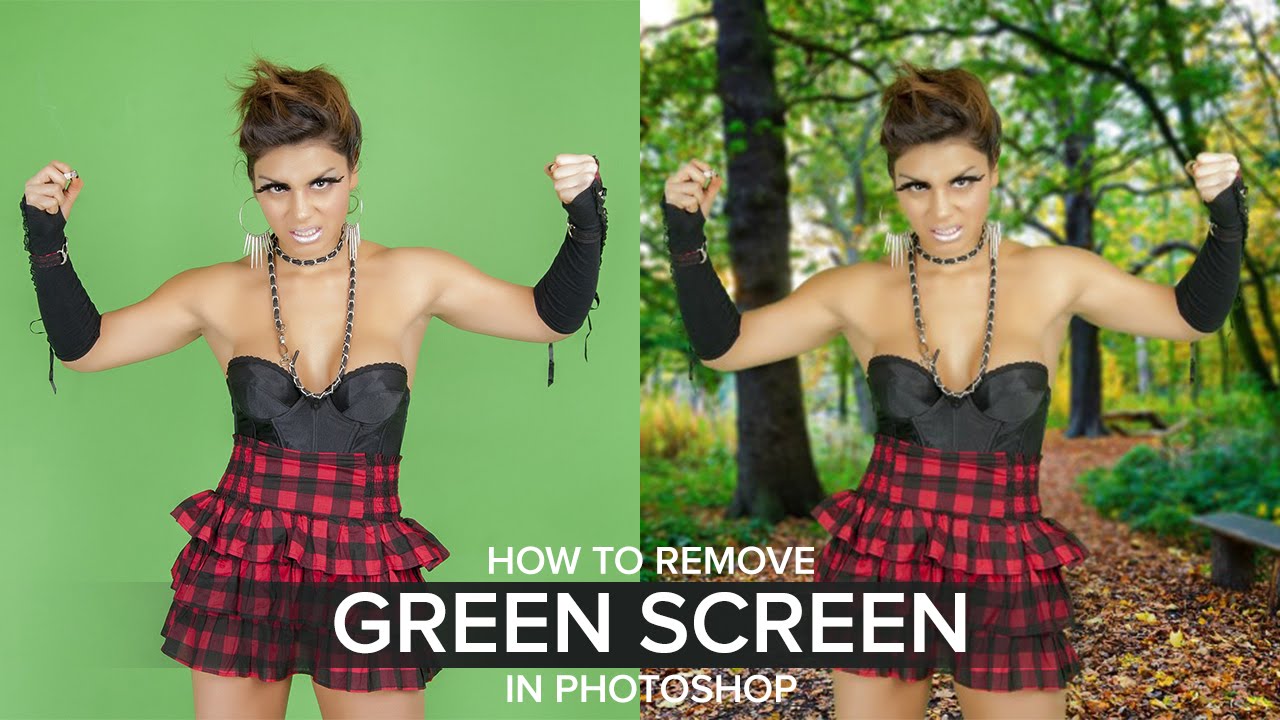
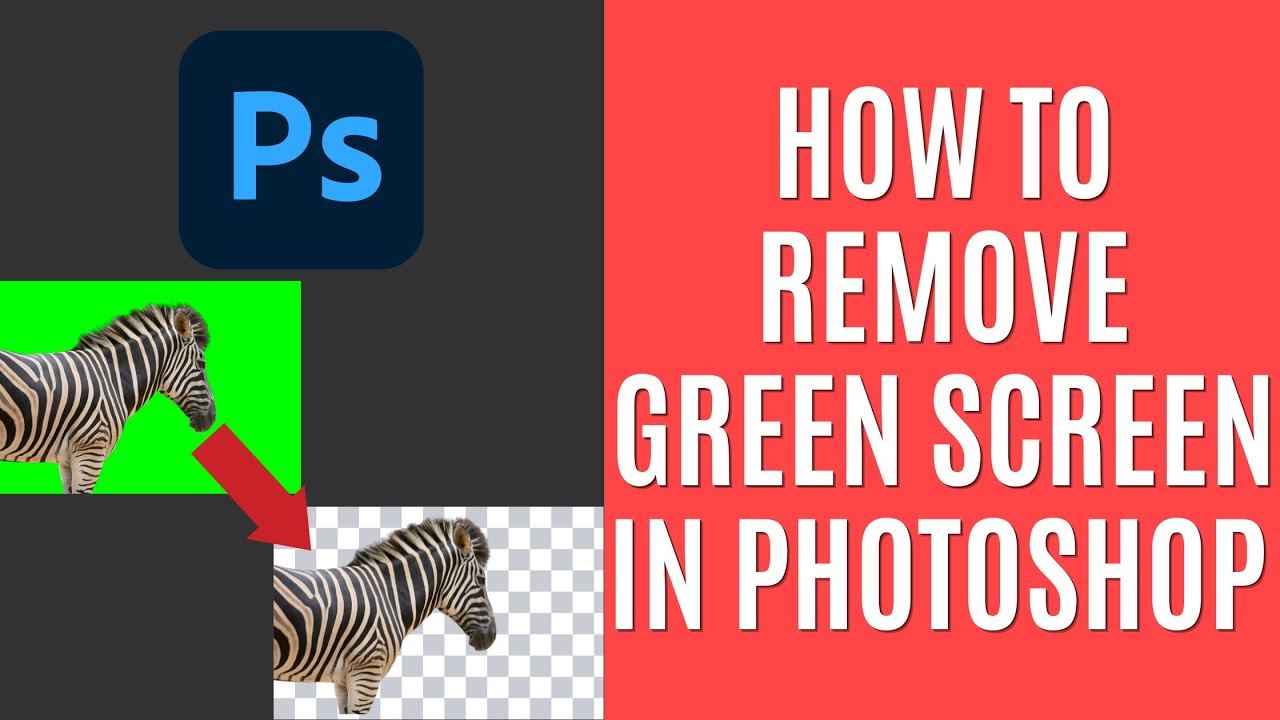
So, you've shot the perfect footage or snapped an amazing photo, but there's one pesky problem: that bright, distracting green screen lurking in the background. Don't worry! Removing a chroma key background is one of the most fundamental skills in digital compositing, and Photoshop offers several powerful tools to handle it.
Knowing how to get rid of green screen in Photoshop effectively separates the amateurs from the pros. While the Magic Wand might seem like an easy fix, truly clean edges often require a more sophisticated technique. In this ultimate guide, we will walk you through the quick solutions and the professional, detailed methods to achieve flawless results.
Get ready to master the art of masking and say goodbye to that unwanted neon glow!
Why Green Screens Are Amazing (And Why We Need To Remove Them)
Green screens (or blue screens) are indispensable in modern visual effects because they offer the maximum color contrast against human skin tones. This contrast allows software to easily identify and isolate the background color, making replacement straightforward.
However, successful removal hinges on two key factors: uniform lighting during the shoot and selecting the right tool in Photoshop. Poor lighting leads to color variation, which makes the job of getting rid of the green screen much harder.
We'll explore two primary workflows in Photoshop—one fast for simple subjects, and one detailed for complex edges like hair or fur.
Method 1: The Quick and Dirty Way (Magic Wand Tool)
If your subject is simple, clearly separated from the background, and the green screen lighting was perfectly even, the Magic Wand tool might just do the trick. This method is fast but often results in slightly rough edges.
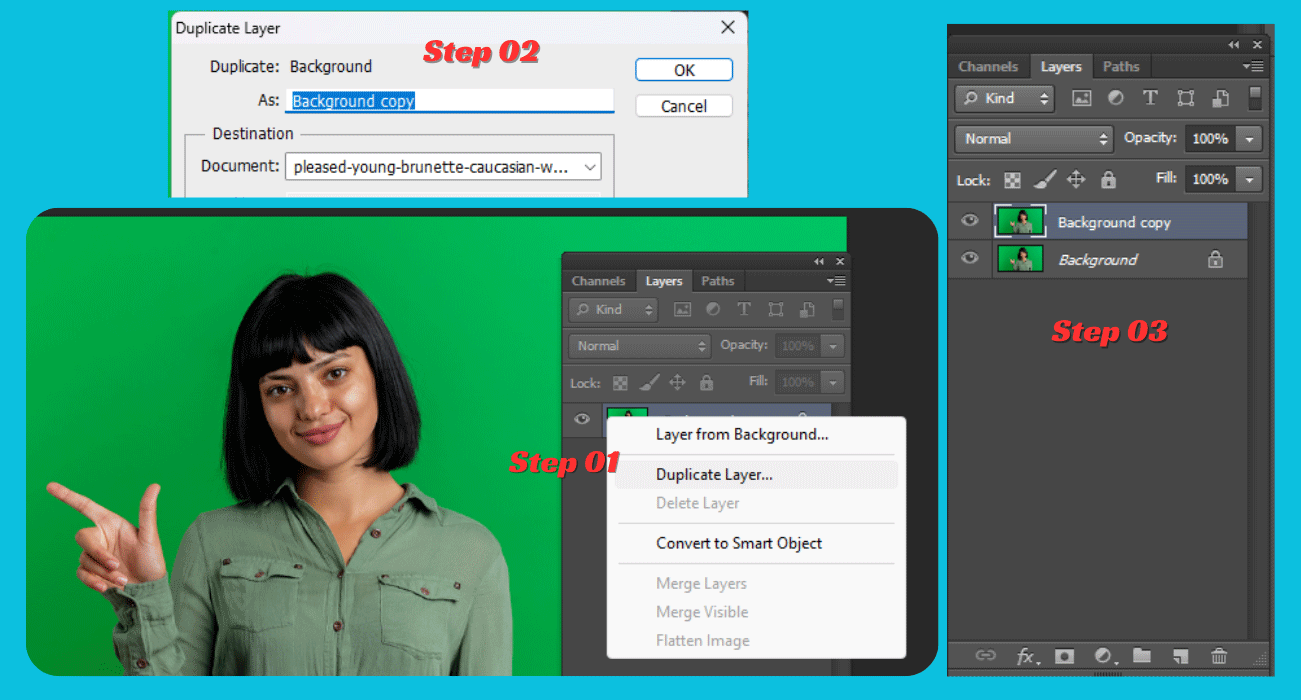
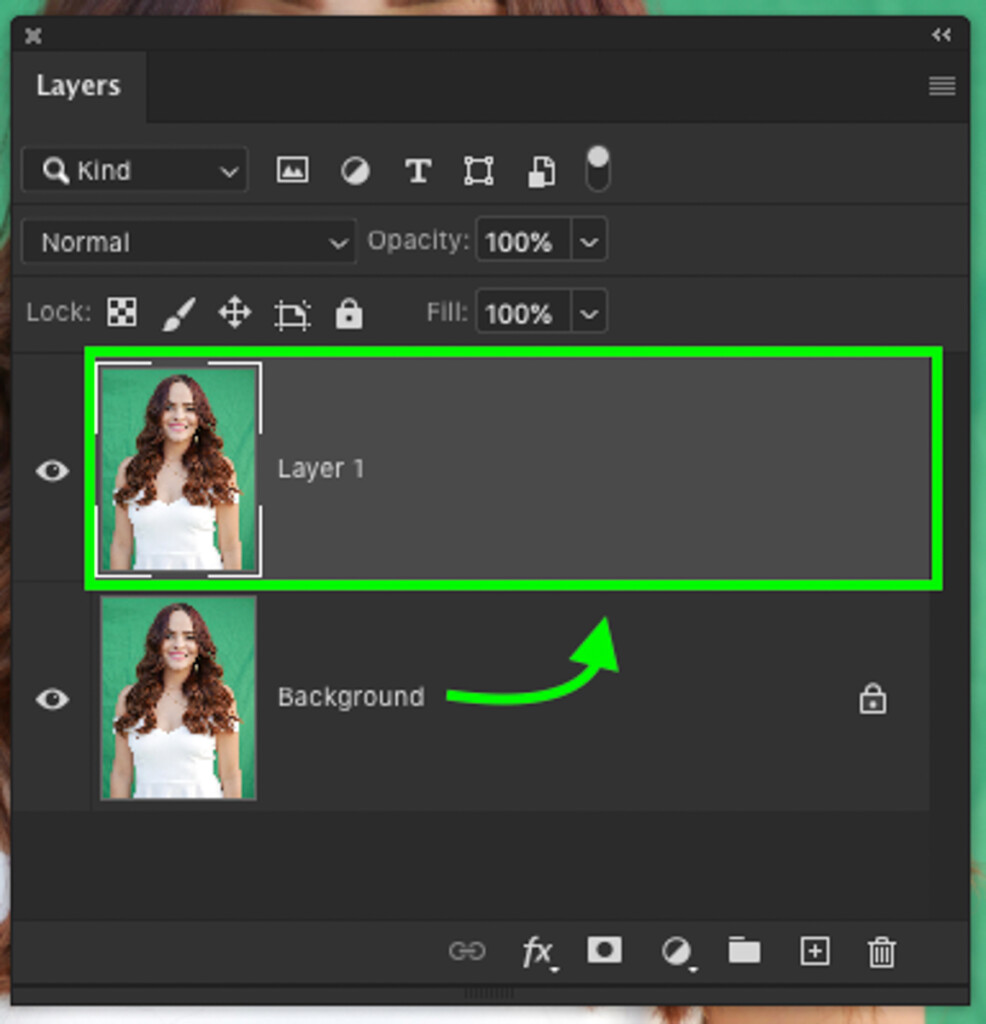
- Duplicate your background layer (Ctrl+J or Cmd+J) to work non-destructively.
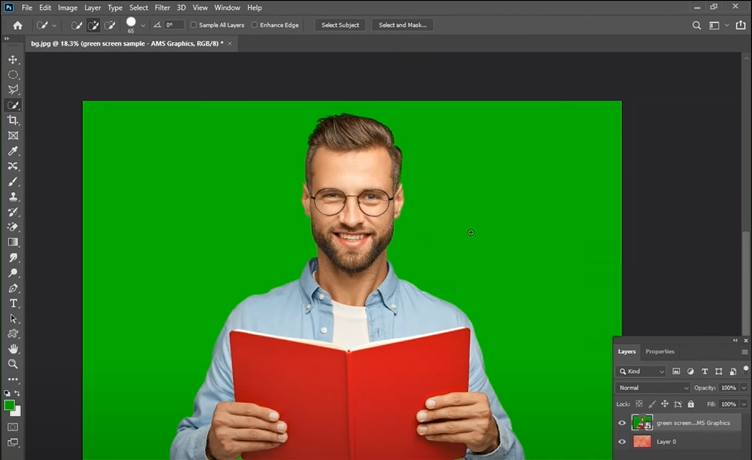
- Select the Magic Wand Tool (W). Set the Tolerance typically between 20 and 40, depending on the uniformity of the green.
- Click on the green background. If the background is large, hold Shift and click multiple areas to include all the green pixels.
- Once the selection is active, press Delete. This removes the green background instantly.
- To prevent hard edges, go to Select > Modify > Smooth or Feather, applying a 1-3 pixel radius before deleting the background.
While this is the fastest way to learn how to get rid of green screen in Photoshop, it rarely produces professional results, especially when dealing with fine details.
When The Magic Wand Fails: Introducing Select and Mask
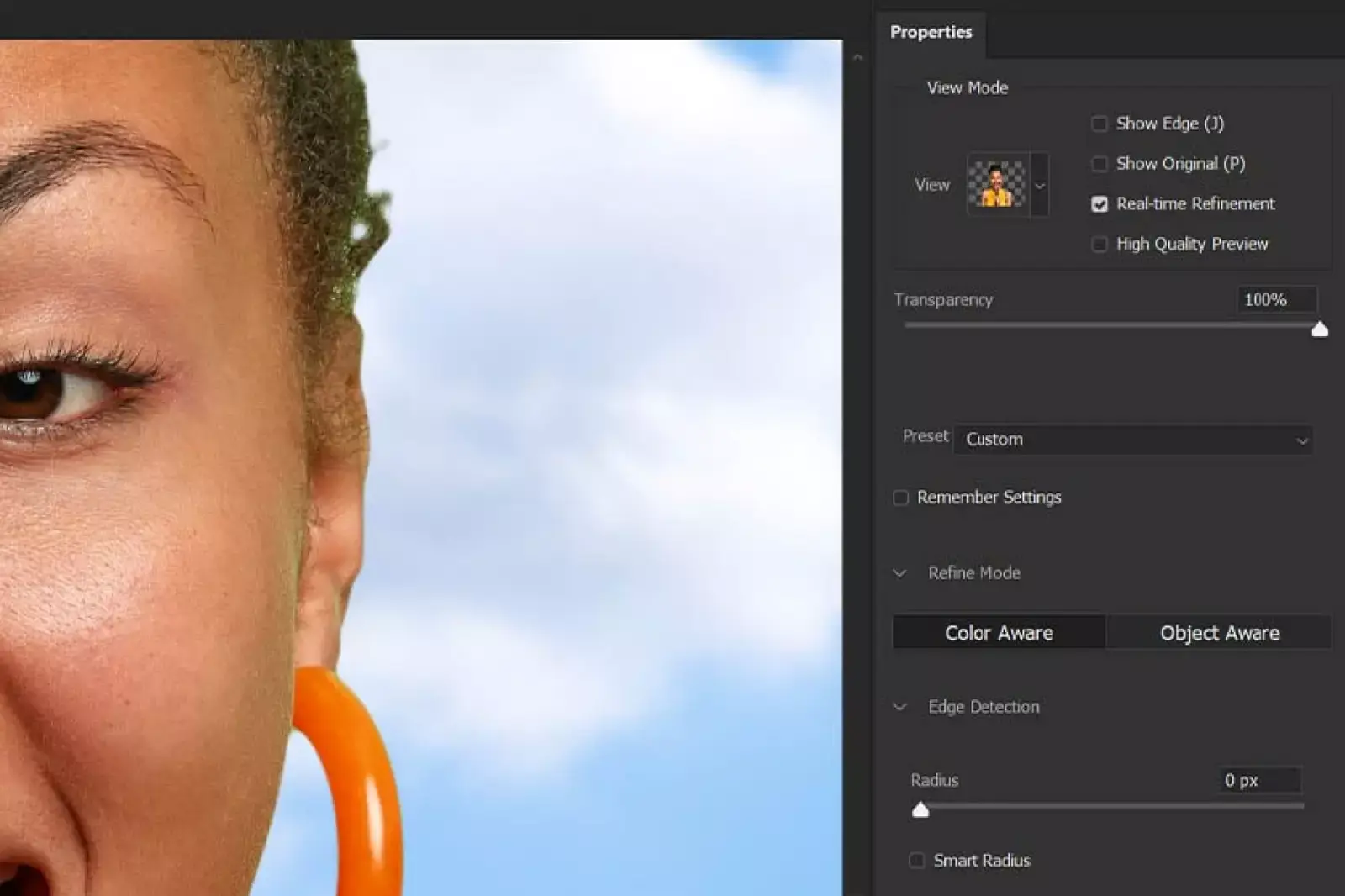
For most real-world green screen situations, especially those involving flyaway hair or semi-transparent areas, you need the Select and Mask workspace. This feature allows for detailed edge refinement after an initial selection has been made.
After making your initial selection (using the Quick Selection tool or Magic Wand), click the "Select and Mask" button in the options bar.
- View Mode: Set the view mode to "On Layers" or "Overlay" to easily see the mask against your subject.
- Refine Edge Brush Tool: Use this brush around the edges of the hair or any other intricate areas. Photoshop analyzes the contrast and intelligently includes those tricky wisps.
- Global Refinements: Adjust the Feather (softens the edge) and the Shift Edge slider (moves the boundary inward or outward) to clean up the halo effect around the subject.
Method 2: The Professional Approach (Color Range and Channels)
When you need a pristine, production-ready cutout, relying on the Color Range tool followed by a Channel mask is often the best solution. This method gives you maximum control over the mask density.
Using Color Range for Initial Selection
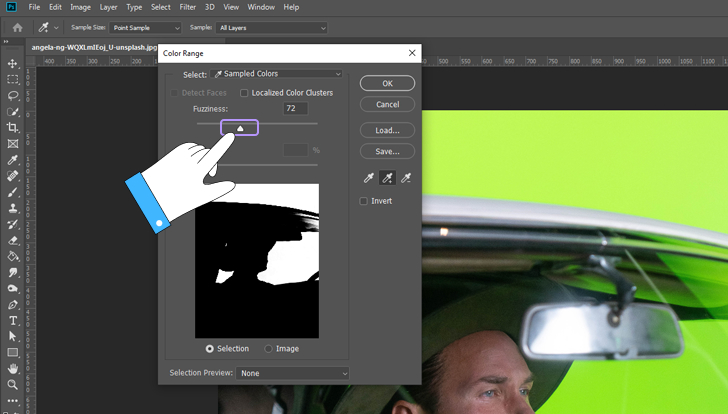
The Color Range command is excellent for targeting specific colors across the entire image, which is exactly what we need when we need to get rid of green screen in Photoshop.
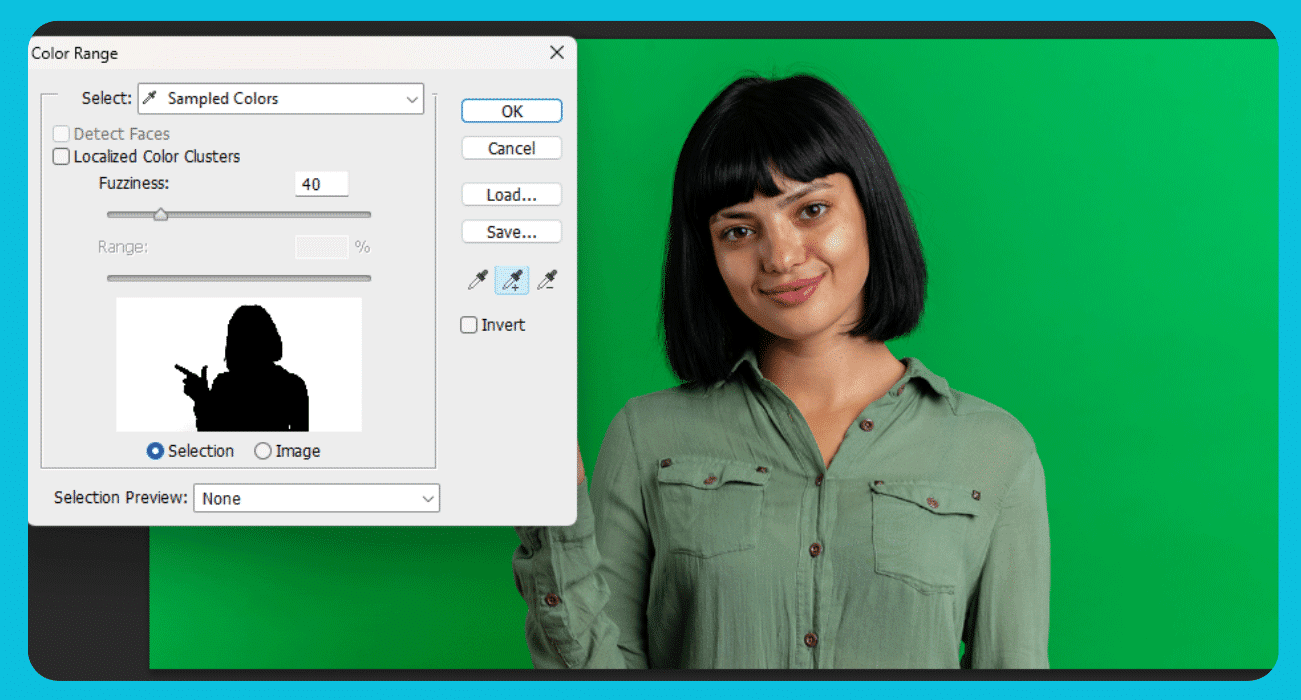
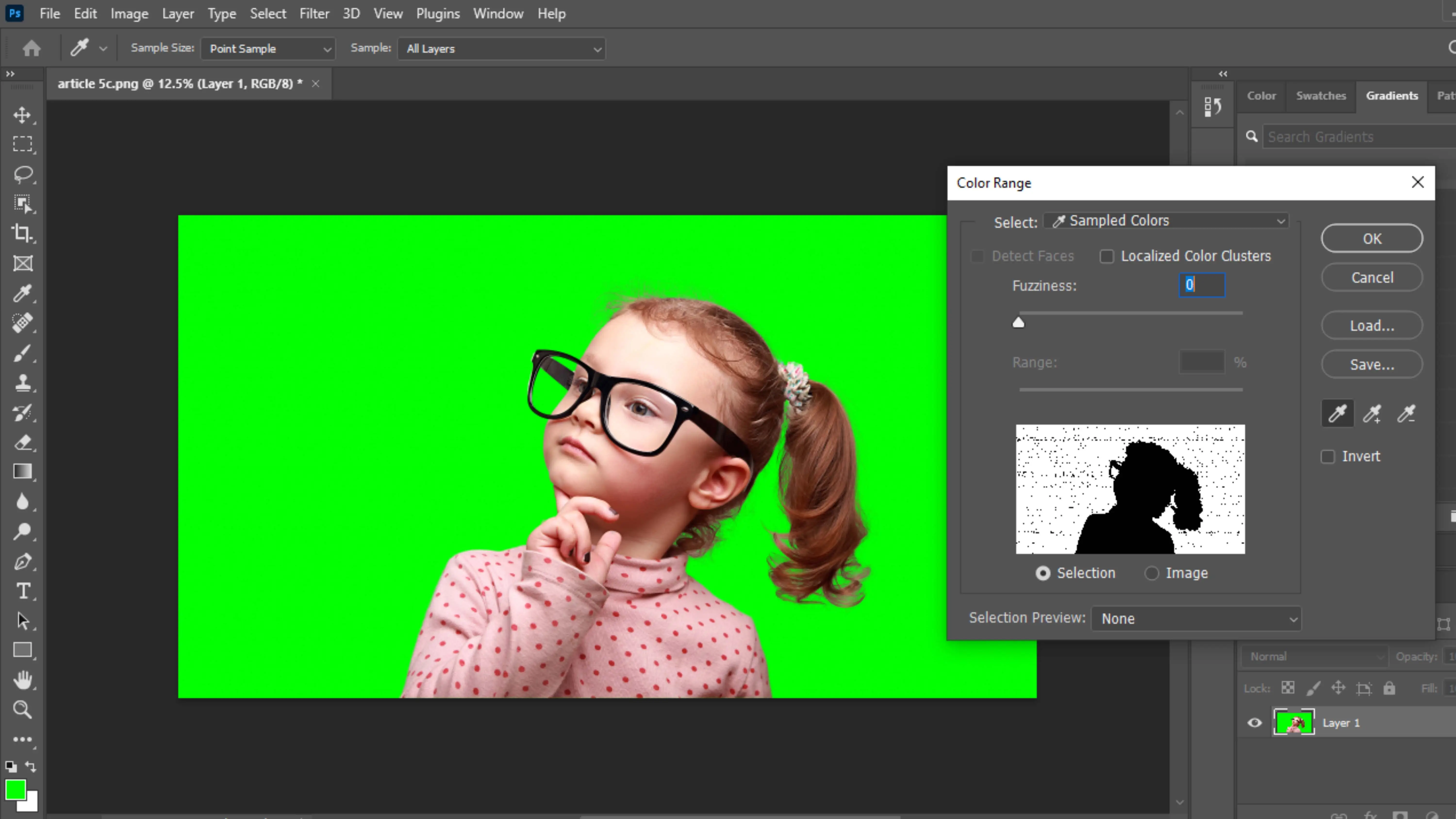
- Go to Select > Color Range.
- In the dropdown menu, select "Sampled Colors."
- Click the eyedropper tool and click on the brightest green part of your background.
- Hold the Shift key and click on a few other shades of green to ensure full coverage.
- Adjust the Fuzziness slider to control how much Photoshop includes neighboring shades. Watch the preview window: white should be the green background you want to remove, and black should be your subject.
- Click OK. This creates an initial selection of the green background.
This selection is generally good, but the edges can still be messy. This is where the powerful Channels panel comes in handy.
Refining Edges with Channels (The Secret Weapon)
Channels analyze the contrast in your image based on color components (Red, Green, Blue). For a green screen removal, we look for the channel that offers the most contrast between the subject (dark) and the screen (light).
- Navigate to the Channels panel (Window > Channels).
- Cycle through the Red, Green, and Blue channels. For a green screen, the Blue channel or Red channel often provides the best contrast.
- Drag the channel that offers the most contrast onto the "New Channel" icon (a square with a plus sign) at the bottom of the panel to duplicate it.
- With the duplicated channel active, press Ctrl/Cmd + L to open Levels.
- Adjust the black and white sliders drastically. You want to make the subject solid black and the background solid white. Push the sliders hard to ensure maximum contrast, especially along the edges of the subject.
- Hold Ctrl/Cmd and click on the duplicated channel thumbnail. This loads the high-contrast channel as a selection.
- Return to the Layers panel, select your main image layer, and click the "Add Layer Mask" icon. You now have an incredibly detailed mask!
Dealing with Green Spill (The Last Step)
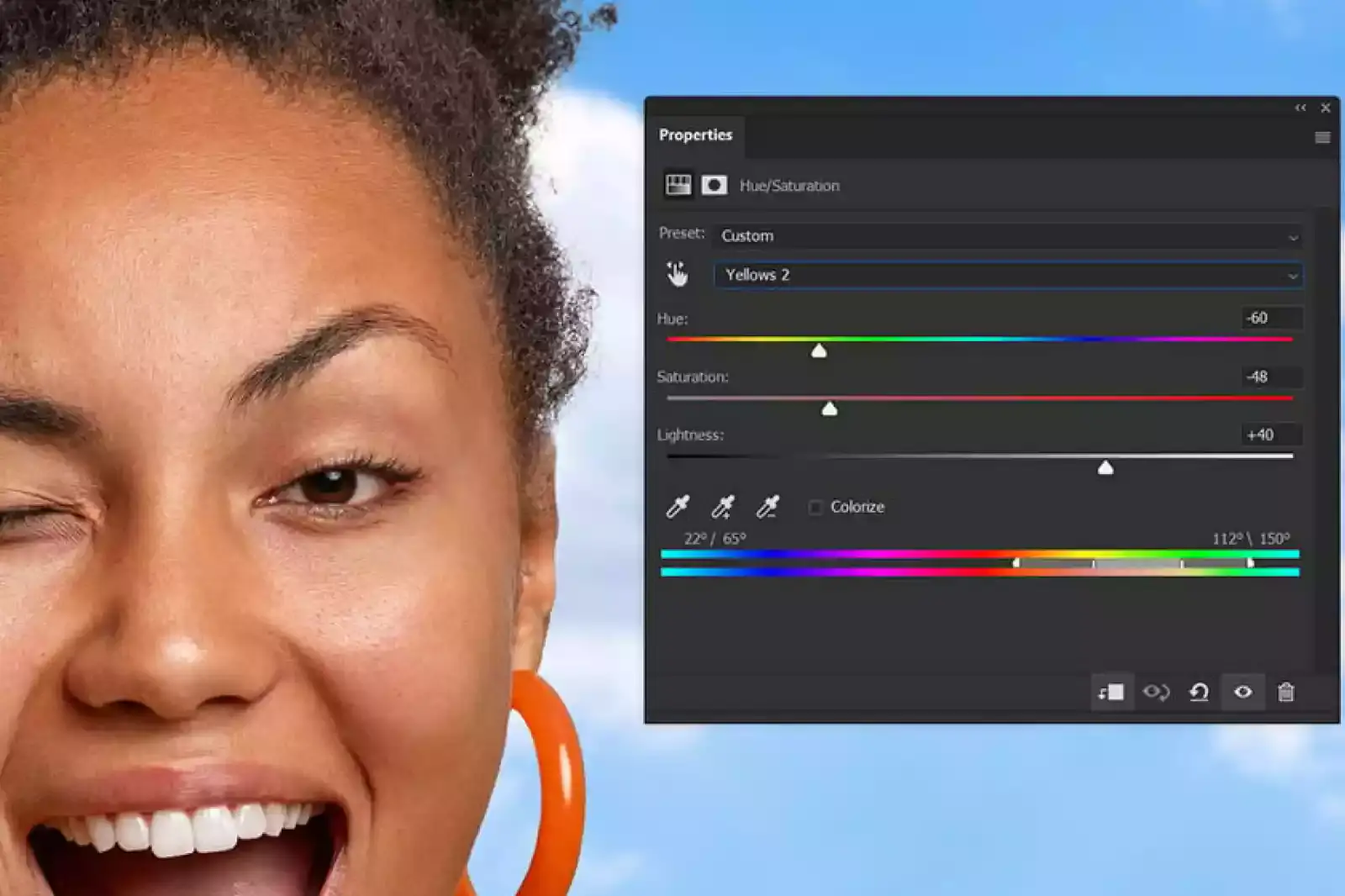
Even with a perfect mask, you might notice a faint green halo or residue around your subject, especially in highlights or hair. This is called "green spill" (or color spill), and it needs to be neutralized.
The easiest fix is to use the Decontaminate Colors setting within the Select and Mask workspace. If you didn't use Select and Mask, you can use Hue/Saturation:
- Add a new Hue/Saturation adjustment layer above your image layer.
- Clip this adjustment layer to your subject (Alt/Option + click between the layers).
- In the properties panel, change the Master dropdown to "Greens."
- Lower the Saturation slider for the Greens heavily, perhaps all the way to -100. This removes the unwanted color tint without affecting the rest of the image.
This final step is crucial for achieving a seamlessly integrated composite image. Once the spill is gone, you have successfully learned how to get rid of green screen in Photoshop like a seasoned professional.
Conclusion
Removing a green screen background doesn't have to be a headache. Whether you opt for the speedy Magic Wand method for quick fixes or commit to the precision of the Color Range and Channels technique, Photoshop gives you the tools necessary to create clean, professional masks.
Remember, the goal is always a contrasty mask—black where you want the background removed, and white where you want your subject to remain. Practice using the Select and Mask features, specifically the Refine Edge Brush, and don't forget that critical final step of eliminating green spill. Mastering these techniques ensures your final composite looks realistic and polished.
Now go forth and put your subjects into any fantastical background you can imagine!
Frequently Asked Questions (FAQ)
- What is the difference between chroma key and green screen?
- Chroma key is the technique used to combine two images based on color hues, typically using a specific background color. "Green screen" is simply the common term for the colored backdrop itself (the most common color used for chroma keying).
- Why is my green screen removal leaving a halo?
- A halo, or "edge fringing," happens when your selection doesn't perfectly cut off the green pixels at the edge of the subject. This is usually fixed using the Shift Edge slider (to move the mask inward) and the Decontaminate Colors option within the Select and Mask workspace.
- Can I use the Background Eraser Tool to get rid of green screen in Photoshop?
- While you can use the Background Eraser Tool, it is a destructive edit and offers less control than layer masks. It might work for very simple edges but is not recommended for complex details like hair or translucent materials.
- Should I use the Green channel or the Blue channel when using the Channels method?
- When working with a green screen, you usually want to avoid the Green channel as it will render the green background too bright (white). The Red or Blue channel generally provides the most difference (contrast) between the subject and the green background, making it easier to create a clean black and white mask.
How To Get Rid Of Green Screen In Photoshop
How To Get Rid Of Green Screen In Photoshop Wallpapers
Collection of how to get rid of green screen in photoshop wallpapers for your desktop and mobile devices.
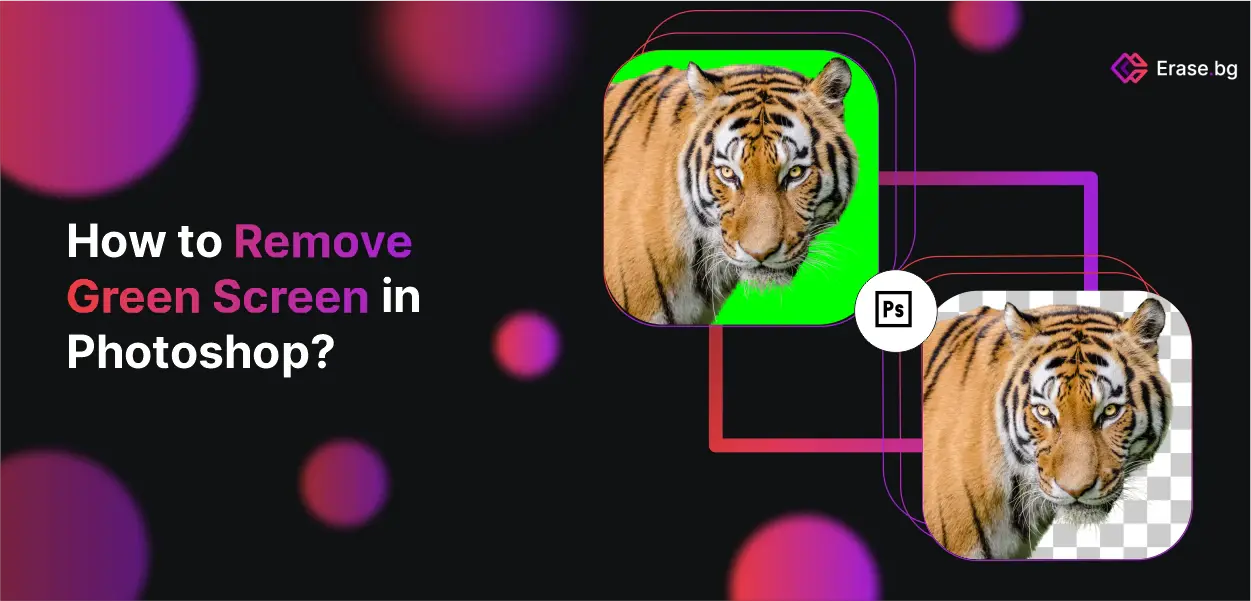
Amazing How To Get Rid Of Green Screen In Photoshop Capture Digital Art
Transform your screen with this vivid how to get rid of green screen in photoshop artwork, a true masterpiece of digital design.
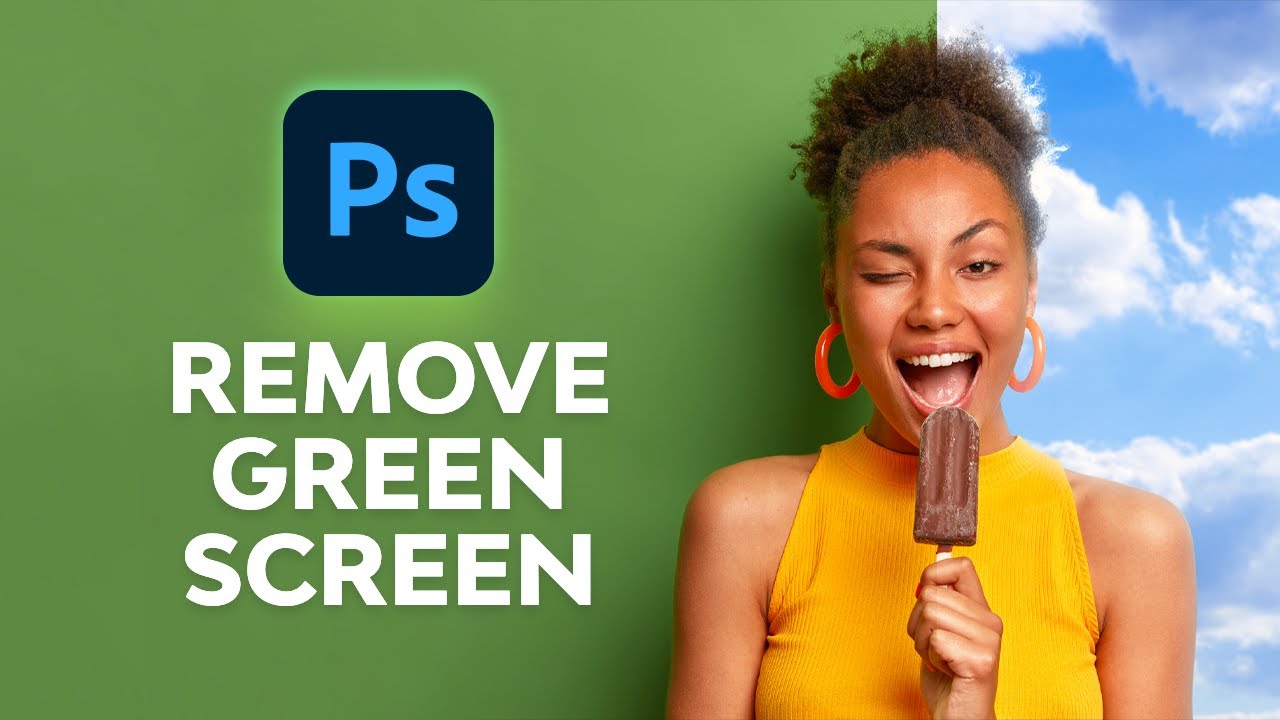
Captivating How To Get Rid Of Green Screen In Photoshop Capture Illustration
A captivating how to get rid of green screen in photoshop scene that brings tranquility and beauty to any device.
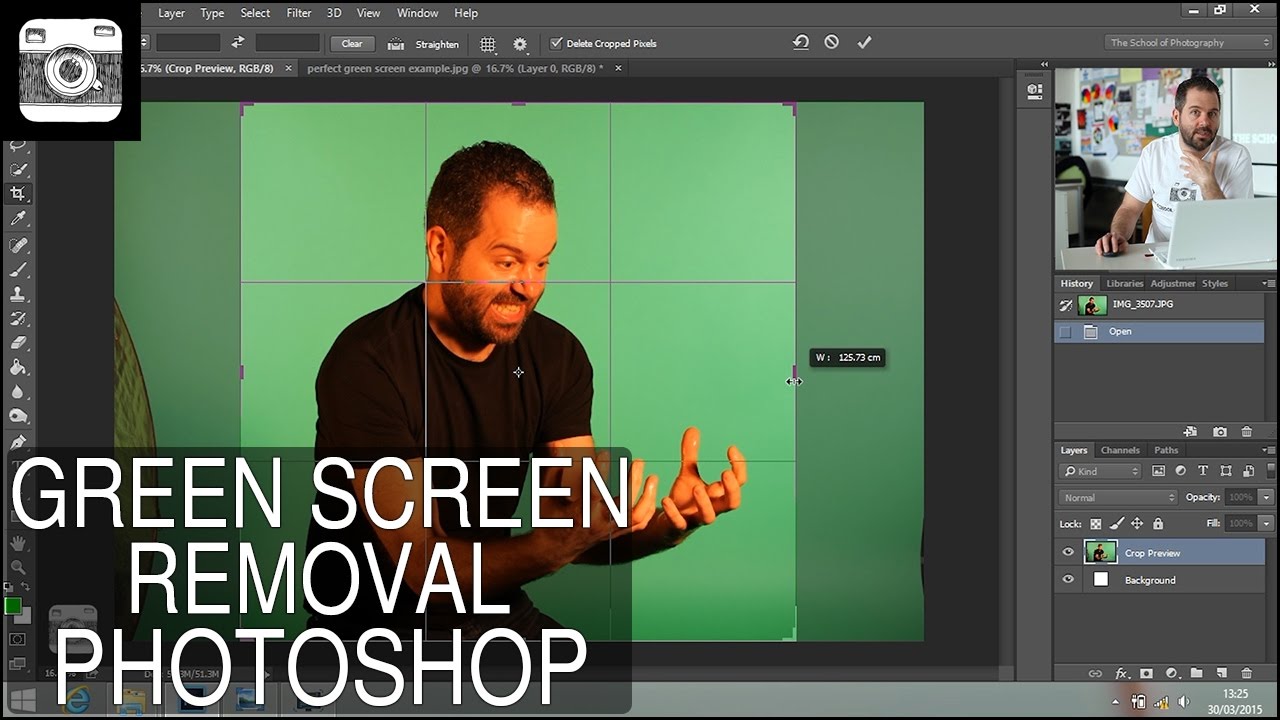
Mesmerizing How To Get Rid Of Green Screen In Photoshop Moment Digital Art
Transform your screen with this vivid how to get rid of green screen in photoshop artwork, a true masterpiece of digital design.
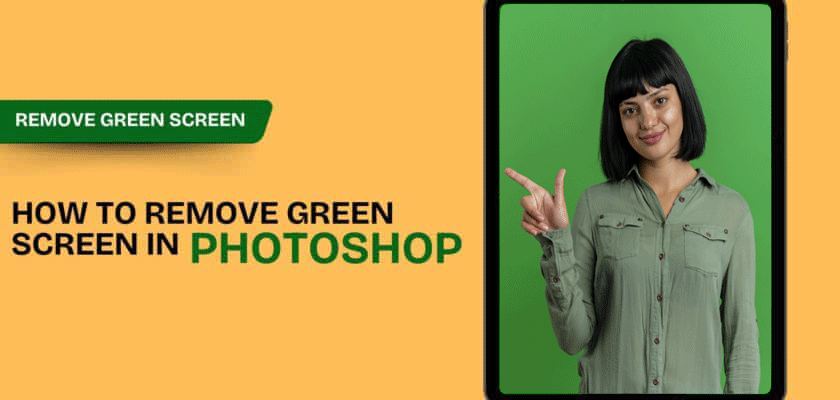
Dynamic How To Get Rid Of Green Screen In Photoshop Wallpaper Digital Art
This gorgeous how to get rid of green screen in photoshop photo offers a breathtaking view, making it a perfect choice for your next wallpaper.
Captivating How To Get Rid Of Green Screen In Photoshop Abstract for Your Screen
A captivating how to get rid of green screen in photoshop scene that brings tranquility and beauty to any device.
Beautiful How To Get Rid Of Green Screen In Photoshop Design Collection
Experience the crisp clarity of this stunning how to get rid of green screen in photoshop image, available in high resolution for all your screens.
Crisp How To Get Rid Of Green Screen In Photoshop Design for Desktop
Immerse yourself in the stunning details of this beautiful how to get rid of green screen in photoshop wallpaper, designed for a captivating visual experience.
Gorgeous How To Get Rid Of Green Screen In Photoshop Scene in 4K
Find inspiration with this unique how to get rid of green screen in photoshop illustration, crafted to provide a fresh look for your background.
Detailed How To Get Rid Of Green Screen In Photoshop Abstract for Your Screen
Experience the crisp clarity of this stunning how to get rid of green screen in photoshop image, available in high resolution for all your screens.
Gorgeous How To Get Rid Of Green Screen In Photoshop Artwork for Your Screen
A captivating how to get rid of green screen in photoshop scene that brings tranquility and beauty to any device.
Vivid How To Get Rid Of Green Screen In Photoshop View Nature
Discover an amazing how to get rid of green screen in photoshop background image, ideal for personalizing your devices with vibrant colors and intricate designs.
Lush How To Get Rid Of Green Screen In Photoshop Photo for Your Screen
A captivating how to get rid of green screen in photoshop scene that brings tranquility and beauty to any device.
Crisp How To Get Rid Of Green Screen In Photoshop Picture for Mobile
Immerse yourself in the stunning details of this beautiful how to get rid of green screen in photoshop wallpaper, designed for a captivating visual experience.

Captivating How To Get Rid Of Green Screen In Photoshop Abstract in 4K
Immerse yourself in the stunning details of this beautiful how to get rid of green screen in photoshop wallpaper, designed for a captivating visual experience.
Dynamic How To Get Rid Of Green Screen In Photoshop Photo Concept
Immerse yourself in the stunning details of this beautiful how to get rid of green screen in photoshop wallpaper, designed for a captivating visual experience.
Gorgeous How To Get Rid Of Green Screen In Photoshop Picture for Your Screen
A captivating how to get rid of green screen in photoshop scene that brings tranquility and beauty to any device.
Vivid How To Get Rid Of Green Screen In Photoshop Capture for Your Screen
Explore this high-quality how to get rid of green screen in photoshop image, perfect for enhancing your desktop or mobile wallpaper.

Vibrant How To Get Rid Of Green Screen In Photoshop Artwork Illustration
Explore this high-quality how to get rid of green screen in photoshop image, perfect for enhancing your desktop or mobile wallpaper.
Detailed How To Get Rid Of Green Screen In Photoshop View in 4K
Experience the crisp clarity of this stunning how to get rid of green screen in photoshop image, available in high resolution for all your screens.
Exquisite How To Get Rid Of Green Screen In Photoshop Landscape Art
A captivating how to get rid of green screen in photoshop scene that brings tranquility and beauty to any device.
Download these how to get rid of green screen in photoshop wallpapers for free and use them on your desktop or mobile devices.